Hi @Brent Schumer,
Thank you for posting your question in the Microsoft Q&A forum.
I would like to provide you with the following information:
By default, when you add a column in PowerPoint, the new column is created within a table that has a fixed size. In this case, I recommend using the Split Cells feature to add an additional column without affecting the other columns.
Please follow the steps below:
Step 1: Select the outermost cell at the position where you want to add a column.

Step 2: Resize that cell to double its original width.
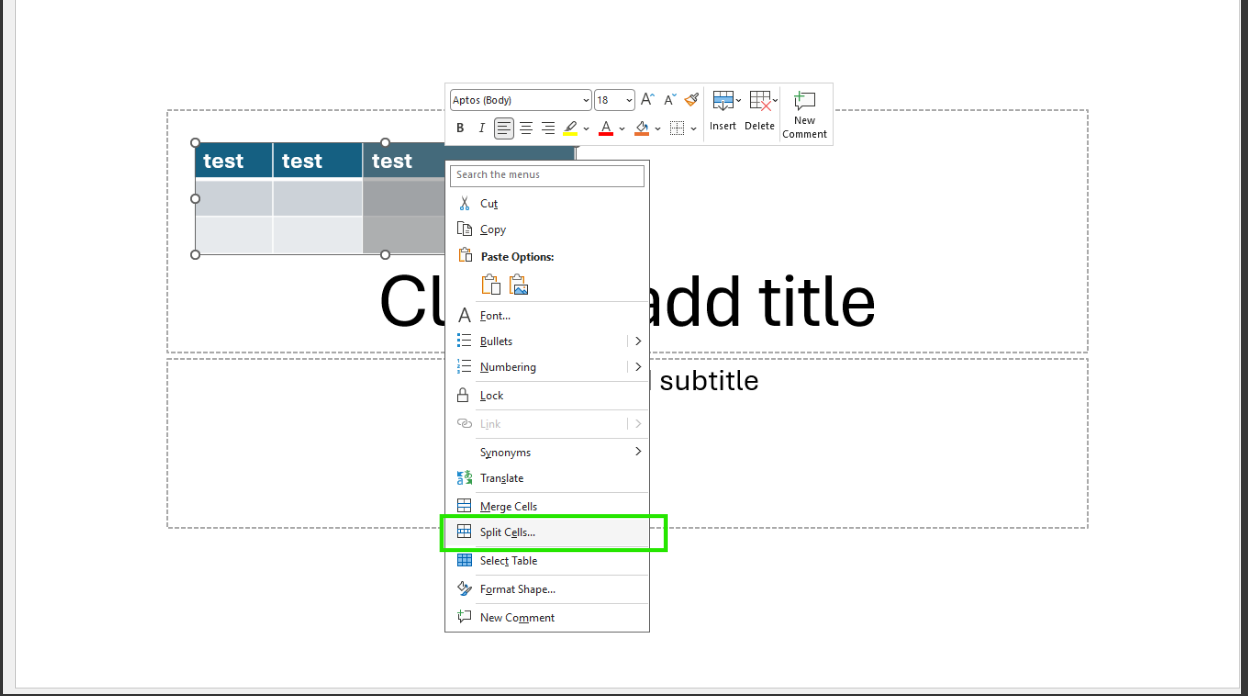
Step 3: In PowerPoint, select the entire column, then right‑click and choose Split Cells.
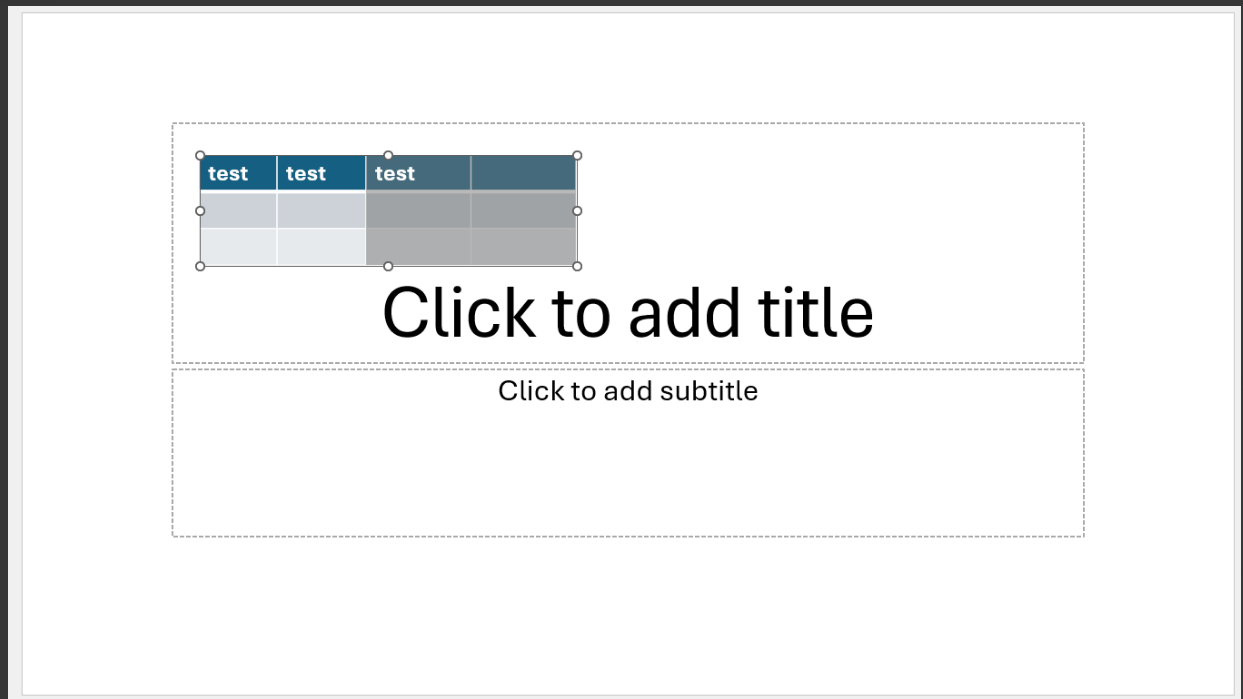
For Outlook, based on my test environment, inserting a column does not affect the original table that was created.
The behavior where creating a new column affects the table size in Outlook only occurs when the newly created column exceeds the maximum width allowed for an email in Outlook.
I hope this information is helpful. Please follow these steps and let me know if it works for you. If not, we can work together to resolve this.
Thank you for your patience and your understanding. If you have any questions or need further assistance, please feel free to share them in the comments on this post so I can continue to support you.
I look forward to continuing the conversation.
If the answer is helpful, please click "Accept Answer" and kindly upvote it. If you have extra questions about this answer, please click "Comment".
Note: Please follow the steps in our documentation to enable e-mail notifications if you want to receive the related email notification for this thread.
' cx='32' cy='32' r='32' /%3E%3Ctext x='50%25' y='55%25' dominant-baseline='middle' text-anchor='middle' fill='%23FFF' %3EBS%3C/text%3E%3C/svg%3E)

' cx='32' cy='32' r='32' /%3E%3Ctext x='50%25' y='55%25' dominant-baseline='middle' text-anchor='middle' fill='%23FFF' %3ERN%3C/text%3E%3C/svg%3E)
