Note
Access to this page requires authorization. You can try signing in or changing directories.
Access to this page requires authorization. You can try changing directories.
The Azure MCP Server uses the Model Context Protocol (MCP) to standardize integrations between AI apps and external tools and data sources, allowing for AI systems to perform operations that are context-aware of your Azure resources.
In this article, you learn how to complete the following tasks:
- Install and authenticate to the Azure MCP Server
- Connect to Azure MCP Server by using Google Antigravity's agent-first development environment
- Run prompts to test Azure MCP Server operations and interact with Azure resources
Prerequisites
- An Azure account with an active subscription
- Google Antigravity installed
- Node.js LTS installed
Install the Azure MCP Server
To install and configure the Azure MCP Server in Google Antigravity:
In the editor's agent side panel, select ... > MCP Servers > Manage MCP Servers.
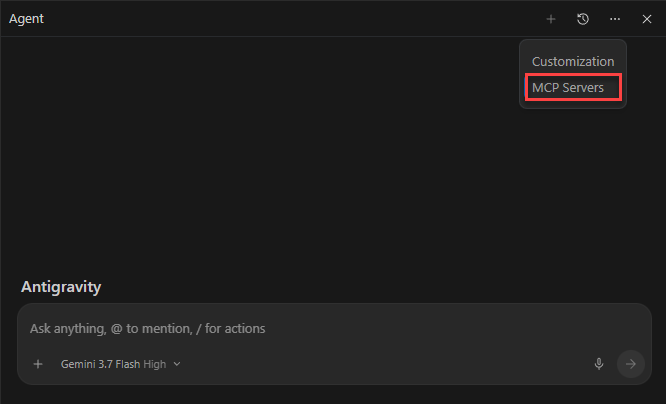
On Manage MCPs, select View raw config to open the
mcp_config.jsonfile for editing.Antigravity reads MCP server configuration from one of the following locations:
~/.gemini/config/mcp_config.jsonto configure the server globally for all workspaces..agents/mcp_config.jsonto configure the server for the current workspace only.
Add the following configuration to the
mcpServersobject in themcp_config.jsonfile:{ "mcpServers": { "azure-mcp": { "command": "npx", "args": [ "-y", "@azure/mcp@latest", "server", "start" ] } } }For more information, see the Google Antigravity MCP documentation.
Authenticate to Azure
Azure MCP Server provides a seamless authentication experience using Azure accounts and Microsoft Entra ID. To use Azure MCP Server, first authenticate to Azure by using local development tools such as the Azure CLI, Azure Developer CLI, Visual Studio, or Visual Studio Code. Azure MCP Server automatically discovers your credentials from these tools and uses them to authenticate to Azure services.
For example, to sign in using the Azure CLI:
az loginVerify your authentication status by running the following command to see which account and subscription you're currently signed in with:
az account showEnsure your user account has the appropriate role assignments for the Azure services you want to interact with. The Azure resources you intend to access by using Azure MCP Server must already exist within your Azure subscription. For example, common role assignments include:
- Blob Storage Data Contributor - Read and write blob data in storage accounts.
- Storage Account Contributor - Manage storage account configurations.
- Contributor - General resource management across your subscription.
- Reader - Read-only access to Azure resources.
For more information about role assignments and local development authentication, see Authenticate .NET apps to Azure services during local development.
Use prompts to test the Azure MCP Server
Open the agent side panel in Google Antigravity.
Enter a prompt that uses Azure MCP Server capabilities, such as:
List my Azure storage accountsIf you're prompted to authenticate to Azure, run the suggested auth tool to sign in through the browser.
Note
Antigravity doesn't prompt you to sign in to Azure if you're already authenticated through other local tooling such as the Azure CLI.
Antigravity prompts you for permission to run one or more Azure MCP Server tools to retrieve the storage accounts, such as
storage account list. Select your desired allow action to continue.The output resembles the following text:
The following storage accounts are available in your subscription:

1. **sttesting001** (Resource group: `rg-testing`, Location: `centralus`)
2. **stazddeploy** (Resource group: `rg-azd`, Location: `eastus2`)
3. **stmsdocssample** (Resource group: `msdocs-sample`, Location: `southcentralus`)
4. **staitesting** (Resource group: `ai-testing`, Location: `eastus2`)

Let me know if you need further details or actions related to any of these storage accounts!
Explore more Azure MCP operations by using other relevant prompts, such as:
List all of the storage accounts in my subscription
Get the available tables in my storage accounts
Show me the configuration of my App Service instances