Note
Access to this page requires authorization. You can try signing in or changing directories.
Access to this page requires authorization. You can try changing directories.
With Microsoft Discovery, you can create agents in two different ways. Use Microsoft Discovery for team collaboration, and use the Discovery app for individual experimentation. (The Discovery app is a local experience built on GitHub Copilot.)
You can author prompt agents through the Discovery Studio UI, copy them from other projects, or start locally in the Discovery app before promoting them to Microsoft Discovery.
This article walks you through each authoring method. Choose the approach that best fits your workflow and team needs.
Prerequisites
An active Azure subscription.
A deployed Microsoft Discovery workspace with at least one project. For setup instructions, see Get started with Microsoft Discovery infrastructure.
A chat model deployment configured at the workspace level. For details, see Create a chat model deployment.
Create a prompt agent in Discovery Studio
A prompt agent is a declaratively defined agent that combines model configuration, instructions, tools, and natural language prompts to drive behavior. You can configure a prompt agent with knowledge bases for retrieval-augmented grounding. You can attach tools, such as the Microsoft discovery tool, the code interpreter, or model context protocol tools. Use the form-based experience in Discovery Studio to create one.
Sign in to Microsoft Discovery Studio.
Select the Projects tab in the left pane and open your project.
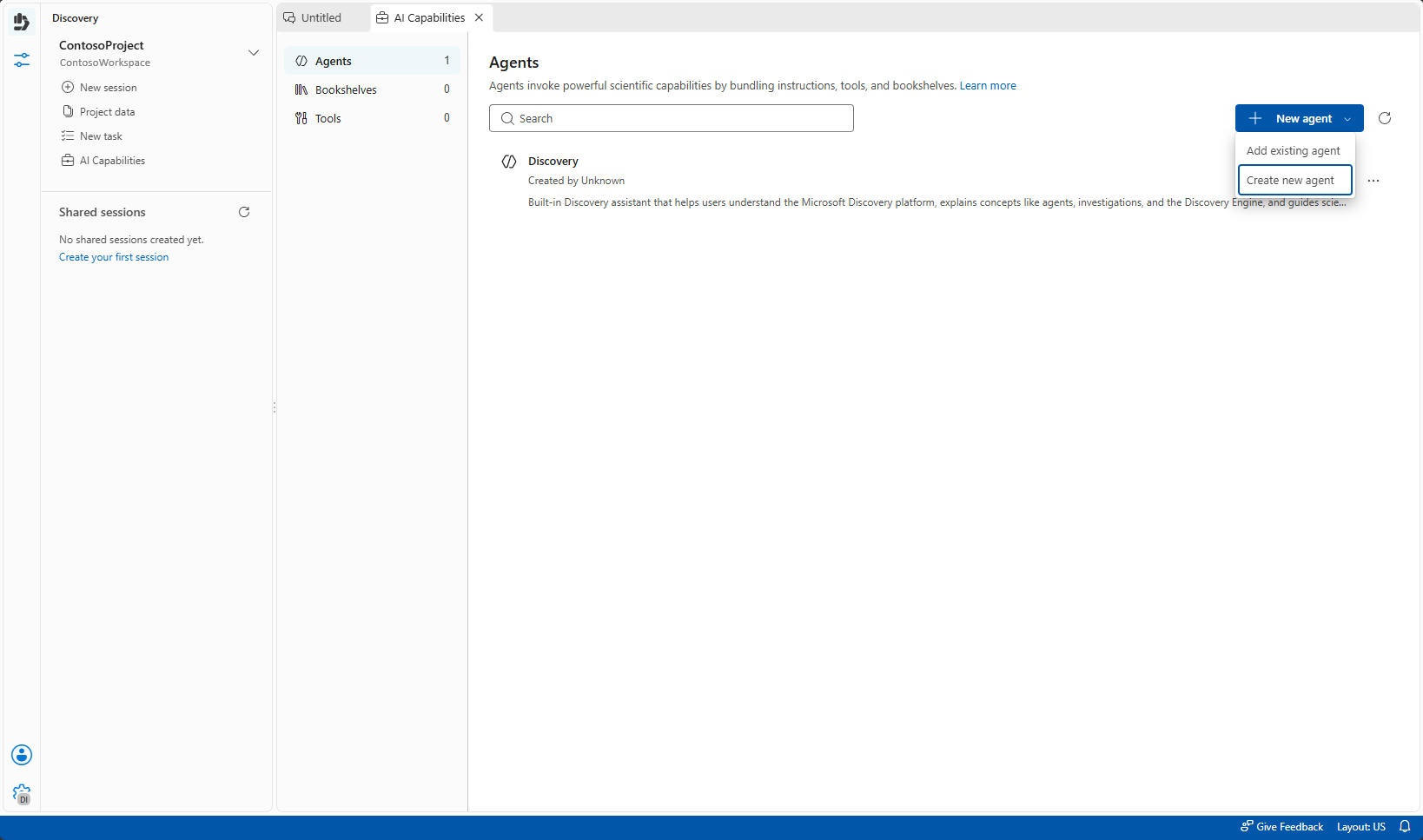
In the Discovery tab, select AI Capabilities. In the AI Capabilities tab, select Agents, and then select New agent > Create new agent.
Enter a name and description for the agent. The name serves as the agent's unique identifier within the project. Other agents and workflows reference it by this name.
Under Model, select your workspace-level model deployment.
Note
The following parameters are currently unsupported with reasoning models:
temperature,top_p. See Azure OpenAI reasoning models to learn more.Enter the agent instructions. Instructions are natural language prompts that define the agent's behavior, persona, and reasoning approach.
(Optional) Under Plan Confirmation, select Enable plan confirmation if you want the agent to pause and ask for your confirmation before it runs when it requires user input.
(Optional) Under Parameters, set Top P and Temperature to tune the model's response behavior. Leave these fields as Default to use the model's default values.
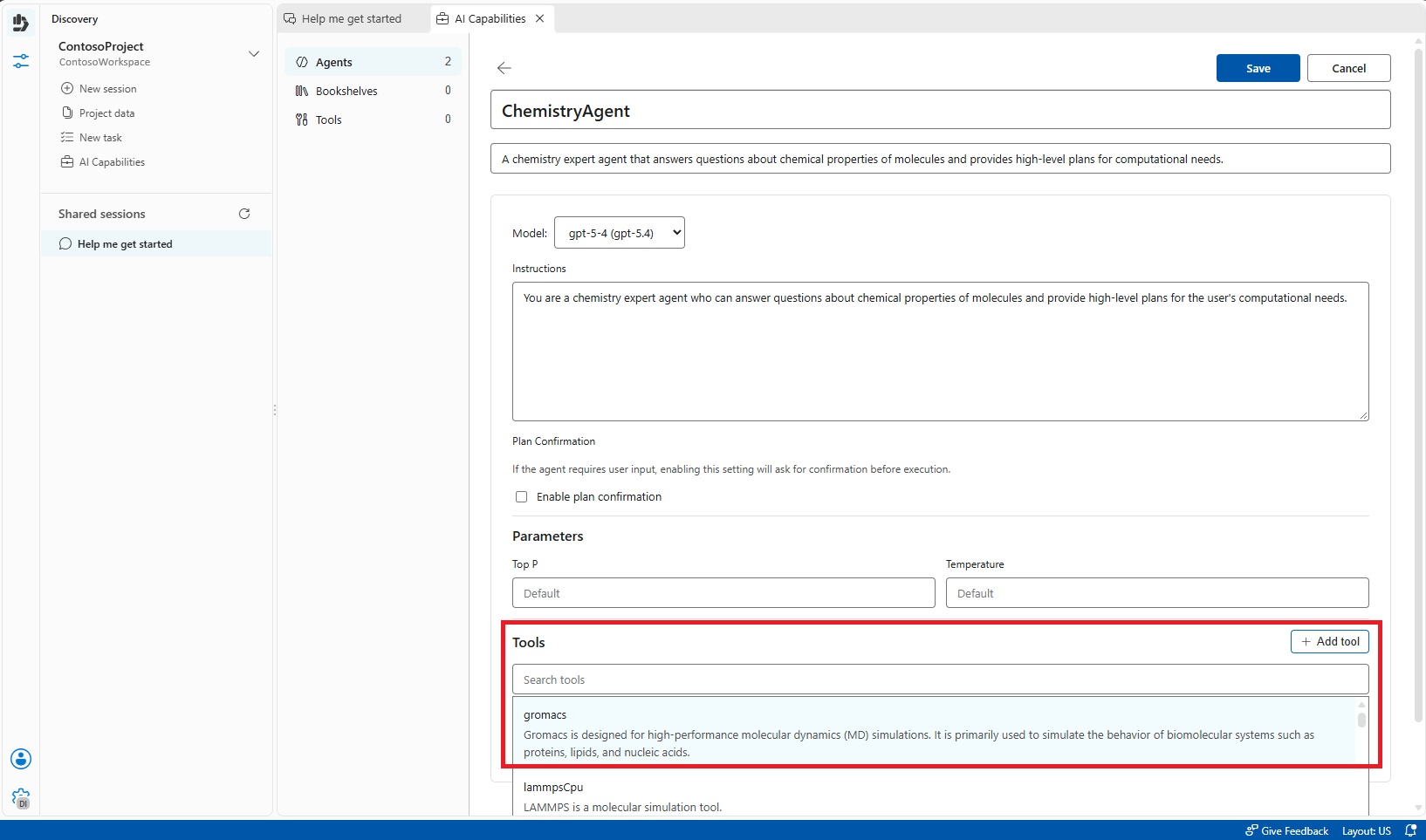
(Optional) Attach tools to give the agent access to external capabilities. In the Tools section, select Add tool, select the tools you want to attach, and confirm your selection.
(Optional) Connect bookshelves for retrieval-augmented grounding. In the Bookshelves section, select Add bookshelf, select the bookshelves you want the agent to use for grounding its responses, and confirm your selection.
Select Save.
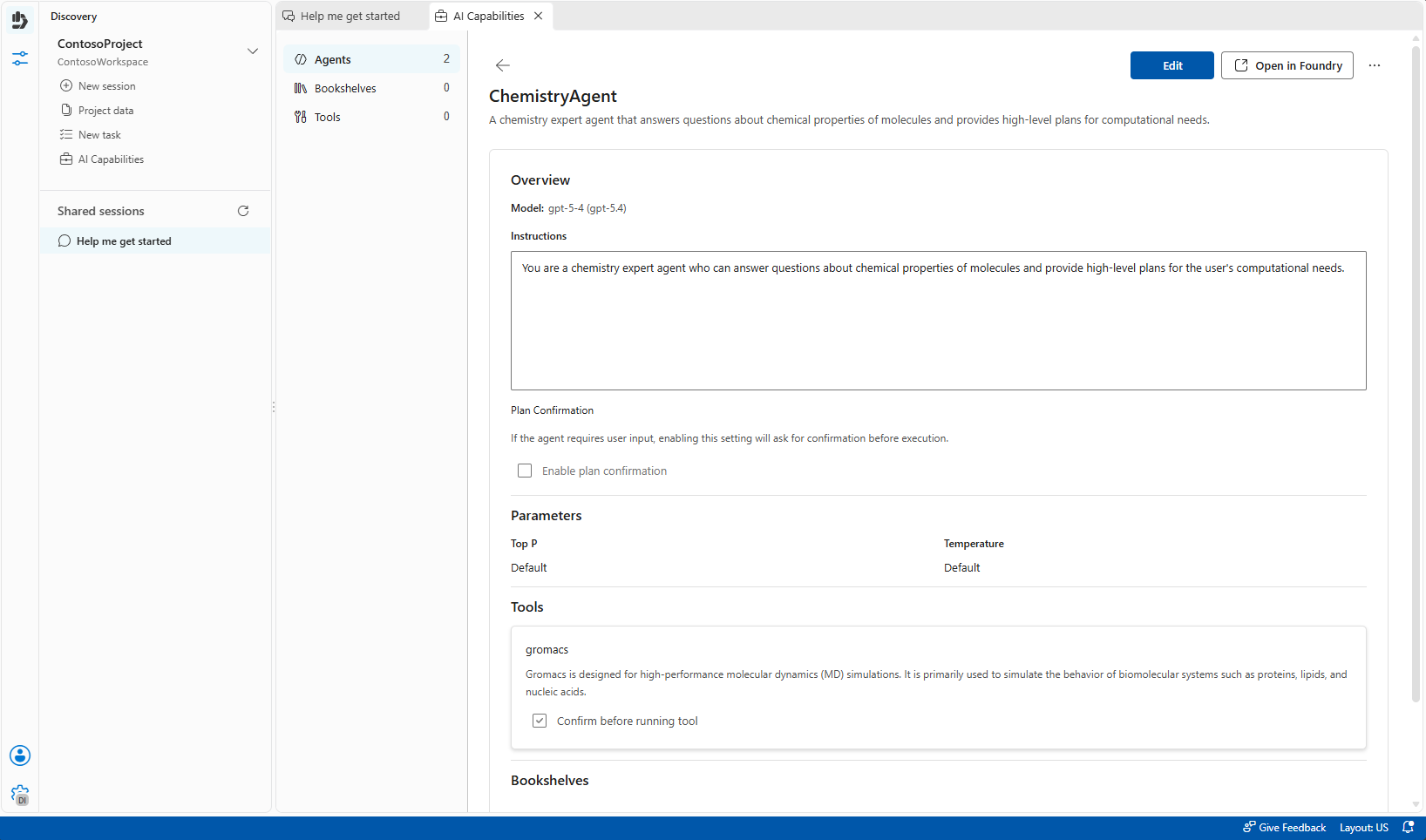
Each save creates a new, immutable version with full history. You can test the agent by typing @AgentName in a shared session chat.
Add an existing agent from another project
You can reuse prompt agents across projects by adding them from an existing project.
Sign in to Microsoft Discovery Studio.
Select the Projects tab and open the target project where you want to add the agent.
In the Discovery tab, select AI Capabilities > Agents, and then select New agent > Add existing agent.
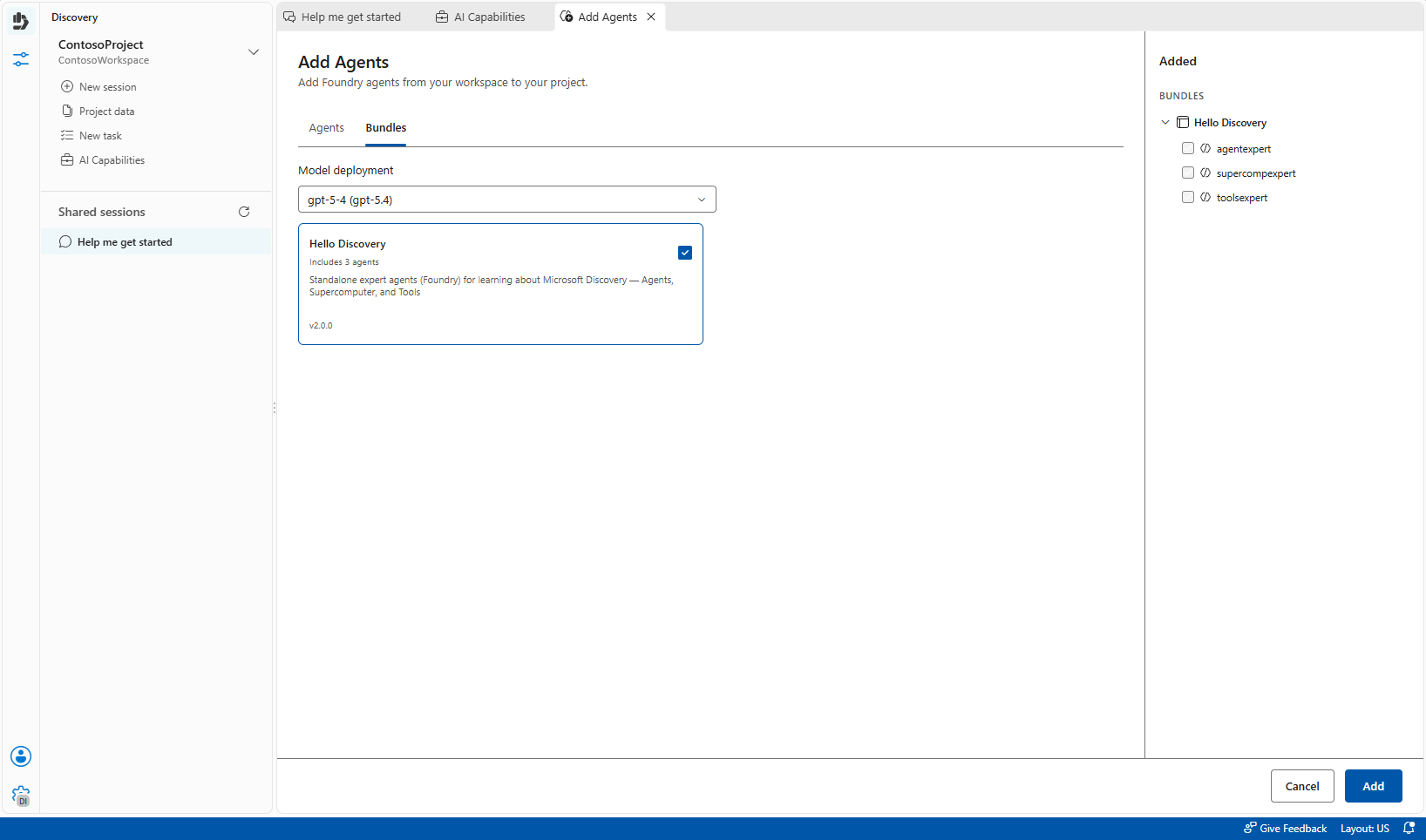
On the Add Agents page, on the Agents tab, select the source project from the Select a project to add agents from dropdown. To add a predefined set of agents instead, use the Bundles tab.
Select the agents you want to add. Your selections appear under Added.
Select Add.
The added agent appears as a new agent in your target project. You can edit its instructions, tools, and settings independently of the original.
Create agents in the Discovery app
The Discovery app is a local experience built on GitHub Copilot. In the Discovery app, individual users can create, test, and validate custom agents before promoting them to Microsoft Discovery for team use.
Prerequisites for the Discovery app
- You need to have GitHub Copilot installed and configured.
- You need to be familiar with GitHub Copilot extensibility.
Create a custom agent with Copilot skills
In the Discovery app, you define agents by using skills, following the GitHub Copilot extensibility model.
Open the Discovery app in your local environment.
Create a new custom agent by defining its skills. Skills follow the patterns and documentation from GitHub Copilot.
Configure the agent's instructions, capabilities, and any tool integrations.
(Optional) Attach a local knowledge base to enable the agent to retrieve private knowledge for grounded responses. The Discovery app supports a local version of bookshelf that allows agents to access domain-specific information stored on your machine.
Test the agent locally by interacting with it in the Discovery app.
Iterate on the agent design, instructions, and knowledge configuration until the agent performs reliably.
Promote agents from the Discovery app to Microsoft Discovery
The promotion path works as follows:
Validate locally. Use the Discovery app to test your agent design, prompts, and tool configurations. Confirm that the agent produces reliable, high-quality results.
Adapt for Microsoft Discovery. After you validate your agent, adapt your agent design for Microsoft Discovery. This step involves:
- Creating a prompt agent in Discovery Studio with equivalent instructions.
- Configuring workspace-level model deployments.
- Attaching shared knowledge bases (bookshelves) for team access.
- Connecting Discovery tools appropriate for the service environment.
Deploy to Microsoft Discovery. Create the agent in your Microsoft Discovery project by following the prompt agent creation steps described earlier in this article.
Collaborate with your team. After you deploy your agent in Microsoft Discovery, all project members can access the agent. Team members can invoke the agent by using
@AgentNamein investigations, and they can use the Discovery Engine for multi-agent orchestration.
Tip
Start in the Discovery app for rapid prototyping and individual experimentation. Move to Microsoft Discovery when you need team collaboration, shared knowledge bases, enterprise governance, or autonomous multi-agent orchestration via the Discovery Engine.