Note
Access to this page requires authorization. You can try signing in or changing directories.
Access to this page requires authorization. You can try changing directories.
Estimated time: 10 minutes
Connect your incident platform and let your agent handle alerts automatically. The system handles alerts from detection to diagnosis to fix, all without you typing a single message.
What you accomplish
By the end of this step, your agent:
- Connects to Azure Monitor as your incident platform
- Receives incidents filtered by severity through a response plan
- Investigates matching alerts end-to-end, including code fixes and pull requests
Prerequisites
| Requirement | Details |
|---|---|
| Completed Steps 1–3 | Create agent, Add knowledge, Connect source code. |
| Azure resources connected | At least one Azure subscription with resources the agent can monitor. |
Connect Azure Monitor
Link Azure Monitor as your incident platform so the agent automatically receives alerts.
- In the left sidebar, go to Builder > Incident platform.
- Select the Incident platform dropdown and choose Azure Monitor.
- The Quickstart response plan toggle is on by default. Turn it off as you create your own response plan in the next section.
- Select Save.
Wait for the connection to complete. The status changes to "Azure Monitor connected. Your next step is to set up incident response plans."
Checkpoint: The incident platform page shows a green checkmark with Azure Monitor connected.
Tip
You can also connect PagerDuty or ServiceNow from the same dropdown.
Create an incident response plan
An incident response plan tells the agent which incidents to pick up and how much autonomy it has. The following steps are for Azure Monitor. PagerDuty and ServiceNow response plans use different filter fields based on their own incident metadata, such as priority, category, and assignment group.
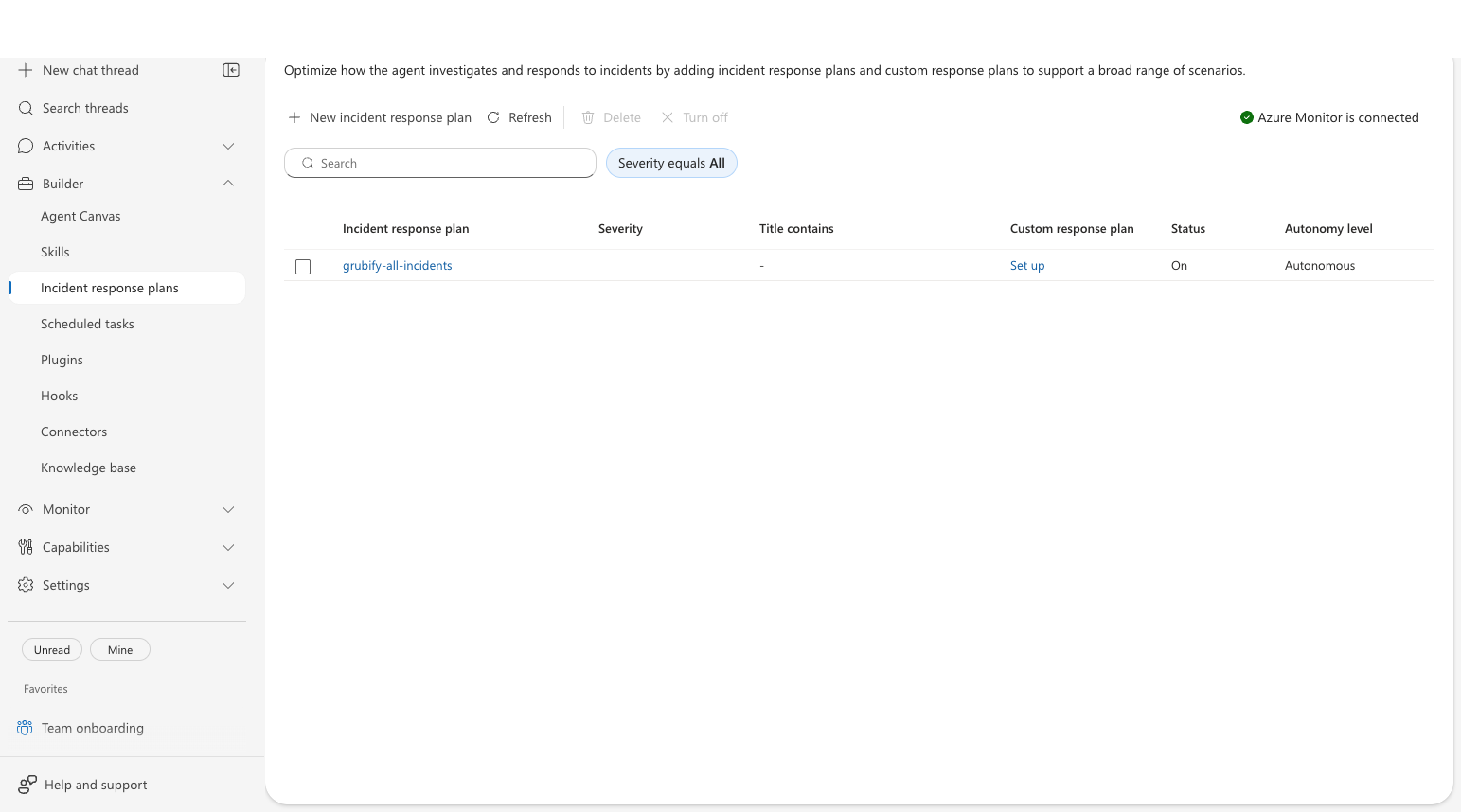
Go to Builder > Incident response plans in the left sidebar.
Select New incident response plan.
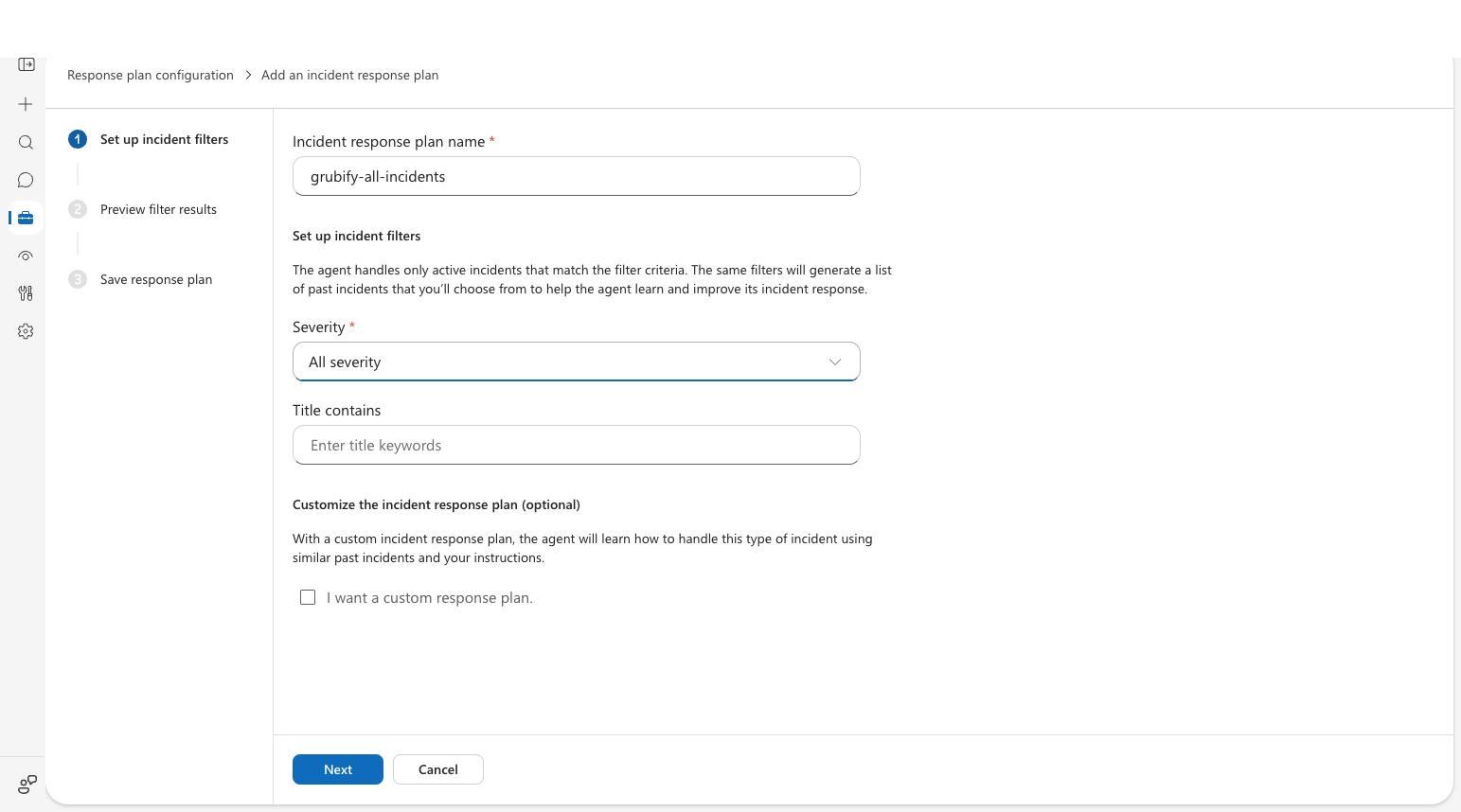
Step 1: Set up incident filters:
- Enter a name, such as
all-incidents. - Select severity levels. Choose All severity to catch everything during setup.
- Optionally, add a title filter to narrow scope.
- Enter a name, such as
Select Next.
Step 2: Preview filter results: Review matching past incidents from your incident platform (empty if no incidents exist yet). Select Next.
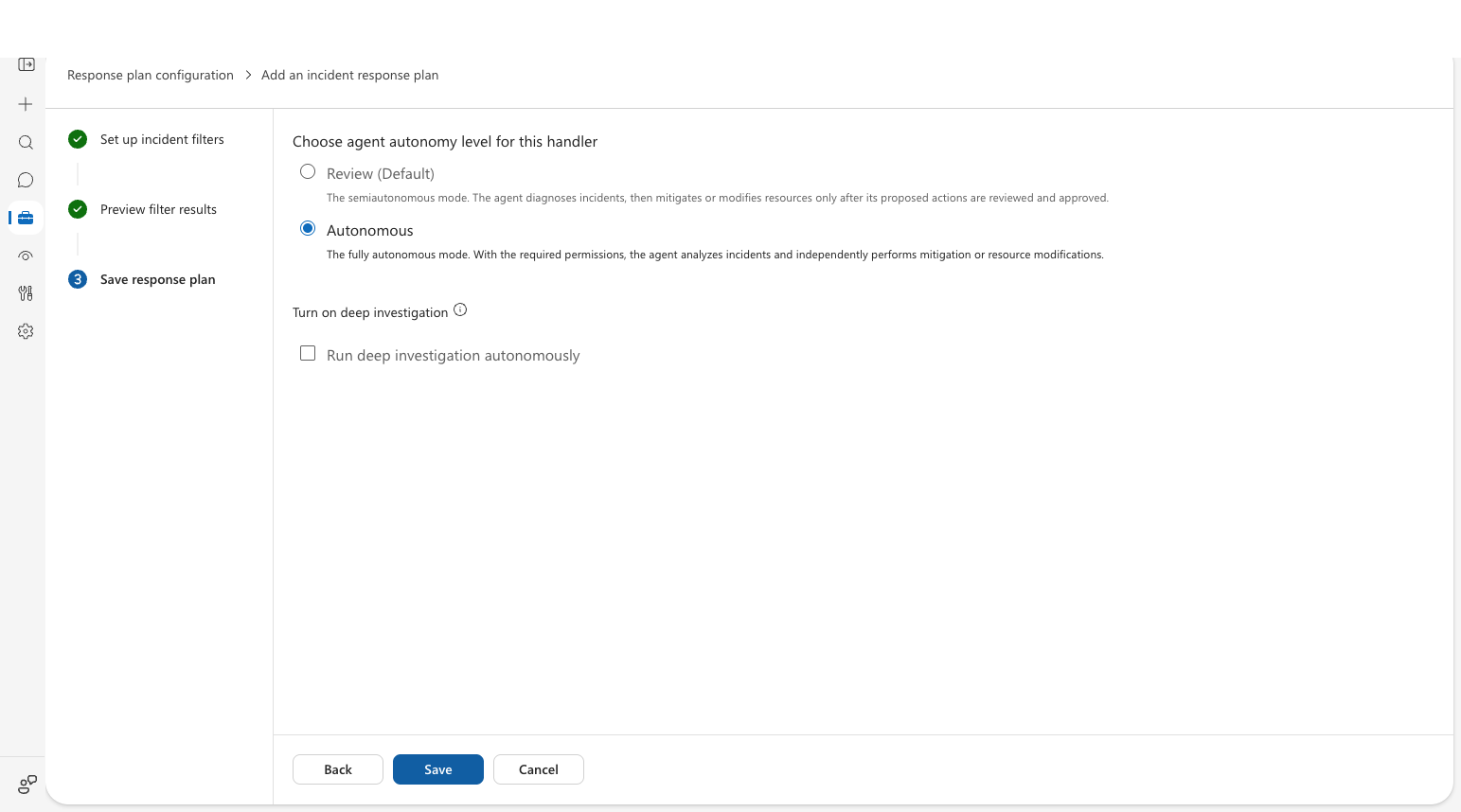
Step 3: Save response plan:
- Choose how much control the agent has:
- Autonomous (Default): The agent investigates and acts independently, including code fixes and container restarts.
- Review: The agent diagnoses but waits for your approval before acting.
- Select Save.
- Choose how much control the agent has:
Checkpoint: Your response plan appears in the list with status On and the autonomy level you selected.
What happens when an alert fires
When Azure Monitor fires an alert that matches your response plan, the agent investigates automatically. What the agent does depends on the context you gave it. Runbooks, code repositories, Azure resources, and prior investigations all shape the depth and actions of the investigation.
Example: HTTP 500 errors on a container app
In this example, the agent has a runbook for handling HTTP 500 errors, a connected code repository, and Azure resource access.
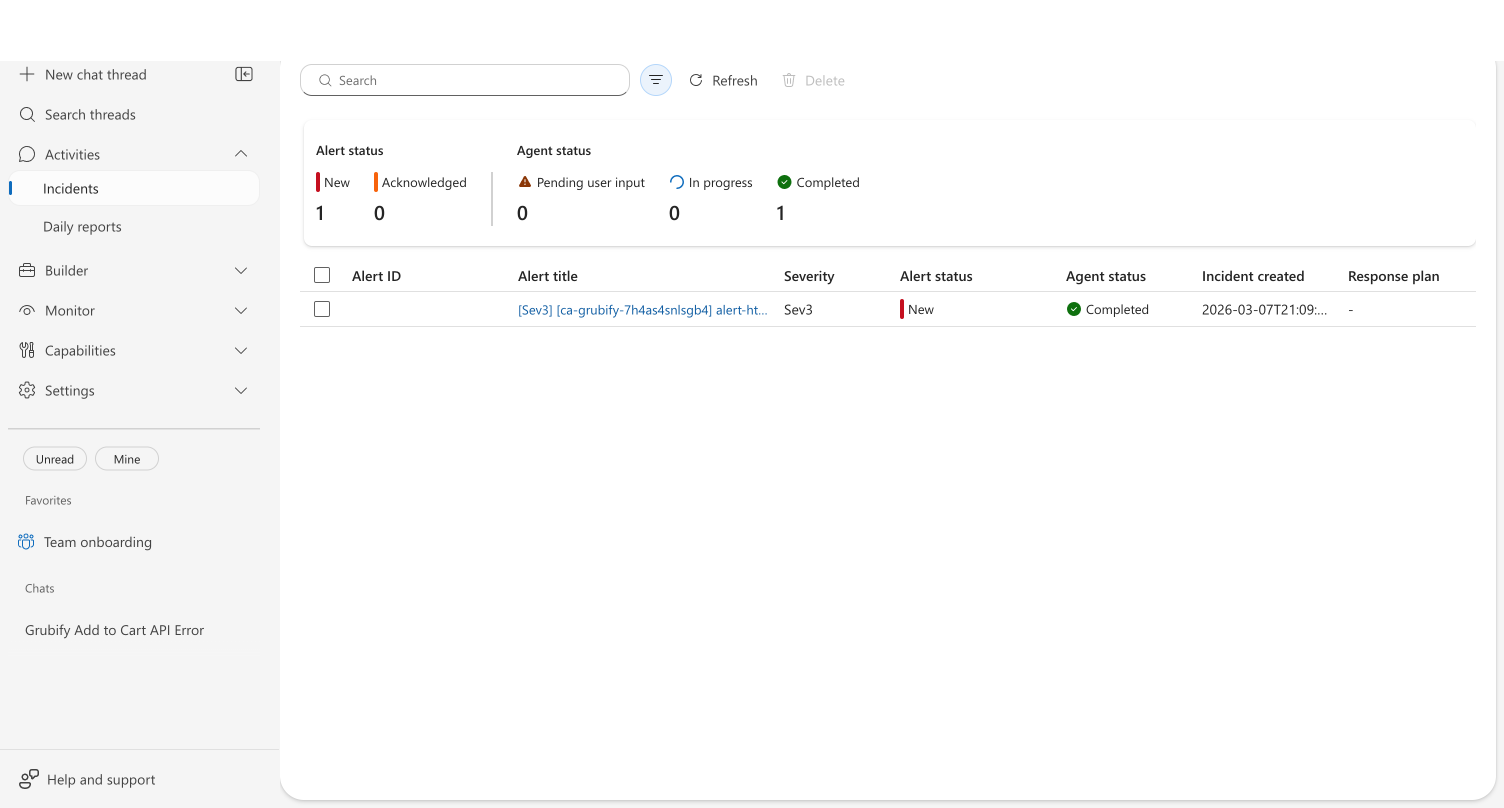
The agent builds a plan from your runbook. Rather than following a generic troubleshooting sequence, the agent reads the HTTP 500 runbook you upload during onboarding and follows your team's procedures. The agent checks for upstream dependencies first, then connection pool, then recent deployments.
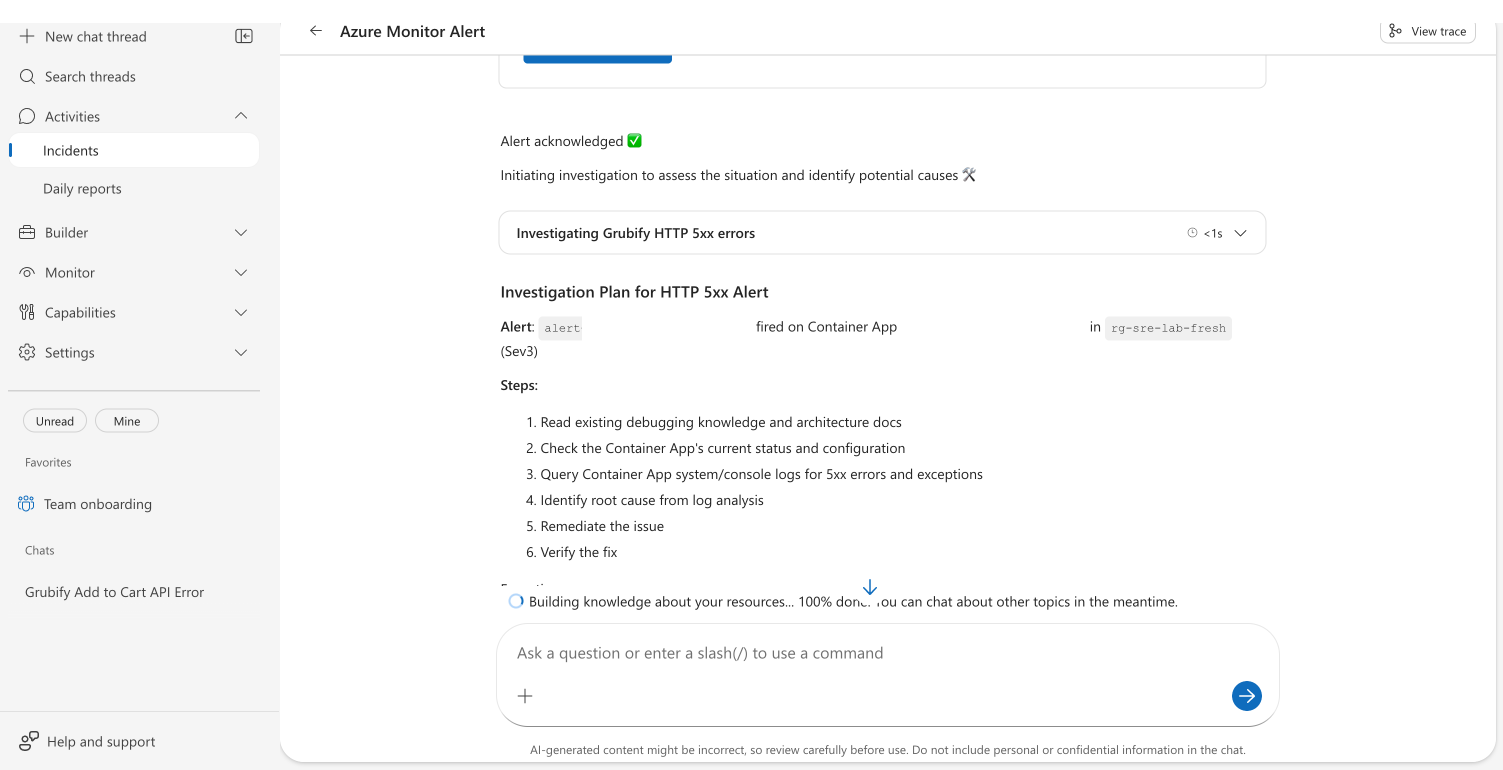
The agent recalls prior knowledge. If the agent investigated a similar issue before, it recognizes the pattern and skips discovery. It does this operation to combine your runbook procedures with what it learned from previous investigations.
The agent takes action. In Review mode, the agent asks for your approval before each action. In Autonomous mode, it acts independently. In this example, the agent:
- Reads the source code and identifies the root cause
- Edits the code to fix the bug
- Restarts the container to mitigate the alert
- Commits the fix and pushes it to a new branch
- Creates a GitHub issue for tracking
- Verifies the service is healthy after the fix
The agent delivers a remediation summary. The agent produces a structured report with everything the team needs to follow up:
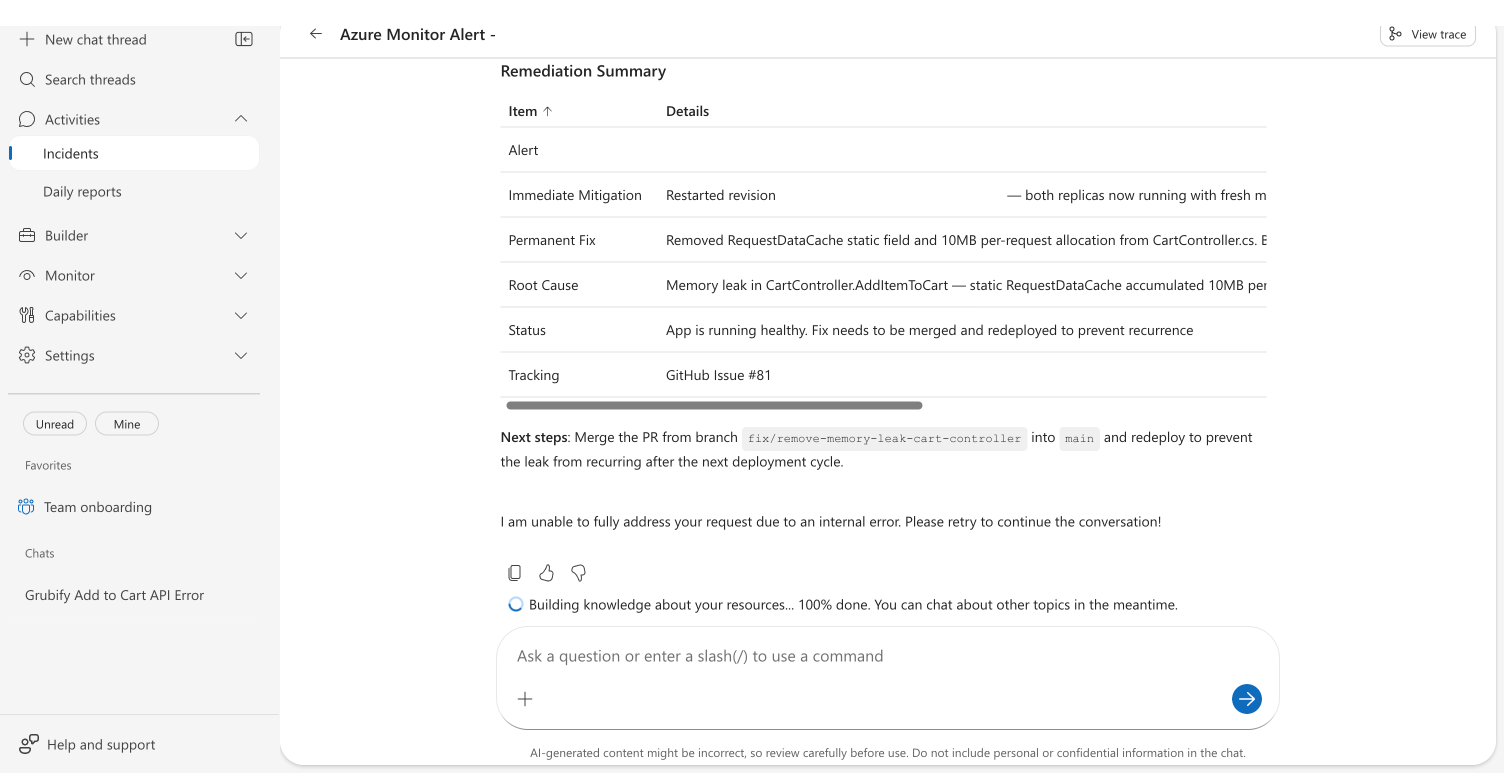
| Item | What the agent reports |
|---|---|
| Alert | Which alert fired, severity, affected resource |
| Immediate mitigation | What was done to restore service right now |
| Permanent fix | Code changes made and branch pushed |
| Root cause | Specific code bug or configuration issue with file references |
| Status | Current health of the affected resource |
| Tracking | GitHub issue number |
| Next steps | Merge pull request and redeploy |
Note
Your results vary based on the context your agent has. An agent with more runbooks, connected repositories, and prior investigations produces deeper, more targeted responses.