Note
Access to this page requires authorization. You can try signing in or changing directories.
Access to this page requires authorization. You can try changing directories.
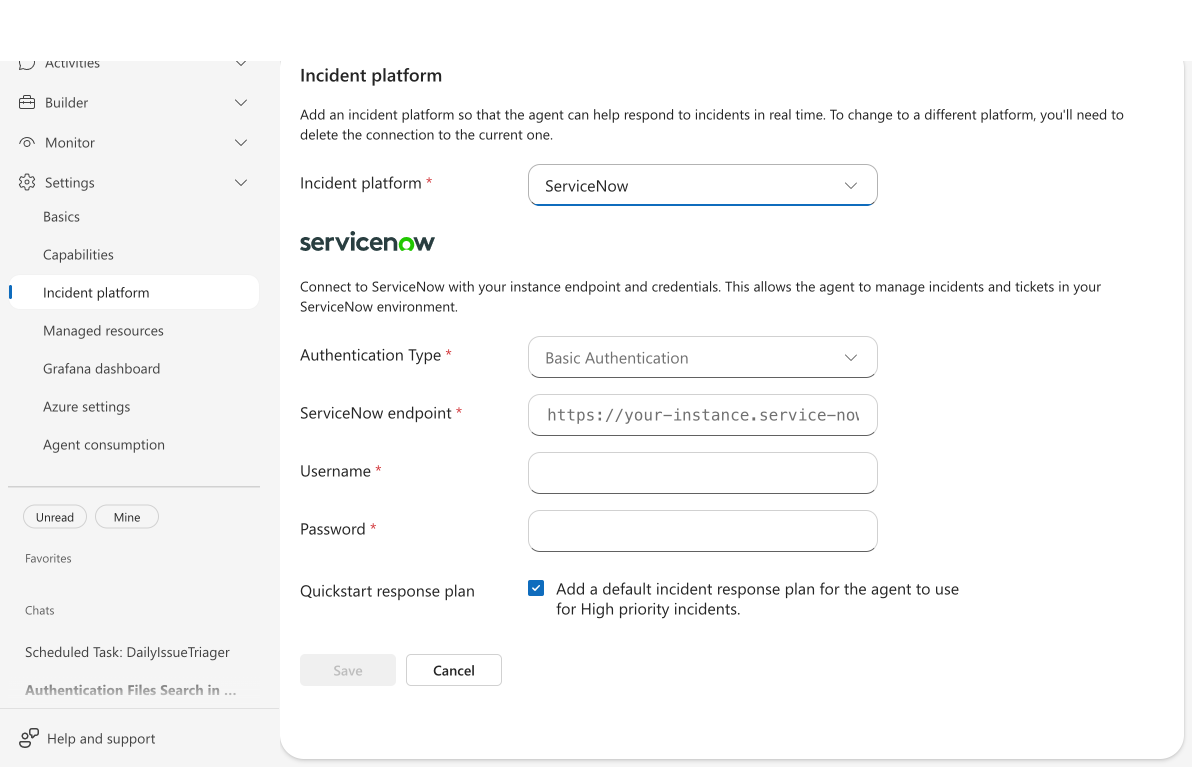
Connect ServiceNow as your incident platform so your agent automatically indexes, investigates, and responds to ServiceNow incidents. Real connectivity validation during setup confirms your credentials work before indexing begins.
Tip
- Connect ServiceNow with basic authentication or OAuth 2.0.
- Real connectivity validation during setup confirms your credentials work before indexing begins.
- The scanner polls every minute and automatically creates investigation threads for new incidents.
- Update incident fields (assignment group, category, impact, and more) directly from the agent conversation.
- Use response plans to control which priorities and incident types your agent handles.
The problem: incidents in ServiceNow, investigation everywhere else
When an incident fires in ServiceNow, your on-call engineer opens ServiceNow to read the details, then switches to observability tools to investigate, then copies findings back into ServiceNow as work notes. Context lives in multiple tools, investigation is manual, and knowledge walks out the door when the engineer goes off shift.
Without connecting ServiceNow to your agent, you can't use automated investigation on your actual incident stream. When you connect ServiceNow to your agent, you need confidence the connection works. You don't want a setup-and-hope experience where failures surface hours later when incidents don't appear.
How ServiceNow incident indexing works
When you connect ServiceNow as your incident platform, the agent provides the following capabilities.
Connectivity validation: During setup, the agent tests your credentials by fetching a real incident from ServiceNow. If the connection fails, you get an immediate error with details so you don't have to guess whether setup worked.
Assignment group scoping: Scope indexing to your team's assignment group so you pick up only relevant incidents. Assignment group scoping is essential for large enterprise ServiceNow instances shared across many teams.
Category and priority filtering: Filter by priority (Critical through Planning) and category so the agent focuses on incidents that matter to your team.
Automatic scanning: After connection, the scanner polls ServiceNow every minute for new and updated incidents matching your filters.
A quickstart response plan is created by default during setup. From there, the agent follows the same investigation and response flow as any other incident platform.
Update incident fields (preview)
Important
This feature is in preview. Functionality and behavior may change before general availability.
Your agent can update ServiceNow incident fields directly during an investigation—no need to switch to the ServiceNow portal. Ask the agent to set assignment group, category, subcategory, impact, urgency, priority, or any custom field, and it updates the incident through ServiceNow's API.
Supported fields
The following table lists the fields you can update through the agent.
| Field | Example value | Notes |
|---|---|---|
assignment_group |
"Network Ops" |
Sets the assignment group for the incident |
category |
"Network" |
Primary incident category |
subcategory |
"DNS" |
Subcategory within the primary category |
impact |
"1" |
Business impact level |
urgency |
"2" |
Urgency of the incident |
priority |
"1" (Critical), "2" (High), "3" (Moderate), "4" (Low), "5" (Planning) |
String values |
short_description |
"DNS resolution failures in prod" |
Incident summary |
| Custom fields | u_environment: "Production" |
Any u_* prefixed field |
Safeguards
The agent can't change the incident state through this action. State transitions use dedicated tools—acknowledge and resolve actions handle those separately. Journal fields (comments, work_notes) go through the discussion entry action, which pins the incident state to prevent ServiceNow business rules from auto-transitioning the incident.
Example conversation
You: Update this incident's assignment group to "Network Ops" and category to "Network"
Agent: Updated 2 fields on INC0010005 successfully.
What makes this approach different
Unlike manual triage that depends on who's on call and what they remember, your agent investigates every ServiceNow incident consistently.
Connectivity validation catches credential and endpoint problems during setup, not hours later when incidents fail to sync. The health check fetches a real incident from ServiceNow to prove the connection works.
Continuous scanning means you pick up new incidents within a minute. The agent acknowledges, investigates, and can resolve incidents directly in ServiceNow, including posting investigation findings as discussion entries.
Response plans give you granular control: handle Critical incidents autonomously, require approval for Moderate ones, and ignore Planning-level items entirely.
Authentication options
Use the following table to select the right authentication method for your environment.
| Method | When to use | What you need |
|---|---|---|
| Basic authentication | Quick setup, testing, smaller instances | ServiceNow username and password (user needs itil or admin role) |
| OAuth 2.0 | Production, security-conscious environments | ServiceNow OAuth Application (Client ID and Client Secret), Azure API Connection created automatically |
For OAuth, the redirect URL follows the pattern https://logic-apis-{region}.consent.azure-apim.net/redirect. Register this URL in your ServiceNow OAuth Application Registry before authorizing.
Note
For step-by-step setup instructions for both authentication methods, see Tutorial: Connect to ServiceNow in Azure SRE Agent.
Scanner behavior
The following table describes the default scanner settings for ServiceNow incident indexing.
| Setting | Value |
|---|---|
| Scan interval | 1 minute |
| Incidents per page | 20 |
| Max incidents per cycle | 220 (11 pages) |
| Initial lookback | 30 days (when no prior scan exists) |
Before and after
The following table compares manual ServiceNow incident management with agent-assisted incident indexing.
| Before | After |
|---|---|
| Manually monitor ServiceNow for new incidents | Agent scans every minute and creates investigation threads automatically |
| Context-switch between ServiceNow and investigation tools | Agent queries your connected data sources and posts findings back to ServiceNow |
| No validation that connection works during setup | Real connectivity check confirms credentials before indexing begins |
| Switch to ServiceNow portal to update incident metadata | Agent updates fields like assignment group, category, and impact directly from the conversation |
| Investigation knowledge leaves with the engineer | Agent captures findings in threads and discussion entries |
Next step
Related content
- Automate incident response: Learn how your agent investigates and responds to indexed incidents.
- Incident response plans: Control which incidents your agent handles with priority routing and run modes.
- Deep investigation: Extended hypothesis-driven analysis for complex incidents.
- Incident platforms: Compare supported incident platforms and understand how they connect to your agent.