Note
Access to this page requires authorization. You can try signing in or changing directories.
Access to this page requires authorization. You can try changing directories.
In this tutorial, you connect your ServiceNow instance to Azure SRE Agent so the agent automatically indexes and investigates ServiceNow incidents. You can use basic authentication or OAuth 2.0. This setup takes about 10 minutes.
Tip
To learn how ServiceNow incident indexing works, see ServiceNow incident indexing.
Prerequisites
Before you begin, make sure you have the following resources and access:
- An Azure SRE Agent in Running state
- A ServiceNow instance with the Incident table (standard ITSM)
- A ServiceNow user account with the itil or admin role (for basic authentication), or a registered OAuth application (for OAuth 2.0)
- Contributor role or higher on the Azure SRE Agent resource
Open the incident platform settings
Go to the incident platform configuration page where you select and connect ServiceNow.
- Go to sre.azure.com and select your agent.
- In the sidebar, expand Builder.
- Select Incident platform.
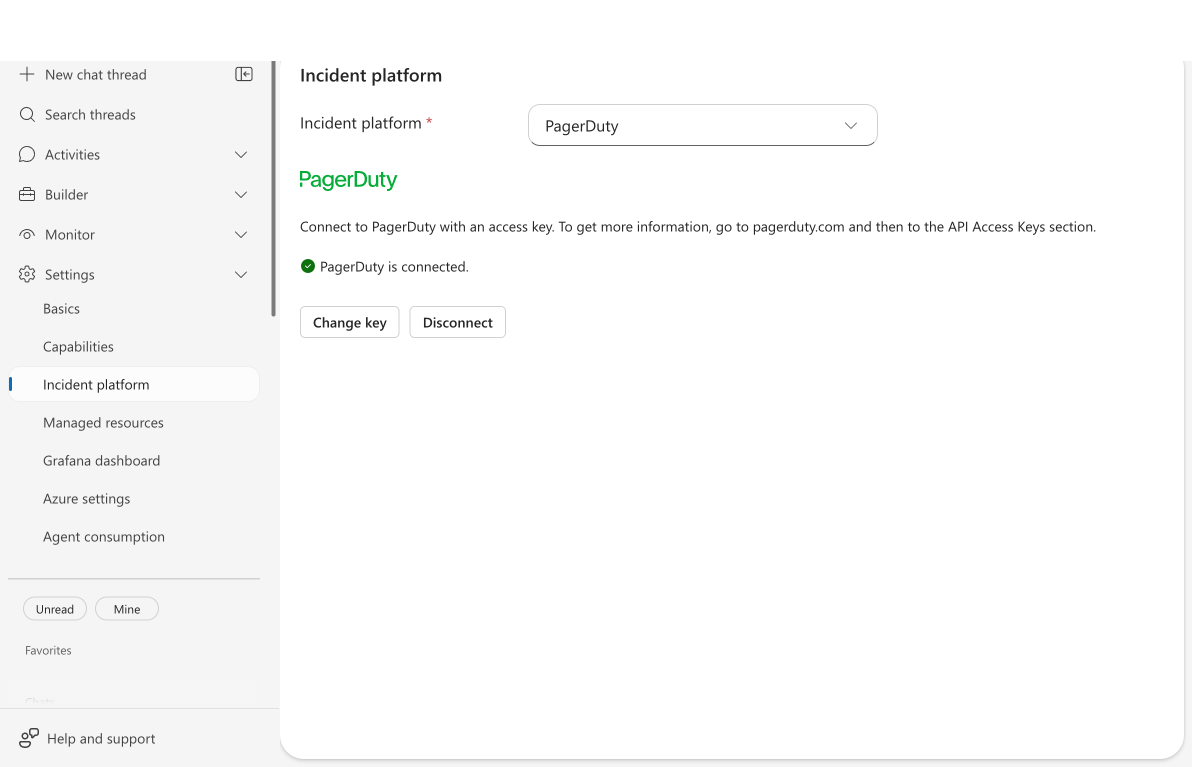
The Incident platform heading appears with a platform dropdown.
Select ServiceNow
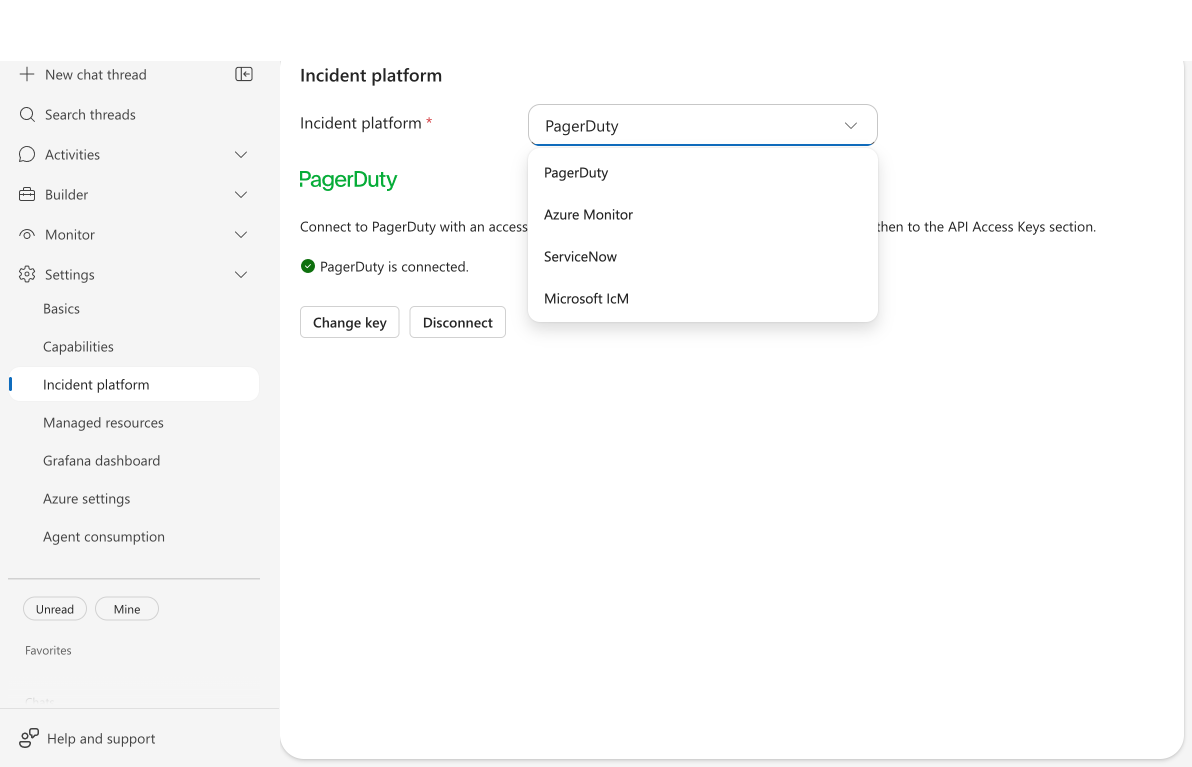
Choose ServiceNow as the incident platform for your agent.
- Select the Incident platform dropdown.
- Select ServiceNow.
If another platform is already connected, you're prompted to disconnect it first. Your agent connects to one incident platform at a time.
The ServiceNow configuration form appears with authentication fields.
Choose authentication and enter credentials
Select your authentication type from the Authentication Type dropdown.
Option A: Basic authentication
Use basic authentication for quick setup in development or test environments.
- Leave Authentication Type set to Basic Authentication.
- Enter your ServiceNow endpoint (for example,
https://your-instance.service-now.com). - Enter your Username.
- Enter your Password.
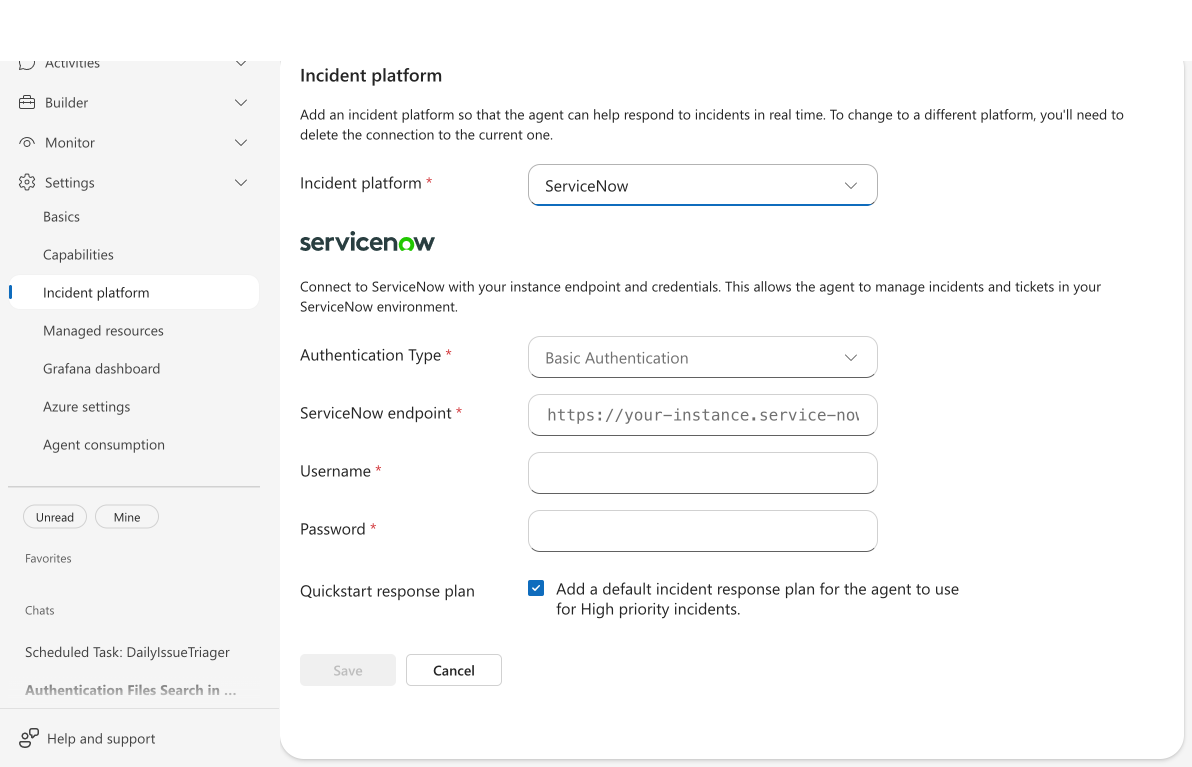
After you fill in all required fields, the Save button becomes active.
Option B: OAuth 2.0
Use OAuth 2.0 for production environments where token-based authentication is preferred.
Register an OAuth application in ServiceNow
Before you connect from the portal, register an OAuth application in your ServiceNow instance.
- In your ServiceNow instance, go to System OAuth > Application Registry.
- Select New then select Create an OAuth API endpoint for external clients.
- Fill in the following fields:
- Name: A descriptive name (for example,
Azure SRE Agent). - Redirect URL: Use the format
https://logic-apis-<REGION>.consent.azure-apim.net/redirect, where<REGION>is your agent's Azure region (for example,eastus2). You can also get the exact URL from the portal in the next step. - Active: Checked.
- Name: A descriptive name (for example,
- Select Submit and note the following values:
- Client ID: Displayed on the application page.
- Client Secret: Select the lock icon to reveal the secret, then copy it immediately.
Warning
Some ServiceNow versions show the client secret only once. Copy it before you go to another page.
Configure OAuth in the portal
- Select OAuth 2.0 from the Authentication Type dropdown.
- Note the Redirect URL shown in the info box and confirm it matches the URL you registered in ServiceNow.
- Enter your ServiceNow endpoint.
- Enter your OAuth Client ID.
- Enter your OAuth Client Secret.
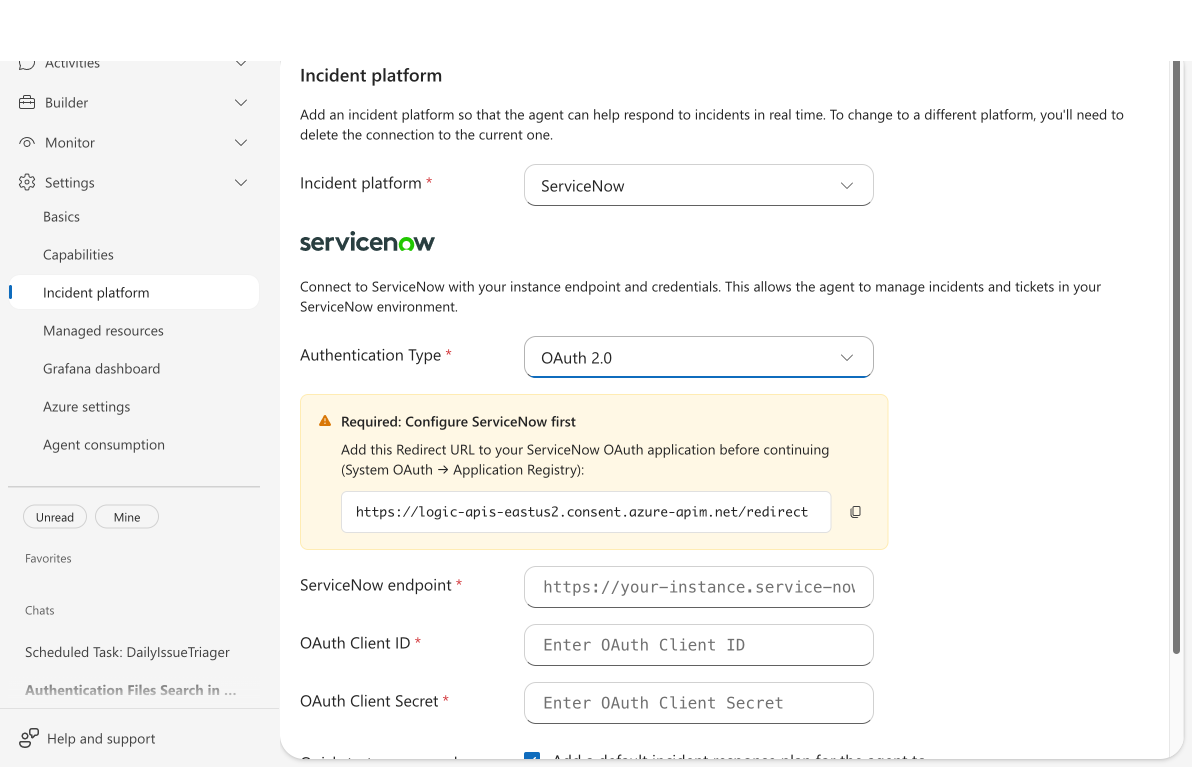
When you fill in all required fields, the Authorize button becomes active.
Connect and validate
Complete the connection and verify that the agent can reach your ServiceNow instance.
For basic authentication:
- Select Save.
The app saves the connection settings, and the agent starts checking connectivity to ServiceNow in the background.
For OAuth 2.0:
- Select Authorize.
A popup window opens for you to complete the OAuth flow in ServiceNow. After authorization, the connection is established.
The connectivity indicator polls every few seconds and typically confirms the connection within 30 seconds to 2 minutes. The check works by fetching a real incident from your ServiceNow instance to verify the credentials are valid.
Warning
If you see "Unable to connect to ServiceNow":
- Verify your endpoint URL is correct (include
https://). - Confirm the username and password are valid.
- Check that the account has the
itilrole. - Ensure your ServiceNow instance allows REST API access.
When the connection succeeds, the connectivity indicator shows a green Connected status.
Enable the quickstart response plan
Select the Quickstart response plan checkbox. This option creates a default response plan that handles high priority incidents automatically.
The agent needs at least one response plan before it starts scanning for incidents. If you clear this checkbox, the agent doesn't index any incidents until you create a response plan manually. The scanner runs every minute but skips incidents when no response plans are configured.
To customize incident handling later, go to Activities > Incidents to create more response plans with specific priority routing and run modes.
Verify incidents appear
After connecting, confirm that your agent receives ServiceNow incidents.
- In the sidebar, expand Activities.
- Select Incidents.
- Wait 1-2 minutes for the scanner to complete its first cycle.
ServiceNow incidents that match your response plan filters appear in the incident overview grid with columns for ID, Title, Priority, Status, Agent Status, Created, Impacted Service, and Handler.
Edit or disconnect ServiceNow
You can update your connection settings or disconnect ServiceNow at any time.
Edit connection settings
To modify your ServiceNow configuration:
- Go to Builder > Incident platform.
- Select Edit at the bottom of the page.
- Modify the instance URL, credentials, or other settings.
- Select Save.
Disconnect ServiceNow
To stop receiving ServiceNow incidents:
- Go to Builder > Incident platform.
- Select Disconnect at the bottom of the page.
- In the confirmation dialog, select Yes.
After you disconnect, the agent stops scanning for ServiceNow incidents. Your response plans are preserved and reactivate when you reconnect.
Update incident fields during investigations (preview)
Important
This feature is in preview. Functionality and behavior may change before general availability.
Once your ServiceNow connection is active, your agent can update incident fields directly during investigations. In an incident investigation thread, ask the agent to update fields like assignment group, category, impact, or priority—the agent handles the ServiceNow API call.
Try it: In an incident investigation thread, ask:
"Update this incident's category to 'Network' and subcategory to 'DNS'"
The agent updates the fields directly in ServiceNow and confirms the changes.
Supported fields: assignment_group, category, subcategory, impact, urgency, priority, short_description, and custom fields (u_* prefix like u_environment).
Priority values: Use string values—"1" (Critical), "2" (High), "3" (Moderate), "4" (Low), "5" (Planning).
Note
Use ServiceNow's snake_case field names (for example, assignment_group, not Assignment Group). The agent handles the mapping automatically when you describe the field in natural language.
State changes use dedicated actions—the update action doesn't change incident state. To acknowledge or resolve incidents, ask the agent directly (for example, "acknowledge this incident" or "resolve this incident").
Troubleshooting
Use the following table to resolve common issues during ServiceNow setup.
| Issue | Solution |
|---|---|
| Unable to connect to ServiceNow | Verify the endpoint URL, username, and password. Also, check that the account has the itil role. |
| No incidents appear after connecting | Ensure you selected the Quickstart response plan checkbox during setup. The agent needs at least one response plan to start scanning. |
| OAuth authorization popup fails | Ensure the redirect URL is registered in ServiceNow under System OAuth > Application Registry. |
| Connectivity indicator stays on "Connecting" | Wait up to 2 minutes. If the indicator times out, recheck your credentials. |
| Need to switch from another platform | Disconnect the current platform first. Your agent connects to one platform at a time. |