Note
Access to this page requires authorization. You can try signing in or changing directories.
Access to this page requires authorization. You can try changing directories.
Deploy the Defender for Identity sensor v3.x on supported domain controllers. Complete the prerequisite checks before activation, then configure auditing and identity settings afterward.
Before you activate
Complete these checks before activating the sensor.
Sensor version limitations
Before you activate the Defender for Identity sensor v3.x, note that v3.x:
- Doesn't support VPN integration.
- Doesn't support syslog notifications.
- Has limitations working with Azure ExpressRoute. For more information, see Azure ExpressRoute for Microsoft 365.
Server requirements
Make sure that the server on which you're activating the sensor:
- Has Defender for Endpoint deployed on the server. The Microsoft Defender Antivirus component can be in either active or passive mode. Defender for Endpoint must be onboarded on the server where the sensor runs; endpoint-only deployment isn't sufficient.
- Doesn't have a Defender for Identity sensor v2.x already deployed.
- Is running Windows Server 2019 or later.
- Includes the March 2026 or later cumulative update.
Supported server types
The v3.x sensor supports domain controllers, including domain controllers with these identity roles:
- Active Directory Federation Services (AD FS)
- Active Directory Certificate Services (AD CS)
- Microsoft Entra Connect
Use the Defender for Identity sensor v2.x for servers that aren't domain controllers and run AD FS, AD CS, or Microsoft Entra Connect.
Licensing requirements
Deploying Defender for Identity requires one of the following Microsoft 365 licenses:
- Enterprise Mobility + Security E5 (EMS E5/A5)
- Microsoft 365 E5 (Microsoft E5/A5/G5)
- Microsoft 365 E5/A5/G5/F5* Security
- Microsoft 365 F5 Security + Compliance*
Both F5 licenses require Microsoft 365 F1/F3 or Office 365 F3 and Enterprise Mobility + Security E3. Purchase licenses in the Microsoft 365 portal or through Cloud Solution Partner (CSP) licensing. For more information, see Licensing and privacy FAQs.
Roles and permissions
To create your Defender for Identity workspace, you need a Microsoft Entra ID tenant.
You must either be a Security Administrator, or have the following Unified RBAC permissions:
System settings (Read and manage)Security settings (All permissions)
Network requirements
The Defender for Identity sensor uses the same URIs as Microsoft Defender for Endpoint. Review the following documents for Defender for Endpoint, based on your system's connectivity, to find the complete list of required service endpoints.
Memory requirements
The following table describes memory requirements on the server used for the Defender for Identity sensor, depending on the type of virtualization you're using:
| VM running on | Description |
|---|---|
| Hyper-V | Ensure that Enable Dynamic Memory isn't enabled for the VM. |
| VMware | Ensure that the amount of memory configured and the reserved memory are the same, or select the Reserve all guest memory (All locked) option in the VM settings. |
| Other virtualization host | Refer to the vendor-supplied documentation on how to ensure that memory is always fully allocated to the VMs. |
Important
When running as a virtual machine, always allocate all memory to the virtual machine.
Version 3 of the sensor prevents the sensor from overusing CPU or memory by limiting CPU utilization at 30%, and memory usage to 1.5 GB. However, if any other service uses substantial system resources, the domain controller might still experience performance strain.
Refer to the Defender for Identity Capacity Planning documentation to determine whether your domain controller servers have enough resources for a Microsoft Defender for Identity sensor.
Service account requirements
The v3.x sensor uses the local system identity of the server for Active Directory and response actions. It doesn't support Directory Service Accounts (DSA) or group Managed Service Accounts (gMSA). LocalSystem is the only supported identity for v3.x.
If you're migrating from sensor v2.x and previously had a gMSA configured for action accounts, you must remove it. If gMSA remains enabled, response actions, including attack disruption, won't work.
Important
In environments that use both v2 and v3 sensors, use local system accounts for all of your sensors.
Test your prerequisites
Run the Test-MdiReadiness.ps1 script to test whether your environment has the necessary prerequisites.
The Test-MdiReadiness.ps1 script is also available from Microsoft Defender XDR, on the Identities > Tools page (Preview).
Activate the sensor
After confirming all prerequisites, activate the sensor from the Microsoft Defender portal.
After you activate
Complete these configuration steps after the sensor is activated and running.
Configure Windows event auditing
Defender for Identity relies on Windows event logs for many detections. For v3.x sensors on domain controllers, enable automatic auditing, which handles all auditing settings without manual configuration.
If automatic auditing isn't available or you opted out, configure auditing manually or use PowerShell.
Configure RPC auditing
Applying RPC audit tags to a device improves security visibility and unlocks more identity detections. Once applied, the configuration is enforced on all existing and future devices that match the rule criteria. The tags are visible in the Device Inventory for transparency and auditing capabilities.
The following tags are available:
- Unified Sensor RPC Audit: Enables enhanced RPC auditing for advanced identity detections.
- Extended Sensor Audit (Preview): Enables extended RPC auditing capabilities for additional advanced identity detections. Requires the latest cumulative update.
To apply a tag:
In the Microsoft Defender portal, navigate to: System > Settings > Microsoft Defender XDR > Asset Rule Management.
Select Create a new rule.
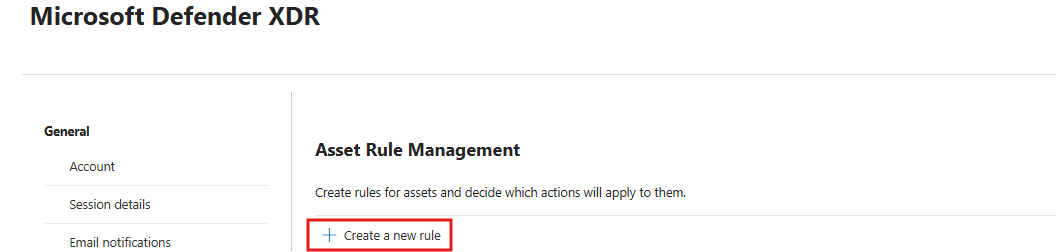
In the side panel:
- Enter a Rule name and Description.
- Set rule conditions using
Device name,Domain, orDevice tagto target the desired machines. Target domain controllers with the sensor v3.x installed. - Make sure that the Defender for Identity sensor v3.x is already deployed on the selected devices.
Add the desired tag (Unified Sensor RPC Audit or Extended Sensor Audit) to the selected devices.
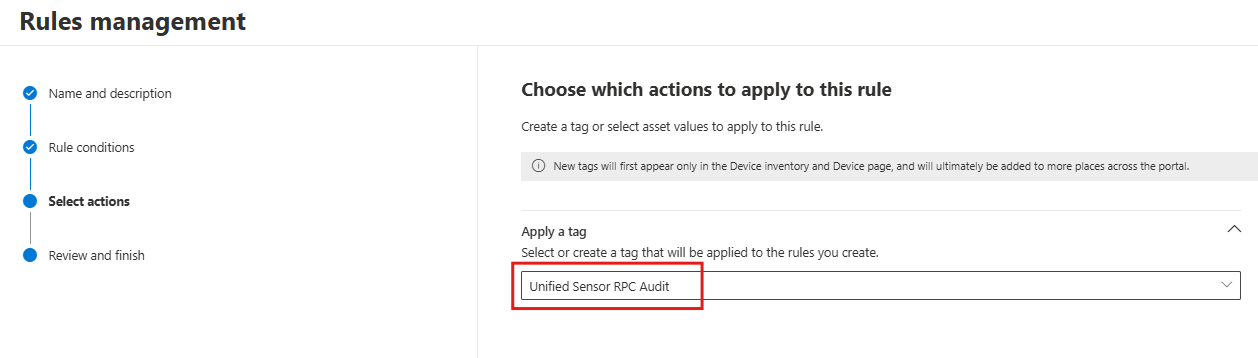
Select Next to review and finish creating the rule, and then select Submit. The rule might take up to one hour to take effect.
Learn more about asset management rules.
Recommended settings
- Set the Power Option of the machine running the Defender for Identity sensor to High Performance.
- Synchronize the time on servers and domain controllers where you install the sensor to within five minutes of each other.