Note
Access to this page requires authorization. You can try signing in or changing directories.
Access to this page requires authorization. You can try changing directories.
Note
The Retail Interest Group by Dynamics 365 Commerce has moved from Yammer to Viva Engage. If you don't have access to the new Viva Engage community, fill out this form (https://aka.ms/JoinD365commerceVivaEngageCommunity) to be added and stay engaged in the latest discussions.
This article explains how to set up your Microsoft Entra External ID tenant for user site authentication in Microsoft Dynamics 365 Commerce.
Starting with version 10.0.45, Dynamics 365 Commerce e-commerce supports Microsoft Entra External ID, Microsoft's next-generation Customer Identity and Access Management (CIAM) solution. This enhancement ensures a modern, secure, and scalable identity experience for business-to-consumer (B2C) and business-to-business (B2B) scenarios.
Important
After the end of sale for Azure Active Directory B2C (Azure AD B2C), existing Azure AD B2C tenants continue to be supported until May 2030, with no new feature development. New deployments must be provisioned using Microsoft Entra External ID, because Azure AD B2C is no longer available for new tenants.
Existing customers currently using Azure AD B2C should wait for the official announcement before migrating to Microsoft Entra External ID (EEID). The announcement will include the migration guidance and timelines. If you're interested in migrating earlier or want to learn more, reach out to Aditi Pattanaik.
Prerequisites to enable Microsoft Entra External ID in Commerce
Note
For Commerce tenants created with the Dynamics 365 Commerce version 10.0.46 general availability (GA) release or later versions, the Microsoft Entra External ID feature flight is enabled by default. For tenants created with Commerce versions before the 10.0.46 GA release, upgrading doesn't automatically enable the feature flight.
If your e-commerce environment was created before February 11, 2026, you must first submit a request to the Commerce team to enable the feature flight. Then, perform the steps in the following sections to create and enable Microsoft Entra External ID tenant user authentication.
Note
When you switch from Azure AD B2C to Microsoft Entra External ID, authentication profiles previously configured for Azure AD B2C no longer appear and are unavailable for use. Until Microsoft Entra External ID setup is fully completed, any previously configured Azure AD B2C authentication profiles will stop working and users will not be able to sign in resulting in site authentication downtime failures.
Create a Microsoft Entra external tenant on Azure
This section describes how to create a Microsoft Entra External tenant in the Microsoft Azure portal. For more information, see Create a new tenant with external configurations.
To create a Microsoft Entra External ID tenant in the Azure portal, follow these steps:
- Sign in to the Azure portal.
- On the Azure portal page, under Azure Services, select Create a resource. Use the subscription and directory that you connect with your Commerce environment.
- Go to Identity > Microsoft Entra External ID.
- On the Basics tab, on the Create a tenant page, enter the following information.
- For Tenant Name, enter the tenant name (for example, "Contoso Customers").
- For Domain Name, enter the domain name (for example, Contosocustomers).
- For Location, select your geographic location. Ensure that it's correct, because you can't change this selection later.
- For Tenant Name, enter the tenant name (for example, "Contoso Customers").
- Select Next: Add a subscription.
- On the Add a subscription tab, enter the following information.
- For Subscription, select your subscription.
- For Resource group, select a resource group. If there are no available resource groups, select Create new, add a name, and then select OK.
- If Resource group location appears, select the geographic location of the resource group.
- Select Next: Review + create.
- If the information you entered is correct, select Create. The tenant creation process can take up to 30 minutes. You can monitor the progress of the tenant creation process in the Notifications pane. When the tenant is created, you can access it in both the Microsoft Entra administrator center and the Azure portal.
Create a Microsoft Entra External ID application
After you create your External ID tenant, create an application within your new Microsoft Entra tenant to interact with Commerce.
To create the application, follow these steps:
- In the Azure portal, go to the tenant you created.
- Select App registrations, and then select New registration.
- Under Name, enter the name for this application.
- Under Supported account types, select Accounts in this organizational directory only (<Tenant Name> only - Single tenant).
- For Redirect URI, enter your dedicated reply URLs as type Web. For information on reply URLs and how to format them, see Reply URLs. Enter a redirect URI/reply URL to enable redirections from Microsoft Entra External ID back to your site when a user authenticates. You can add the reply URLs during the registration process, or add them later. To add reply URLs later, in the External ID application's App Registration > Manage > Authentication menu, in the Web Redirect URIs section, select Add URI.
- Select Register.
- Select the application you created, and then go to the Authentication menu.
- If you entered a reply URL, under Implicit grant and hybrid flows, select both the Access tokens and ID tokens options to enable them for the application, and then select Save. If you didn't enter a reply URL during registration, add one on this page by selecting Add a platform, selecting Web, and then entering the redirect URI of the application.
- On the API Permissions menu, add the following Microsoft Graph permissions.
- offline_access
- openid
- profile
- User.ReadWrite
- Select Grant admin consent for <TenantName>.
- On the Token Configuration menu, select Add optional claim.
- In the sidebar that opens, under Token Type select ID, and then under Claims, select Family_name and Given_name, and then select Add.
- Go to the Overview menu of the Azure portal and copy the Application (client) ID. Make a note of this ID (referenced later as the Client GUID) for use in later setup steps.
Reply URLs
Reply URLs are important because they provide an allow list of the return domains when your site calls Microsoft Entra External ID to authenticate a user. This process permits the return of an authenticated user back to the domain from which they're signing into (your site domain).
On the Microsoft Entra External ID - Applications > New application screen, in the Reply URL box, add separate lines for both your site domain and (once your environment is provisioned) the Commerce-generated URL. These URLs must always use a valid URL format and must be base URLs only, with no trailing forward slashes or paths. Next, append the \_msdyn365/authresp string to the base URLs, as shown in the following examples.
https://www.fabrikam.com/_msdyn365/authresp(The domain should match the e-commerce domain exactly. If you have multiple domains, add this URL for each domain.)https://fabrikam-prod.commerce.dynamics.com/_msdyn365/authresp
Create user flow
User flows are the policies Microsoft Entra External ID uses to provide secure sign in, sign up, and forget password user experiences. Dynamics 365 Commerce uses these flows to perform the actions to interact with the Microsoft Entra External ID tenant. When a user interacts with these flows, they're redirected to the Microsoft Entra External ID tenant to perform the actions.
Currently, Microsoft Entra External ID only supports one type of flow, which is used for sign in, sign up, and password reset.
For information on customizing the default branding in user flows, see Customize the neutral branding in your external tenant.
Note
To customize the styling of a sign-in screen, you can upload a custom Cascading Style Sheets (CSS) file. For more information on CSS files, see CSS template reference guide.
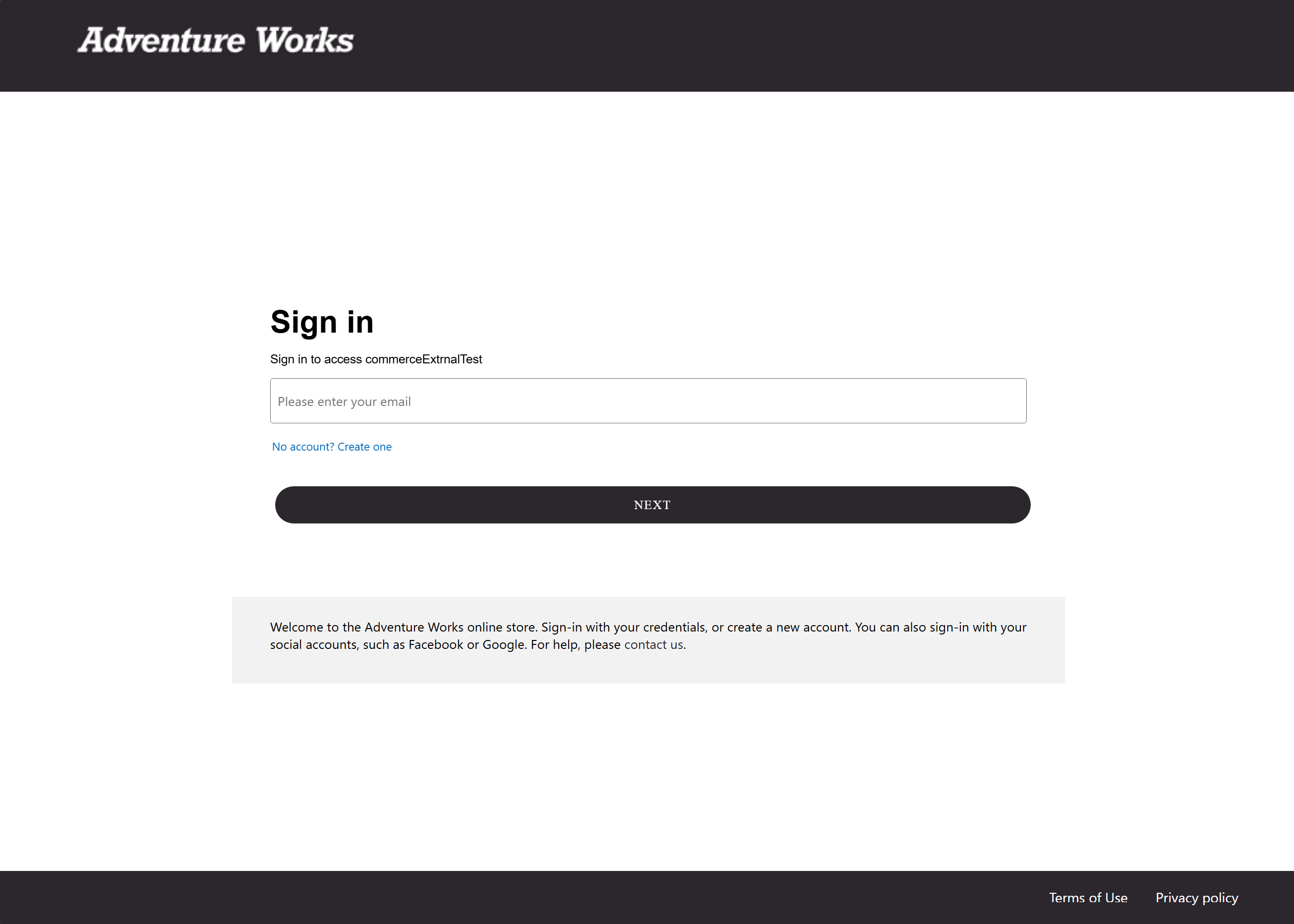
The following example image shows a customized Adventure Works B2B sign-in screen.
To create user flow in External ID, follow these steps:
- In the Microsoft Entra External ID tenant, navigate to Microsoft Entra ID.
- On the left navigation pane, select the External Identities menu.
- On the left navigation pane, under Self-service signup, select User flows.
- Select + New user flow.
- Under Name, enter a policy name.
- Under Identity providers, select an identity provider.
- Under User attributes select the user attributes to be collected during signup. You must select the mandatory Email address, Given Name, and Surname attributes for correct implementation and functionality of the policies.
- Select Create.
Update Commerce headquarters with the new Microsoft Entra External ID information
To update headquarters with the new Microsoft Entra External ID information, follow these steps:
- In Commerce, go to Commerce Shared Parameters.
- In the left navigation pane, select Identity Providers.
- Under Identity Providers, for Issuer, enter the identity provider issuer string. For information on how to find your issuer string, see Obtain issuer string for headquarters setup.
- For Name, enter a name for your issuer record.
- For Type, enter "Open ID Connect".
- Under Relying Parties, with the Microsoft Entra External ID identity provider selected, for ClientID, enter the Microsoft Entra External ID application ID you created in Create a Microsoft Entra External ID application.
- For Type, enter "Public".
- For User Type, enter "Customer".
- On the action pane, select Save.
- In the Commerce search box, search for Distribution schedules.
- On the left navigation pane of the Distribution schedules page, select Job 1110 Global configuration.
- On the action pane, select Run Now.
Obtain issuer string for headquarters setup
To obtain your identity provider issuer string, follow these steps:
Go to the Azure portal.
On the Microsoft Entra External ID page, navigate to your user flow.
In the Overview section, select Run user flow.
Confirm that you set the application to the intended Microsoft Entra External ID you created, and then under the Run user flow header, select the user flow link that includes
.../.well-known/openid-configuration?appid=<Application_ID>. Don't select Run user flow. A new tab opens that displays the metadata for the policy to collect the issuer string.On the metadata page displayed in your browser tab, copy the identity provider issuer string value that starts with
https://and ends with/v2.0/. It should look similar to the following example:https://ab12cd34ef56-9999-4bbb-846d-ed4b0283d8d7.ciamlogin.com/ab12cd34ef56-9999-4bbb-846d-ed4b0283d8d7/v2.0.
Set up an authentication profile in Commerce Site Builder
To set up an authentication profile in Commerce Site Builder, follow these steps:
In Commerce Site Builder, go to Tenant settings > Site authentication setup.
Select Manage.
On the right flyout pane, select Add site authentication profile.
For Application Name, enter a name for the authentication profile.
For Tenant Name, enter the domain name of the Microsoft Entra External ID tenant you created in the Azure portal. For example, if your domain is
ContosoCustomers.onmicrosoft.com, then the domain name isContosoCustomers. Use your domain name value on Site Builder.For Client GUID, enter the GUID of the app registration associated with the sign-in/sign-up user flow.
Note
After you create the authentication profile, it's available for use.
Go to Site settings > Channels.
Select the channel where you want to update your authentication.
Select the authentication profile you created.
Save and publish your changes.
The Microsoft Entra External ID authentication setup is now complete and active for your site.
Edit profile page configuration
Microsoft Entra External ID doesn't support custom HTML pages. By default, Microsoft Entra External ID only supports the edit profile page when it's associated with the "/editprofile" URL endpoint. You must create a new URL for the edit profile page with the /editprofile endpoint.
To create a new URL for the edit profile page with the "/editprofile" endpoint, follow these steps:
- Go to URLs and select + New.
- On Create new URL, create a new URL with the "/editprofile" endpoint.
- Select Next. On Select a page, select Profile edit, and then select Create.
- Save and publish your changes.
Note
Modules that support Microsoft Entra External ID are present in module library version 9.55.8. Ensure that you reference this version or later versions for full compatibility with Microsoft Entra External ID features.
Updates to the Account-Profile-Edit Module (Online SDK)
With Azure Active Directory B2C, implementing profile editing required only an HTML page that followed a specific contract. Azure Active Directory B2C itself handled the actual rendering of the edit profile page.
With Microsoft Entra External ID, this approach isn't supported. To address this issue, the account-profile-edit module is enhanced to provide edit profile functionality directly within the Commerce environment, which removes the dependency on Microsoft Entra External ID for rendering. As a result, the module supports profile updates for both Azure Active Directory B2C and Microsoft Entra External ID environments.
When Microsoft Entra External ID is enabled, the following changes are made to allow a profile update via the OneRF API in account-profile-edit module.
- account-profile-edit.tsx: New state variables and methods are added (for example, useEntraExternalId, _renderEntraExternalIdAccount, _handleOneRFSave) to manage External Entra ID logic and OneRF API calls.
- account-profile-edit.view.tsx: Conditional rendering using a dedicated entraContainer is added for External Entra ID scenarios.
- account-profile-edit-input.tsx: The input component is updated to include a disabled parameter.
- update-profile-onerf.ts and retail-actions/index.ts: A OneRF profile update action is added that exports its associated classes to support the API integration.