Note
Access to this page requires authorization. You can try signing in or changing directories.
Access to this page requires authorization. You can try changing directories.
This article outlines the steps to create an Eduframe connection.
Supported authentication types
The Eduframe connector supports the following authentication types for copy and Dataflow Gen2 respectively.
| Authentication type | Copy | Dataflow Gen2 |
|---|---|---|
| Eduframe account | n/a | √ |
Set up your connection for Dataflow Gen2
You can connect Dataflow Gen2 in Microsoft Fabric to Eduframe using Power Query connectors. Follow these steps to create your connection:
- Check capabilities to make sure your scenario is supported.
- Complete prerequisites for Eduframe.
- Get data in Fabric.
- Connect to Eduframe data.
- Check limitations and considerations for any current restrictions.
Capabilities
- Import
Prerequisites
Before you can sign in to Eduframe Reporting, you must have an Eduframe Admin account (username/password) and the Eduframe Reporting integration must be enabled. To enable this integration, you can send an email to: support@eduframe.nl.
Get data
To get data in Data Factory:
On the left side of Data Factory, select Workspaces.
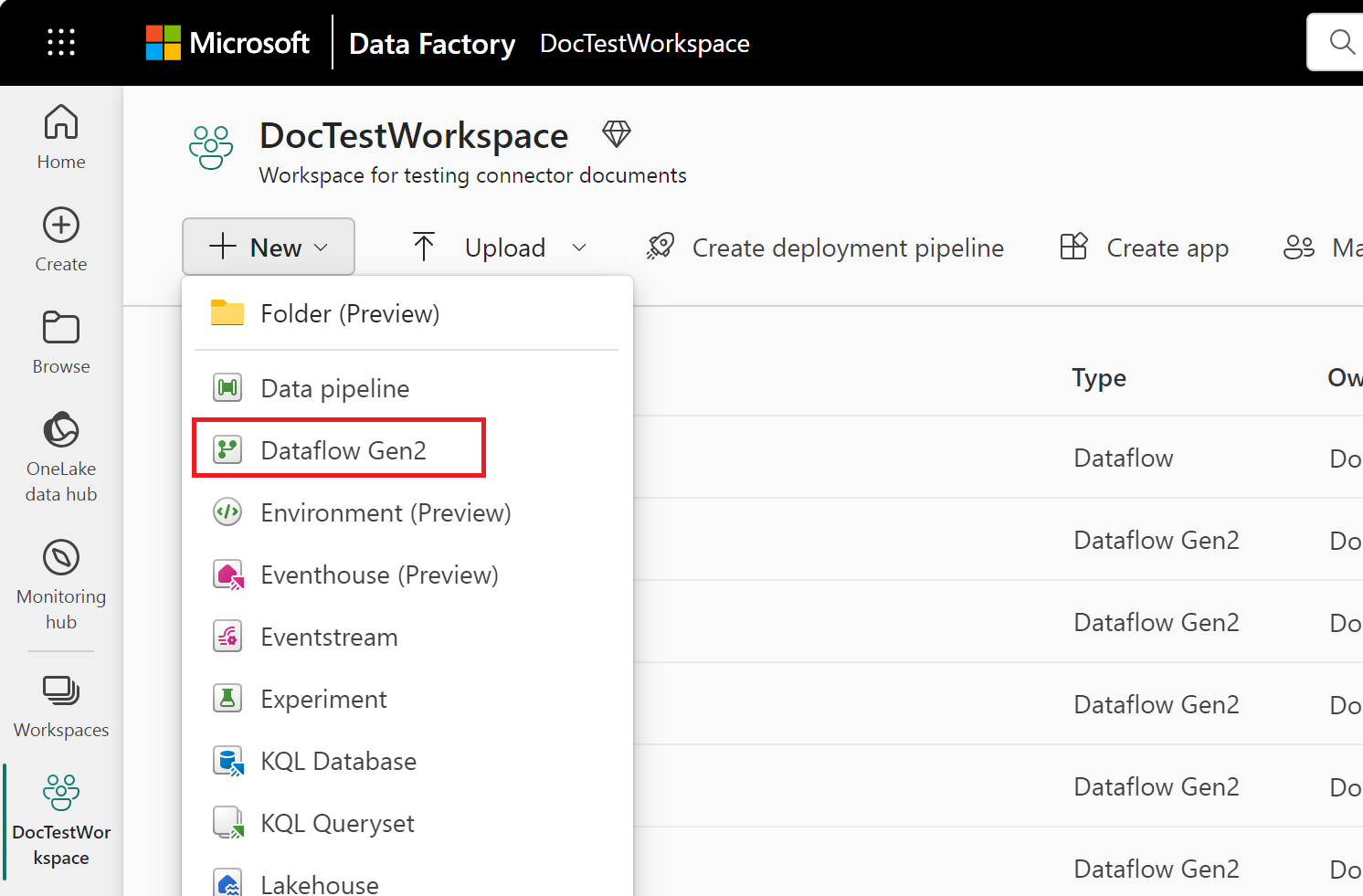
From your Data Factory workspace, select New > Dataflow Gen2 to create a new dataflow.
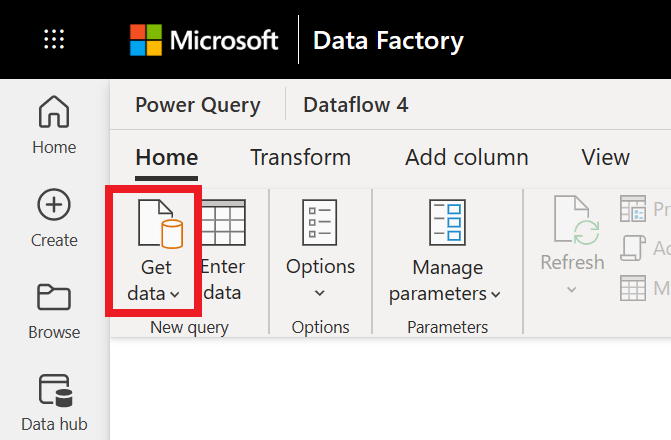
In Power Query, either select Get data in the ribbon or select Get data from another source in the current view.
In the Choose data source page, use Search to search for the name of the connector, or select View more to the right of the connector list to see all the connectors available in Data Factory.

If you choose to view more connectors, you can still use Search to search for the name of the connector, or choose a category to see a list of connectors associated with that category.


Connect to Eduframe data
To connect to Eduframe Reporting data:
Select Eduframe (Beta) from the Power Query Connect to data source page.
In the Eduframe dialog, enter your Eduframe domain (your organization name, without
.eduframe.nl).Select your authentication method, and either provide your credentials or sign in.
Once you successfully sign in, select Next.
In the Choose data page, select the data you require, and then select Transform data to transform the data in Power Query Editor.
Limitations and considerations
You should be aware of the following limitations and issues associated with accessing Eduframe data.
- There's a throttling limit of 100 API calls per 60 seconds.
Set up your connection in a pipeline
Data Factory in Microsoft Fabric doesn't currently support Eduframe in pipelines.