Note
Access to this page requires authorization. You can try signing in or changing directories.
Access to this page requires authorization. You can try changing directories.
Microsoft Fabric works with many data sources, both on-premises and in the cloud. Each data source has specific setup requirements. This article shows you how to add an Azure SQL Server as a cloud data source as an example - and the process is similar for other sources. If you need help with on-premises data sources, see Add or remove a gateway data source.
Note
Right now, cloud connections work with pipelines and Kusto. For datasets and dataflows, you need to use Power Query Online's "get data" experience to create personal cloud connections.
Add a data source
Here's how to add a new data source:
Open the Microsoft Fabric service and select the Settings icon in the header. Then select Manage connections and gateways.
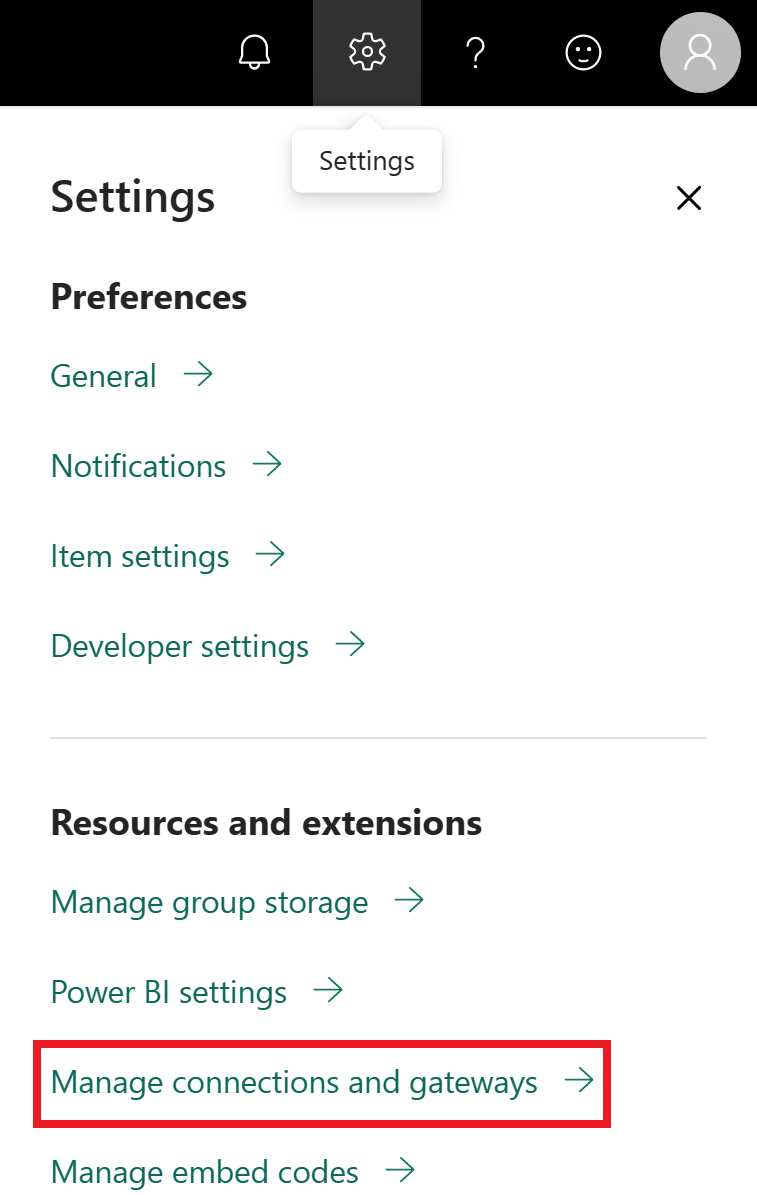
On the Connections tab, select New at the top of the screen.
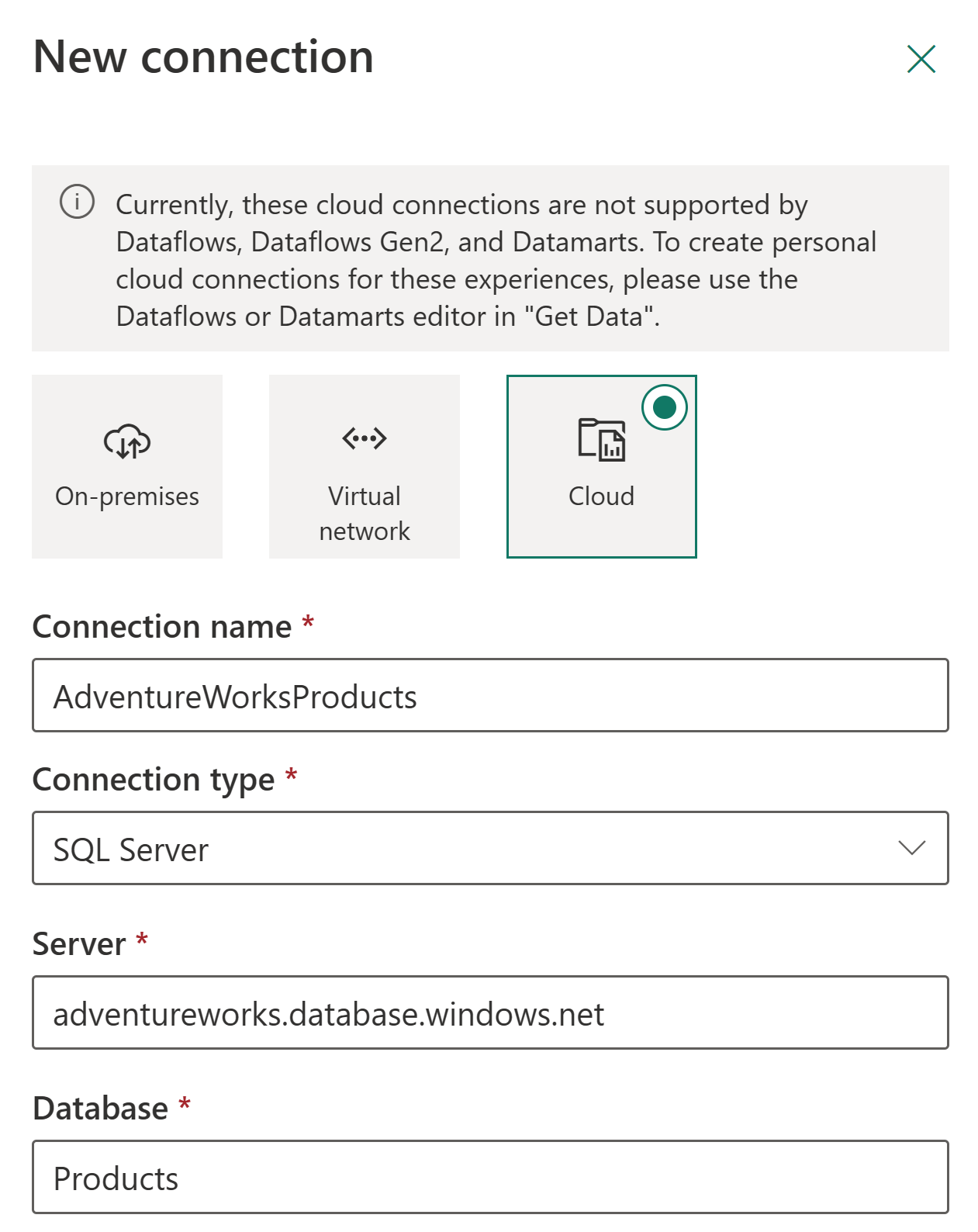
In the New connection screen:
- Select Cloud
- Enter a descriptive Connection name
- Choose your Connection Type (we use SQL server in this example)
Fill in the data source details. For SQL server, you need:
- Server name
- Database name
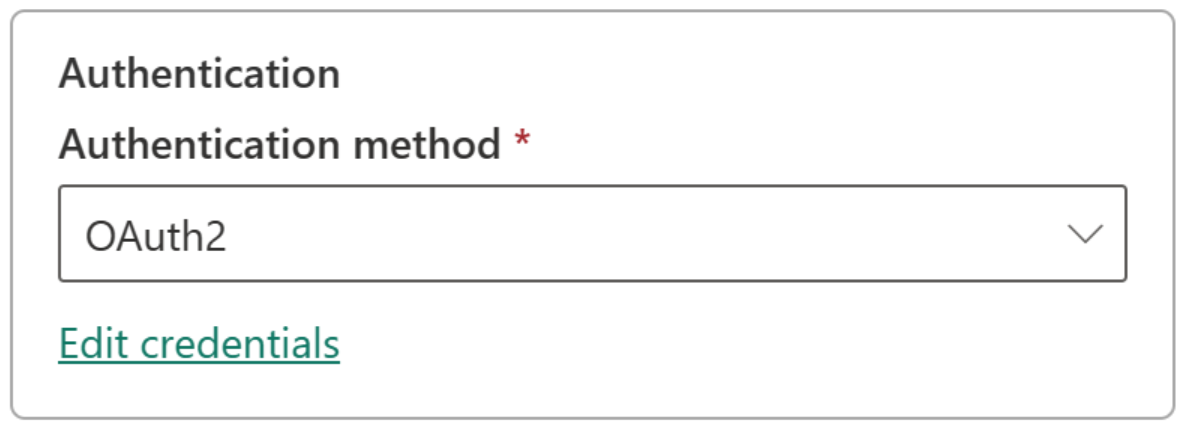
Choose your Authentication method:
- Basic
- OAuth2
- Service Principal
Note
If you use OAuth2:
- Long-running queries might fail if they exceed the OAuth token expiration
- Cross-tenant Microsoft Entra accounts aren't supported
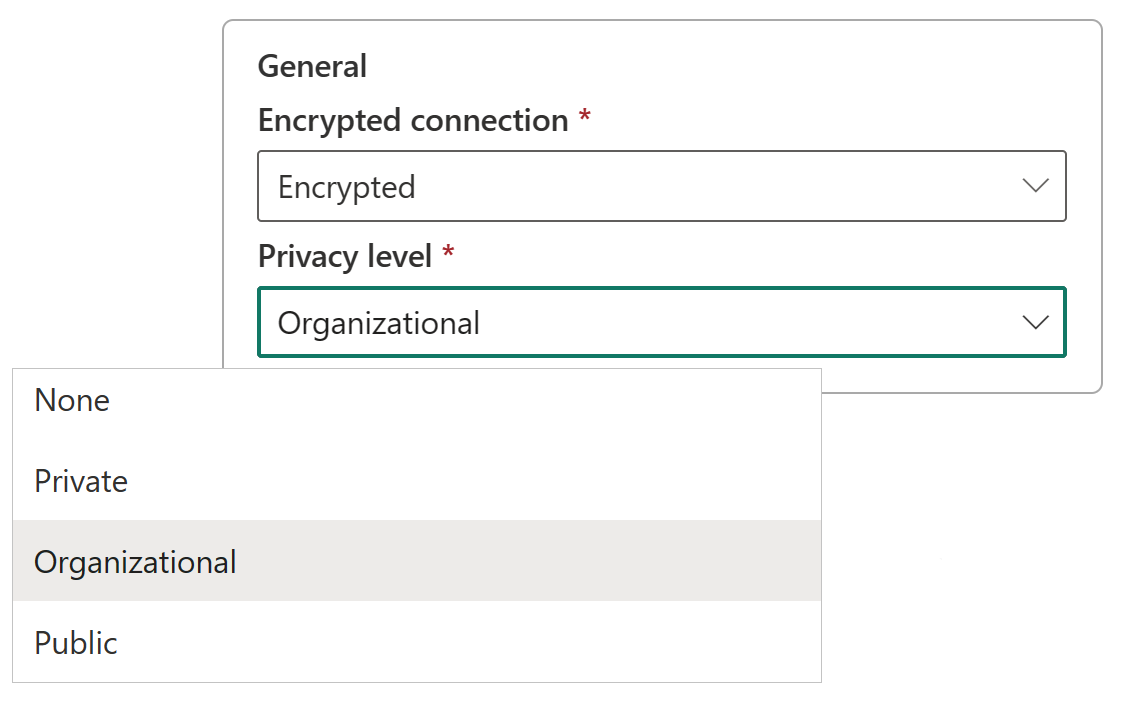
Optional: Set up a privacy level under General > Privacy level. This setting doesn't affect DirectQuery connections.
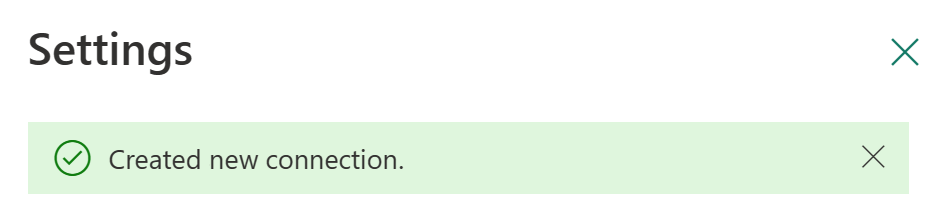
Select Create. You see a Created new connection message under Settings when successful.
Once created, you can use this data source to work with Azure SQL data in supported Microsoft Fabric items.
Allow cloud connection usage on gateway
When creating a connection, you see a setting labeled This connection can be used with on-premise data gateways and VNet data gateways. This setting controls whether your connection can work with gateways:
- When unchecked: The connection can't be used with gateway-based evaluations
- When checked: The connection can work with gateway-based evaluations
Caution
While this setting appears when creating cloud connections through Dataflow Gen2, it isn't currently enforced. All shareable cloud connections work through a gateway if one is present.
Remove a data source
To remove a data source that's no longer needed, follow these steps:
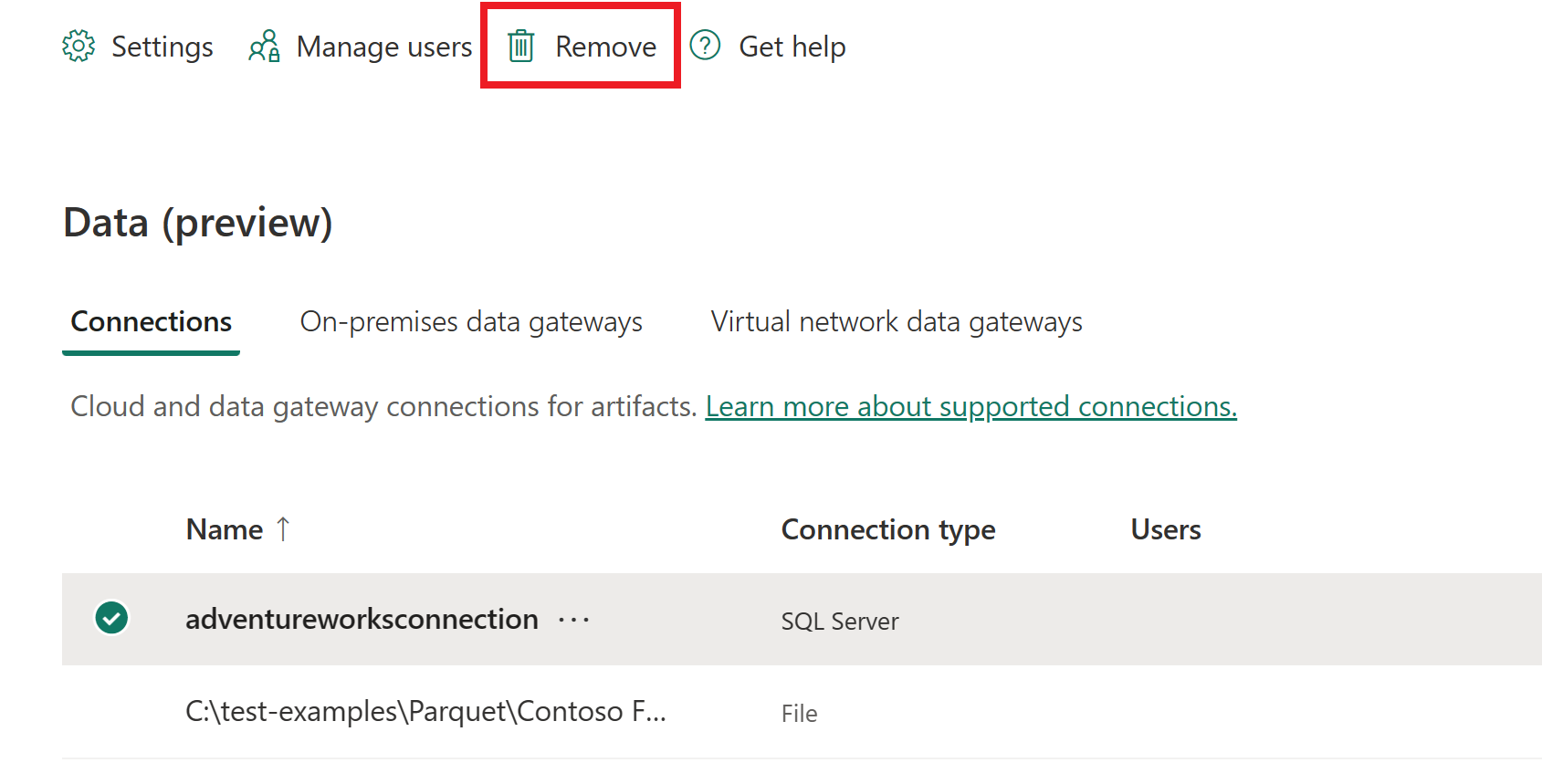
- Go to the Data screen in Manage connections and gateways
- Select your data source
- Select Remove from the top ribbon
Important
When you remove a data source, any items that depend on it stop working.
Get a data source connection ID
To retrieve a connection ID for use in Microsoft Fabric items or REST APIs, use one of these methods:
Use the service interface
Go to Manage connections and gateways
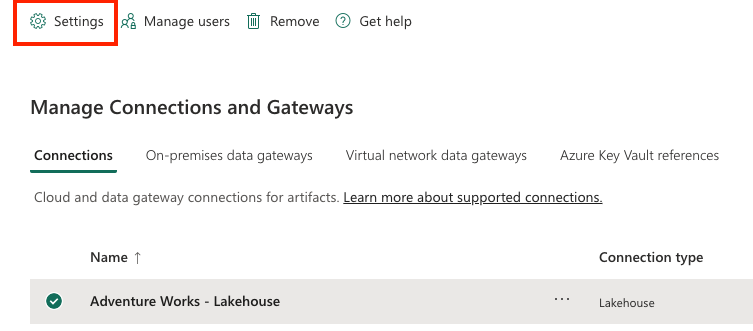
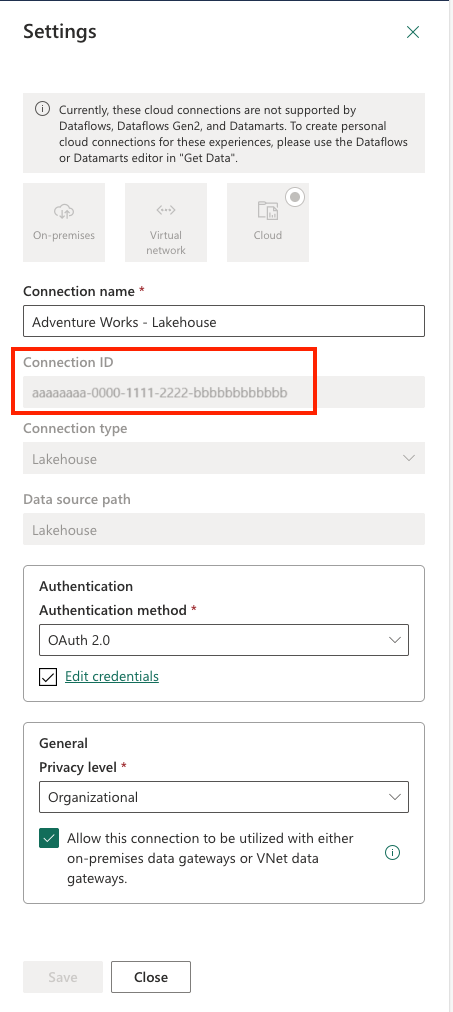
Under the connection Settings screen, copy the connection ID of the data source.
Use the REST API
Use the List Connections endpoint to retrieve your connection information:
Send an HTTP GET to the Fabric Connections API, including your token in the
Authorizationheader:curl -X GET https://api.fabric.microsoft.com/v1/connections \ -H "Authorization: Bearer $ACCESS_TOKEN"A successful response returns a JSON payload similar to:
 {
 "value": [
    {
       "id": "bbbbbbbb-1111-2222-3333-cccccccccccc",
       "displayName": "ContosoConnection1",
       …
    },
    {
       "id": "cccccccc-2222-3333-4444-dddddddddddd",
       "displayName": "ContosoConnection2",
       …
    }
 ],
 "continuationToken": "…",
 "continuationUri": "…"
 }
Each object’s
idproperty under thevaluearray is the connection ID. Extract theidproperty from the response as needed.Note
If you have more than 100 connections, use the
continuationTokenquery parameter on subsequent requests to page through all results.
Here's a sample Python snippet that uses requests and Microsoft Authentication Library (msal) to call the GET /v1/connections endpoint and parse connection IDs:
import requests
import msal

# 1. Acquire token
app = msal.ConfidentialClientApplication(
   client_id="YOUR_CLIENT_ID",
   client_credential="YOUR_CLIENT_SECRET",
   authority="https://login.microsoftonline.com/YOUR_TENANT_ID"
)
result = app.acquire_token_for_client(scopes=["https://api.fabric.microsoft.com/.default"])
token = result["access_token"]

# 2. Call API
headers = {"Authorization": f"Bearer {token}"}
resp = requests.get("https://api.fabric.microsoft.com/v1/connections", headers=headers)
resp.raise_for_status()

# 3. Parse IDs
for conn in resp.json().get("value", []):
   print(f"{conn['displayName']}: {conn['id']}")
Connection recency (Preview)
Microsoft Fabric provides usage-based properties to help you better understand how connections are configured and used over time. These properties improve audit visibility and support safer connection lifecycle management.
Over time, connections may be reused, replaced, or left idle. Without clear usage signals, it can be difficult to determine whether a connection is still active or safe to modify, rotate credentials for, or remove. The Last Used Time capability introduces additional metadata to help you make more informed decisions.
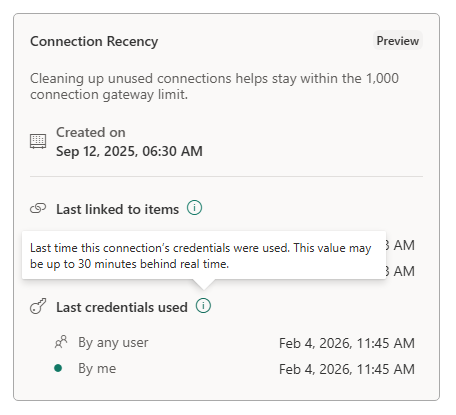
Two new properties are available in connection metadata:
Last linked to items
Shows the most recent time the connection was linked to a Fabric item.
Reflects configuration activity (for example, when the connection was associated with a pipeline or other artifact).
Helps identify recently created or newly reused connections.
This property indicates when a connection was last configured or associated with an item.
Last credentials used
Shows the most recent time the connection’s credentials were used at runtime.
Reflects actual execution usage, not just configuration.
Helps distinguish between defined connections and actively used connections.
This property indicates when a connection was last used to execute a workload.
Together, these properties provide both configuration signals and runtime usage signals for better operational insight.
Manage users
After you add a cloud data source, you give users and security groups access to the specific data source. The access list for the data source controls only who is allowed to use the data source in items that include data from the data source.
Note
Sharing connections with other users risks unauthorized changes and potential data loss. Users with access to the data source can write to the data source, and connect, based on either the stored credentials or SSO you selected while creating a data source. Before you share a data source connection, always ensure the user or group account you’re sharing are trusted and has only the privileges it needs (ideally a service account with narrowly scoped rights).
Add users to a data source
Select the Settings icon, and open Manage connections and gateways
Find your data source in the list. Use the filter or search in the top ribbon to locate cloud connections quickly.
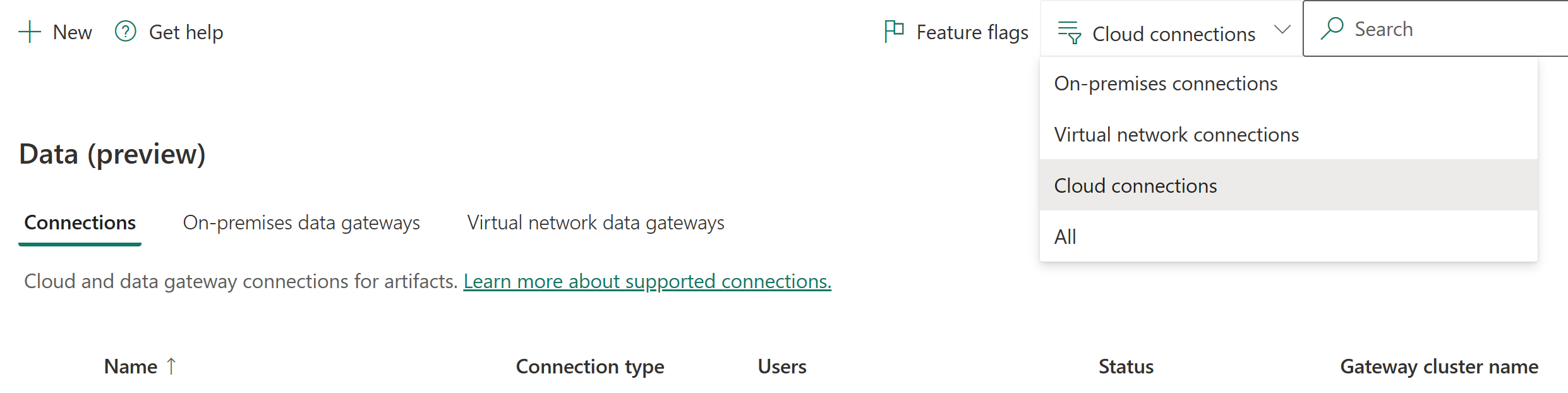
Select Manage users from the top ribbon
In the Manage users screen:
- Add users or security groups from your organization
- Select the new user name
- Choose their role: User, User with resharing, or Owner
Select Share to give them access


Note
You need to add users to each data source separately - each one has its own access list.
Note
A user sees only connections they have access to in the Connections tab of Manage connections and gateways. Connections that the user isn't part of don't appear in this page, even when the user is a tenant administrator and the Tenant administration toggle is enabled.
Remove users from a data source
To remove access, go to the Manage Users tab and remove the user or security group from the list.
Manage sharing permissions
Control who can share connections in your organization. By default, users can share connections if they are:
- Connection owners or admins
- Users with sharing permissions
Connection sharing helps teams collaborate while keeping credentials secure. Shared connections only work within Fabric.
Note
Guest users might face limitations when sharing connections in Fabric if the organization's Microsoft Entra B2B guest user properties block user discoverability and sharing permissions.
Restrict connection sharing
As a tenant admin, you can limit who can share connections:
You need Power BI Service Administrator privileges
Open Power BI or Fabric settings and go to Manage connections and gateways
Turn on the tenant administration toggle in the top right

Select Blocking shareable cloud connections and turn it on.
- When off (default): Any user can share connections
- When on: Sharing is blocked tenant-wide
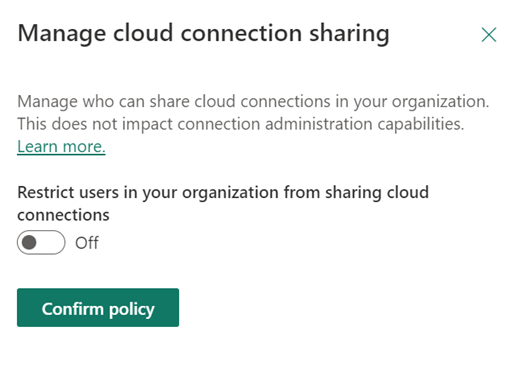
Optional: Add specific users to an allowlist:
- Search for users and select Add
- Listed users can still share connections
- Everyone else is blocked from sharing
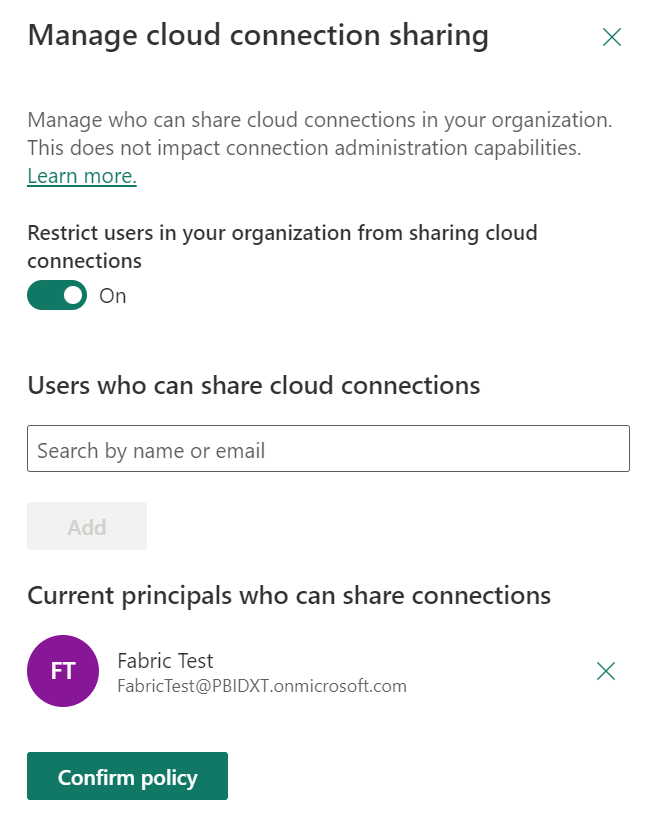
Note
- Blocking sharing could limit collaboration between users
- Existing shared connections stay shared when you turn on the restriction
Manage connections tenant-wide with the admin APIs
Note
The admin connections APIs are in preview. Names, endpoints, and behavior might change before general availability.
Tenant administrators can inventory and govern every connection in the tenant with the admin connections APIs, regardless of who created the connection or which workspace it's used in. The admin endpoints cover all connection types, not just cloud connections. Unlike the connection-owner List Connections endpoint, which returns only the connections you own or are shared with, the admin endpoints return connections across the whole tenant.
The caller must be a Fabric administrator, or authenticate by using a service principal, with the Tenant.Read.All or Tenant.ReadWrite.All scope.
These APIs help you:
- Discover and inventory: list every connection in the tenant and review details such as connector type, authentication type, endpoints, and recency.
- Govern ownership: take ownership of orphaned connections when the original creator leaves the organization, and reassign connections to keep workloads running.
- Govern security and compliance: identify insecure credential types and review endpoint domains against your network policies.
- Maintain operational hygiene: find duplicate or stale connections and delete the ones you no longer need.
| Operation | API |
|---|---|
| List all connections in the tenant | Connections - List Connection |
| Get a single connection | Connections - Get Connection |
| Delete a connection | Connections - Delete Connection |
| List the role assignments on a connection | GET /v1/admin/connections/{connectionId}/roleAssignments |
| Add a role assignment (assign an owner) | POST /v1/admin/connections/{connectionId}/roleAssignments |
| Update a role assignment | PATCH /v1/admin/connections/{connectionId}/roleAssignments/{roleAssignmentId} |
| Delete a role assignment | DELETE /v1/admin/connections/{connectionId}/roleAssignments/{roleAssignmentId} |
To list every connection in the tenant, send an HTTP GET to the admin connections endpoint, including your token in the Authorization header:
GET https://api.fabric.microsoft.com/v1/admin/connections
Authorization: Bearer <token>
A successful response returns a value array of connection objects. Each object includes identity, connectivity type, connection details (endpoint path and type), privacy level, credential details, and connection recency:
{
  "value": [
    {
      "id": "6952a7b2-aea3-414f-9d85-6c0fe5d34539",
      "displayName": "ContosoConnection1",
      "gatewayId": "8f72eea3-d989-4a5a-aeed-02b3aaa2ddd0",
      "connectivityType": "ShareableCloud",
      "connectionDetails": {
        "type": "Web",
        "path": "https://www.contoso.com"
      },
      "privacyLevel": "Public",
      "credentialDetails": {
        "credentialType": "Anonymous",
        "singleSignOnType": "None",
        "connectionEncryption": "NotEncrypted",
        "skipTestConnection": false
      },
      "connectionRecency": {
        "createdDateTime": "2023-05-23T16:22:20Z",
        "lastBoundDateTime": "2023-05-26T16:22:20Z",
        "lastCredentialUsedDateTime": "2023-05-27T16:22:20Z"
      }
    }
  ],
  "continuationToken": "LDEsMTAwMDAwLDA%3D"
}
If you have more than 100 connections, use the continuationToken query parameter on subsequent requests to page through all results.
Take ownership or reassign a connection
When a connection's original owner leaves the organization, or you need to move a connection to a different owner, use the role assignment APIs to grant the Owner role to a user or service principal. This action keeps dependent pipelines, dataflows, and other items running.
To assign an owner, send an HTTP POST to the connection's roleAssignments endpoint with the principal and role in the request body:
POST https://api.fabric.microsoft.com/v1/admin/connections/{connectionId}/roleAssignments
Authorization: Bearer <token>
Content-Type: application/json

{
  "principal": {
    "id": "aaaaaaaa-bbbb-cccc-dddd-eeeeeeeeeeee",
    "type": "User"
  },
  "role": "Owner"
}
To review who currently has access to a connection, send an HTTP GET to the same endpoint to list all role assignments. To change an existing assignment, send an HTTP PATCH to .../roleAssignments/{roleAssignmentId} with the new role value. To remove access, send an HTTP DELETE to .../roleAssignments/{roleAssignmentId}.