Note
Access to this page requires authorization. You can try signing in or changing directories.
Access to this page requires authorization. You can try changing directories.
This article describes how to sign in to your work or school account with a synced passkey.
Your passkey can be synced to the same device where you want to sign in, or it can be synced to another device.
Use a passkey from the same device
Select Sign in for a Microsoft application or website such as the Azure portal.
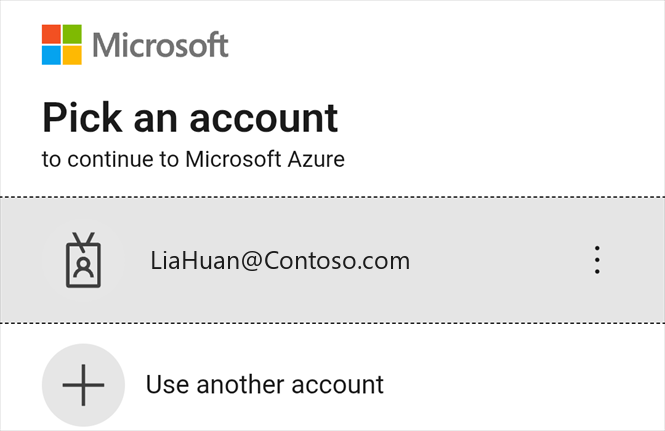
If you most recently used a passkey to sign in, you're automatically prompted to sign in with a passkey. Choose your account.
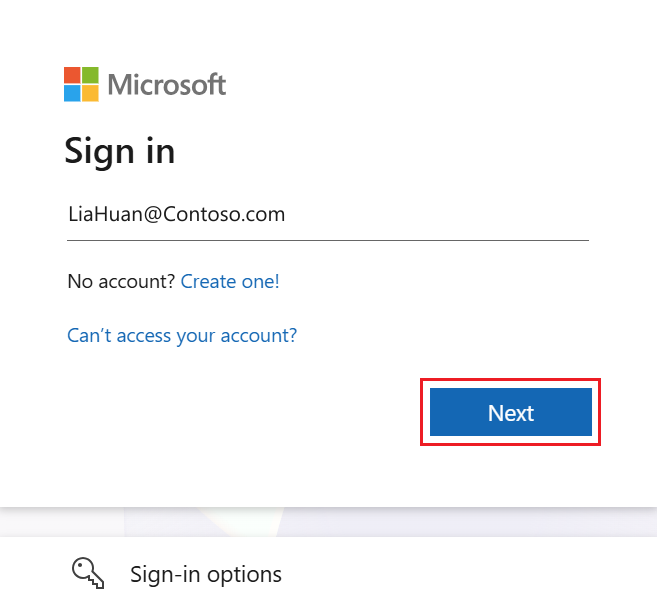
Otherwise, you can enter your username and select Next to sign in.
Complete multifactor authentication (MFA).
You're signed in with your work or school account.
Use a passkey from another device
Select Sign in for a Microsoft application or website such as the Azure portal.
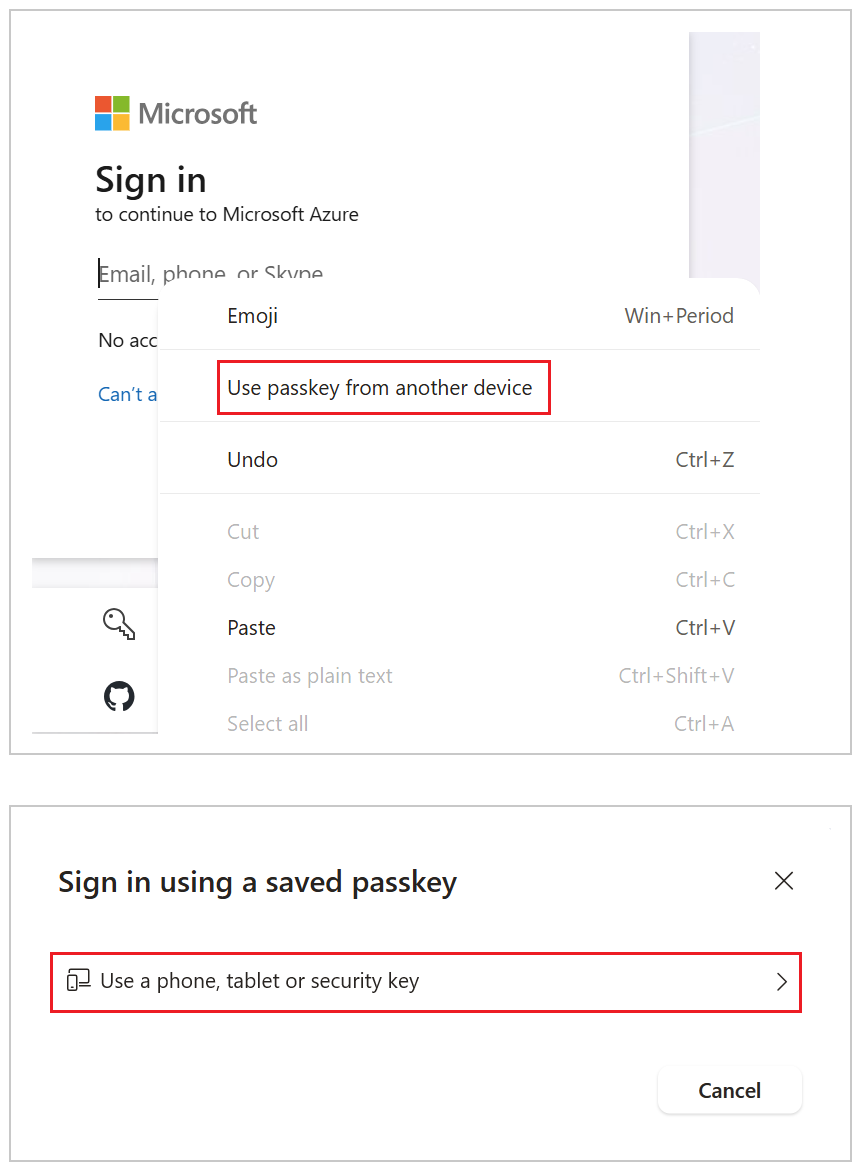
In Microsoft Edge, right-click where you enter your name, select Use passkey from another device > Use a phone, tablet or security key.
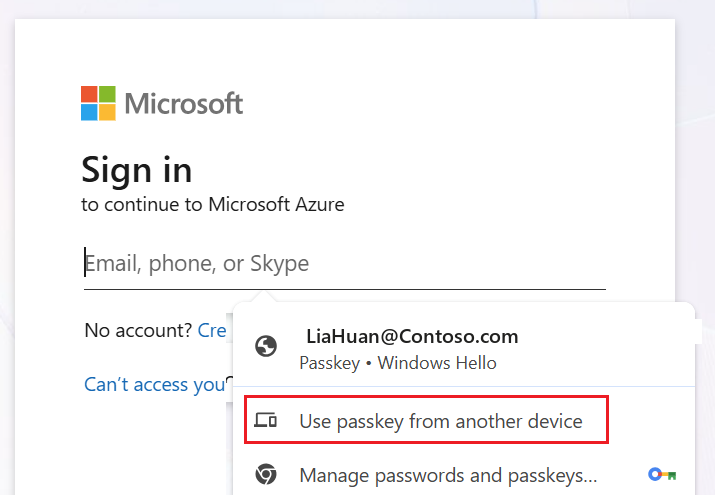
In Google Chrome, select where you enter your name, then select Use passkey from another device.
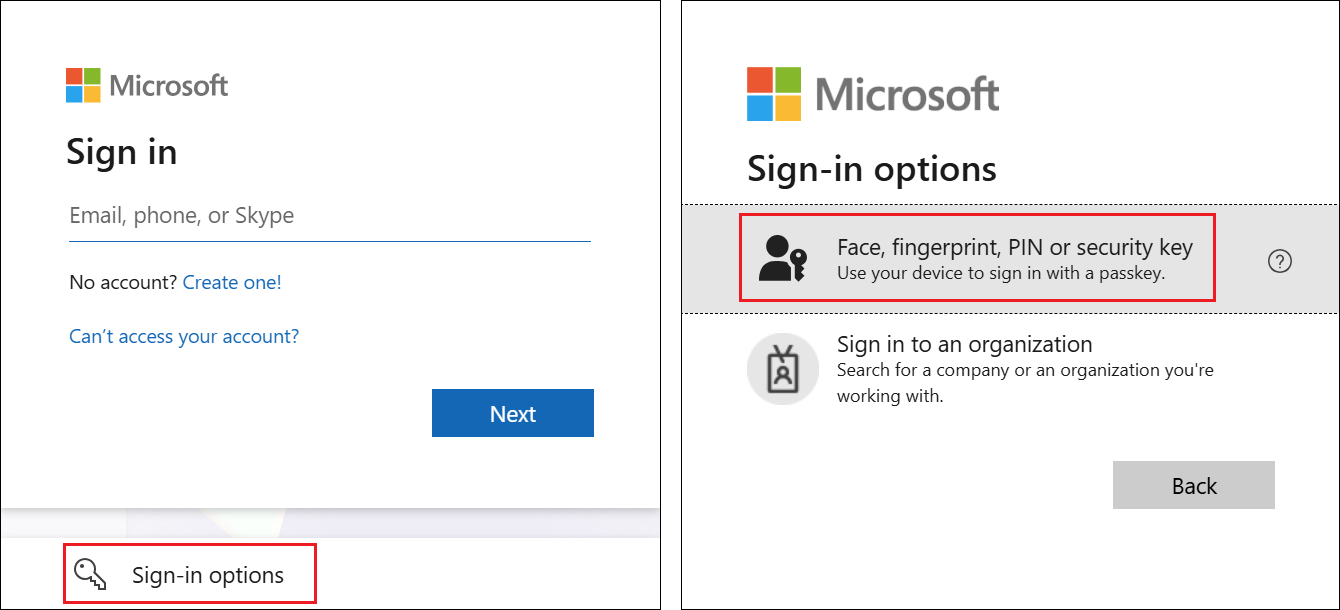
You can also click Sign in, select Sign-in options > Face, fingerprint, PIN or security key.
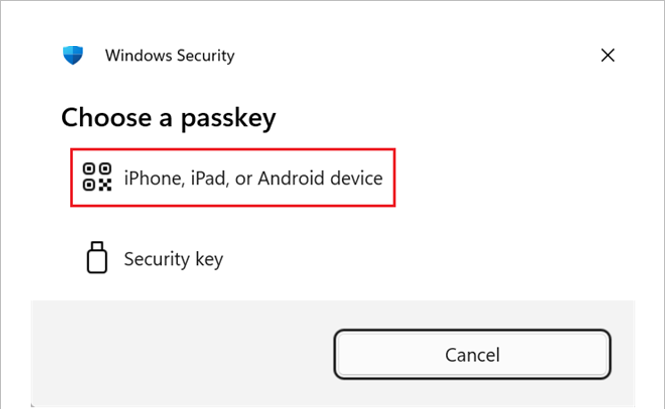
Select iPhone, iPad, or Android device. The other sign-in options that are shown vary depending on your account and device.
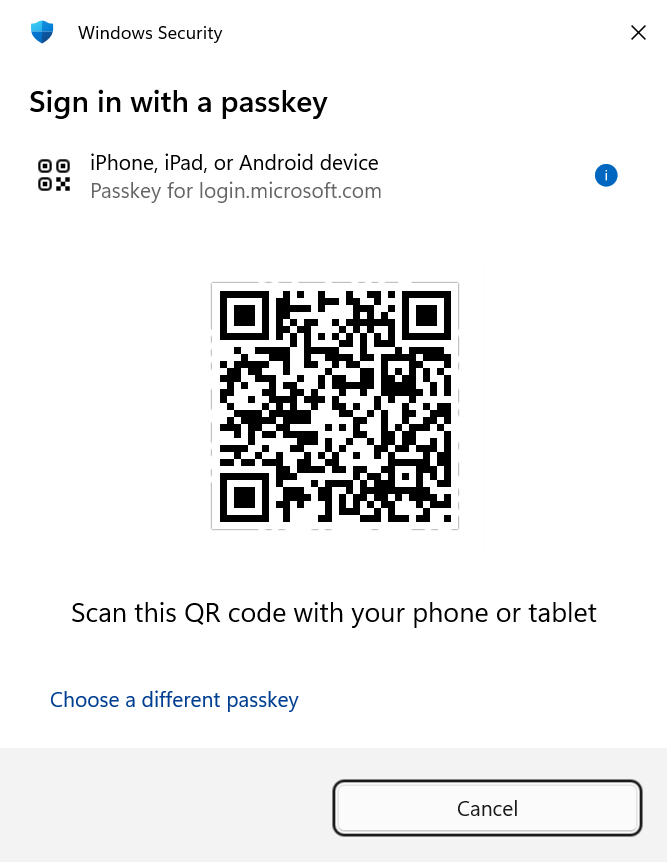
The device where you want to sign in shows a QR code. Scan the QR code with the other device that has your passkey.
On iOS, select Sign in with passkey. On Android, select Use passkey to sign in.
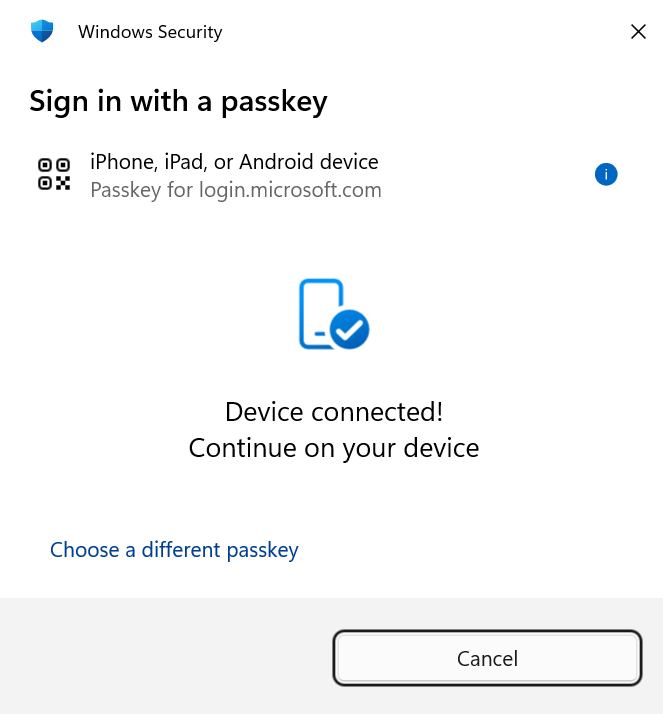
Bluetooth and an internet connection are required for this step and must be enabled on both devices. The device where you want to sign in shows this screen:
Complete multifactor authentication (MFA).
You're signed in with the synced passkey for your work or school account.
Known issues
Review the following known issues to avoid problems with synced passkey sign-in.
Bluetooth must be enabled on both devices for cross-device authentication
If you're signing in by using a different mobile device, Bluetooth must be enabled on the device you're trying to sign in on and the mobile device with the passkey.
Some organizations restrict Bluetooth usage, which includes the use of passkeys. In such cases, organizations can allow passkeys by permitting Bluetooth pairing exclusively with passkey-enabled FIDO2 authenticators. For more information, see Passkeys in Bluetooth-restricted environments.
Orphaned passkey
An orphaned passkey occurs when a passkey remains on a user's device but is no longer registered with Microsoft Entra ID. This typically happens if the passkey was deleted from a user's Security info or removed due to policy changes, but the local credential wasn't cleaned up.
If you're blocked from sign-in by an orphaned passkey:
- Remove the orphaned passkey from the device or passkey provider.
- Re-register a new passkey after cleanup.