Share via

why does powerpoint grouping not include textboxes

George Lane 0 Reputation points
2025-08-01T17:41:24.4966667+00:00

When I am working on a complex slide I often have textboxes that I would like to visually remain close to other objects, for instance, prepare a slide to print for a power presentation (important for scientific communication).

Anyway, grouping excludes text boxes. I do not like this, and would like this to be able to voted on to see how popular my request is.

Microsoft 365 and Office | PowerPoint | For business | Windows
0 comments No comments

4 answers

Sort by: Most helpful
  1. John Korchok 232.1K Reputation points Volunteer Moderator
    2025-08-01T18:14:36.8+00:00

    Grouping excludes text and content placeholders (the ones that appear automatically when you create a new slide). Text boxes (created with Insert>Text Box) are groupable.

    As a workaround, you could consider setting up the same text levels for text boxes that are used in your placeholders. Here are my articles on how to do that: OOXML Hacking: Text Box Styles OOXML Hacking: Styled Text Boxes Complete

    To suggest that PowerPoint work differently, please choose Help>Feedback>Make a suggestion in the program. Post your idea, then others can vote on it. Microsoft uses this feedback to prioritize their programming.

    Was this answer helpful?

    2 people found this answer helpful.
    0 comments No comments

  2. Vivian-HT 15,860 Reputation points Microsoft External Staff Moderator
    2025-08-02T00:47:36.6166667+00:00

    Dear @George Lane,

    Thank you for posting your question in the Microsoft Q&A forum.

    You're raising a very thoughtful and practical concern about PowerPoint's limitations when it comes to grouping text boxes with other objects, especially in the context of preparing complex, print-ready scientific slides.

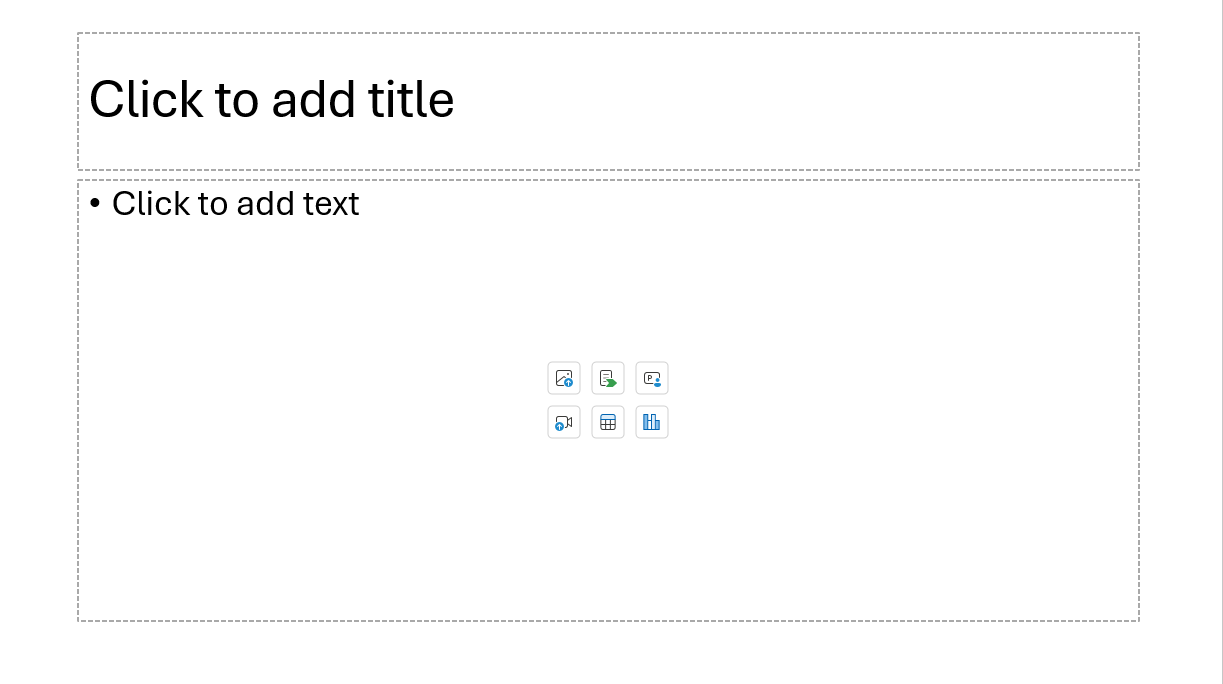
    PowerPoint does allow grouping of text boxes, but with a major caveat: placeholders (like those in default slide layouts) cannot be grouped with other objects. This often causes confusion because placeholders and manually inserted text boxes look similar but behave differently.

    Workaround

    A workaround is right click and drag on the edge of the text box, then choose "Copy Here" when you let go of the mouse.  That'll create an exact copy of the text box, but this one will be a plain (GROUPABLE) shape rather than a placeholder. Delete the original placeholder and you're good to go ... grouping. User's image
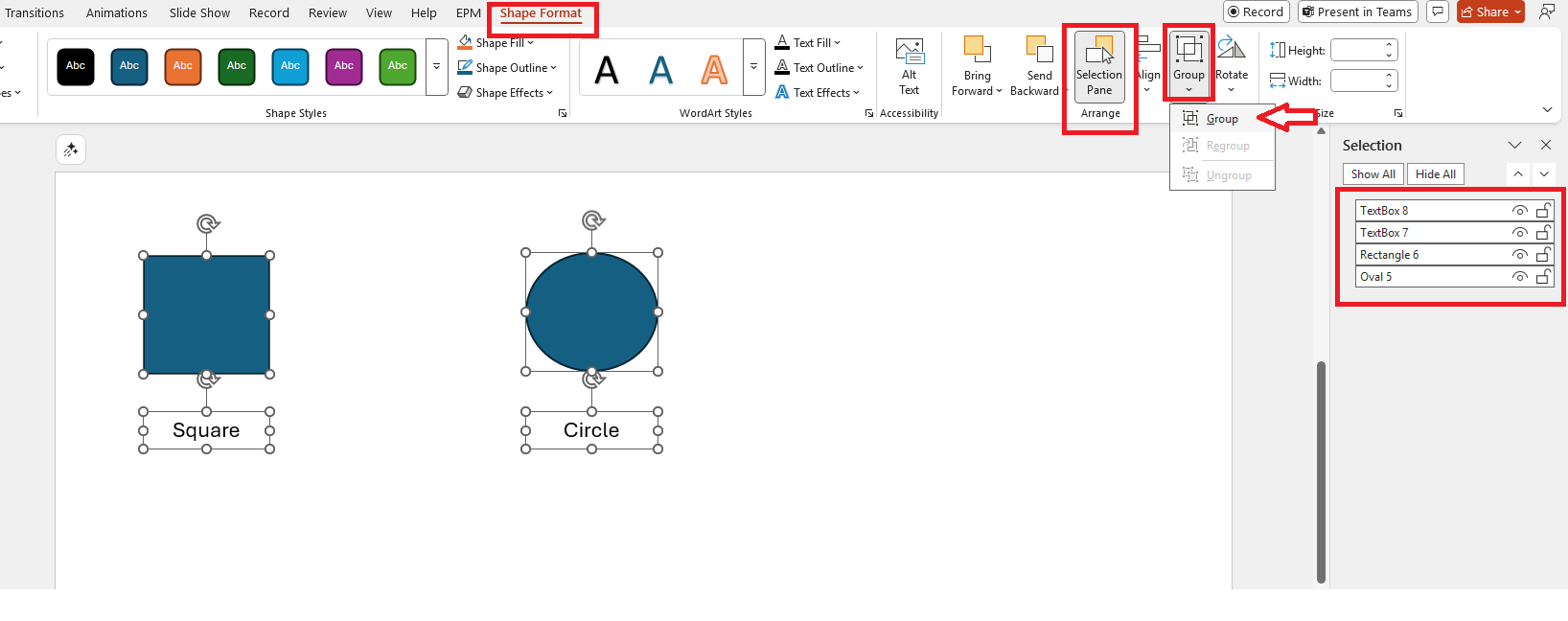
    Currently, PowerPoint allows grouping of manually inserted text boxes manually via Insert > Text Box with other objects. Here are some steps to group the text boxes with other objects.

    Step 1: Click on the object > choose Shape format

    Step 2: Choose "Selection Pane" > Ctrl + the object and the text box you want to group

    Step 3: Click Group
    Untitled Moreover, your suggestion to make all text boxes, including placeholders, groupable is a valuable one. We encourage you to submit this idea through PowerPoint’s built-in feedback tool:

    1. Open PowerPoint.
    2. Go to Help > Feedback > I have a suggestion.
    3. Describe your request and how it would improve your workflow.

    This feedback goes directly to the product team and helps prioritize future updates based on user demand. If enough users raise ticket for the same idea, Microsoft may consider adding this feature in the future. 

    Note: As Microsoft Community moderators, please note that we are not involved in product design decisions and do not have direct access to the development roadmap, we want to assure you that your feedback has been acknowledged and is valued.  

    I hope this information is helpful. If you have any questions or need further clarification, please feel free to reach out.

    Thank you for your patience and understanding. I'm looking forward for your reply.


    If my answer is helpful, please click "Accept Answer" and kindly upvote it. If you have extra questions about this answer, please click "Comment".   

    Note: Please follow the steps in our documentation to enable e-mail notifications if you want to receive the related email notification for this thread.User's image

    Was this answer helpful?

    1 person found this answer helpful.

  3. AlexDN 11,425 Reputation points Microsoft External Staff Moderator
    2025-09-02T04:14:18.2933333+00:00

    Dear @George Lane,

    I hope you are doing well.  

    My apologies for reaching out to you again to ensure everything is progressing smoothly on your end. If there's anything you'd like to share or if further assistance is needed, we're here to help. Your feedback is important, and I want to make sure nothing is left unattended.

    If you see any replies, bring helpful information, please kindly accept it as an answer and vote it up by your original account which raised this question. Once marked, it will automatically pin to top. As other users will also search information in this community, your valuable marked answer will definitely also help other users who have similar queries easily to find the correct channel and useful information more quickly.  

    Looking forward to hearing from you.

    Thank you for your patience and understanding. I'm looking forward for your reply.


    If my answer is helpful, please click "Accept Answer" and kindly upvote it. If you have extra questions about this answer, please click "Comment".   

    Note: Please follow the steps in our documentation to enable e-mail notifications if you want to receive the related email notification for this thread.User's image

    Was this answer helpful?

    0 comments No comments

  4. Stefan Blom 340.3K Reputation points MVP Volunteer Moderator
    2025-08-05T10:18:35.1366667+00:00

    As John has already pointed out, placeholders are part of the slide layout. That is why they can't be grouped with text boxes, shapes, etc. For more, see https://support.microsoft.com/en-us/office/add-edit-or-remove-a-placeholder-on-a-slide-layout-a8d93d28-66cb-43fd-9f9d-e12d0a7a1f06 .

    Was this answer helpful?

    0 comments No comments

Your answer

Answers can be marked as 'Accepted' by the question author and 'Recommended' by moderators, which helps users know the answer solved the author's problem.
