Note
Access to this page requires authorization. You can try signing in or changing directories.
Access to this page requires authorization. You can try changing directories.
After hosting your MCP server remotely on Azure Functions, register it on Azure API Center. Azure API Center maintains an inventory (or registry) of remote MCP servers so that they're easily discoverable across your organization. All registered MCP servers appear in the API Center portal for teams in your organization.
Tip
The API Center name becomes your private tool catalog name in the registry filter. Choose an informative name that helps users identify your organization's tool catalog.
Prerequisites
- An MCP server hosted on Azure Functions. To create one, see Host an MCP server on Azure Functions.
Register the server
Open the server app in the Azure portal and select the AI (preview) tab.
Select Connect Azure API Center in the Azure API Center section.
In the side pane that opens, either choose an existing API Center or create a new one. Fill out the required fields.
Select Connect.
Publish the API Center portal
If your API Center portal isn't already published, publish it so your team can discover the registered server in the portal:
Select the API Center name to go to the resource.
On the left menu, find API Center portal.
Select Configure Entra ID, then follow the Quick setup flow.
Once Microsoft Entra ID is configured, select the Save + publish button at the top.
Select the View API Center portal button next to the publish button.
In the portal that opens, sign in with your email. Depending on your tenant's policy, you might need admin approval to grant consent.
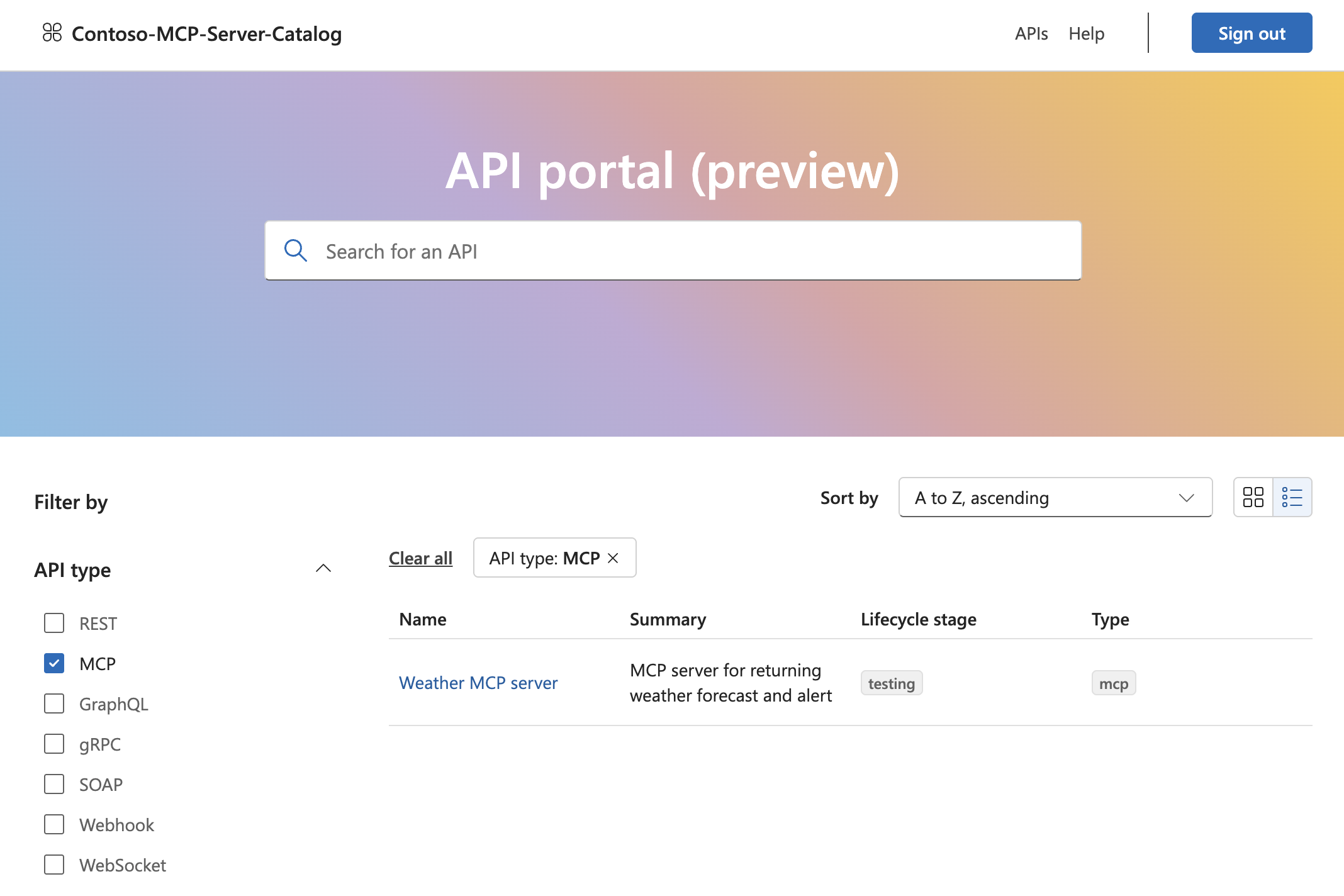
After signing in, you should see the server listed in the API Center portal. Click into the server to see details, including information like endpoint.