Note
Access to this page requires authorization. You can try signing in or changing directories.
Access to this page requires authorization. You can try changing directories.
Note
This preview capability is subject to the Supplemental Terms of Use for Microsoft Azure Previews.
When you automate a business process, you want to define the business logic only once, and then run the automation reliably and autonomously with human oversight when necessary. For example, some automation tasks might include routing notifications, running operations in various services or systems, or monitoring data feeds.
In Logic Apps Automation, a workflow is the unit that runs an automation workload. Each complete workflow has the following basic attributes:
- Lives within an automation application.
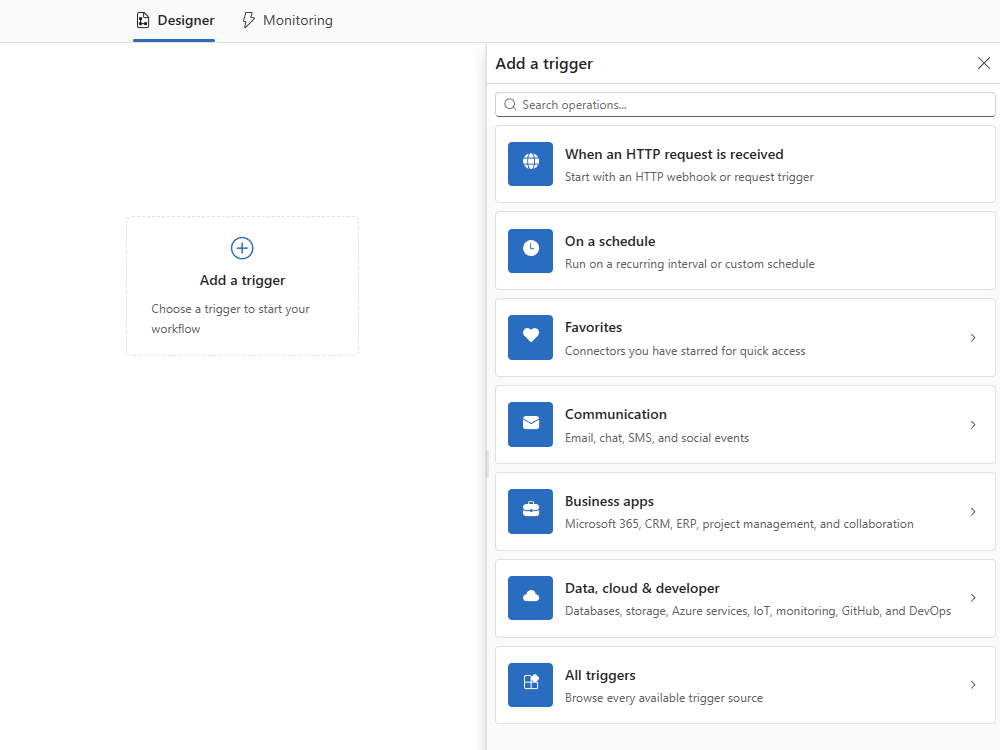
- Starts with a single trigger. This item specifies the event to run the workflow.
- Follows the trigger with one or multiple actions that perform the necessary tasks or affect the execution path.
This quickstart shows how to build a workflow within an existing application. For simplicity, learn the general steps for using the AI assistant and the designer. The article then provides more specific examples for more detailed workflows.
For more information, see:
Prerequisites
A Microsoft work or school account that can access the Logic Apps Automation portal.
Your work or school account needs to exist in the same Microsoft Entra tenant as the application creator-owner so they can add you to the application and assign the necessary permissions. If you don't have access, work with the project and application creator-owner to get access and permissions.
For more information about Microsoft Entra tenants, see Tenant configurations.
The project and the application where you want to create your workflow.
You need the Contributor role to create workflows.
For more information, see:
Example: Web request handling requirements
To test your workflow in this example, you need a tool that can send HTTP requests, such as:
- Visual Studio Code with an extension from Visual Studio Marketplace
- PowerShell Invoke-RestMethod
- Microsoft Edge - Network Console tool
- Bruno
- curl
Caution
For scenarios where you have sensitive data, such as credentials, secrets, access tokens, API keys, and other similar information, make sure to use a tool that protects your data with the necessary security features. The tool should work offline or locally, and not require sign in to an online account or sync data to the cloud. When you use a tool with these characteristics, you reduce the risk of exposing sensitive data to the public.
To optionally get email notifications for testing, you need an email account, such as Office 365 Outlook or Outlook.com.
Create your workflow
This section describes the general steps to create a workflow by using the AI assistant, designer, and templates. You can choose any approach to start. Whatever your choice, you get a workflow that you can test and monitor in the Logic Apps Automation portal.
1: Open the automation project and application
Go to the Logic Apps Automation portal, and sign in with your Microsoft work or school account.
From the Projects tab, select the project you want.
From the Apps page, select the application you want.
The portal opens the application's Workflows page, which shows the following items:
Item Description Get started with your first workflow Appears only when the application doesn't contain any workflows. Build a new workflow Appears only when the application contains workflows. Workflow description box Where you describe the workflow for the AI assistant to generate. Create workflow The option to open the workflow designer. Workflow list Shows any previously built workflows. Choose a starting point to create your workflow.
Although you can combine the following approaches, choose an initial approach to get started, based on your preference:
Starting point Description When to use AI assistant Describe the business process logic to automate by using plain words. The assistant generates the workflow. You want to quickly generate a workflow, review the results, and adjust the workflow by using the assistant, designer, or both. Workflow designer Start building incrementally by using an empty designer. Add a trigger, actions, agents, tools, MCP servers, and other components to drive your automation. You want a visual, graphical experience to build, test, and run workflows.
To generate a workflow by using plain words to describe the behavior you want, use the AI assistant. The assistant creates the workflow structure, including the trigger, actions, and any branches. After the assistant finishes, you complete the workflow by providing any authentication credentials, parameter values, and settings that your specific scenario requires.
On the Workflows page, in the workflow description box, enter a detailed description about the process you want to automate.
Tip
Make your description as specific as possible by including the following elements:
- The trigger event or condition that makes your workflow run.
- The actions that you want to happen.
- The results that you expect and want.
When you provide more detail, you generate a workflow that matches more closely to what you need.
When you're ready, select Build.
The Create workflow box opens so you can provide a workflow name.
For Workflow name, enter a descriptive name, and select Build.
Both the designer and Copilot pane open so you can watch the AI assistant generate and validate your workflow. Based on your workflow's complexity, this process might need between several moments up to a few minutes to finish.
Before you test your workflow, complete the following steps:
Set up any required connections for operations that call outside services or systems.
Provide values for any required fields that the assistant left empty. Required fields show an asterisk (*) or a red outline.
Fix any alerts that appear on individual steps.
Alert icons appear on operations that need extra setup, such as missing parameter values, settings, connections, or tools.
To find follow-up tasks, on the designer, select each operation that shows an alert. Take the necessary steps to fix each alert.
Finish any other follow-up tasks that your workflow requires, such as set up connections, provide parameter values, or configure settings.
To adjust or edit the workflow, continue using the assistant by entering prompts in the chat window.
Example: Web request handling
This example creates a workflow that runs when a web request arrives from an external caller, accepts the request, and returns a response to the caller.
Workflow name:
web-request-handlerAssistant prompt:
When a web request arrives with a JSON body, respond with a 200 OK status that includes a greeting message.
Save and publish the workflow
The designer automatically saves the changes that you make to the draft version. The published version runs in production.
Tip
For workflows that start with a web request or webhook trigger, you can immediately test the draft version first without publishing. See Test your workflow.
For workflows that start with a schedule-based trigger or an outside event, you must publish before the trigger can fire.
On the designer title bar, at the top left, confirm that the Draft label appears.
On the designer title bar, at the top right, select Publish to make the draft live.
Test the workflow
To make sure everything works as expected, follow these steps to test your workflow:
On the designer, at the bottom, select Test.
The Test draft workflow box opens.
In the Test data (JSON) box, enter your test data in JSON format. Select Test Draft.
The workflow starts running, and the portal changes from Designer view to Monitoring view where you can observe the run progress in real time.
Review workflow run history
After the workflow run completes, review each step in Monitoring view to better understand what happened.
- The read-only canvas now shows a color-coded status for each step.
- The side window shows each workflow run instance with its status, timestamp, and duration.
- The execution log shows every operation in execution order.
- Next to the log, you can review the operation's output, input, and properties.
Tip
For failed operations, the same panel shows the error message so you can find the problem without leaving Monitoring view.
To review the data, select any operation on the canvas or in the execution log.
The following table describes the data that you can review:
Tab Shows Output The data that the operation produced. Input The data that the operation received. Properties Details such as the workflow status, the run duration, and the tracking ID. For a web request trigger, you can review the headers and body from the incoming web request. For the Response action, you can confirm that the response body matches what you expected.
Iterate and refine
You don't need to get everything right on the first pass. The following steps describe ways that you can edit your workflow:
From Monitoring view, return to Designer view.
From the following table, choose the method you want for making your changes:
Method Steps Designer On the designer, add new actions, rearrange the workflow sequence, or select any operation to edit the parameter values and settings. Assistant 1. On the bottom toolbar, select Chat to open the assistant.
2. Enter follow-up instructions, such asAdd error handling to the Response actionorAdd a condition that checks whether the name field is empty.Code editor 1. On the bottom toolbar, select Code to view the underlying JSON for the workflow definition.
2. Edit the workflow definition to make your changes.Changes in Designer view and Code view stay synchronized. All your edits go into the draft version.
When you're ready to send your changes to production, on the designer title bar, select Publish.