Note
Access to this page requires authorization. You can try signing in or changing directories.
Access to this page requires authorization. You can try changing directories.
This article explains how to use Warehouse management only mode to support external shared warehouse processing. This approach allows you to consolidate warehouse management functionality into a separate legal entity that handles requests from multiple sales subsidiaries (legal entities) in Microsoft Dynamics 365 Supply Chain Management.
Use Warehouse management only mode to handle logistics operations in a legal entity solely dedicated to warehousing operations. You can then connect warehouses between that legal entity and other legal entities that do all the order and financial processing. In addition, warehouse management processes can use an owner inventory dimension to track which legal entity owns the inventory for items that are shared across legal entities.
This feature works without modifications in a single-instance deployment model. If you want to link between multiple instances, one of which handles logistics and warehouse processes, you must set up an integration process like the one described in Warehouse management only mode with external ERP system.
To use Warehouse management only mode in a multi-instance deployment, you must use the standard integration process.
The following articles provide detailed information about how Warehouse management only mode works:
- Warehouse management only mode with external ERP system
- Exchange data between systems
- Monitor and control message processor messages
High-level implementation example
The following illustration shows an example system where Warehouse management only mode is active with an external shared warehouse in the USSW legal entity. The USSW legal entity handles logistics warehouse operations for two sales subsidiaries that manage order and financial processing in the USMF and LE2 legal entities.
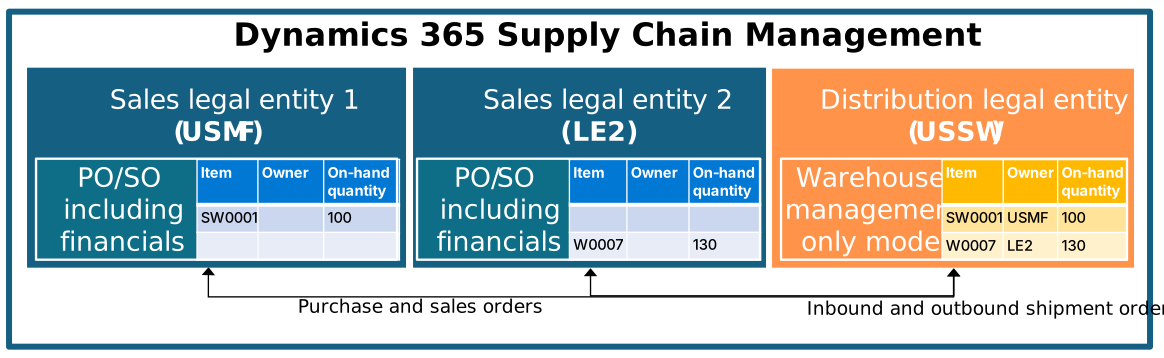
The USMF and USSW legal entities are included in the standard demo data. The LE2 legal entity shown in the illustration is just an example.
The scenarios described in this article use sample records and values from the demo data. To follow along, ensure your system has the standard demo data installed. Otherwise, substitute the sample values with your own configuration settings.
Warehouse management only mode demo data
The standard demo data includes the following data to support scenarios involving Warehouse management only mode with external shared warehouses:
- The legal entity USSW, which is set up with a site 1 and warehouse SW-11.
- Work templates and location directives for inbound and outbound shipment orders.
- The source system Product Information Management (PIM).
- The source system Contoso Entertainment System USA (USMF).
- The item SW0001, which is released to both the USMF and the USSW legal entities.
- In the USSW legal entity, the SW0001 item uses the Non-valuated item model group and has the Owner tracking dimension enabled.
- Warehouse 2-EXT in the USMF legal entity is marked as an external warehouse that is mapped to warehouse SW-11 in the USSW legal entity.
The demo data also includes other data to support the scenarios. The previous list highlights the most important elements.
Important
The demo data for these scenarios is only available in Supply Chain Management version 10.0.45 and later.
Inbound process example (shared warehouse)
The following illustration highlights the elements of the inbound process when you use a shared warehouse.
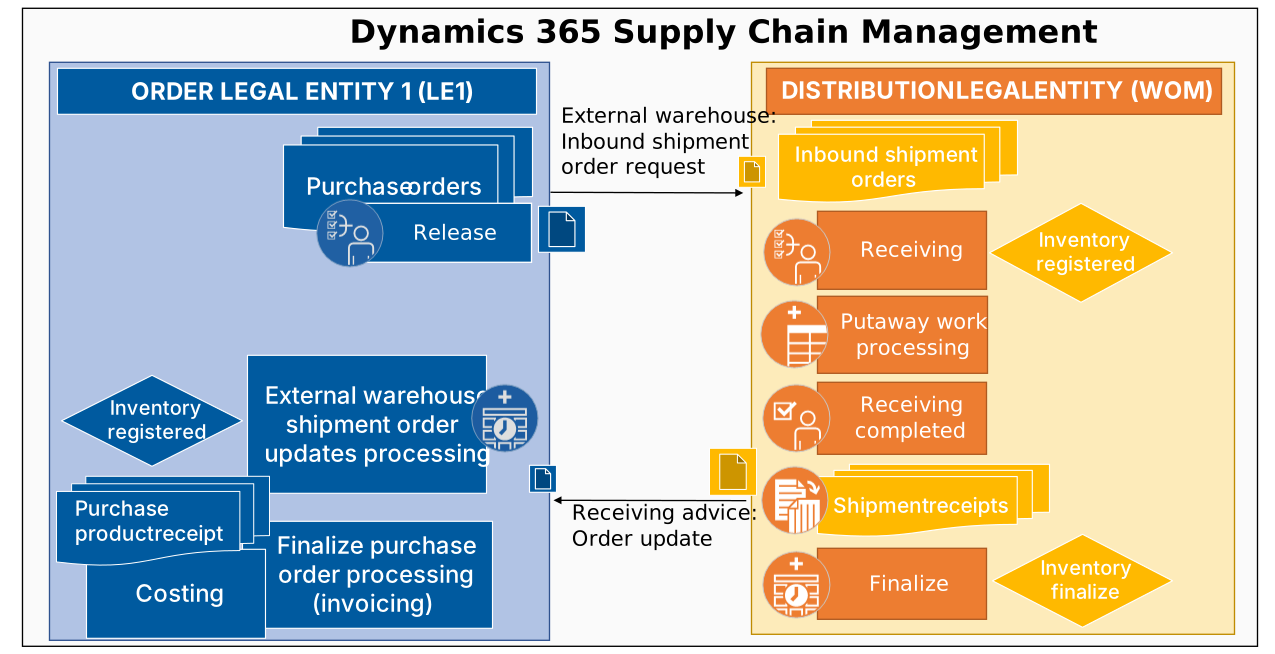
Here's a high-level description of the inbound process. Steps that start with USMF are done by a sales subsidiary. Steps that start with USSW are done by the warehousing entity.
- USMF: Create purchase orders and release them to the warehouse. The system then creates external warehouse inbound shipment order requests. As a result, inbound shipment order messages are delivered to the USSW legal entity. Process purchase orders that you release to the externally managed warehouse via a periodic background process. (Set up this background process at Warehouse management > Periodic tasks > Create external warehouse inbound shipment order requests.) Alternatively, manually process them by using the Release to warehouse option on the purchase orders page.
- USSW: The warehousing entity processes the inbound shipment order messages. As a result of this processing, inbound shipment orders are created.
- USSW: Create inbound loads manually, automatically, or through import (depending on your configuration).
- USSW: Warehouse workers use the Warehouse Management mobile app to register the inbound shipment order transactions.
- USSW: The warehousing entity processes receiving completed operations for the related loads. These operations update the load status to Received and generate external warehouse inbound shipment order updates for USMF. Turn on automatic message processing for the External warehouse shipment order updates message queue.
- USMF: During the processing of the external warehouse inbound shipment order updates, create inbound loads and shipments, and update the related purchase order line transactions to Registered. This status update allows further processing of product receipts and invoices.
- USSW: The warehousing entity finalizes the inbound shipment order line transactions by running the Post shipment receipts batch job.
For a more detailed description of this process and the related processes, go to Work with warehouse management only mode in Supply Chain Management.
Outbound example process (shared warehouse)
The following illustration highlights the elements of the outbound process when you use a shared warehouse.
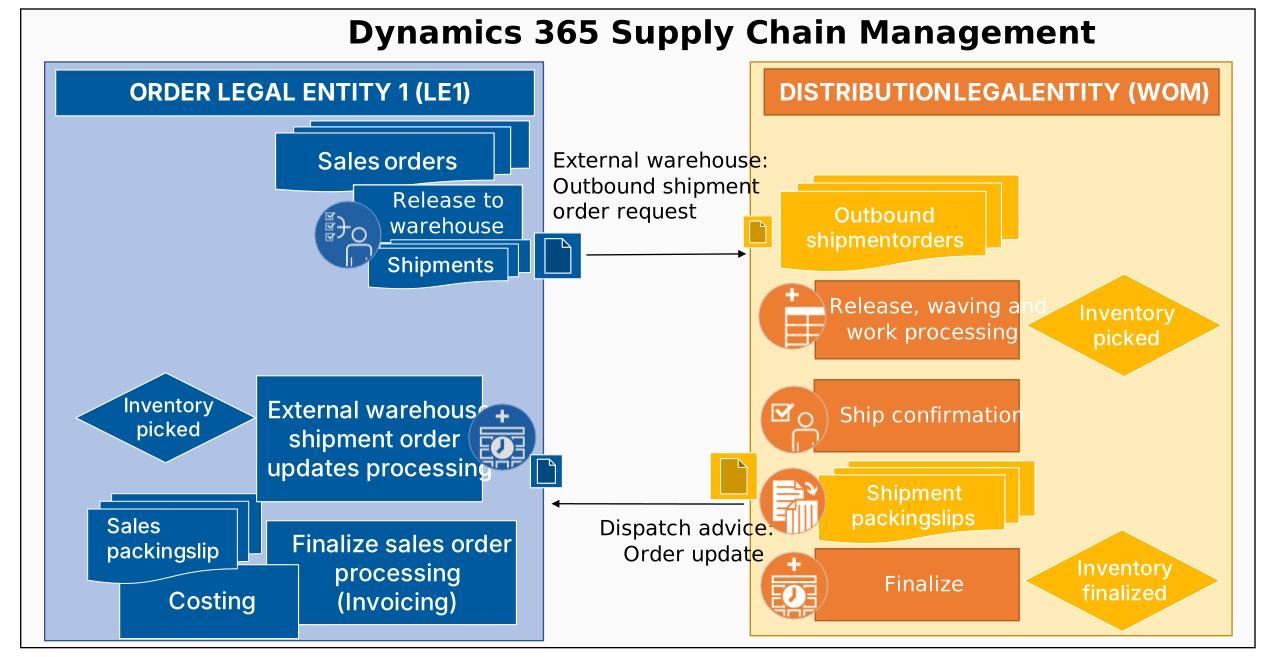
Here's a high-level description of the outbound process. A sales subsidiary performs steps that start with USMF. The warehousing entity performs steps that start with USSW.
- USMF: Create sales orders and release them to the warehouse. The system then creates external warehouse outbound shipment order requests. As a result, outbound shipment order messages are delivered to the USSW legal entity.
- USSW: Process the Outbound shipment order messages. As a result of this processing, outbound shipment orders are created.
- USSW: Create inventory reservations either manually or automatically (depending on your configuration).
- USSW: Release the orders for further warehouse processing, either manually or automatically. If you use outbound load planning processes, you can create loads by using the Outbound load planning workbench before you release the orders.
- USSW: Depending on the setup of your wave template definitions, create and release warehouse work immediately.
- USSW: Process outbound warehouse work, and update the status of the related outbound shipment order line transactions to Picked.
- USSW: Outbound ship confirm the loads. As a result, generate external warehouse outbound shipment order updates for USMF.
- USMF: During the processing of the external warehouse outbound shipment order updates, update outbound shipment data and the related sales order line transactions. The transactions become Picked. This update allows further processing of the packing slip and invoice. Turn on automatic message processing for the External warehouse shipment order updates message queue.
- USSW: Finalize the outbound shipment order line transactions by running the Post shipment packing slips batch job.
For a more detailed description of this process and the related processes, go to Work with warehouse management only mode in Supply Chain Management.
Important
For the preceding flow, the Allow load split during ship confirm option for outbound loads isn't supported in the USSW legal entity. Likewise, planned cross-docking information isn't automatically transferred from the sales subsidiary legal entities to the Warehouse management only mode process.
Note
When you release orders or loads to the warehouse in the USMF legal entity, the system locks the created shipments with Outbound shipment processing ownership set to External until order data from the USSW legal entity is returned. If order data isn't returned, or if other issues occur, you can get update rights for the shipments by selecting the Claim processing ownership action on the shipments. Only admin roles should be granted permission to use this action.
Transfer orders (shared warehouse)
Transfer orders with external shared warehousing mean that either the source, destination, or both warehouses in a transfer order are external. Most aspects of the transfer order processing work in the same way, regardless of whether you use external shared warehouses.
Prerequisites
Before you can use this feature, your system must meet the following requirements:
- You must be running Supply Chain Management version 10.0.44 or later.
- In the warehouse configuration of the externally managed warehouse, you must set both a default location and a default license plate location. This location is used as a temporary location when processing a transfer order. When shipping from an external warehouse, the system sends an update to communicate what was shipped and what license plate was used. Inventory is then moved from a default location to a default license plate location and the transfer order is processed against that location.
Transfer order shipped from an external warehouse
The following illustration highlights the elements of the transfer order process when shipping from an external warehouse.
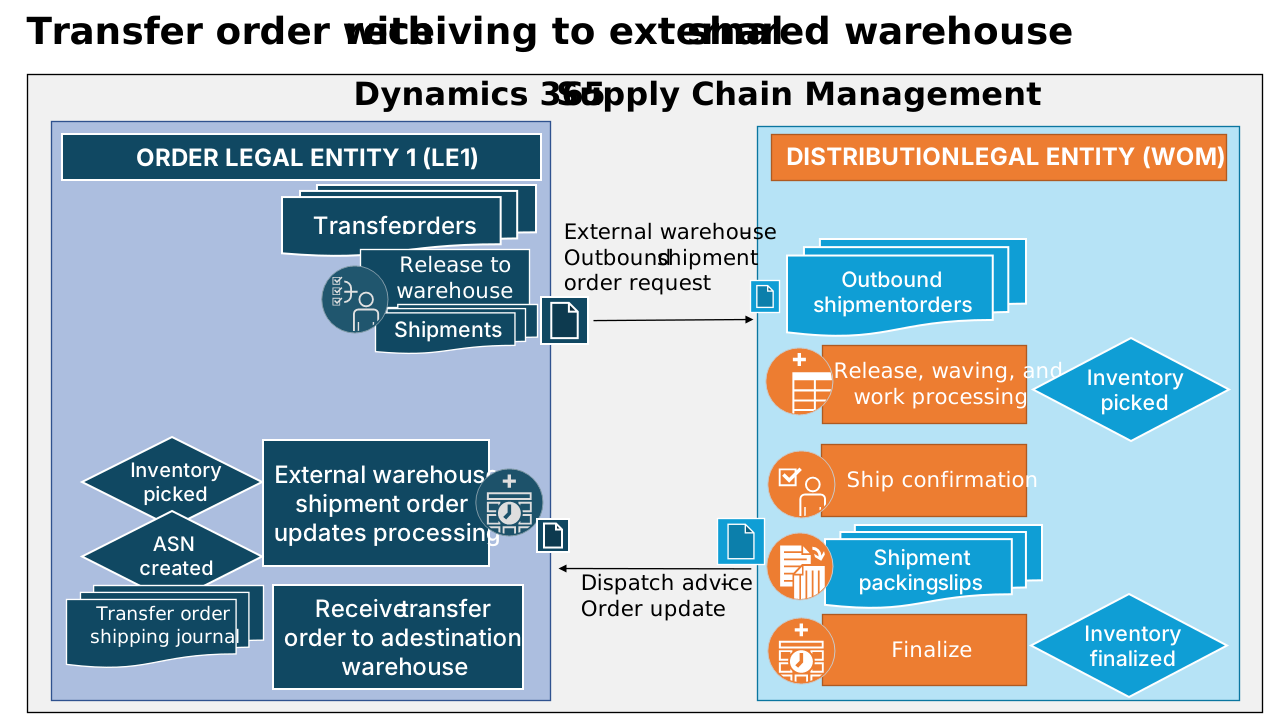
Here's a high-level description of the process. Steps that start with USMF are done by a sales subsidiary. Steps that start with USSW are done by the warehousing entity.
- USMF: The transfer order is created and released to the warehouse. The system then creates external warehouse outbound shipment order requests. As a result, outbound shipment order messages are delivered to the USSW legal entity.
- USSW: Process the Outbound shipment order messages. As a result of this processing, outbound shipment orders are created.
- USSW: The orders are released for further warehouse processing, either manually or automatically. The rest of the process proceeds as described in Outbound example process (shared warehouse).
- USSW: Outbound ship confirm the loads. As a result, generate external warehouse outbound shipment order updates for USMF.
- USMF: As the external warehouse outbound shipment order updates are processed, the system updates outbound shipment data and the related transfer order transactions. The transfer order becomes Shipped if everything from the order is shipped. This update allows further processing of the transfer order when received at the destination warehouse.
Note
When the outbound shipment order update is processed in USMF, an inbound advance shipment notice (ASN) is created for every license plate that was shipped from the external warehouse. This process enables license plate receiving in the destination warehouse.
Transfer order received at an external warehouse
The following illustration highlights the elements of the transfer order process when receiving at an external warehouse.
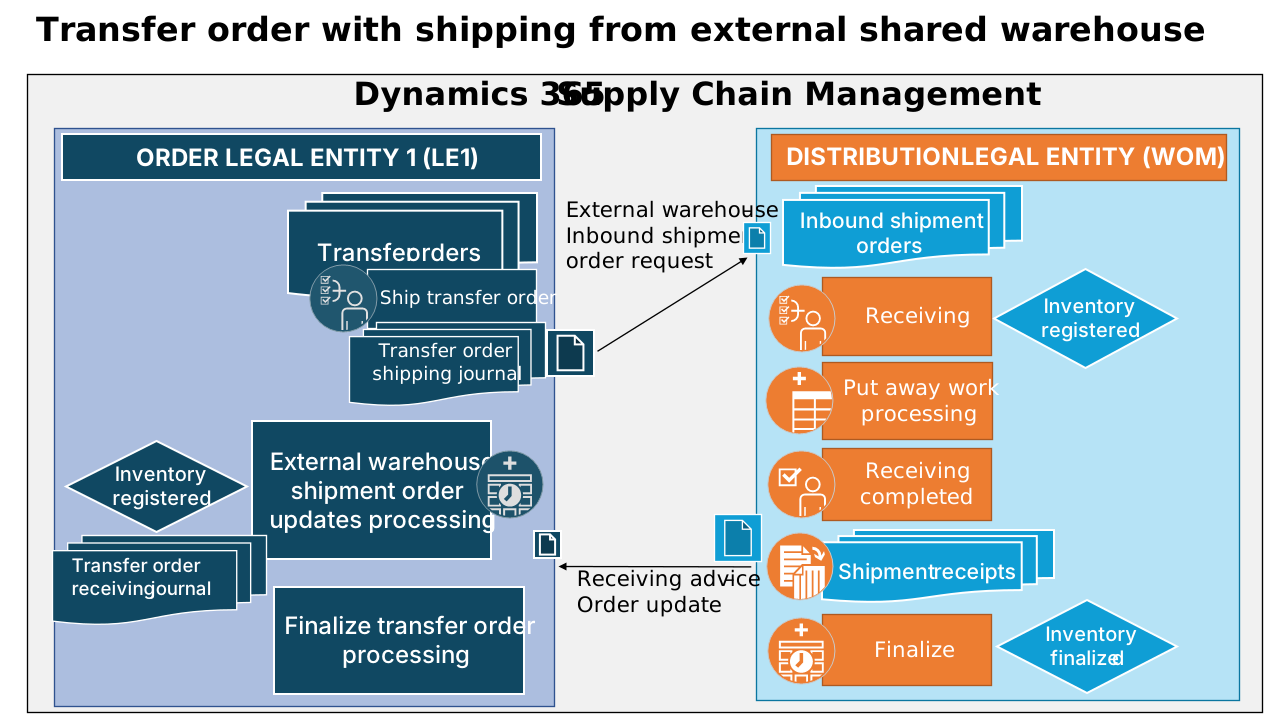
Here's a high-level description of the process. Steps that start with USMF are done by a sales subsidiary. Steps that start with USSW are done by the warehousing entity.
- USMF: Create the transfer order and release it to the warehouse. Ship the transfer order and the system creates a transfer order shipping journal. The system then creates external warehouse inbound shipment order requests from the shipping journal. As a result, inbound shipment order messages are delivered to the USSW legal entity.
- USSW: The warehousing entity processes the inbound shipment order messages. As a result of this processing, inbound shipment orders are created.
- USSW: Create inbound loads manually, automatically, or through import (depending on your configuration). The rest of the processing in the USSW proceeds as described in Inbound example process (shared warehouse).
- USSW: The warehousing entity processes receiving completed operations for the related loads. These operations update the load status to Received and generate external warehouse inbound shipment order updates for USMF.
- USMF: As the external warehouse inbound shipment order updates are processed, the system creates inbound loads and shipments, and updates the related transfer order line transactions. If you receive everything from the transfer order, the transfer order moves to the Received status.
Transfer order with shipping from and receiving to an external warehouse
You can set both source and destination warehouses as external. This scenario works the same as the previous two scenarios combined.
On-hand adjustments
The following illustration shows how on-hand inventory adjustments are handled when Warehouse management only mode is run.
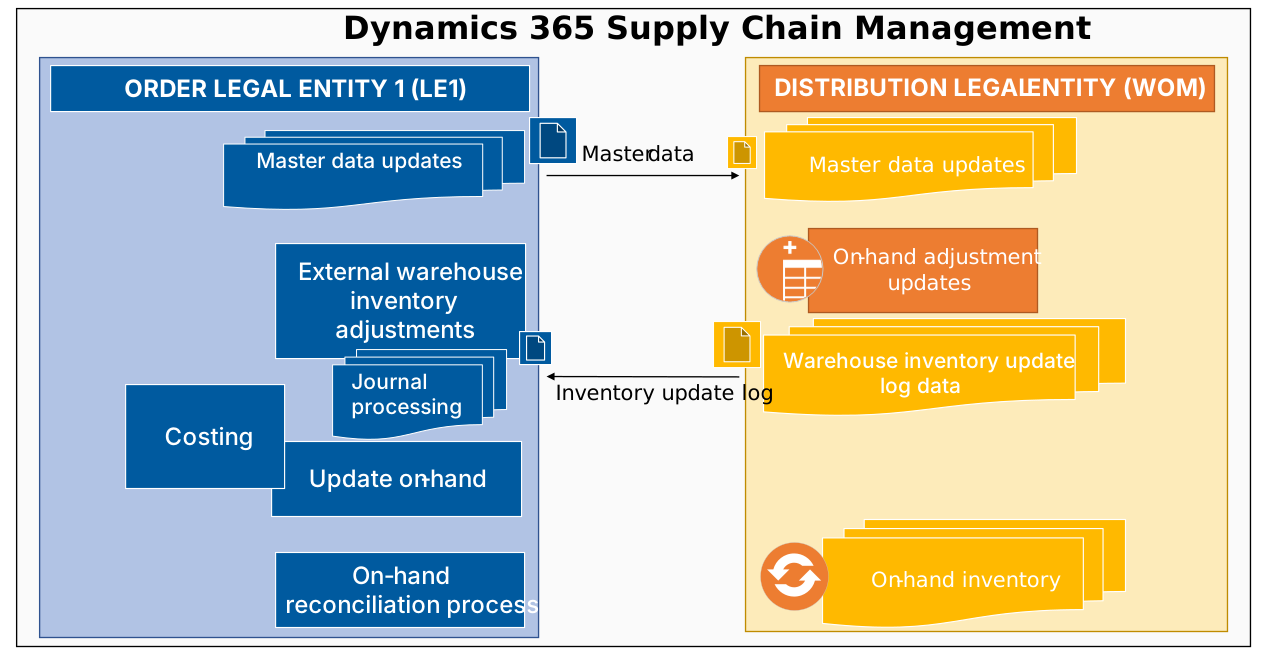
The message processor in the USMF legal entity handles changes in on-hand inventory that result from inbound and outbound shipment orders when it processes the Receive external warehouse inbound shipment order update and Receive external warehouse outbound shipment order update operations. However, other warehouse movements, such as warehouse counting operations, must also ensure that on-hand inventory is the same between the USSW legal entity and any related order processing legal entities, such as USMF. Therefore, Warehouse management only mode can record the changes in warehouse inventory in the warehouse inventory update log (Warehouse management > Inquiries and reports > Physical inventory reconciliation > Warehouse inventory update log). This data is used to automatically create external inventory adjustments for the relevant legal entities via the Publish warehouse inventory update log updates process automation background process. (By default, this background process runs every 10 minutes.)
Use the Create external inventory adjustment journals process (Warehouse management > Periodic tasks > Create external inventory adjustment journals) to generate the inventory adjustment journals that update the on-hand inventory. By using this process, you can keep inventory information synced between the two legal entities.
To automatically post the inventory adjustment journals, go to Warehouse management > Periodic tasks > Post external inventory adjustment journals. This process posts the journals that the Create external inventory adjustment journals process creates.
Warehouse inventory update logs
The Warehouse inventory update log (Warehouse management > Inquiries and reports > Physical inventory reconciliation > Warehouse inventory update log) collects all the inventory transaction updates that lead to on-hand updates that are of interest for the related legal entities. For example, you might want to handle information about inventory status changes.
Tip
If you want to adjust the inventory in the warehouse management only mode legal entity without affecting the order legal entity or causing duplicate adjustments through the warehouse inventory log update process, use an Inventory journal name with the Exclude from warehouse inventory update logs setting turned on. This setting prevents the journal posting from being logged.
Important
For source systems that are related to external warehouse management systems, keep the Enable warehouse inventory update logs option turned off for inbound and outbound shipment orders. By doing this, you prevent inventory adjustment journal processing from updating your on-hand inventory in the sales subsidiary legal entities.
Example setup that uses external shared warehouse processing in Supply Chain Management
This section provides an example that shows how to set up and use Warehouse management only mode with external shared warehouse processing in Supply Chain Management.
Legal entities and source systems
To use Warehouse management only mode as described in this article, you must have at least two legal entities. For this example, the two legal entities are named USMF and USSW.
In the USSW legal entity, you must create a source system to handle shipment orders and the inventory on-hand update processes. For this example, this source system is named SS-USMF.
Important
When you use Warehouse management only mode with external shared warehouses, set up your source system to use an outbound shipment processing policy that has its Enforce shipment to order matching option set to Yes. The behavior of this setting varies slightly based on the version of Supply Chain Management you're using.
- Supply Chain Management version 10.0.46 and later – When you confirm a shipment, the policy instructs the system to update the delivery remainder on the source order line to reflect the quantity that was actually shipped. If you later reverse the shipment, the delivery remainder is restored to the original ordered quantity.
- Supply Chain Management version 10.0.45 and earlier – If the shipped quantity differs from the ordered quantity, you must manually update the delivery remainder to match the shipped quantity before you confirm the shipment. Otherwise, the update fails on the USMF legal entity.
This setting also keeps the system from consolidating shipments for different orders, both during release to warehouse and through manual or batch consolidation. Learn more in Outbound shipment processing policies.
In the USMF legal entity, you must set up an external warehouse management system of the Legal entity type and link it to the SS-USMF source system in the USSW legal entity. Complete this setup by going to Warehouse management > Setup > Warehouse management integration > External warehouse management systems.
In the USMF legal entity, go to Warehouse management > Setup > Warehouse > Warehouses and select the warehouses that you want to handle externally. Specify the external warehouse management system and the external warehouse name from the USSW legal entity. Select a default location that doesn't use license plates. Use this location for all inventory changes from the external warehouses in the USMF legal entity.
Note
Turn on the Use warehouse management processes option for the warehouses in both legal entities.
Product master and reference data
Set up warehouse management fully in all legal entities that run warehouse management processes, such as USSW. This setup includes product master data. If you use the same products and product variants for the released products in all legal entities, use a separate source system as the source for managing product master data. If you share products among multiple sales subsidiaries or legal entities, create the necessary source system item data. For example, you might create a source system named PIM-D365 and assign it as the product master source system for the SS-USMF source system.
Ensure that the products have a tracking dimension group where the Owner dimension is enabled. This setup allows you to track the ownership of the inventory for each of the related legal entities. For this example setup, you don't have to enable the Owner tracking dimension for the released product in the USMF legal entity. However, if you enable it, the legal entity owner dimension value is automatically assigned to the purchase and sales order lines, and you can't change it.
Learn more about the product master data in Master and reference data. Use the Non-valuated inventory model for the products in the USSW legal entity. Also, enable the Owner inventory tracking dimension.
Note
The products must be linked to a storage dimension group where the Use warehouse management processes option is turned on.
To use the Owner dimension, create a record on the Warehouse inventory owner page (Warehouse management > Setup > Warehouse management integration > Warehouse inventory owner). Learn more in Warehouse inventory owner.
If you use this example setup in an environment where you already have some released products, ensure that you create the data for the released products and variants on the Source system items page.
Tip
Set the Product maintenance rule value to Maintain source system items on the PIM-D365 source system in the USSW legal entity. This way, the source system item data is automatically created for you when you release products to the USSW legal entity.