Note
Access to this page requires authorization. You can try signing in or changing directories.
Access to this page requires authorization. You can try changing directories.
Use these patterns when your Excel add-in needs to move the user's selection, read the currently selected cells, or extend a selection. This article shows the most common selection tasks and links to related range articles when you need to get, format, or update worksheet data.
If you need to get a range by address or by used range instead of by current selection, see Get Excel worksheet ranges with the JavaScript API. If you need to read or write the contents of the selected cells, see Set or get Excel range values, text, and formulas. If you need to change how the selected cells look, see Set range format using the Excel JavaScript API.
For the complete list of properties and methods that the Range object supports, see Excel.Range class.
Note
The Excel JavaScript API doesn't have a "Cell" object or class. Instead, the Excel JavaScript API defines all Excel cells as Range objects. An individual cell in the Excel UI translates to a Range object with one cell in the Excel JavaScript API. A single Range object can also contain multiple contiguous cells. See Work with cells using the Excel JavaScript API to learn more.
Select a known range
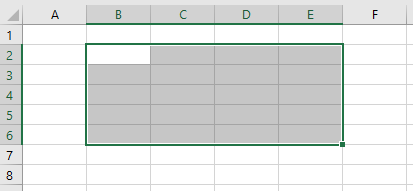
Use getRange(address) and select() when you know which cells the add-in should highlight. The following example selects B2:E6 in the active worksheet.
await Excel.run(async (context) => {
    const sheet = context.workbook.worksheets.getActiveWorksheet();
    const range = sheet.getRange("B2:E6");

    range.select();

    await context.sync();
});
Selection after the range is set
Get the current selected range
Use workbook.getSelectedRange() when the add-in should work with the cells the user already highlighted. In the following example, the add-in gets the selected range, loads its address property, and writes the result to the console.
await Excel.run(async (context) => {
    const range = context.workbook.getSelectedRange();
    range.load("address");

    await context.sync();

    console.log(`The address of the selected range is "${range.address}"`);
});
Select to the edge of a used range
Use Range.getRangeEdge and Range.getExtendedRange when your add-in should match Excel keyboard selection shortcuts. Both methods start from the current selection and move within the used range. To learn more about used ranges, see Get the used range.
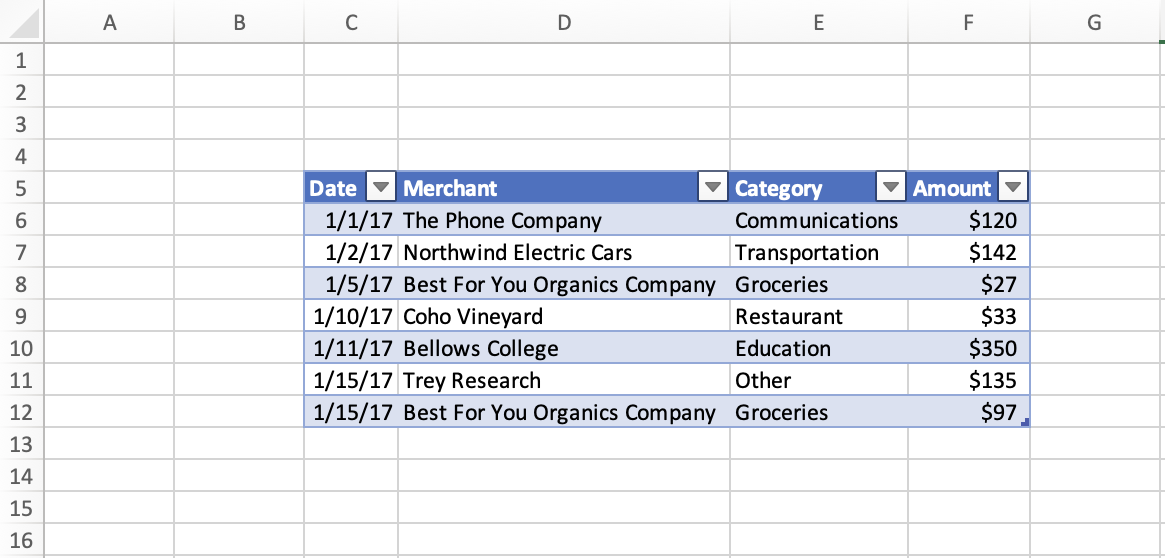
In the following screenshot, the used range is the table that contains values in C5:F12. The empty cells outside that table aren't part of the used range.
Select the cell at the edge of the used range
Use Range.getRangeEdge when you want to move the active selection to the farthest cell in one direction. The following example moves the selection upward to match Ctrl+Up arrow.
await Excel.run(async (context) => {
    const range = context.workbook.getSelectedRange();
    const direction = Excel.KeyboardDirection.up;
    const activeCell = context.workbook.getActiveCell();

    const rangeEdge = range.getRangeEdge(direction, activeCell);
    rangeEdge.select();

    await context.sync();
});
Before selecting the edge cell
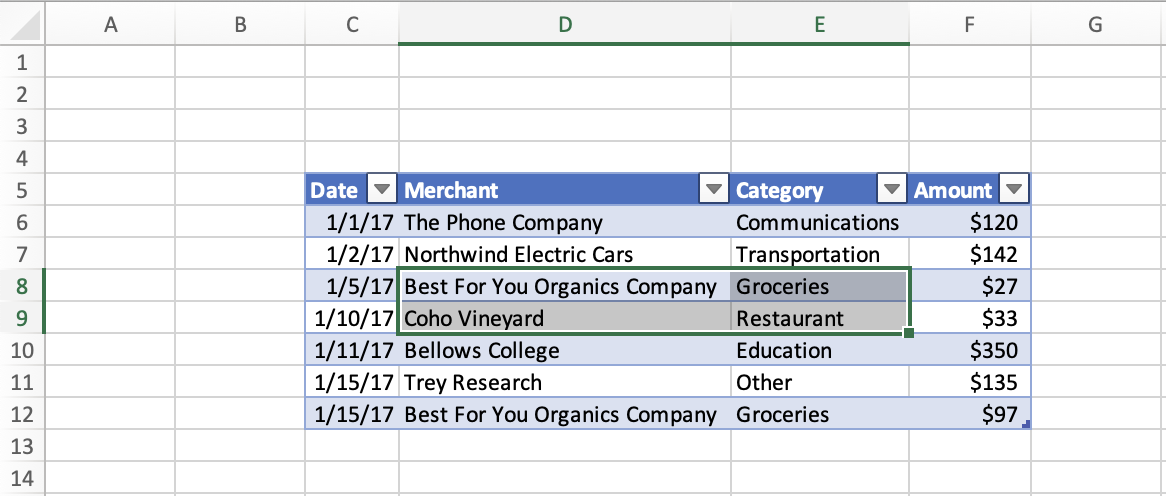
The following screenshot shows the used range C5:F12 with D8:E9 selected before the Range.getRangeEdge method runs.
After selecting the edge cell
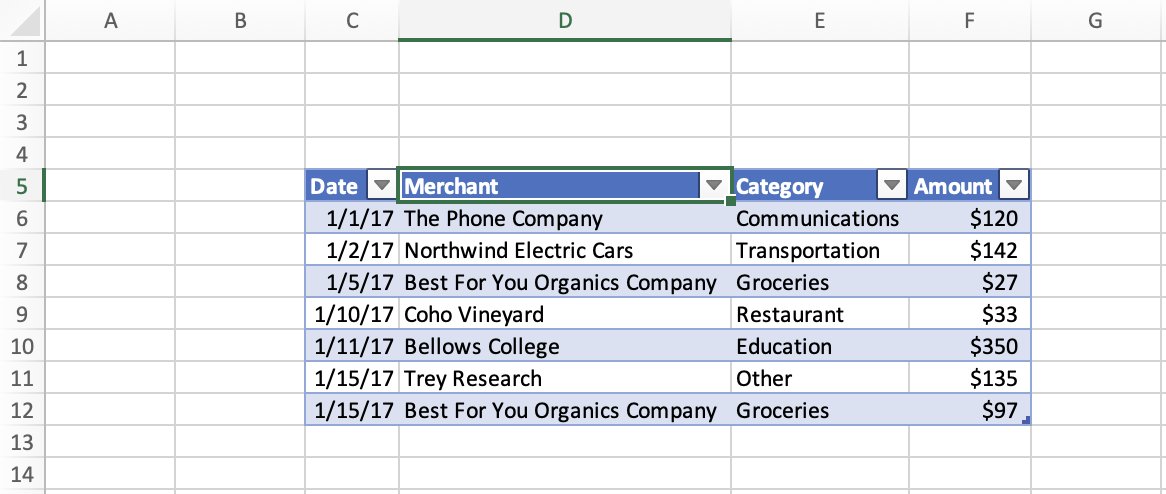
The following screenshot shows the same table after the Range.getRangeEdge method runs in the up direction. Cell D5 is selected.
Extend the current selection to the edge of the used range
Use Range.getExtendedRange when you want to keep the current selection and extend it to the farthest cell in one direction. The following example extends the selection downward to match Ctrl+Shift+Down arrow.
await Excel.run(async (context) => {
    const range = context.workbook.getSelectedRange();
    const direction = Excel.KeyboardDirection.down;
    const activeCell = context.workbook.getActiveCell();

    const extendedRange = range.getExtendedRange(direction, activeCell);
    extendedRange.select();

    await context.sync();
});
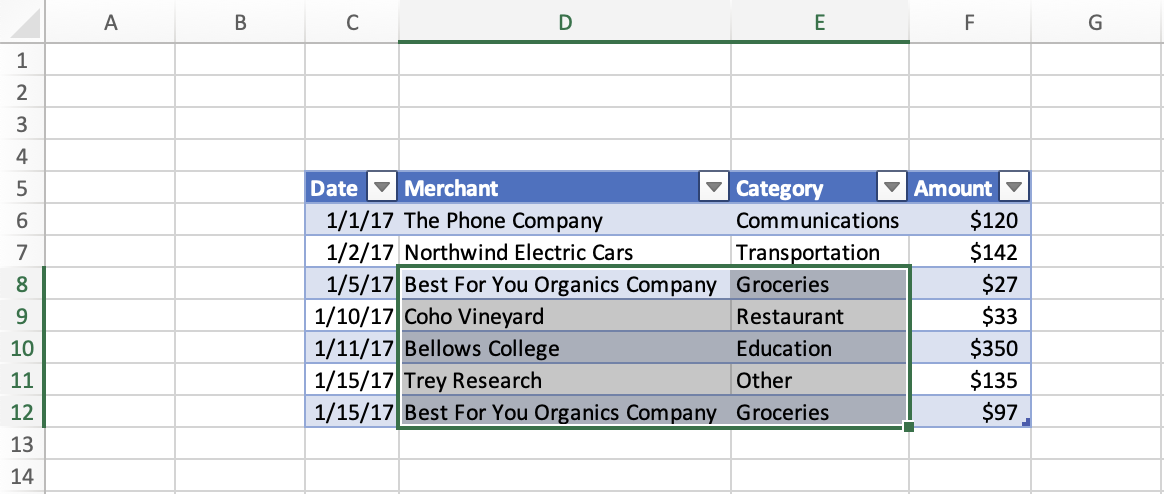
Before extending the selection
The following screenshot shows the used range C5:F12 with D8:E9 selected before the Range.getExtendedRange method runs.
After extending the selection
The following screenshot shows the same table after the Range.getExtendedRange method runs in the down direction. Range D8:E12 is selected.
See also
Collaborate with us on GitHub
The source for this content can be found on GitHub, where you can also create and review issues and pull requests. For more information, see our contributor guide.
Office Add-ins