Note
Access to this page requires authorization. You can try signing in or changing directories.
Access to this page requires authorization. You can try changing directories.
This article explains how to use the Excel JavaScript APIs to write data to a worksheet or read back what a range contains. It shows when to use Range.values, Range.text, and Range.formulas, and how each property changes what your add-in reads or writes.
If you need to get a Range object before you work with its data, see Get Excel worksheet ranges with the JavaScript API. If you also need to format the same cells, see Set range format using the Excel JavaScript API.
For the complete list of properties and methods that the Range object supports, see Excel.Range class.
Note
The Excel JavaScript API doesn't have a "Cell" object or class. Instead, the Excel JavaScript API defines all Excel cells as Range objects. An individual cell in the Excel UI translates to a Range object with one cell in the Excel JavaScript API. A single Range object can also contain multiple contiguous cells. See Work with cells using the Excel JavaScript API to learn more.
Choose the right property for range data
Use the property that matches the result your add-in needs.
- Use
range.valuesto write raw values or read calculated results from cells. - Use
range.textto read the displayed text exactly as users see it in the worksheet. - Use
range.formulasto write formulas or read the formula strings from cells that contain them.
If your add-in needs to preserve some cells while updating others, or clear cells intentionally, see Blank and null values in Excel add-ins.
Write values or formulas to a range
These examples show common ways to write worksheet data. Each sample gets a range, updates the target cells, and then calls context.sync() to apply the change.
Write a value to one cell
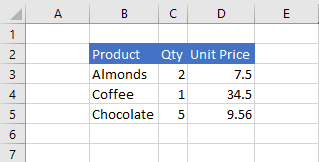
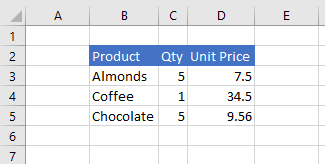
Use range.values with a two-dimensional array, even when you write to a single cell. The following example writes 5 to cell C3 and then auto-fits the columns.
await Excel.run(async (context) => {
    const sheet = context.workbook.worksheets.getItem("Sample");
    const range = sheet.getRange("C3");

    range.values = [[5]];
    range.format.autofitColumns();

    await context.sync();
});
Before the cell value is updated
After the cell value is updated
Write values to a range
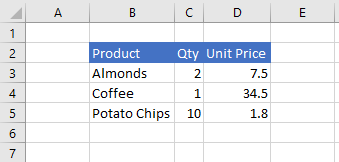
Use a nested array to write multiple cells in one operation. In the following example, each inner array represents one row in the target range B5:D5.
await Excel.run(async (context) => {
    const sheet = context.workbook.worksheets.getItem("Sample");
    const data = [["Potato Chips", 10, 1.8]];
    const range = sheet.getRange("B5:D5");

    range.values = data;
    range.format.autofitColumns();

    await context.sync();
});
Before the cell values are updated
After the cell values are updated
Write a formula to one cell
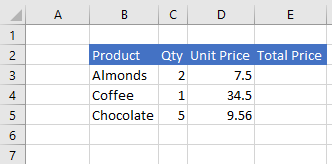
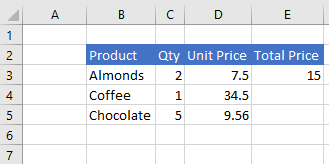
Use range.formulas when you want Excel to calculate a result. The following example writes a formula to cell E3 and then auto-fits the columns.
await Excel.run(async (context) => {
    const sheet = context.workbook.worksheets.getItem("Sample");
    const range = sheet.getRange("E3");

    range.formulas = [["=C3 * D3"]];
    range.format.autofitColumns();

    await context.sync();
});
Before the cell formula is set
After the cell formula is set
Write formulas to a range
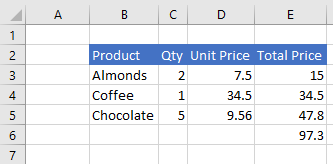
Use a two-dimensional array of formula strings to fill multiple cells at once. In the following example, the formulas in E3:E6 calculate row totals and a grand total.
await Excel.run(async (context) => {
    const sheet = context.workbook.worksheets.getItem("Sample");
    const data = [
        ["=C3 * D3"],
        ["=C4 * D4"],
        ["=C5 * D5"],
        ["=SUM(E3:E5)"]
    ];
    const range = sheet.getRange("E3:E6");

    range.formulas = data;
    range.format.autofitColumns();

    await context.sync();
});
Before the cell formulas are set
After the cell formulas are set
Read values, displayed text, or formulas
These examples all read the same range, B2:E6, but each property returns different results. Review the descriptions before the code so you can choose the property that matches your scenario.
Read raw values from a range
Use range.values when your add-in needs the underlying values in the cells. If a cell contains a formula, range.values returns the calculated result, not the formula itself.
await Excel.run(async (context) => {
    const sheet = context.workbook.worksheets.getItem("Sample");
    const range = sheet.getRange("B2:E6");

    range.load("values");
    await context.sync();

    console.log(JSON.stringify(range.values, null, 4));
});
Worksheet data in the range
range.values output
[
    [
        "Product",
        "Qty",
        "Unit Price",
        "Total Price"
    ],
    [
        "Almonds",
        2,
        7.5,
        15
    ],
    [
        "Coffee",
        1,
        34.5,
        34.5
    ],
    [
        "Chocolate",
        5,
        9.56,
        47.8
    ],
    [
        "",
        "",
        "",
        97.3
    ]
]
Read displayed text from a range
Use range.text when your add-in needs the display text that users see in Excel. If a cell contains a formula, range.text still returns the displayed result, not the formula.
await Excel.run(async (context) => {
    const sheet = context.workbook.worksheets.getItem("Sample");
    const range = sheet.getRange("B2:E6");

    range.load("text");
    await context.sync();

    console.log(JSON.stringify(range.text, null, 4));
});
Worksheet data in the range
range.text output
[
    [
        "Product",
        "Qty",
        "Unit Price",
        "Total Price"
    ],
    [
        "Almonds",
        "2",
        "7.5",
        "15"
    ],
    [
        "Coffee",
        "1",
        "34.5",
        "34.5"
    ],
    [
        "Chocolate",
        "5",
        "9.56",
        "47.8"
    ],
    [
        "",
        "",
        "",
        "97.3"
    ]
]
Read formulas from a range
Use range.formulas when your add-in needs the actual formulas from cells. For cells that don't contain formulas, range.formulas returns the raw value instead.
await Excel.run(async (context) => {
    const sheet = context.workbook.worksheets.getItem("Sample");
    const range = sheet.getRange("B2:E6");

    range.load("formulas");
    await context.sync();

    console.log(JSON.stringify(range.formulas, null, 4));
});
Worksheet data in the range
range.formulas output
[
    [
        "Product",
        "Qty",
        "Unit Price",
        "Total Price"
    ],
    [
        "Almonds",
        2,
        7.5,
        "=C3 * D3"
    ],
    [
        "Coffee",
        1,
        34.5,
        "=C4 * D4"
    ],
    [
        "Chocolate",
        5,
        9.56,
        "=C5 * D5"
    ],
    [
        "",
        "",
        "",
        "=SUM(E3:E5)"
    ]
]
Related articles
Collaborate with us on GitHub
The source for this content can be found on GitHub, where you can also create and review issues and pull requests. For more information, see our contributor guide.
Office Add-ins