Note
Access to this page requires authorization. You can try signing in or changing directories.
Access to this page requires authorization. You can try changing directories.
Summary
| Property | Value |
|---|---|
| Connector |  Warehouse |
| Products | Power BI (semantic models) Power Query Online |
| Release state | General availability |
| Category | Fabric |
| Authentication kinds | Microsoft Entra ID |
| Data source kind | Warehouse |
| Function Reference Documentation | Fabric.Warehouse |
Note
Some capabilities might be present in one product but not others due to deployment schedules and host-specific capabilities.
Prerequisites
You must already have an existing Warehouse - Create a Warehouse in Microsoft Fabric.
Supported capabilities
- Import
Parameters
Entry point: Fabric.Warehouse
Required parameter count: 0
Imports data from Warehouse
| Parameter | Required | Type | Nullable |
|---|---|---|---|
| options | No | nullable record | true |
Fields in options
| Field | Display name | Required | Type | Nullable | Optional |
|---|---|---|---|---|---|
| options.HierarchicalNavigation | Navigate using full hierarchy (enables schema support) | No | logical | false | true |
Connect from Power Query Desktop
To get data from a Warehouse in Power Query Desktop:
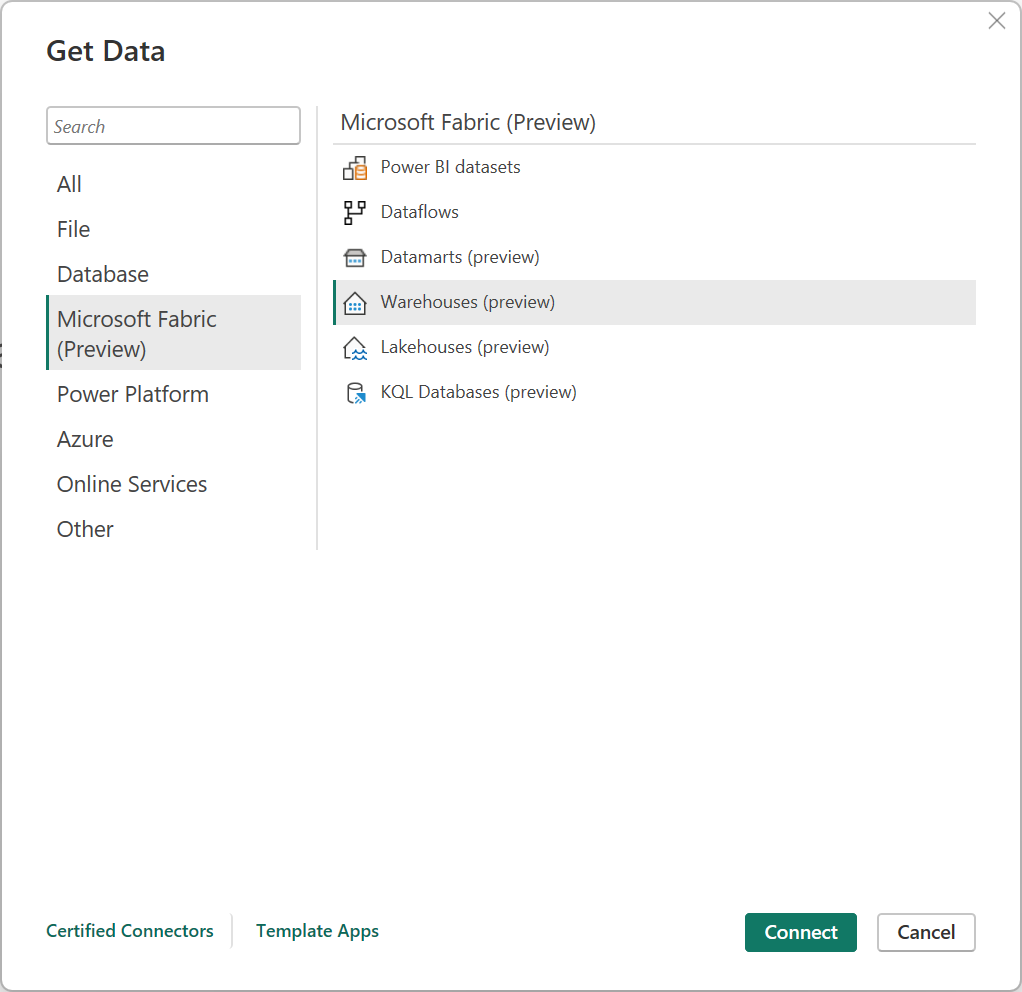
Select Microsoft Fabric > Warehouses in the connector selection, and then select Connect. More information: Where to get data
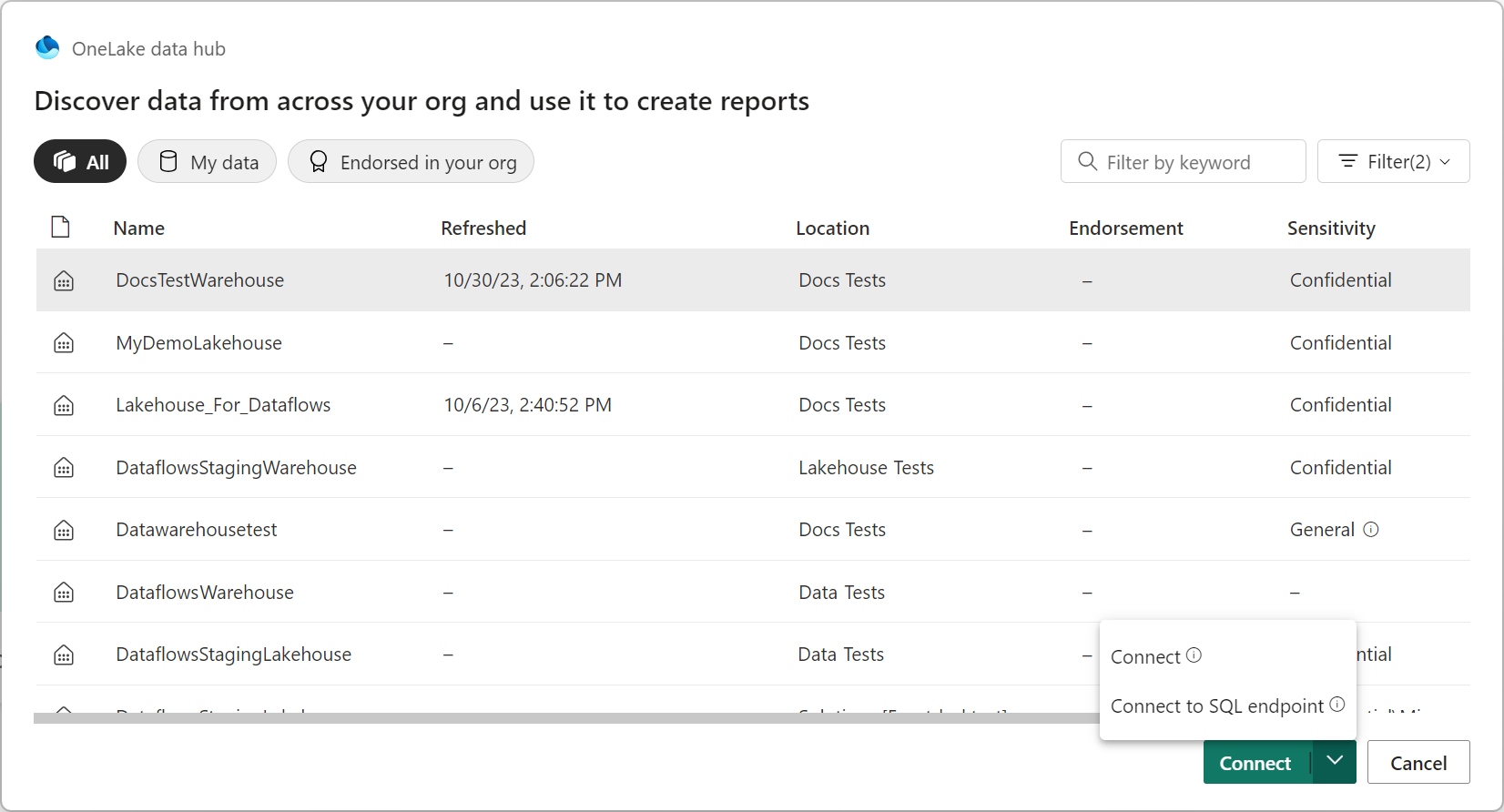
In the OneLake data hub, select the Warehouse you want to connect to. Optionally, you can use the All, My data, or Endorsed in your org buttons to filter the Warehouses displayed in the dialog. Then select Connect.
Note
You can also select Choose SQL endpoint to select the SQL endpoint of the Warehouse.
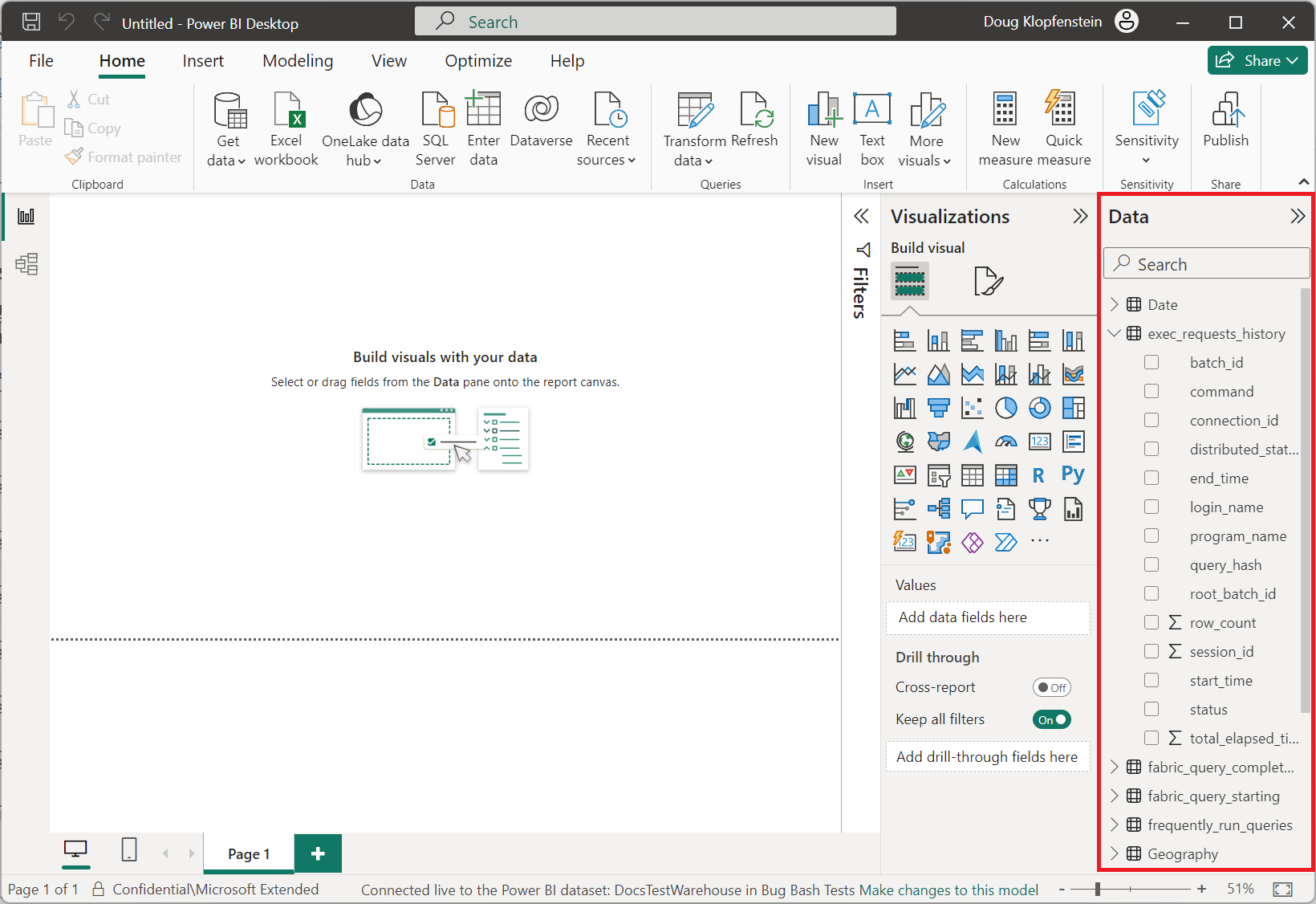
Select the data you want to build visuals with from the Data pane in Power BI Desktop.


Connect from Power Query Online
To get data from a Warehouse in Power Query Online:
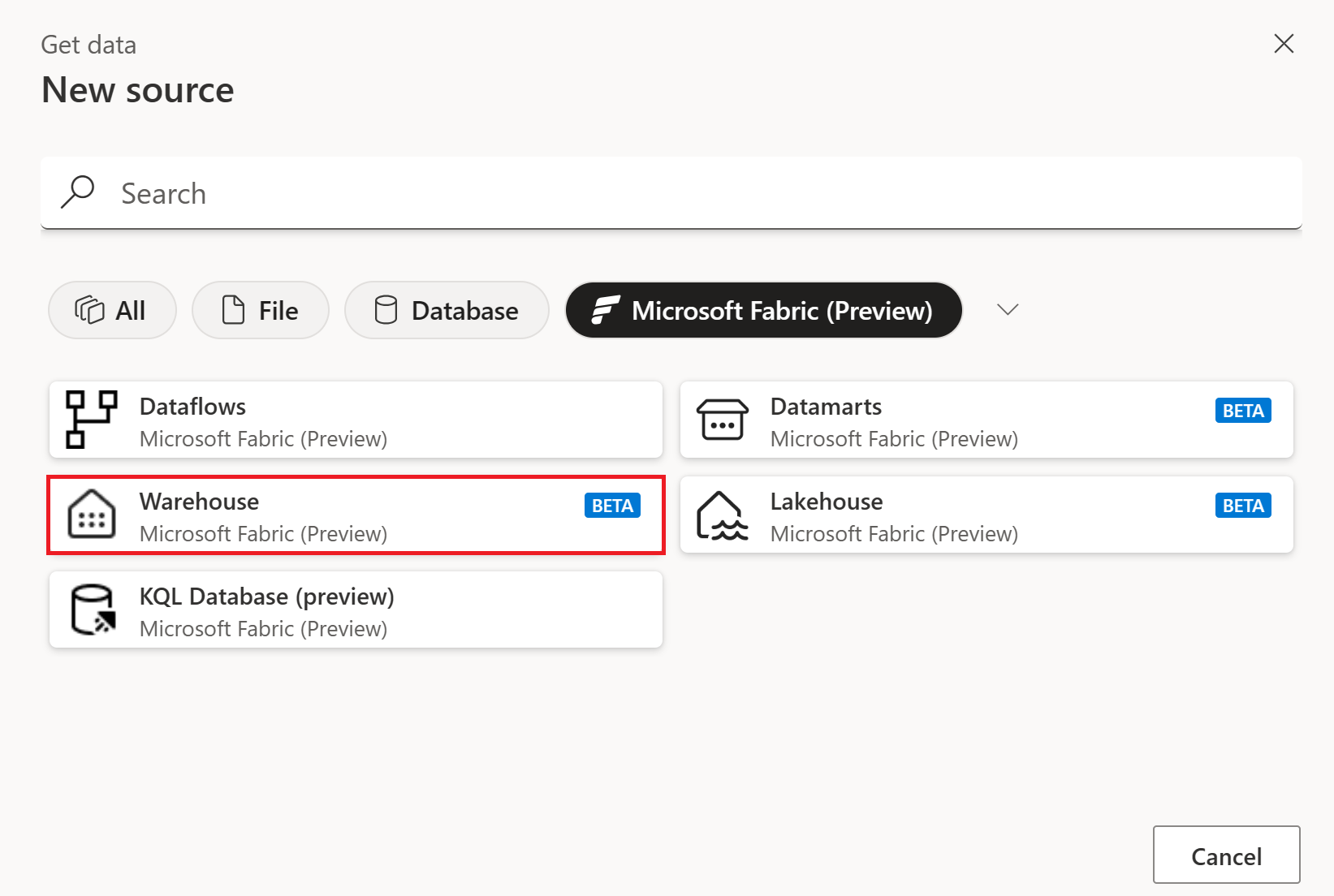
From the New source page, select Microsoft Fabric > Warehouse. More information: Where to get data
In Connect to data source, select Sign in to sign in to your organizational account.
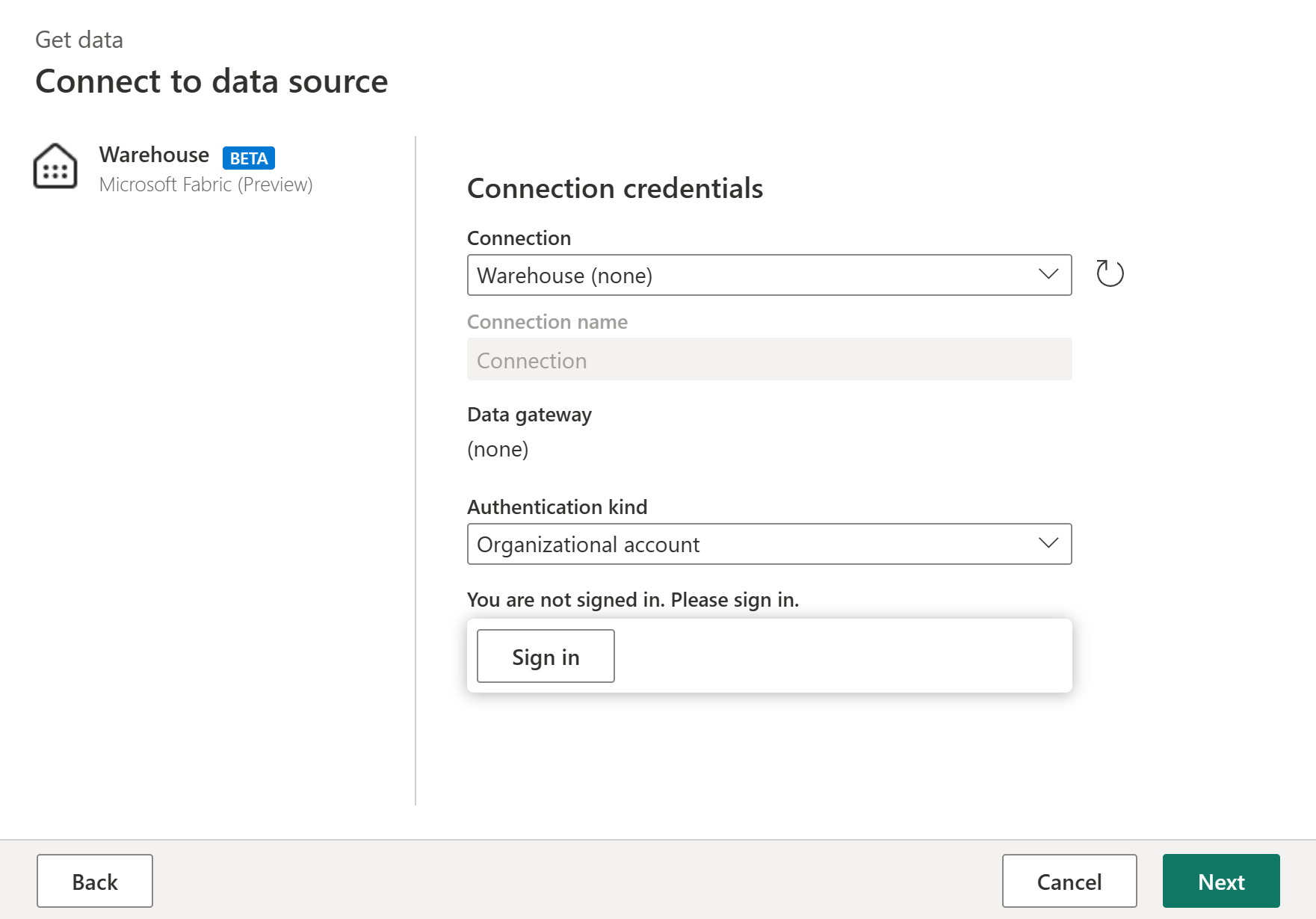
Once you've signed in, select Next.
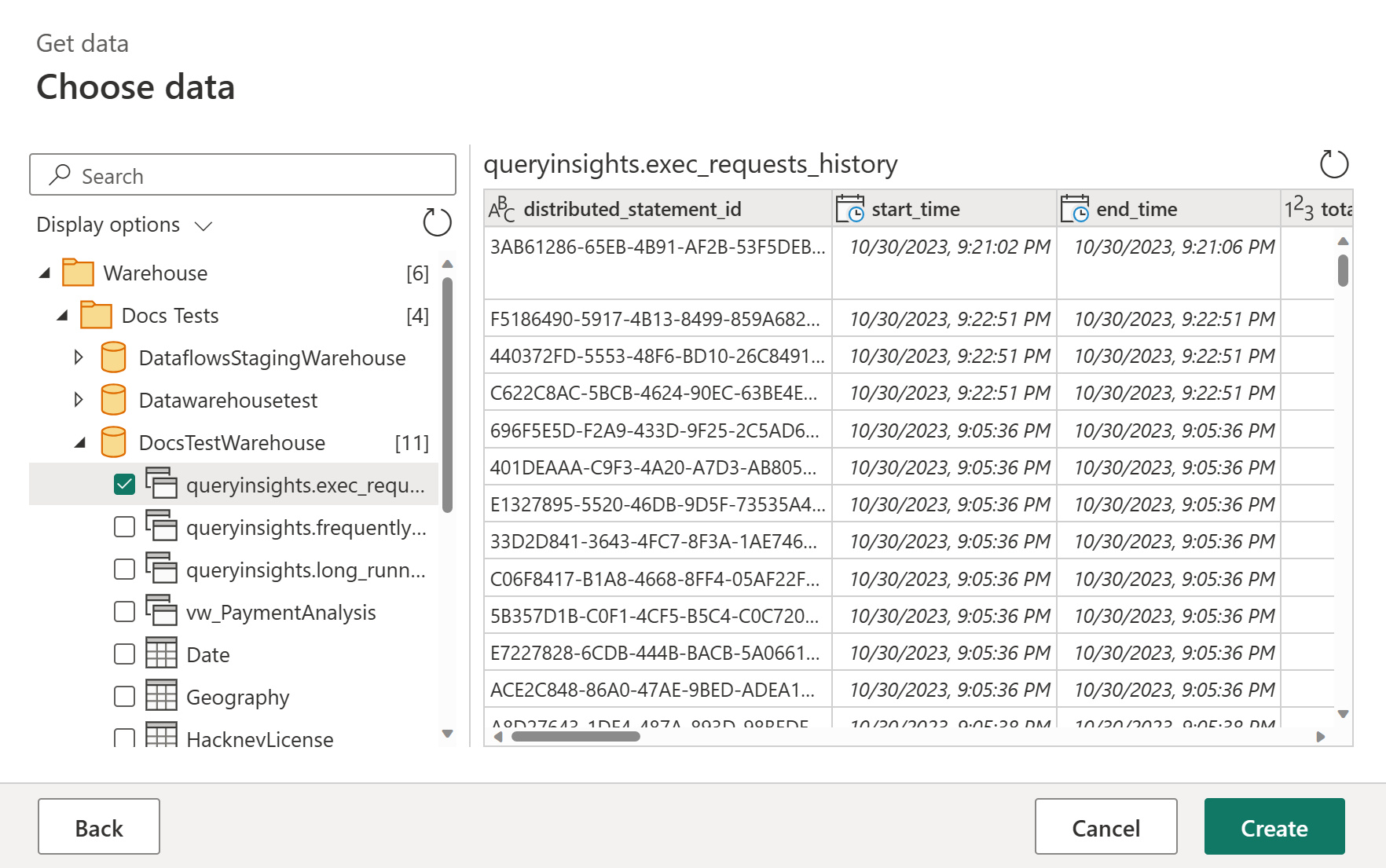
In Choose data, select the data items that you want to transform, and then select Create.