Note
Access to this page requires authorization. You can try signing in or changing directories.
Access to this page requires authorization. You can try changing directories.
Remote Desktop Protocol (RDP) traffic is critical for Windows 365 Cloud PC performance and reliability. To optimize connectivity, you must configure the network path on both the physical device and the Cloud PC. RDP traffic behaves like Teams media traffic: it's real-time, latency-sensitive, and high-volume with long-lived connections. Optimization methods therefore closely mirror those used for Teams.
While this guidance focuses on the following core RDP methods that work in all network environments, it's also applicable to any available option.
TCP-based Reverse Connect
Indirect RDP Shortpath via TURN
To learn more about the different RDP options available for Windows 365 and how they work, see Understanding Network Flows - RDP Connectivity.
If RDP traffic isn't optimized, the default network path for web-bound traffic in many enterprise networks can significantly affect the user experience. Common issues include:
Reduced performance
Frequent disconnects
Disconnects during initial logon
Slow input response
Optimization steps apply to both the physical client and the Cloud PC, with minor differences in implementation.
Key Optimization steps
1. Disabling TLS inspection
Inspection of RDP traffic is not supported. Disable TLS inspection for all required endpoints.
Why disable TLS inspection?
Double encryption: RDP traffic uses nested encryption. A Transport Layer Security (TLS) 1.3 transport session carries an encrypted RDP session. Inspecting the transport session provides no security benefit but introduces significant negative impact.
Dedicated infrastructure: TCP-based RDP via gateways and UDP via TURN relays use Microsoft-owned, globally distributed infrastructure. This infrastructure uses dedicated IPv4 space exclusively for Windows 365, Azure Virtual Desktop, and Devbox.
No impact on security: RDP only connects the physical device to the Cloud PC. You can still inspect internet-bound traffic on both devices according to your normal standards.
Impact of inspection
Adds jitter: Variation in packet arrival times reduces quality.
Adds latency: Increased packet traversal time affects desktop responsiveness.
Reduces throughput: Due to the nature of TLS inspection, it can significantly reduce throughput on the connection, impacting performance.
Increases device load: RDP traffic is high-volume. Inspection is computationally expensive and may degrade other traffic using the device performing the inspection. Scaling to handle inspection adds cost without benefit.
Note
TLS inspection does not need to be disabled for authentication traffic to Microsoft Entra ID. The bypass guidance in this article applies only to the RDP flows listed here, Authentication traffic to obtain a token is separate from the RDP flows.. In some networks, TLS inspection of Entra ID authentication traffic may be required for Tenant Restrictions to operate. See tenant restrictions documentation for more detail.
2. Bypass VPN and Secure Web Gateway tunnels
Many Windows 365 and Azure Virtual Desktop (AVD) deployments use Virtual Private Network (VPN) or Secure Web Gateway (SWG) clients to provide secure access to on-premises resources and protected internet access. Using such configuration is especially common in the recommended Microsoft Hosted Network model, where Cloud PCs have direct, high-speed internet connectivity and where network controls applied can be almost identical to controls used for roaming users.
Modern SWG solutions align with Zero Trust principles and generally outperform traditional VPN approaches, which route internet traffic through on-premises proxies. However, these solutions still introduce challenges for latency-sensitive traffic such as RDP.
If VPN or SWG tunnels aren't configured correctly for RDP traffic, users may experience:
Increased latency and reduced performance
Disconnects during initial logon
Session drops when tunnels reset
Frequent RDP disconnects
Example issue: RDP Connection drops on initial logon:
A common symptom of RDP traffic routed through a Secure Web Gateway (SWG) or VPN tunnel is a disconnect during the initial logon to the Cloud PC when user-based tunnels are enabled.
What happens
The user starts a connection, and the Cloud PC responds. The logon screen appears as normal.
After the user enters credentials, the client software builds user-based tunnels to the SWG or VPN.
At this point, the logon screen freezes. The connection drops, and the client must reconnect to the Cloud PC.
After reconnection, the session usually works without further problems. However, if the tunnel drops later, the remote session disconnects again.
This behavior creates a poor experience, especially during initial login.
Why the disconnect happens
User-based tunnels often route all internet-bound traffic through the SWG or VPN unless the endpoint is configured for bypass. This configuration is called a forced tunnel or inverse split tunnel, and the tunnel becomes the default path.
The initial login succeeds because the tunnel isn’t active yet. When the tunnel starts as the user logs in, RDP traffic is redirected into the tunnel, which forces a reconnection. If the tunnel drops and reconnects during operation, the RDP session must also reconnect inside the re-established tunnel.
The following diagram shows a simplified view of this indirect connectivity with a forced tunnel. RDP traffic traverses VPN or SWG resources before reaching the gateway. This routing is acceptable for general web traffic but isn’t optimal for latency-sensitive traffic such as Teams media or RDP. On the Cloud PC side, lack of optimization also means the RDP traffic may need to leave Microsoft's network and traverse back again from the SWG or VPN solution's location.
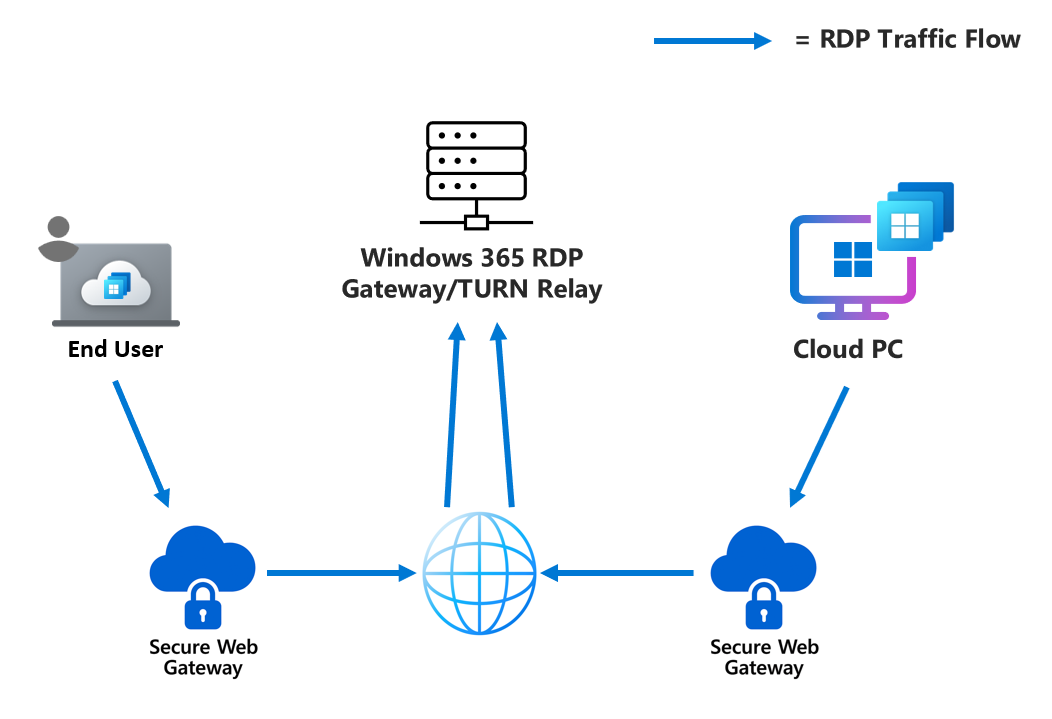 Diagram 1: Non-Optimized RDP traffic hairpinned via Secure Web Gateway
Solution: Bypass RDP traffic from VPN or SWG tunnels
Forced tunnel exceptions for RDP traffic are essential. This configuration ensures:
Direct routing for latency-sensitive traffic to maintain consistent, high performance
No dependency on tunnel state for reliable connectivity
On the Cloud PC side, traffic stays on the Microsoft network and doesn’t need to traverse the internet.
With the bypass in place, web-bound traffic still uses the SWG or VPN tunnel, but RDP takes the optimized path as shown in the following diagram.
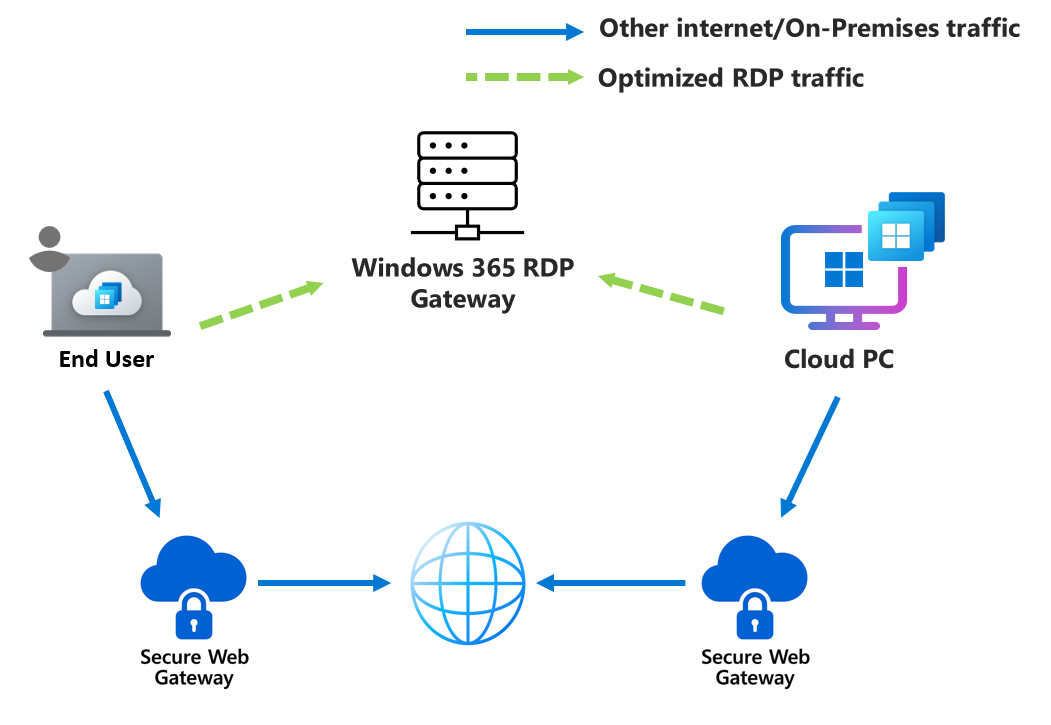
Diagram 2: Optimized TCP based RDP traffic sent direct to Windows 365 Gateway
3. Local Network egress
Local egress is a key step in optimizing RDP traffic. It ensures traffic takes the most direct route to Microsoft’s edge network.
Cloud side
Local egress from Azure reduces round-trip time by avoiding unnecessary hops through remote locations. This approach improves session responsiveness and stability. When you locally egress RDP directly onto Microsoft's network, through a NAT Gateway, for example, traffic stays on Microsoft's network to the Gateway or TURN relay for its complete journey.
Physical side
Local breakout to the internet as close as possible to the user prevents traffic from backhauling through corporate networks, VPNs, Secure Web Gateways (SWGs). With this optimization, reaching the internet locally to the user, the nearest Gateway or TURN relay can be used, avoiding routing through non-local RDP Gateways or TURN relays which are nearer to the VPN or SWG's location, than the end user. Using these remote Gateways or Relays can add significant latency and reliability issues.
Benefits
By enabling local egress, you minimize latency, reduce packet loss caused by congested tunnels, and deliver a smoother, more reliable user experience.
When RDP traffic egresses locally, it connects to the nearest RDP Gateway or TURN relay, usually close to the user’s location. From there, traffic travels across Microsoft’s managed backbone to the Cloud PC and back. This means traffic is on the public internet only for a short distance, improving security and performance.
For more information on Microsoft’s globally distributed infrastructure for RDP optimization, see this article.
Implementing Optimization
How you implement these optimizations may differ slightly depending on which side of the connection you're configuring.
Physical Device-Side Optimization
Follow these steps to ensure RDP traffic takes the most direct, reliable, and high‑performance path.
- Identify the key RDP endpoint information: This information is displayed in the following table, but is the same for both the physical and Cloud PC sides. Always refer to the Network Requirements documentation for the latest details.
| # | RDP method | FQDN | IP address | Protocol/port | Description |
|---|---|---|---|---|---|
| 1 | TCP-based RDP | *.wvd.microsoft.com |
40.64.144.0/20 |
TCP 443 | TCP-based RDP connection. The initial connection to every session host or Cloud PC uses this connection. |
| 2 | UDP-based RDP via TURN | N/A | 51.5.0.0/16 |
UDP 3478 | Relayed UDP-based RDP connection using TURN servers. This method works when direct connectivity isn't possible. |
| 3 | UDP-based RDP using STUN | N/A | 51.5.0.0/16 |
UDP 1024-65535 Default: 49152-65535 |
Direct one-to-one UDP connection between the user device and the session host or Cloud PC. |
Note
The 40.64.144.0/20 subnet covers the RDP flow associated with *.wvd.microsoft.com but not every endpoint within *.wvd.microsoft.com
Bypass VPN and Secure Web Gateway (SWG) tunnels: Route RDP traffic directly to the internet. Avoid sending it through proxies, VPNs, or SWGs. Microsoft owns and manages both IP subnets listed in the table, and they’re dedicated to Windows 365 and Azure Virtual Desktop.
Enable local egress Ensure traffic exits the network as close to the user as possible. Avoid backhauling traffic across long distances before reaching the internet. Doing so allows the nearest Gateway or TURN relay to be used, which provides the highest performance.
Disable TLS inspection Don’t inspect RDP traffic at the egress firewall. TLS inspection introduces latency and degrades session quality while providing no benefit. Inside the TLS encrypted transport session, lies a nested TLS encrypted data session. For more information, see connection security documentation.
Prioritize RDP traffic Where applicable, prioritize RDP traffic within the network to maintain session responsiveness. Treat it similarly to how Microsoft Teams media traffic is handled.
Example Outcome:
Contoso used the RDP endpoint details in rows 1 and 2 to route traffic through an optimized path (shown as a dashed line). This path egresses locally to the internet via a direct route out of the corporate network. TLS inspection is disabled for this traffic at the firewall.
By following this approach, Contoso achieved:
Lowest possible latency to the Windows 365 service
Highest reliability of connectivity
Maximum throughput for remote sessions
Reduced load on proxy path
Local RDP Gateways and TURN relays close to users, ensuring traffic enters Microsoft’s global backbone as early as possible for end-to-end performance
From the local gateway or relay, traffic travels across Microsoft’s backbone to the Cloud PC and back, reducing exposure to the public internet and improving stability.
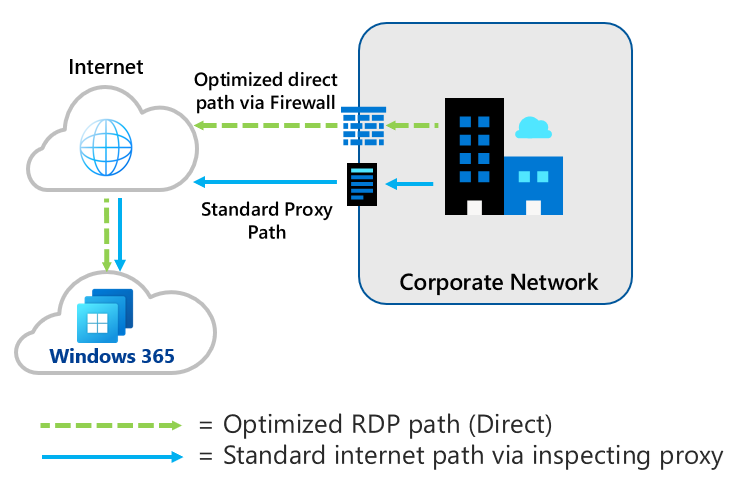
Diagram 3: RDP Optimization from a corporate network
The following example shows Contoso’s mobile worker network configuration. The VPN software used by mobile workers is set to bypass RDP traffic from the forced tunnel VPN using the information shown (dashed line).
This optimization allows RDP traffic, like Teams media traffic, to use the user’s direct internet path to Microsoft instead of routing through the corporate network.
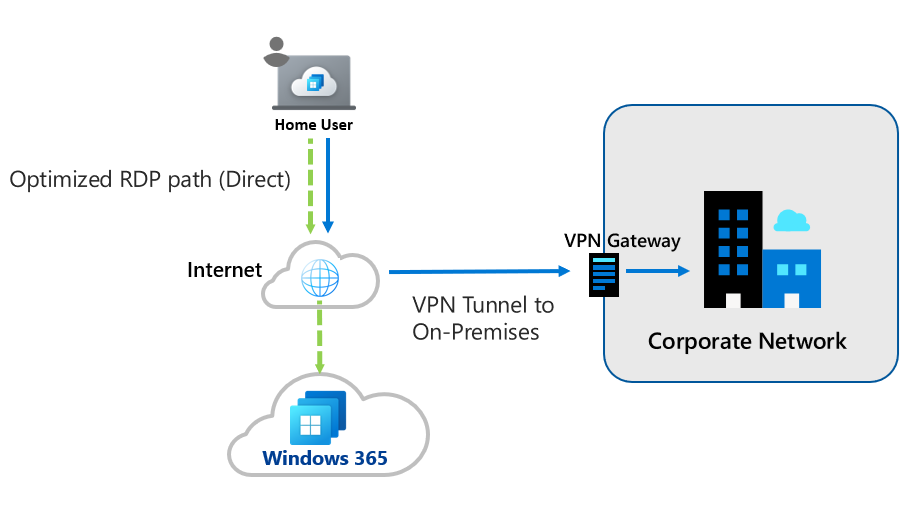
Diagram 4: RDP Optimization from a remote user
Cloud PC‑side optimization
The RDP endpoints used on the Cloud PC side are the same as those endpoints used on the physical device side, and they’re also outbound. With the correct configuration, RDP traffic from the Cloud PC stays on Microsoft’s backbone to the destination Gateway or TURN relay instead of traversing the public internet. This approach improves reliability and performance.
The steps to achieve this optimization on the Cloud PC side may differ slightly from the physical device side depending on the deployment option you choose.
Microsoft Hosted Network deployments
In the Microsoft Hosted Network model, which is the recommended deployment option, Microsoft preconfigures and optimizes the core connectivity on your behalf. You don’t need to make any additional configuration to deliver optimal connectivity to the underlying network.
When additional configuration is needed
If you install network software on the Cloud PC, such as a VPN client or Secure Web Gateway (SWG) agent, these components may alter the RDP traffic path so it doesn't use the provided underlying network directly. In this case, configuration is required to bypass RDP traffic so it routes directly into Microsoft’s network through the provided path, rather than through the VPN or SWG solution.
These endpoints match those required on the physical network and are listed in the following table:
| # | RDP method | FQDN | IP address | Protocol/port | Description |
|---|---|---|---|---|---|
| 1 | TCP-based RDP | *.wvd.microsoft.com |
40.64.144.0/20 |
TCP 443 | TCP-based RDP connection. The initial connection to every session host or Cloud PC uses this connection. |
| 2 | UDP-based RDP via TURN | N/A | 51.5.0.0/16 |
UDP 3478 | Relayed UDP-based RDP connection using TURN servers. This method works when direct connectivity isn't possible. |
| 3 | UDP-based RDP using STUN | N/A | 51.5.0.0/16 |
UDP 1024-65535 Default: 49152-65535 |
Direct one-to-one UDP connection between the user device and the session host or Cloud PC. |
Some Secure Web Gateway (SWG) vendors, such as Zscaler, provide simplified bypass options for RDP traffic. For more information, see the related Techcommunity post.
You also need to ensure that the following non-RDP endpoints aren’t sent through any Proxy, VPN, or SWG tunnel on the Cloud PC side. If this traffic is routed outside of Azure or blocked, the connection fails.
| ID | FQDN | IP | Protocol/Port | Purpose |
|---|---|---|---|---|
| 4 | azkms.core.windows.net | 20.118.99.224/32, 40.83.245.53/32, 23.102.135.246/32 (Check Azure KMS documentation for updates) | TCP/1688 | Azure KMS traffic |
| 5 | n/a | 169.254.169.254 | TCP/80 | Azure Fabric Communication |
| 6 | n/a | 168.63.129.16 | TCP/80 | Azure Fabric Communication |