Note
Access to this page requires authorization. You can try signing in or changing directories.
Access to this page requires authorization. You can try changing directories.
This article shows how to register a Microsoft Entra passkey on Windows. A Microsoft Entra passkey on Windows is a device-bound passkey stored in the local Windows Hello container. Unlike synced passkeys, a passkey on Windows doesn't sync across devices — each device requires a separate passkey registration. This approach enables phishing-resistant sign-in with a Windows Hello biometric or PIN, without requiring the device to be Microsoft Entra joined or registered.
For an overview of Microsoft Entra passkey on Windows and how it compares with Windows Hello for Business, see Microsoft Entra passkey on Windows.
Prerequisites
Confirm these requirements before you register:
- Your administrator enabled passkeys (FIDO2) and created a passkey profile that allows Windows Hello AAGUIDs. For configuration steps, see Configure a profile for Microsoft Entra passkey on Windows.
- The device runs a supported version of Windows.
- Attestation must not be enforced in the passkey profile.
For the list of supported Windows Hello passkey AAGUIDs, see Supported Windows Hello passkey AAGUIDs.
Register a passkey on Windows
To register a passkey on your Windows device, follow these steps:
Open a web browser and sign in to Security info.
Sign in with multifactor authentication (MFA).
Tap Add sign-in method > Choose a method > Passkey.
Tap Next.
Select where you want to save your passkey (FIDO2).
Note
Options displayed vary depending on your browser and device operating system. If the device where you started the registration process supports passkeys (FIDO2), you'll be asked to save the passkey to that device. Select Use another device or More options to display additional ways for you to save the passkey.
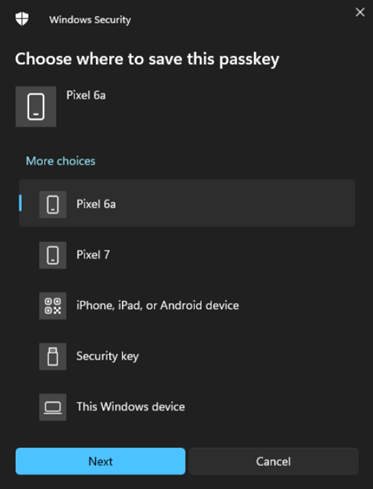
After verification, Windows creates the passkey and stores it in the local Windows Hello container. You can now use this passkey to sign in to Microsoft Entra ID.
Note
If a Windows Hello for Business credential already exists for the same account, passkey registration might fail. For more information, see Microsoft Entra passkey on Windows.