Note
Access to this page requires authorization. You can try signing in or changing directories.
Access to this page requires authorization. You can try changing directories.
This article describes Microsoft Entra passkey on Windows, how it works, and how it differs from Windows Hello for Business.
To configure passkey profiles that allow Windows Hello as a FIDO2 passkey provider, see Configure a profile for Microsoft Entra passkey on Windows.
Overview
Microsoft Entra passkey on Windows allows users to register passkeys (FIDO2) directly into their device's local Windows Hello container. Users can then use these passkeys to sign in to Microsoft Entra ID. Microsoft Entra passkey on Windows enables phishing-resistant sign-in by using a Windows Hello biometric or PIN without requiring the device to be Microsoft Entra joined or registered.
By using Microsoft Entra passkey on Windows:
- Users can register passkeys (FIDO2) in the local Windows Hello container.
- Devices don't need to be joined or registered to Microsoft Entra to use a local Windows passkey.
- A single Windows PC can store multiple passkeys for multiple Microsoft Entra accounts.
- Passkeys (FIDO2) registered in Windows Hello are governed by Microsoft Entra passkey (FIDO2) policies and passkey profiles.
How Microsoft Entra passkey on Windows works
Windows Hello acts as a secure local credential container on Windows devices. The container is protected by user-presence verification such as:
- PIN
- Fingerprint
- Facial recognition
Microsoft Entra passkey on Windows allows passkeys (FIDO2) to be created and stored inside this Windows Hello container and used for authentication to Microsoft Entra ID.
This behavior also applies when the device is governed by Windows Hello for Business policies configured through Microsoft Intune. However, passkeys (FIDO2) are distinct from the Windows Hello for Business credentials that might be automatically registered during device registration to Microsoft Entra ID.
How Microsoft Entra passkey on Windows compares with Windows Hello for Business
Although both features use Windows Hello, Microsoft Entra passkey on Windows and Windows Hello for Business have different purposes and behavior.
| Feature | Microsoft Entra passkey on Windows | Windows Hello for Business |
|---|---|---|
| Standard base | FIDO2 | FIDO2 for authentication, first-party (1P) protocol for device sign-in |
| Registration | User-initiated, doesn't require device join or registration | Automatically provisioned on some Microsoft Entra joined or registered devices during device registration |
| Device sign-in and single sign-on (SSO) | N/A | Enables device sign-in and SSO to Microsoft Entra-integrated resources after device sign-in |
| Passkey type | Device-bound | Device-bound |
| Credential binding | Bound to the device and stored in the local Windows Hello container. Users can register multiple passkeys for multiple work or school accounts on the same device. | Primarily a device-bound sign-in method linked to device trust. The credential is tied only to the work or school account used to register the device. |
| Management | Microsoft Entra ID Authentication methods policy | Microsoft Intune Group Policy |
Note
If you're on a Microsoft Entra joined or Microsoft Entra registered device, setting up Windows Hello might automatically register a Windows Hello for Business credential for the device's linked account. If you then attempt to register a passkey on Windows for that same account, registration fails because the Windows Hello for Business credential already exists. On retry, you see an error indicating the passkey is already registered.
Prerequisites for Microsoft Entra passkey on Windows
- An account with at least Authentication Policy Administrator permissions to configure authentication methods.
- You need to enable passkey sign-in in the Passkey (FIDO2) policy in Authentication methods in the Microsoft Entra admin center.
- Windows 10 or Windows 11
- Device must support Windows Hello
Supported Windows Hello passkey AAGUIDs
Windows Hello passkeys are identified and controlled by using the following AAGUIDs. These AAGUIDs must be explicitly allowed in a passkey profile to enable registration.
| Windows Hello authenticator | AAGUID | Description |
|---|---|---|
| Windows Hello Hardware Authenticator | 08987058-cadc-4b81-b6e1-30de50dcbe96 | Private key stored in a hardware-based TPM. |
| Windows Hello VBS Hardware Authenticator | 9ddd1817-af5a-4672-a2b9-3e3dd95000a9 | Virtualization-based Security (VBS) uses hardware virtualization and the Windows hypervisor to store private keys in the host machine's TPM. |
| Windows Hello Software Authenticator | 6028b017-b1d4-4c02-b4b3-afcdafc96bb2 | Private key stored in a software-based TPM. |
Configure a profile for Microsoft Entra passkey on Windows
Microsoft Entra passkey on Windows requires an Authentication Policy Administrator to configure a passkey profile with the following settings:
- The profile must target the specific Windows Hello AAGUIDs.
- The profile can't Enforce attestation.
Sign in to the Microsoft Entra admin center as at least an Authentication Policy Administrator.
Browse to Entra ID > Authentication methods.
On the Authentication methods | Policies page, select Passkey (FIDO2) > Configure.
Select + Add profile.
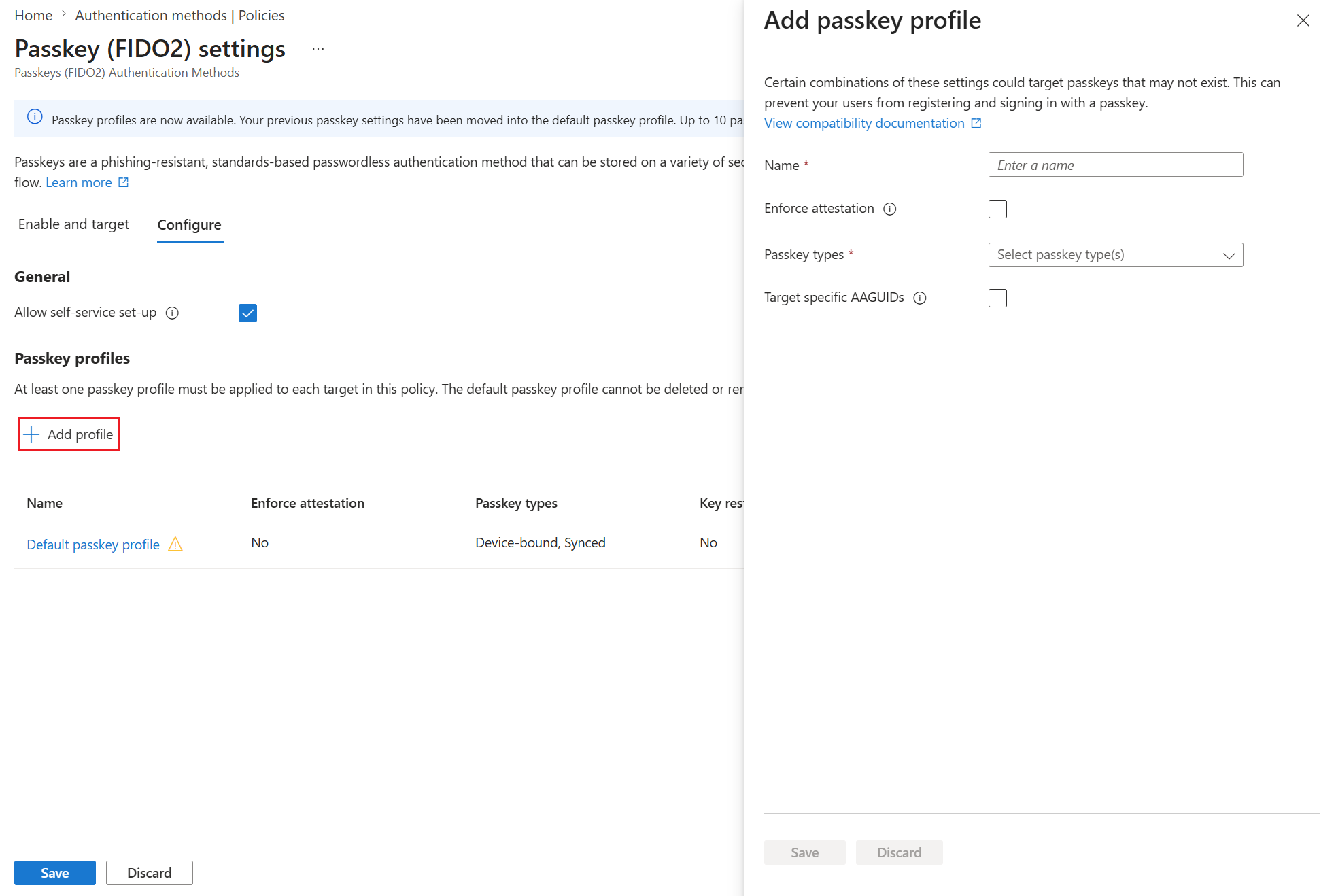
Enter a Name for the profile, such as Entra passkey on Windows.
For Passkey types, select Device-bound.
Select Target specific AAGUIDS and set Behavior to Allow.
Select + Add AAGUID > Windows Hello and Save.
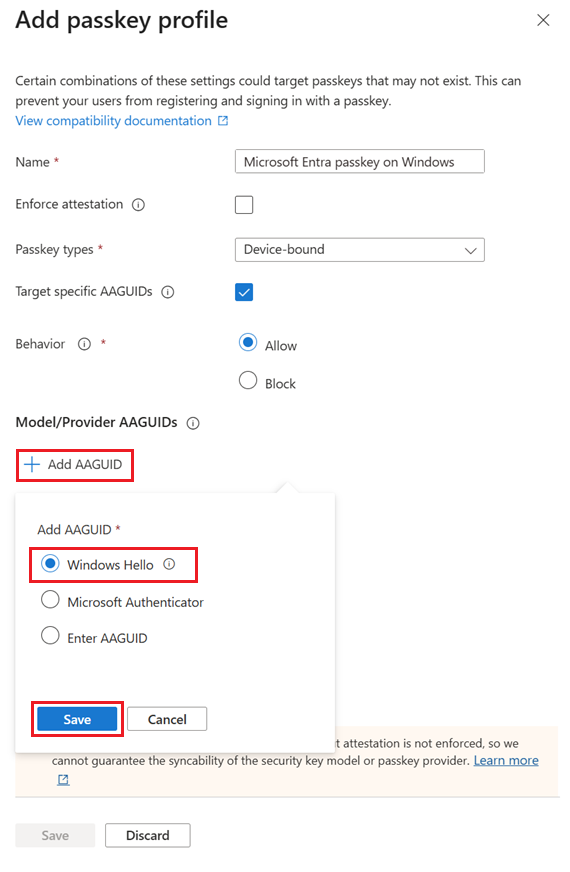
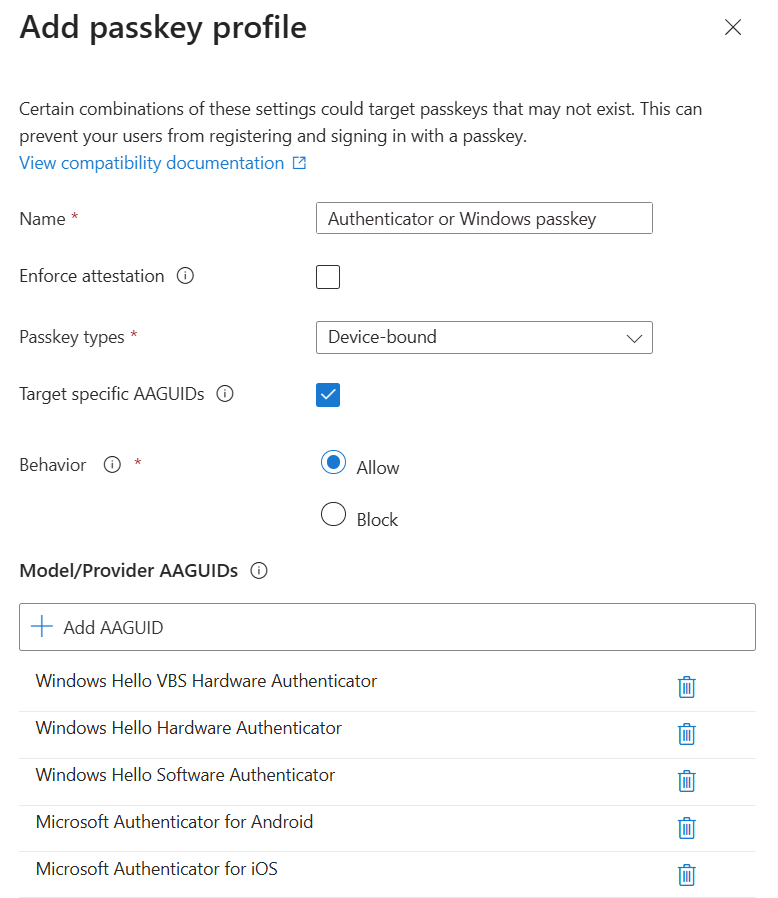
Example: Allow Microsoft Authenticator and Windows Hello passkeys
You can target specific AAGUIDs to control which authenticators users can register. In this example, the passkey profile allows passkeys on Windows or Microsoft Authenticator.
To configure this profile:
- Select Target specific AAGUIDs.
- Set Behavior to Allow.
- Select + Add AAGUID > Windows Hello and Save. Select + Add AAGUID > Microsoft Authenticator and Save.
With this configuration, users can register passkeys with Microsoft Authenticator or with Windows Hello on Windows because both sets of AAGUIDs are in the allowed list.
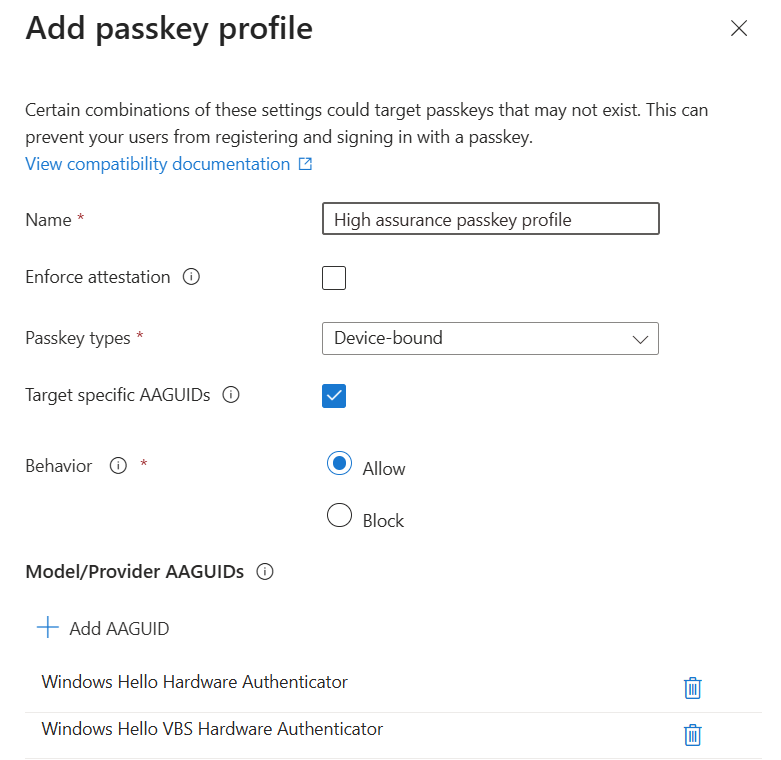
Example: Allow only Windows Hello Hardware Authenticators
You can also target specific AAGUIDs to require hardware-backed Windows Hello passkeys. In this example, a high assurance passkey profile allows only Windows Hello Hardware Authenticators and doesn't allow the Windows Hello Software Authenticator.
To configure this restriction:
- Select Target specific AAGUIDs.
- Set Behavior to Allow.
- Under Model/Provider AAGUIDs, add the AAGUIDs for Windows Hello Hardware Authenticator and Windows Hello VBS Hardware Authenticator, and Save.
With this configuration, users can register passkeys on Windows only when their device supports hardware-backed Windows Hello. Because the Windows Hello Software Authenticator AAGUID isn't in the allowed list, software-only registrations are blocked.
Enable and target groups for a profile for Microsoft Entra passkeys on Windows
Sign in to the Microsoft Entra admin center as at least an Authentication Policy Administrator.
Browse to Entra ID > Authentication methods.
On the Authentication methods | Policies page, select Passkey (FIDO2) > Enable and target.
On the Enable and Target tab, make sure Enable is On.
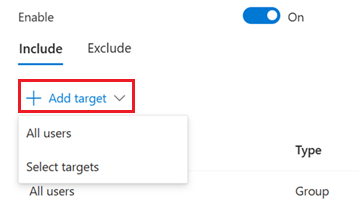
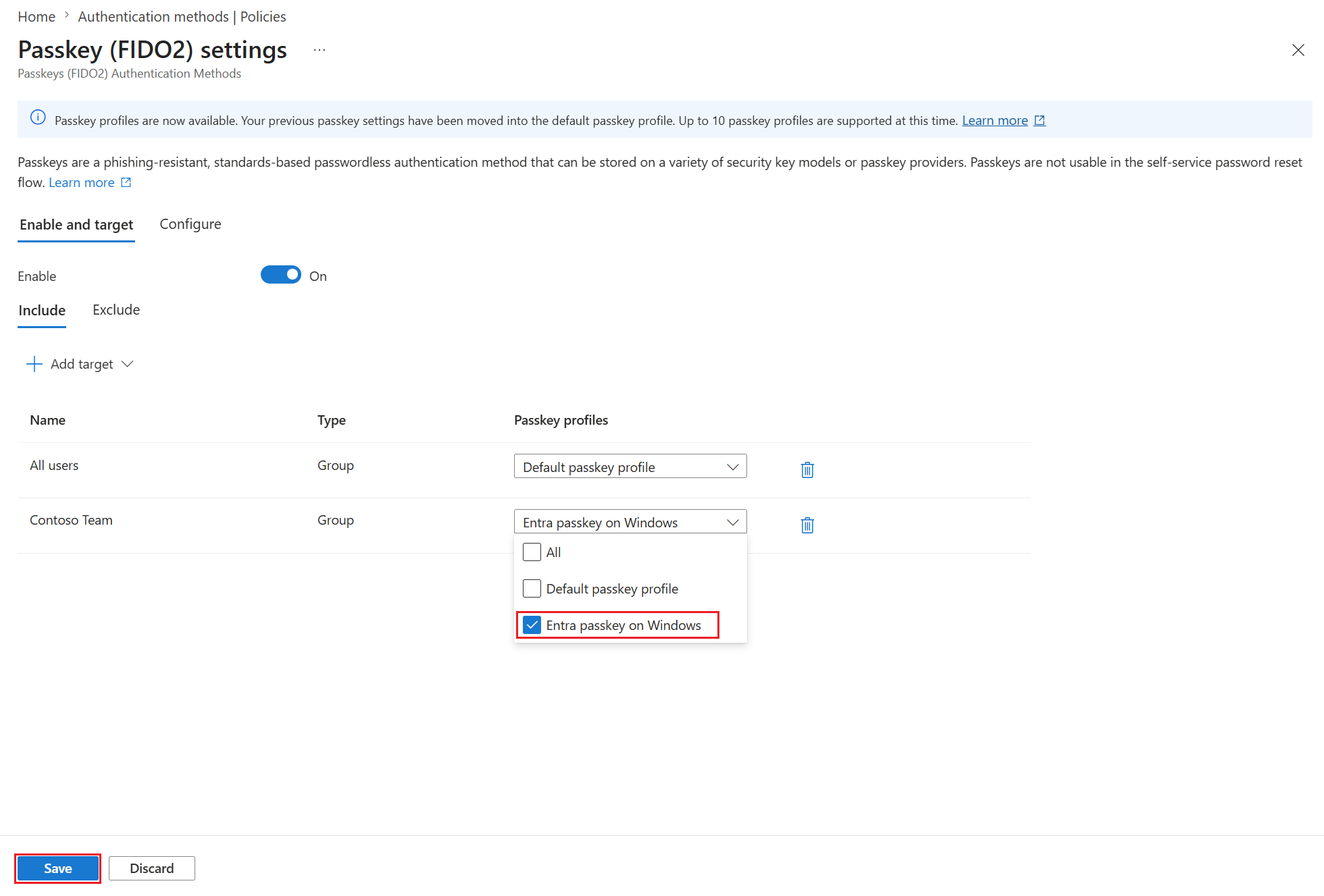
Select Add target, and choose All users or Select targets to choose specific groups.
Select the profile for Microsoft Entra passkey on Windows, and select Save.
FAQ
Question: What is the use case for Microsoft Entra passkey on Windows?
Answer: Use Microsoft Entra passkey on Windows when:
- You want passkeys (FIDO2) stored locally on Windows.
- Users access multiple Microsoft Entra accounts from a single PC.
- You want standards-based, phishing-resistant sign-in to Microsoft Entra on unregistered, personal, or shared devices.
Question: Does Microsoft Entra passkey on Windows replace Windows Hello for Business?
Answer: No. Microsoft Entra passkey on Windows doesn't replace Windows Hello for Business. Windows Hello for Business remains the recommended solution for signing into corporate managed, Microsoft Entra joined or registered devices. Microsoft Entra passkey on Windows complements Windows Hello for Business by enabling passkeys (FIDO2) on Windows in scenarios where devices aren't joined or registered. Microsoft Entra passkey on Windows doesn't support device sign-in.
Note
Users can't register a passkey on Windows if a Windows Hello for Business credential already exists for the same account and container. This block might not apply once the user exceeds 50 total platform credentials.
Question: Are Microsoft Entra passkeys synced?
Answer: No. Microsoft Entra passkey on Windows is device-bound and stored in the local Windows Hello container. It isn't synced across devices. Each device requires a separate passkey registration for each Microsoft Entra account.
Register a Microsoft Entra passkey on Windows
After an admin creates the Windows passkey profile, users can register a passkey directly into the local Windows Hello container on their device.
For registration steps, see Register a Microsoft Entra passkey on Windows.
Sign in with a Microsoft Entra passkey on Windows
After registration, users can sign in to Microsoft Entra ID by using the passkey stored in Windows Hello on their device.
For sign-in steps, see Sign in with a Microsoft Entra passkey on Windows.