Note
Access to this page requires authorization. You can try signing in or changing directories.
Access to this page requires authorization. You can try changing directories.
This article provides information on how to exclude assets from being automatically contained by automatic attack disruption in Microsoft Defender XDR.
Automatic attack disruption and exclusion policies work together to help contain and control active cyber threats. Attack disruption is a built-in extended capability that automatically contains ongoing attacks by isolating compromised assets (like devices or user accounts) in real time, thereby halting an attacker’s progress. Exclusion policies allow security teams to designate certain assets or actions to be exempt from these automated responses – for example, ensuring that specific critical servers or accounts are not automatically shut down or isolated – to avoid unintended business disruption. You can remove exclusions at any time to allow assets to be included in automated responses again.
Caution
Excluding assets from automated responses isn't recommended. It can reduce the effectiveness of automatic attack disruption in protecting your environment from sophisticated, high-impact attacks.
Prerequisites
The permissions required to manage attack disruption exclusions depend on whether Microsoft Defender XDR Unified role-based access control (RBAC) is enabled for the relevant workload.
Device exclusions
| Unified RBAC for endpoints | Required permission |
|---|---|
| Disabled | Security Administrator or Global Administrator role in Microsoft Entra ID or the Microsoft 365 admin center. |
| Enabled | Security Operator (or higher) global Microsoft Entra role, or the Core security settings (manage) permission in Unified RBAC. |
For more information, see Activate Microsoft Defender XDR Unified RBAC.
Identity exclusions
| Unified RBAC for identities or endpoints | Required permission |
|---|---|
| Disabled (both identities and endpoints) | Security Administrator or Global Administrator role in Microsoft Entra ID or the Microsoft 365 admin center. |
| Enabled (for identities or endpoints) | Security Operator (or higher) global Microsoft Entra role, or the Core security settings (manage) permission in Unified RBAC. |
Note
A Security Reader can view exclusions and tags but can't edit them.
Exclusion types and approaches
You can exclude specific assets, or you can configure broad policy-driven rules based on your operational needs.
Exclude assets
User account exclusions prevent specific user identities from being automatically disabled when an attack is detected. Use this for service accounts, emergency admin accounts, or identities that support critical business processes.
Device group exclusions allow you to set automation levels for groups of devices, controlling whether and how devices respond to detected threats. Use this to balance security with business continuity for critical infrastructure, legacy systems, or devices running mission-critical applications.
IP exclusions prevent specific IP addresses or ranges from being automatically contained. Use this for critical infrastructure IP ranges, legacy systems, or external services that your organization relies on.
Exclude user accounts
Exclude user accounts to prevent critical service accounts, emergency admin accounts, or identities supporting critical business processes from being automatically disabled during an attack. This helps maintain business continuity for essential functions while disruption actions continue against other compromised accounts.
To exclude a user account from automated responses:
Go to the Microsoft Defender portal and sign in.
Go to Settings > Microsoft Defender XDR.
To exclude one or more user accounts from automated responses, follow these steps:
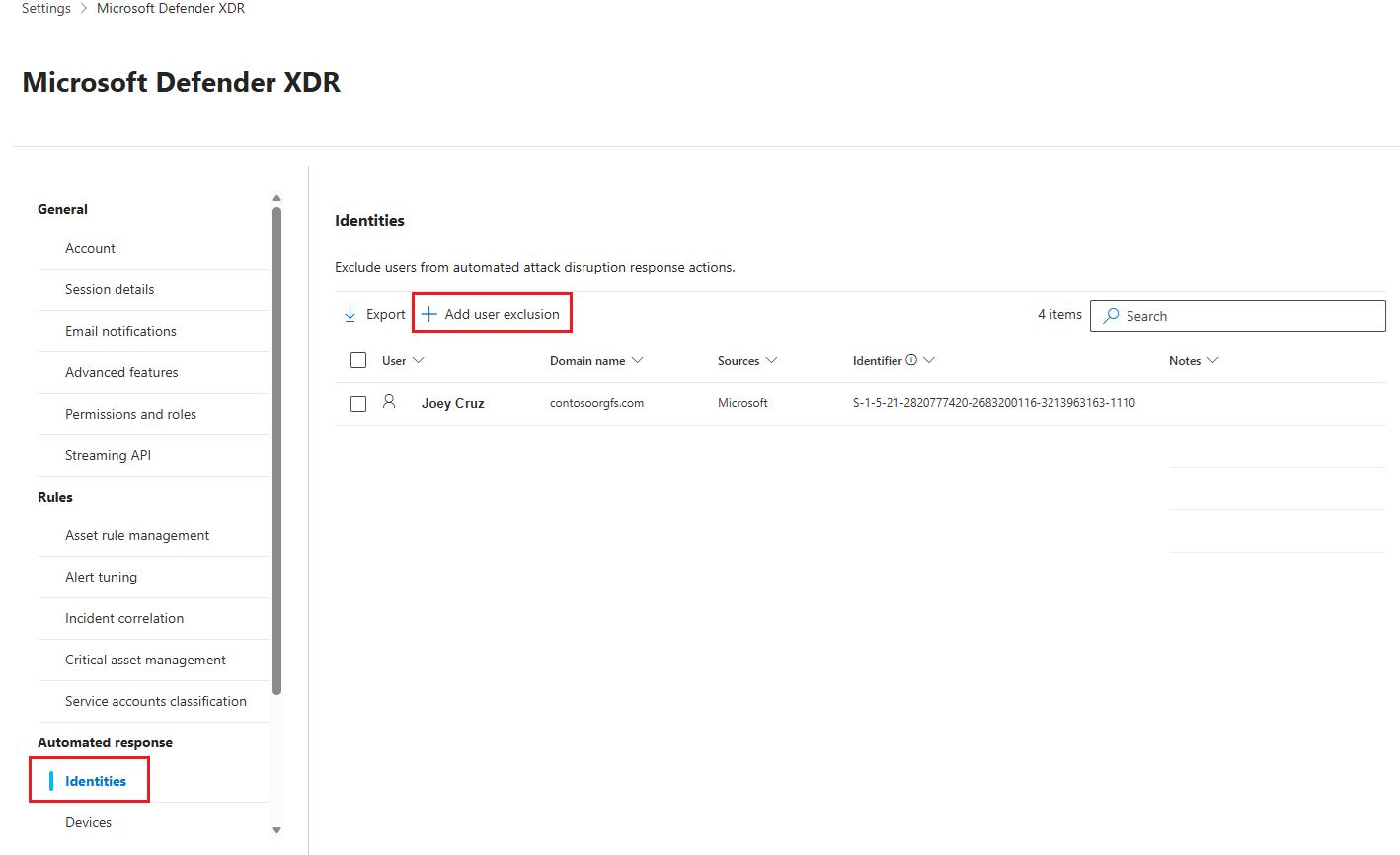
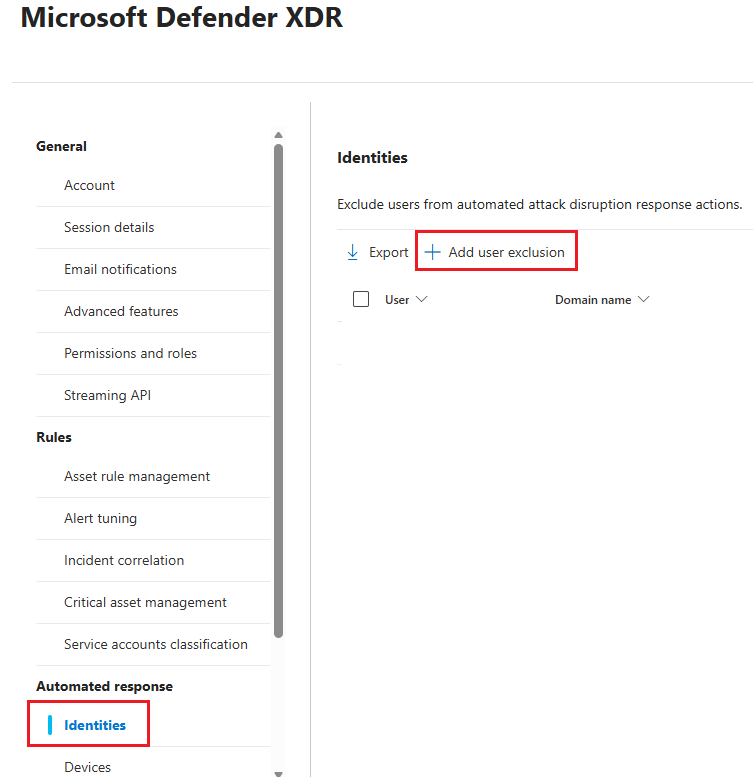
Under Automated response, select Identities.
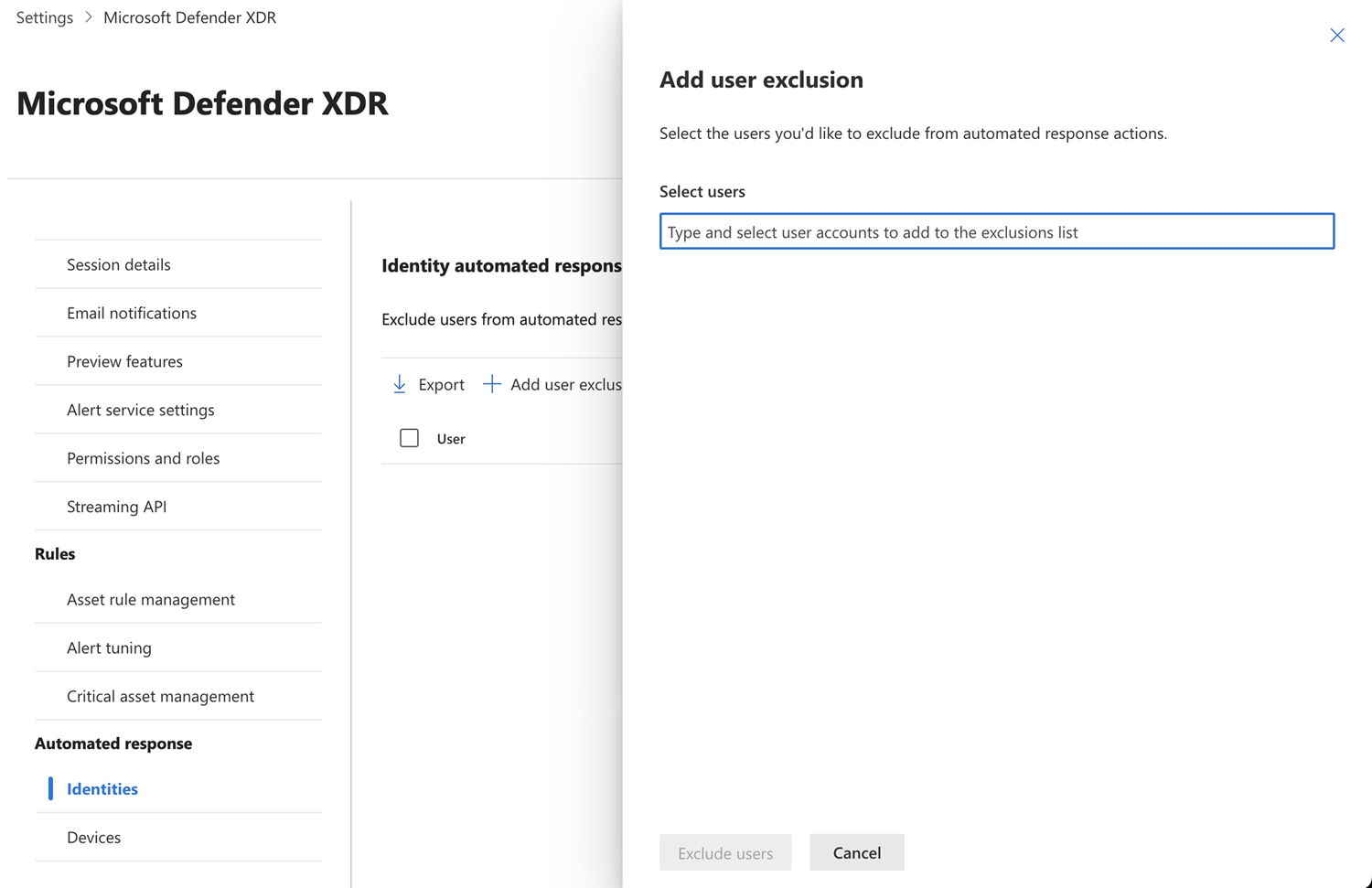
Select Add user exclusion. A flyout pane appears.
In the flyout pane, enter the user account names in the Select users box and select the user accounts you want to exclude.
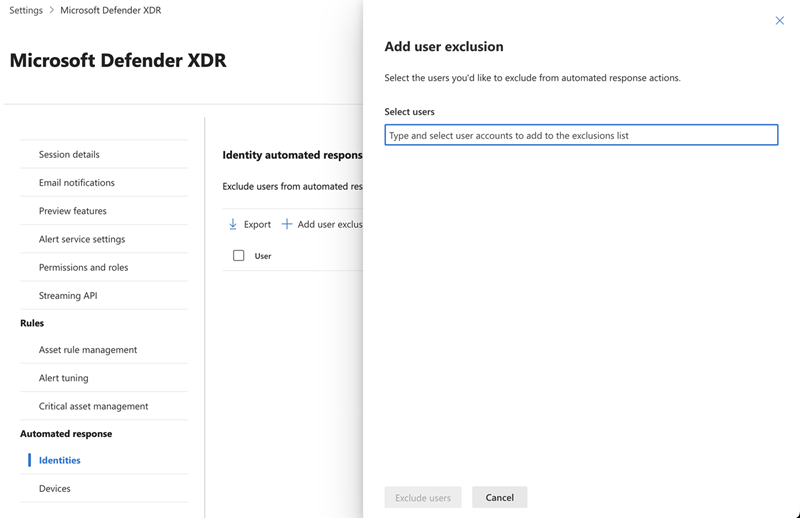
Select Exclude users to save the exclusion.
Exclude device groups
Exclude device groups to protect critical infrastructure, legacy systems, or devices running mission-critical applications from automatic containment or isolation. This approach lets you keep disruption enabled for most of your environment while carving out specific device groups that require different handling due to operational dependencies.
Caution
Excluding device groups from automated responses also impacts automated investigation and response actions.
To exclude a device group from automated responses:
Go to the Microsoft Defender portal and sign in.
Go to Settings > Microsoft Defender XDR.
Under Automated responses, select Devices.
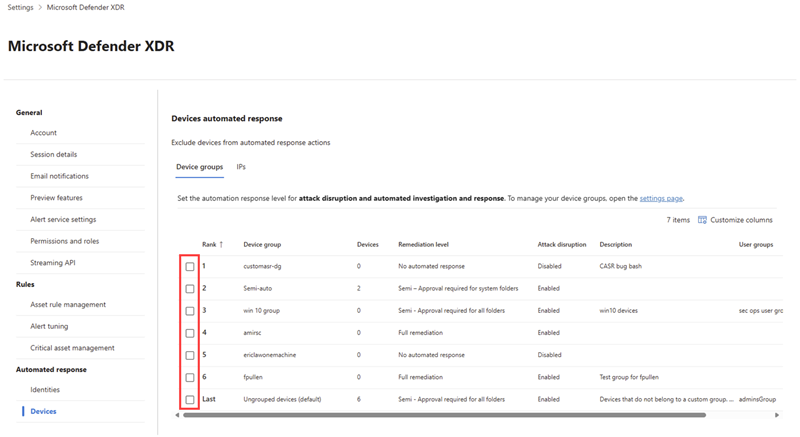
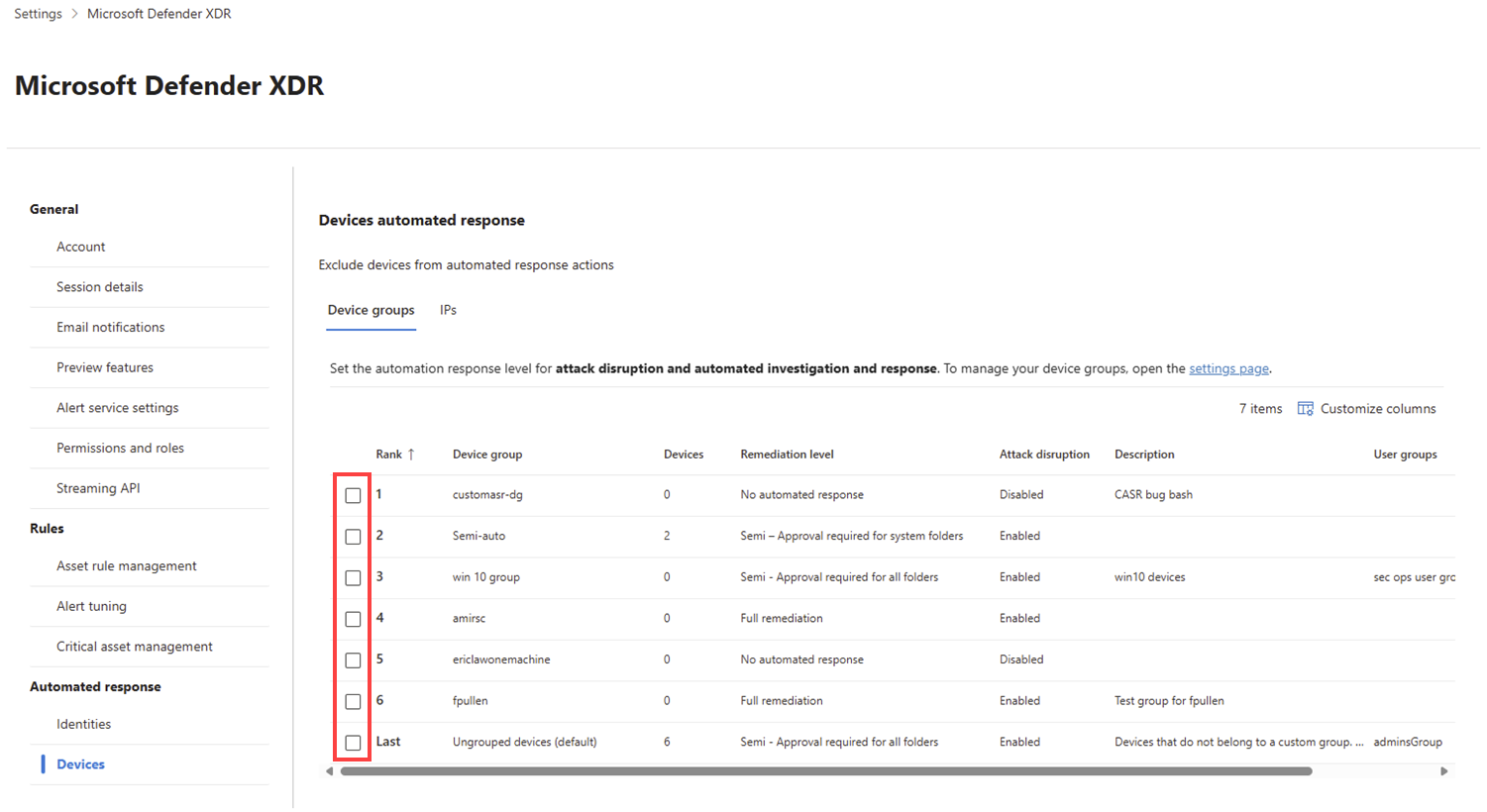
In the Device groups tab, choose a device group by selecting the checkbox next to the group name from the list to configure attack disruption automation settings.
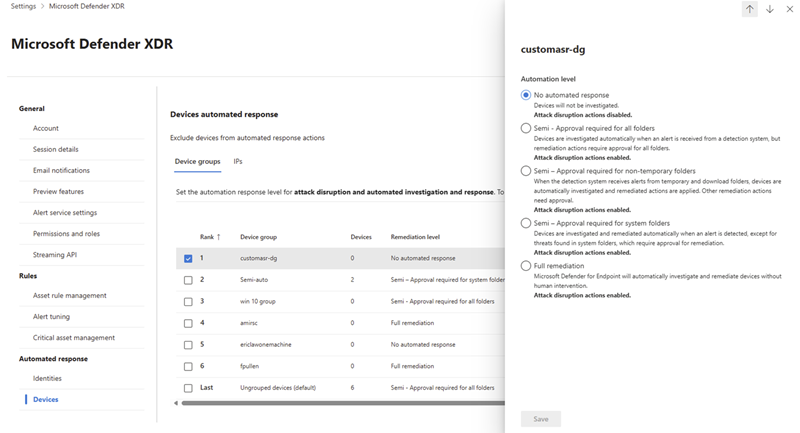
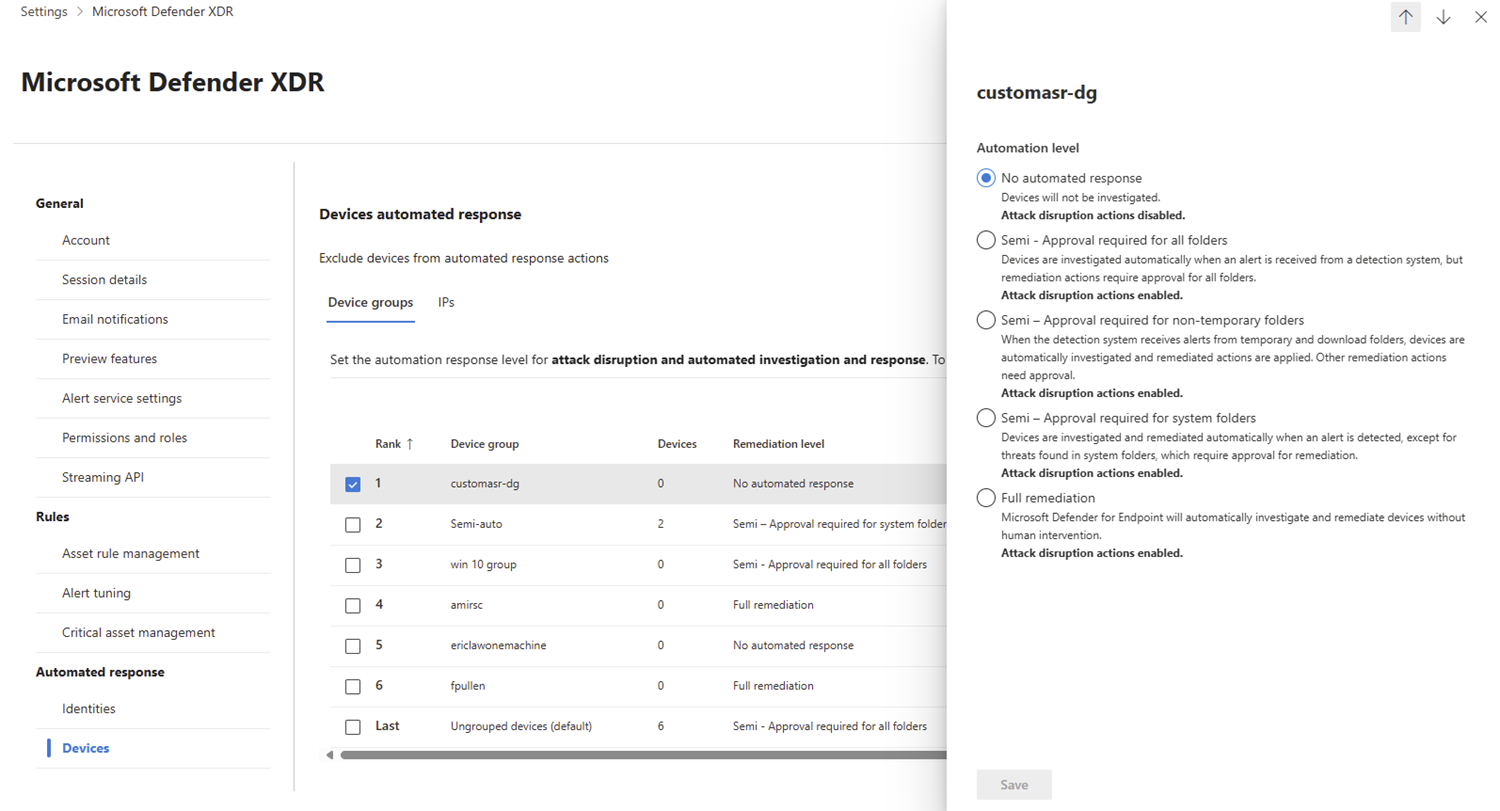
In the flyout pane, select the appropriate automation level for the device group. You can choose from any of the following automation levels appropriate for your device group:
- Full - remediate threats automatically: Automatically contain devices when a threat is detected.
- Semi - require approval for core folders: Automatically investigate devices when an alert is received and apply remediation actions except to items within core system folders. Remediation actions for the core folders require approval.
- Semi - require approval for non-temp folders: Automatically investigate and apply remediation to actions within temp and download folders when an alert is received. All other remediation actions require approval.
- Semi - require approval for all folders: Automatically investigate devices when an alert is received. All remediation actions require approval.
- No automated response: No automated investigation or response is taken for devices in this group.
Select Save to save the automation level for the device group.
Exclude IP addresses
Exclude IP addresses to prevent critical infrastructure IP ranges, legacy systems, or external services from being automatically blocked. This approach is useful for protecting network resources that your organization depends on but might not have the flexibility to respond to automated containment.
To exclude an IP address from automated responses:
Go to the Microsoft Defender portal and sign in.
Go to Settings > Microsoft Defender XDR.
Under Automated responses, select Devices.
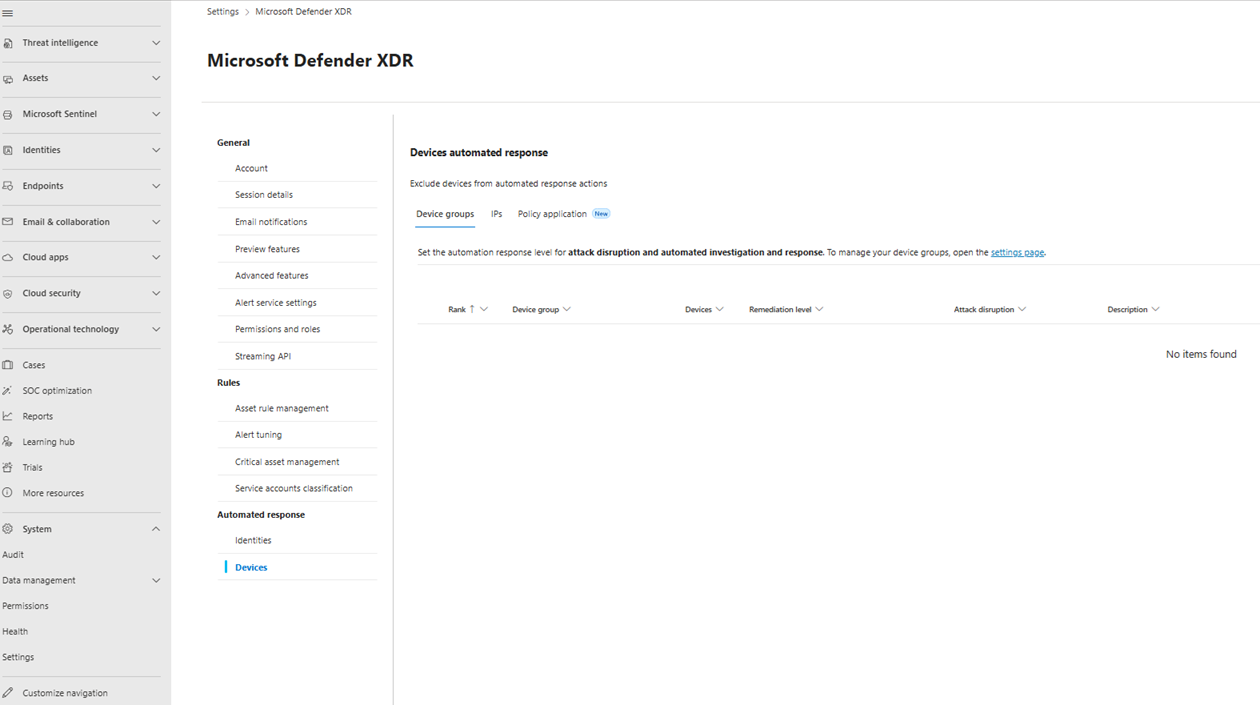
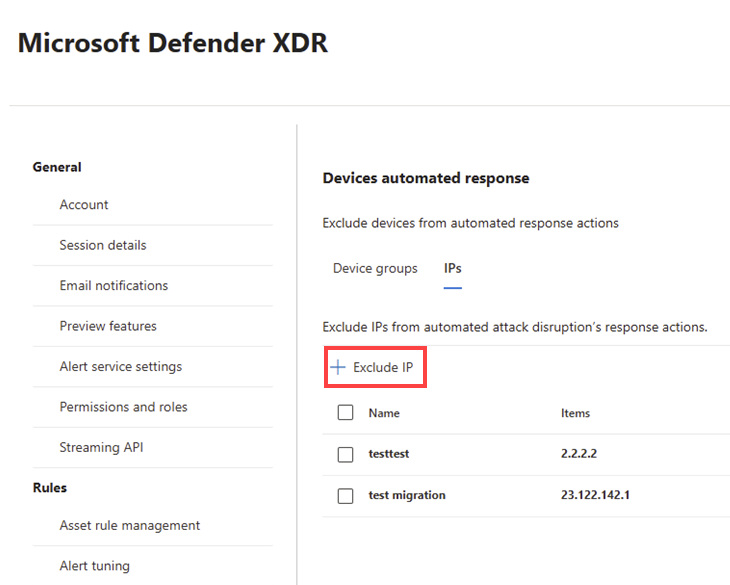
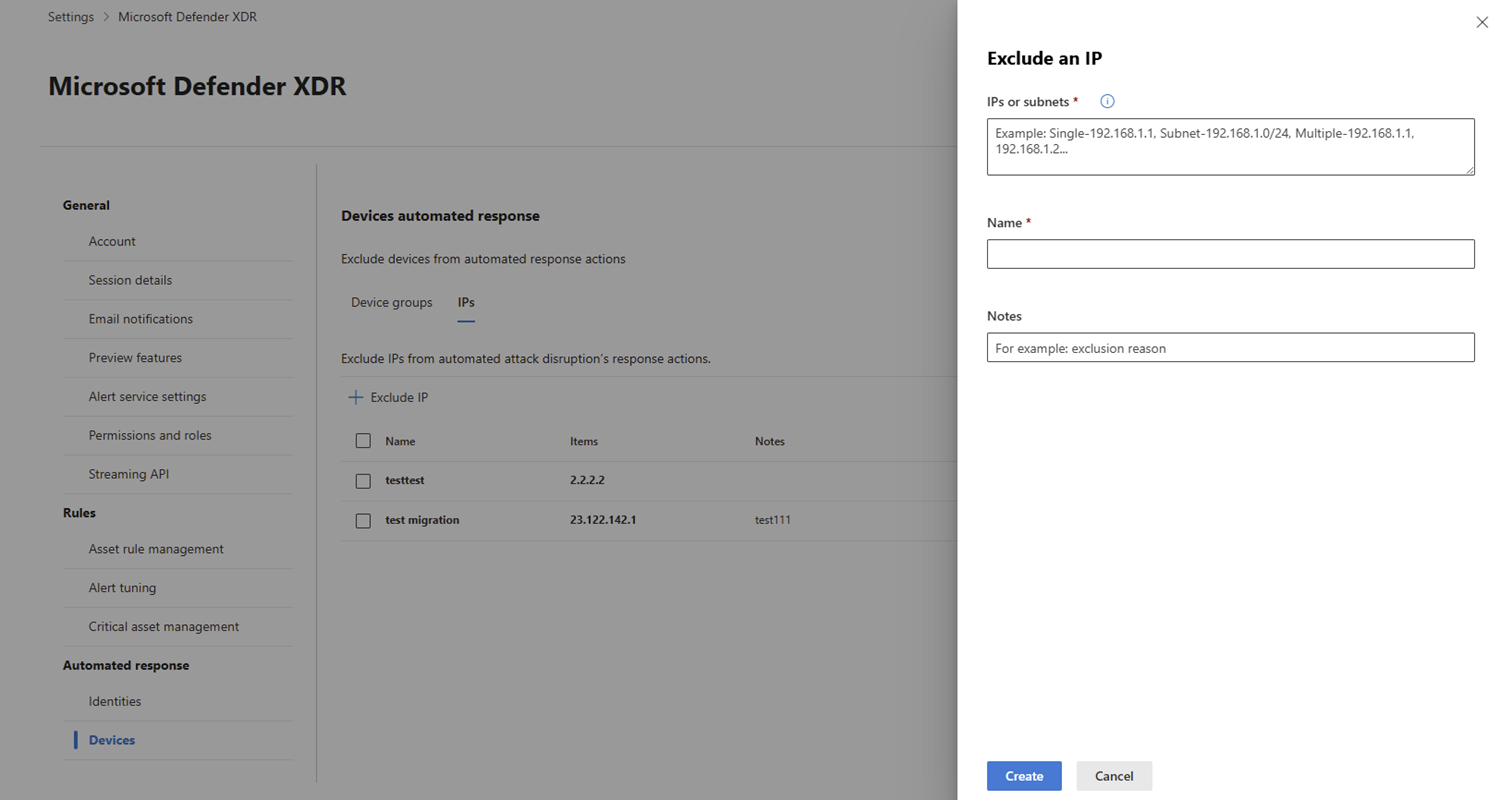
In the Poloicy application tab, select Exclude IP to exclude an IP address.
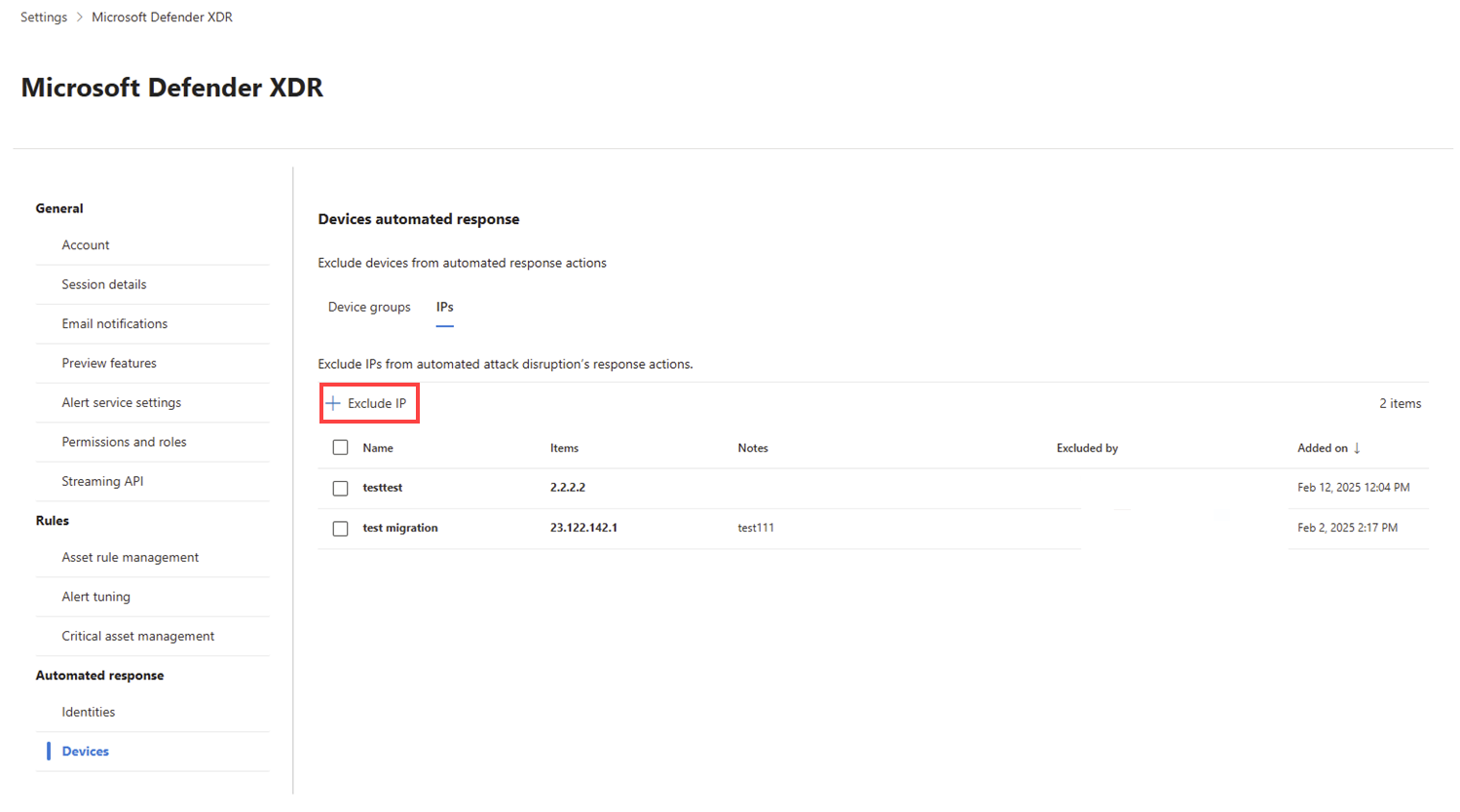
In the flyout pane, enter the IP address/IP range/IP subnet you want to exclude. You can add multiple IP addresses and IP subnets by separating them with a comma.
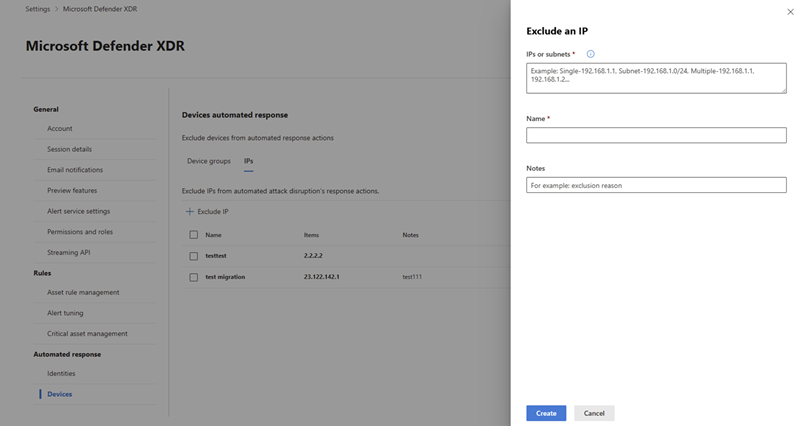
Add a name and note for the exclusion. Select Create to save the exclusion.
Policy applications and exclusions (Preview)
When automatic attack disruption detects with high confidence that a user or device is compromised, it automatically applies containment policies to managed devices in your organization. These policies help contain the threat and stop it from spreading across your environment.
Policy application exclusions give you granular control over how the automatic Attack disruption enforcement policies are applied across your environment. It allows customers to define devices that shouldn't receive specific disruption policies. This provides organizations with the flexibility to protect sensitive, operationally critical, or exception-based systems without fully disabling Automatic Attack Disruption.
Policy applications and exclusions allow you to:
- Manage protections for multiple devices as a group using dynamic tags
- Keep most disruption controls active while selectively disabling specific protections
- Maintain centralized control over which disruption policy controls are enabled or excluded for each tagged group of devices
First create a tag or use an existing tag to define the device or devices. Then create a rule that applies to that tag. For example, you might create a tag for all servers in a specific department and then create a policy application that applies to that tag. By default, all policy controls are enabled. By configuring a policy application for a tagged devices, you can keep disruption enabled and exclude only specific controls for that group.
Create a tag
Create a tag to group devices together for a policy application.
To create a tag go to Asset rule management in the Microsoft Defender portal and select Create tag. Provide a name and description for the tag, then define dynamic rules to automatically include devices in the tag based on device properties such as device type, operating system, or other attributes.
Create a policy application:
Go to the Microsoft Defender portal and sign in.
Go to Settings > Microsoft Defender XDR.
To exclude IP addresses from automated responses, follow these steps:
Under Automated responses, select Devices.
In the Policy application tab, select Create rule.
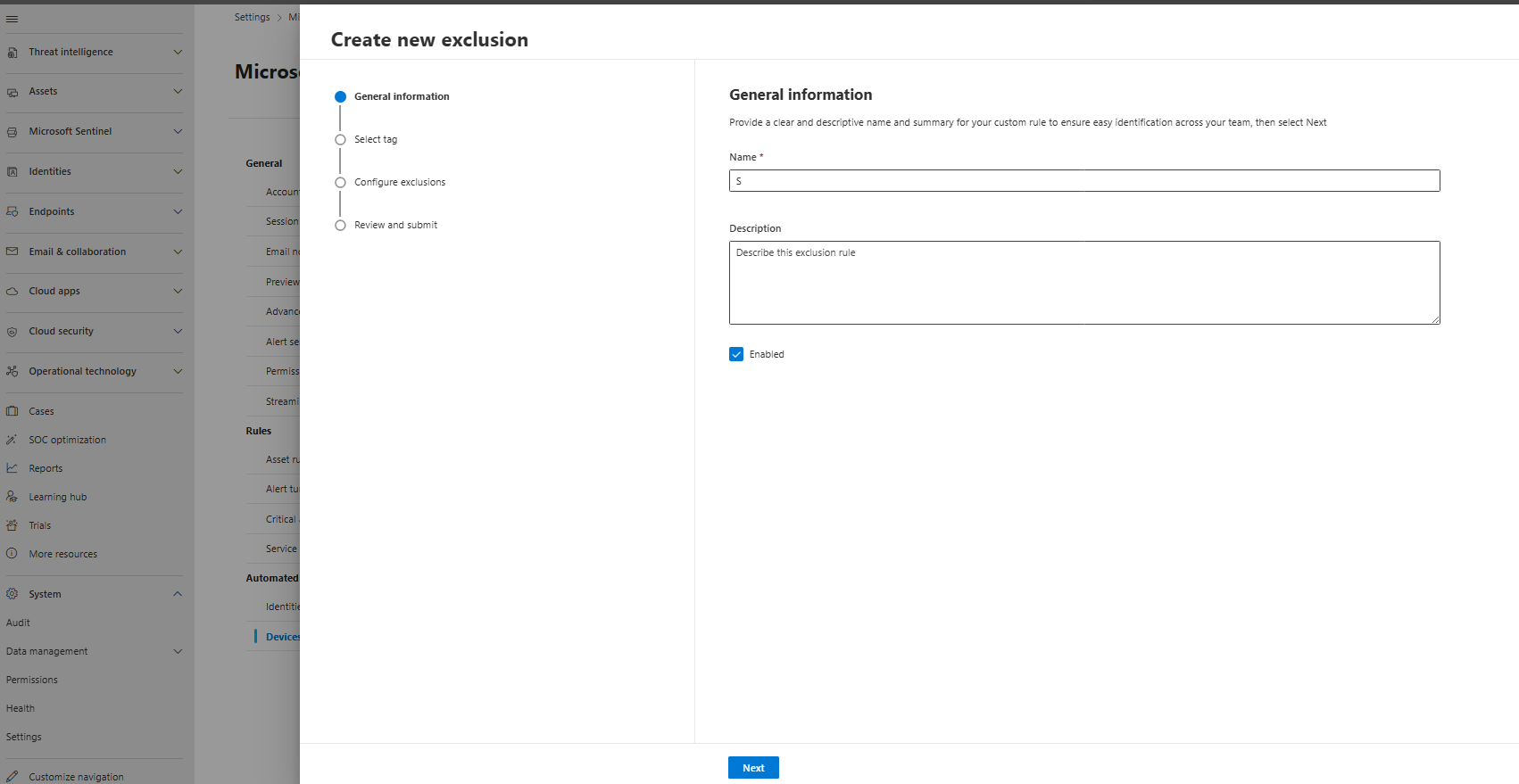
Provide a name and description for the policy and select Next.
Select a tag to apply the policy to then select Next.
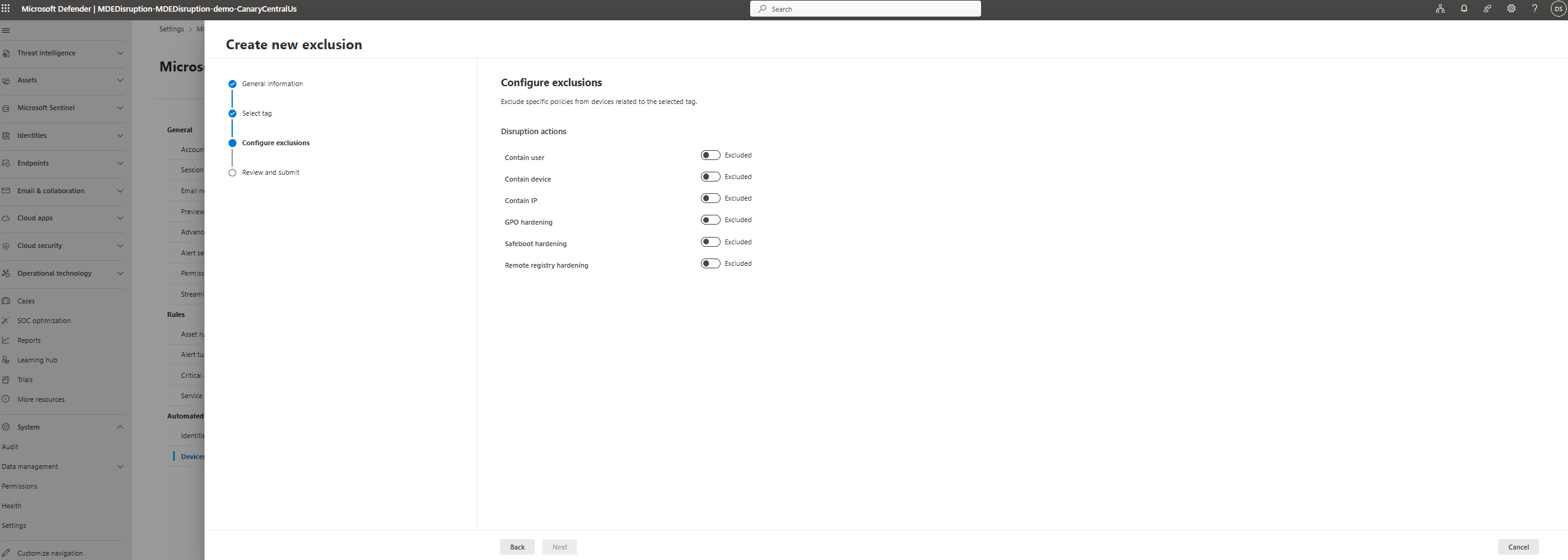
Configure the exclusion policy you want to disable for the tagged device. then select Next.
Review and submit the policy application.
Remove exclusions
Removing an exclusion allows the asset to be included in automated responses for attack disruption again. When an exclusion is removed, the asset is no longer excluded from automated responses and can be automatically contained if it's involved in an attack that triggers attack disruption.
In the Microsoft Defender portal, go to Settings > Microsoft Defender XDR > Automated response. Then use the appropriate tab to remove an exclusion:
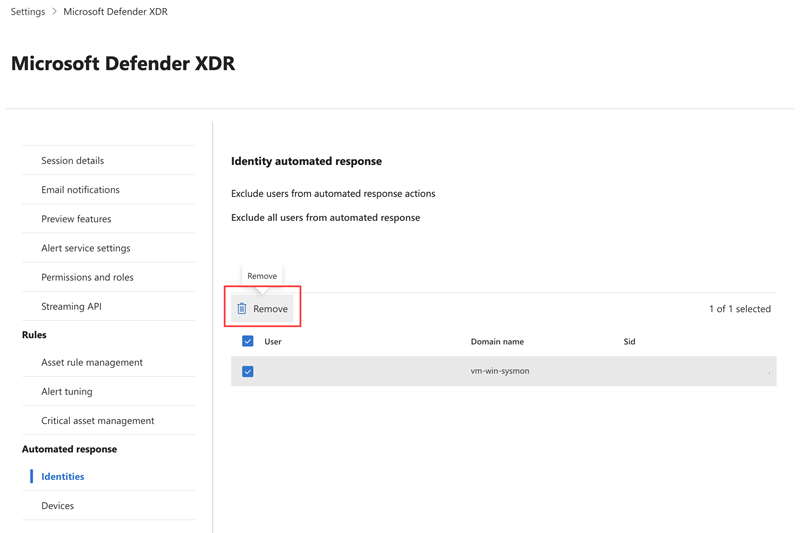
- Go to the Identities page. Select the user account you want to remove from the list and then select Remove.
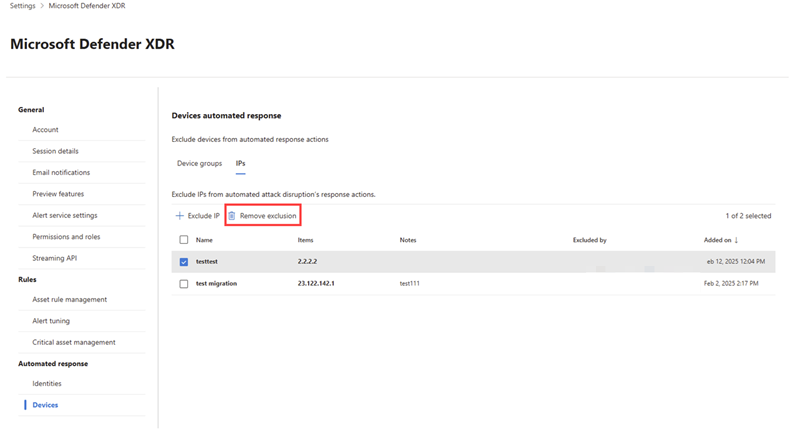
- Go to the Devices page and navigate to the IPs tab. Select the IP address you want to remove from the list and then select Remove exclusion.
- Device group exclusions can be configured in the Device groups tab. Select the device group you want to configure from the list and choose the appropriate exclusion from the flyout pane. Select Save to save the exclusion.
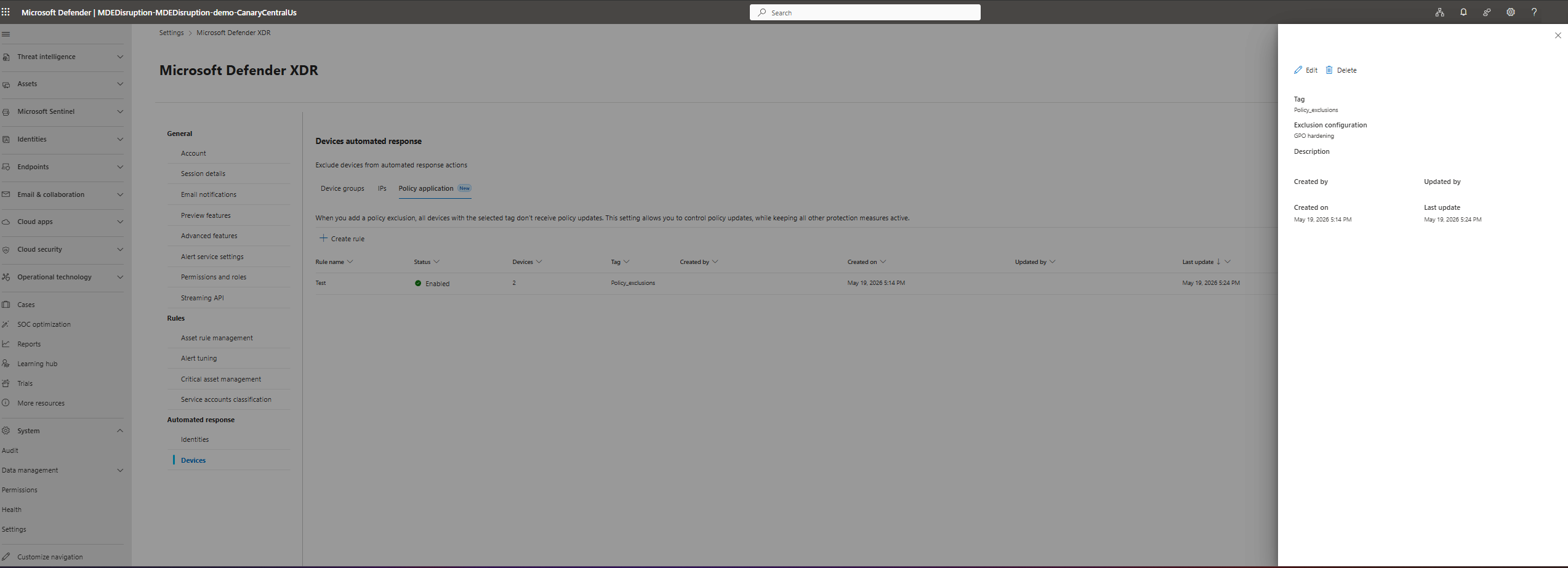
To edit or remove a policy application, go to the Policy application tab and select the tag with the policy application you want to remove. Select Edit or Delete.
Opting out of automatic attack disruption
Opting out of attack disruption can greatly increase security risk. Consider excluding specific entities instead.
If you must opt out of attack disruption, open a support case in the Microsoft Defender portal with the subject Attack disruption opt-out. In your request, specify that you wish to opt out of attack disruption and include a brief explanation about your decision. This feedback helps us improve the feature and better understand customer needs. By opting out, you still receive alerts related to attack disruption but no automated actions are taken.
Related content
For more information about attack disruption, see the following article:
Tip
Do you want to learn more? Engage with the Microsoft Security community in our Tech Community: Microsoft Defender XDR Tech Community.