Note
Access to this page requires authorization. You can try signing in or changing directories.
Access to this page requires authorization. You can try changing directories.
The names for types depend on the designer you use. Power Apps uses a convention that includes the way the data is formatted. The solution explorer type uses a name aligned with the database data type with a format modifier.
To get a quick overview of data types in Dataverse, watch this video:
The following table includes the corresponding AttributeTypeDisplayName API type.
| Power Apps data type | Solution Explorer type | API type |
|---|---|---|
| Big | Time Stamp | BigIntType |
| Choice | Option Set | PicklistType |
| Choices | MultiSelect Field | MultiSelectPicklistType |
| Currency | Currency | MoneyType |
| Customer | Customer | CustomerType |
| Date and Time | Date and Time Date and Time Format |
DateTimeType |
| Date Only | Date and Time Date Only Format |
DateTimeType |
| Decimal Number | Decimal Number | DecimalType |
| Duration | Whole Number Duration Format |
IntegerType |
| Single Line of Text Email Format |
StringType |
|
| File | File | FileType |
| Floating Point Number | Floating Point Number | DoubleType |
| Image | Image | ImageType |
| Language | Whole Number Language Format |
IntegerType |
| Lookup | Lookup | LookupType |
| Multiline Text | Multiple Lines of Text | MemoType |
| Owner | Owner | OwnerType |
| Phone | Single Line of Text Phone Format |
StringType |
| Status | Status | StateType |
| Status Reason | Status Reason | StatusType |
| Text | Single Line of Text Text Format |
StringType |
| Text Area | Single Line of Text Text Area Format |
StringType |
| Ticker Symbol | Single Line of Text Ticker Symbol Format |
StringType |
| Timezone | Whole Number Time Zone Format |
IntegerType |
| Unique Identifier | Unique Identifier or Primary Key | UniqueidentifierType |
| URL | Single Line of Text URL Format |
StringType |
| Whole Number | Whole Number None Format |
IntegerType |
| Yes/No | Two Options | BooleanType |
For more descriptions for each type you can add or edit, see the article for the corresponding designer:
- Create and edit columns for Microsoft Dataverse using Power Apps portal: Column Data types
- Create and edit columns for Dataverse using Power Apps solution explorer: Column Data types
For more information about how column data types are defined in the API, see Attribute metadata.
Column types used by the system
The system uses some columns that you can't add by using the designer.
| Type | Description |
|---|---|
| Time Stamp | A Big Integer type that the system uses to capture a version number for managing updates to a table. |
| Customer | A lookup column that you can use to specify a customer, which can be an account or contact. Note: You can add this attribute by using solution explorer designer. |
| Owner | A system lookup column that references the user or team that is assigned a user or team owned table row. |
| Status Reason | A system column that has options that provide extra detail about the Status column. Each option is associated with one of the available Status options. You can add and edit the options. You can also include custom state transitions to control which status options are available for certain tables. For more information, see Define status reason transitions for custom tables. |
| Status | A system column that has options that generally correspond to active and inactive status. Some system attributes have extra options, but all custom attributes have only Active and Inactive status options. |
| Unique Identifier | A system column that stores a globally unique identifier (GUID) value for each row. |
Text columns
Text columns can contain text characters. This column type has several format options that change the presentation of the text.
Watch this video for a quick overview about text columns:
There are three basic text column types. All values indicated here are in number of characters.
| Column type name | Default value | Maximum value | Description |
|---|---|---|---|
| Text | 100 | 4,000 | Accepts a single line of text. |
| Text Area | 100 | 4,000 | Accepts multiple lines of text. You can configure the number of rows displayed for the column. Use for smaller amounts of text. |
| Multiline Text | 150 | 1,048,576 | Accepts multiple lines of text. You can configure the number of rows displayed for the column. Use when large amounts of text are needed. |
If you reduce the maximum number of characters for the column, existing data isn't truncated. The limit applies to new rows.
Choices
You can customize forms (main, quick create, and quick view) and email templates by adding multi-select columns called Choices. When you add a choices column, you can specify multiple values that users can select. When users fill out the form, they can select one, multiple, or all the values displayed in a drop-down list.
For example, if an organization operates in multiple areas or countries/regions, you can include multiple locations or countries/regions in an "Area of operation" column. A user can then select one or more locations from the list of available values.
Use choices with read-only grids, editable grids, and most forms. You can't use multiselect choices with:
- Workflows, business process flows, actions, dialogs, business rules, charts, rollup columns, or calculated columns.
- Reports, SLA1, and routing rules1.
1Table requires Dynamics 365 Customer Service.
Forms
The following types of forms support choices multiselect columns:
| Form Type | Availability |
|---|---|
| Turbo form | Yes |
| Refresh form | Read-only (column is available but can't be edited) |
| Legacy form | No |
| Bulk Edit form | No |
Use global choices that are defined in your organization to configure values for the multiselect choices.
Using the right type of number
When you choose the correct type of number column to use, the decision to use a Whole Number or Currency type is straightforward. The choice between using Floating Point or Decimal numbers requires more thought.
Watch this video to help you decide what number column type to use:
Decimal numbers are stored in the database exactly as specified. Floating point numbers store an extremely close approximation of the value. Why choose an extremely close approximation when you can have the exact value? The answer is that you get different system performance.
Use decimals when you need to provide reports that require very accurate calculations, or if you typically use queries that look for values that are equal or not equal to another value.
Use floating point numbers when you store data that represents fractions or values that you typically query by comparing to another value using greater than or less than operators. In most cases, the difference between decimal and float isn't noticeable. Unless you require the most accurate possible calculations, floating point numbers should work for you.
Large integers (Big or BigInt) are large numbers with a max value of 9,223,372,036,854,775,807. Use them to store very large numbers that exceed the capabilities of Whole Number and Decimal. Some uses for this type include storage of time stamp values and as unique IDs, as well as numbers larger than 100 billion.
Note
The precision and limits of number types described here apply to database capabilities. If you're working with currency and numbers in Power Apps apps, other limitations might apply.
- Up to 15 digits can be handled precisely. For example, the 15-digit number 99999.0000000089 can be entered in the app and stored in the database as is. However, the 16-digit number 999999.0000000089 is processed imprecisely as 999999.0000000088 by the app. Longer numbers might be truncated, even if they didn't reach Dataverse limits. This limitation is inherent to number processing in web browsers.
BigandBigIntaren't supported in canvas and model-driven apps.- Canvas apps don't currently support decimal type numbers.
Using currency columns
Currency columns enable an organization to configure multiple currencies for use in rows within the organization. When an organization uses multiple currencies, it typically wants to perform calculations that provide values in the organization's base currency. When you add a currency column to a table that has no other currency columns, you add two extra columns:
A lookup column named Currency that you set to any active currency configured for your organization. You can configure multiple active currencies for your organization in Settings > Business Management > Currencies. There, you specify the currency and an exchange rate with the base currency set for your organization. If you have multiple active currencies, you can add the currency column to the form and allow people to specify which currency applies to money values for this row. This choice changes the currency symbol that appears for the currency columns in the form.
Individuals can also change their personal options to select a default currency for the rows they create.
A decimal column named Exchange Rate that provides the exchange rate for a selected currency associated with the table with respect to the base currency. If you add this column to the form, people can see the value, but they can't edit it. The exchange rate is stored with the currency.
For each currency column you add, you also add another currency column with the suffix _Base on the name. This column stores the calculation of the value of the currency column you added and the base currency. Again, if you add this column to the form, it can't be edited.
When you configure a currency column, you can choose the precision value. Choose from three options as shown in the following table.
| Option | Description |
|---|---|
| Pricing Decimal Precision | This is a single organization precision to use for prices found in Settings > Administration > System Settings > General Tab. |
| Currency Precision | This option applies the precision defined for the currency in the row. |
| Specific precision values | These settings allow you to define a specific set precision using values between 0 and 4. |
Different types of lookups
When you create a new lookup column, you create a new many-to-one (N:1) table relationship between the table you're working with and the Target Row Type defined for the lookup. For more information about these relationships, see Create and edit relationships between tables.
Several different types of lookups exist, as shown in the following table.
| Lookup type | Description |
|---|---|
| Simple | Allows for a single reference to a specific table. |
| Customer | Allows for a single reference to either an account or a contact row. |
| Owner | Allows for a single reference to either a team or a user row. All team or user-owned tables have one of these. For more information, see Add a table as a lookup option in your app. |
| PartyList | Allows for multiple references to multiple tables. These lookups are found on the Email table To and Cc columns. They're also used in the Phone and Appointment tables. The system creates all partylist lookups. You can't create a custom partylist lookup. |
| Regarding | Allows for a single reference to multiple tables. These lookups are found in the regarding column used in activities. |
| Custom multi-table | Allows for multiple references to multiple tables. powerapps.com doesn't yet allow you to create this type of lookup. You can create one with code. If you don't want to write code, try using the Power Platform Toolbox Polymorphic Lookups tool.Learn more about community tools for Microsoft Dataverse |
Image columns
Use image columns to display images in your applications. Image columns are optimized for storing binary data. Dataverse doesn't save this data in the relational data store, which improves performance and reduces the capacity usage. Learn more about storage capacity.
Each table can have one primary image column. With model-driven apps, you can display this image in the upper right corner of the form. Even though a table has an image column, displaying that image in a model-driven app requires that you enable two settings.
- Set the standard table definition Primary Image property value to Default Image. Custom tables require a custom image column. Then, select that image column for the Primary Image value in the custom table definition.
- Enable the Show image in the form property for the table form where the image is to be displayed.
People choose the image to upload a picture from their computer. Images must be less than 30 MB and must be in one of the following formats:
- jpg
- jpeg
- gif
- bmp
- png
When you upload the image, it's converted to a .jpg format and all downloaded images also use this format. If you upload an animated .gif, only the first frame is saved.
When you upload an image, it's resized as a "thumbnail" image to a maximum size of 144 pixels by 144 pixels. People should resize or crop the images before they upload them so that they display well using this size. All images are cropped to be square. If both sides of an image are smaller than 144 pixels, the image is cropped to be a square with the dimensions of the smaller side.
Note
Image columns don't work with business process flows, business rules, charts, rollup columns, or calculated columns.
Learn to work with Image column definitions using code
Create an image column and add it to a form
Go to https://make.powerapps.com, select Solutions, and then open the unmanaged solution that contains the table form where you want to add an image column.
Open the table, and then select the Columns area.
On the command bar, select Add column.
Enter or select values for the following properties, and then select Done.
- Display Name, such as Recipe image.
- Name. This is the unique name that includes the solution publisher prefix and can't be changed once saved.
- Data Type. Select Image.
- Primary Image. Image columns that are set as the primary image are displayed in the upper right corner of the form. You can have only one primary image for each table.
- Enable column security. Use to control access for specific columns. More information: Field-level security to control access
- Enable auditing. Enables the logging of changes that are made to table records and user access so you can review the activity later. More information: Administrators Guide: Manage Dataverse auditing
- Sortable in interactive experience dashboard. Specifies the column will be used to configure interactive dashboards. More information: Configure filter columns, and security roles for interactive dashboards
- Maximum image size. Default value is 10,240 KB. The minimum size is 1 KB and the maximum is 30,720 KB.
Select Save table.
Select the Form tab, and then open the form for editing, such as the table main form.
Add the image column to the form canvas.
On the form editor command bar, select Save, and then select Publish to make the image column available to users.
App users can now select the image to display on the form. When an app user opens the form for a record, they can select Choose file, select the image, and then save the record. Then, the image is displayed on the form where the image column is located.
The image column in this example is the primary image so the image also appears on the upper left of the form.
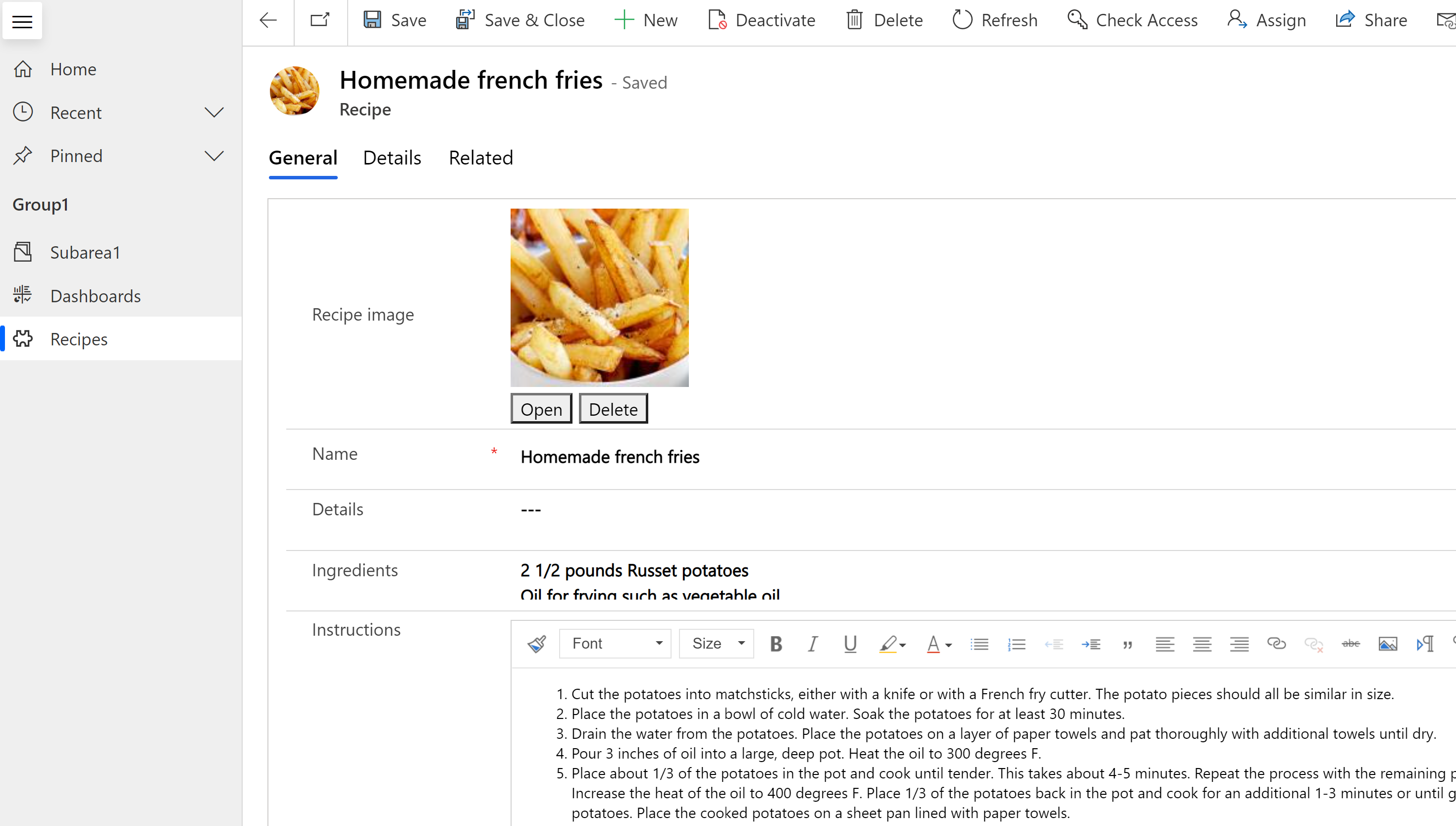
Users can select Open to display the image full size in a new browser tab or select Delete to remove the image from the record and Dataverse.
More information for developers working with image data:
File columns
The File column stores binary data. It's optimized for this type of data, so Dataverse doesn't save it in the relational data store. This approach improves performance and reduces capacity usage. Learn more about storage capacity.
Use this column to store a single image, note, or attachment. However, you can also store other forms of binary data. You can add one or more columns of this data type to an existing standard customizable table or a custom table.
The default Maximum file size is 32 MB, and the largest size you can set by using the designer is 131,072 KB (131 MB). You can set the file size limit individually for each column of file type that you add to a table.
Note
- You can't change the maximum file size after you save it.
- File columns don't work with business process flows, business rules, charts, rollup columns, or calculated columns.
- Required field validation doesn't work with file columns.
- In model-driven apps, deleting or uploading a file on a form happens immediately, not on form save. Discarding changes when navigating away doesn't bring back the file if it's deleted.
To create a file column, select Solutions in the left pane of Power Apps, open the solution you want, open the table you want, select the Columns area, select Add Column, and then in the Column properties pane, select File as the Data type.
Learn to work with file column definitions using code.
Fx Formula columns
Built on Power Fx, use a formula column to perform operations that return values during fetch operations. Formula columns use the Power Fx syntax that's similar to Office Excel. For more information, see Work with formula columns (preview).
Prompt columns
Prompt columns allow you to define AI prompts and store the generative AI results in the table column. For more information, see Prompt columns.
Searching and sorting columns
Most columns have options to enable searching or sorting of the column's contents.
Searchable
Almost every column data type is created with the Searchable value enabled. You can disable this value during creation or later after the column is created. The following data types can't be search enabled:
- Formulas. Formulas are used to create a dynamically calculated output and because of this can't be searched.
- Image. Images are stored and retrieved by using reference URLs and because of this they can't be searched.
- Multivalue lookup (PartyList). Some system lookup columns can contain multiple values. For example, the To lookup column of Email rows can contain multiple recipients. Searching multivalue lookup columns isn't supported.
The Customer datatype is search enabled by default and this can't be disabled. The system requires it to be searchable.
Sortable
Almost every data type is created with the Sortable value disabled. You can change this value during creation or after later after the column is created. The following data types don't provide the ability to enable a sortable attribute:
- Choices. Sorting columns with multiple values isn't supported.
- Customer. Customer is a standard lookup column and can't be sorted because it's dynamically retrieved.
- File. Files are stored by using reference URLs and sorting these aren't useful.
- Formulas. Formulas are used to create a dynamically calculated output and because of this can't be sorted.
- Image. There's no meaningful way to sort images.
- Multivalue lookup (PartyList). Some system lookup columns can contain multiple values. For example, the To lookup column of Email rows can contain multiple recipients. Sorting columns with multiple values isn't supported.