Note
Access to this page requires authorization. You can try signing in or changing directories.
Access to this page requires authorization. You can try changing directories.
The Dataverse auditing feature helps you meet external and internal auditing, compliance, security, and governance policies that are common to many enterprises. Dataverse auditing logs changes that you make to customer records in an environment with a Dataverse database. Dataverse auditing also logs user access through an app or through the SDK in an environment.
Dataverse auditing is supported on all custom and most customizable tables and columns. Dataverse stores audit logs and they consume log storage capacity. You can view audit logs in the Audit History tab for a single record and in the Audit Summary view for all audited operations in a single environment. You can also retrieve audit logs by using the web API or the SDK for Microsoft .NET. Audit logs are created when you change the record on a table where auditing is turned on. Audit logs for updates are created when a new value is different from the old value of a column.
Note
The use of entity-related terminology depends on the protocol or class library used. See Terminology use depending on protocol or technology.
Audit logs might show up with a delay in the Audit History tab of a record and in the Audit Summary view. This delay happens because audit logs are stored in the Dataverse log storage and no longer in the database storage.
Audit History for a single record
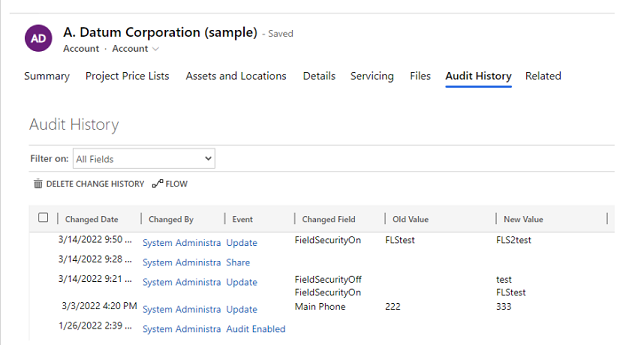
Audit Summary view (all audit logs)
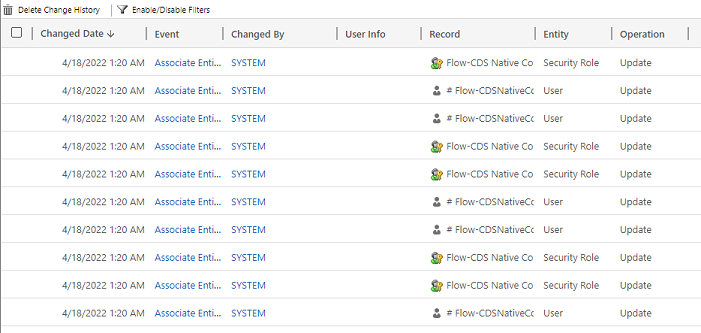
Audit logs help administrators and other users with the required privileges answer questions like:
- Who created or updated a record and when?
- Which fields in a record were updated?
- What was the previous field value before the update?
- Who was accessing the system and when?
- Who deleted a record?
You can audit the following operations:
- Audit changes at the table, column, and organization level. For example, turn on audit for an environment or a table.
- Create, update, and delete operations on records.
- Changes to the sharing privileges of a record.
- The N:N association or disassociation of records.
- Changes to security roles.
- Deletion of audit logs.
- For changes made to entity fields that you can localize, such as the product entity name or description fields, the locale ID (LCID) appears in the audit record.
Auditing isn't supported on table or column definition changes or during authentication. Furthermore, auditing doesn't support retrieve operations or export operations. In addition to Dataverse auditing, you can turn on Dataverse and model-driven apps activity logging to log data retrieve operations and export operations.
The following list enumerates the noncustomizable tables that you can't audit. This list was obtained by testing for a CanModifyAuditSettings column value of false on each table's definition:
- ActivityPointer
- Annotation
- BulkOperation
- Calendar
- CalendarRule
- CustomerOpportunityRole
- Discount
- DiscountType
- IncidentResolution
- KbArticle
- KbArticleComment
- KbArticleTemplate
- Notification
- OpportunityClose
- OrderClose
- ProductPriceLevel
- QuoteClose
- RecurrenceRule
- Resource
- ResourceGroup
- ResourceGroupExpansion
- ResourceSpec
- SalesLiteratureItem
- SalesProcessInstance
- Service
- Subject
- Template
- UoM
- UoMSchedule
- Workflow
- WorkflowLog
Configure auditing for an environment
You can configure auditing at three levels: environment, table, and column. First, turn on auditing at the environment level. To log data changes in a table, turn on auditing for the table and for the column.
To turn on user access auditing (log access) or activity logging (Read logs), turn on auditing at the environment level. The option to turn on activity logging is only visible when the minimum MicrosoftOffice licensing requirements are met.
Note
User access or activity logging is sent to Purview for production environments only.
You must have a system administrator or system customizer role or equivalent permissions to turn auditing on or off.
You can configure auditing manually through the Power Platform admin center and the Power Apps portal. You can also configure auditing programmatically. For more information, see Auditing overview.
Turn on auditing for an environment
To meet your external and internal auditing, compliance, security, and governance policies that are common to many enterprises, you can automatically turn on auditing through the Compliance page for common entities across Dynamics 365 apps.
As a system administrator or system customizer role or equivalent permissions, take the following steps:
- Sign in to the Power Platform admin center.
- From the left-side menu, select Security > Compliance.
- Select the Auditing tile.
- Select the environment that you want to turn on auditing.
- Select Set up auditing. In the Auditing pane, select Turn on auditing.
- Select whether you want auditing to cover Common entities across Dynamics 365 apps.
- Review and update the Event log retention by selecting the dropdown menu.
- Select the period that meets your data retention policy.
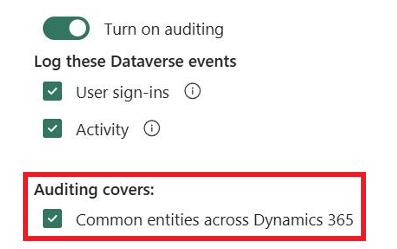
When you select the option, Common entities across Dynamics 365 apps, you enable auditing for the following tables:
| Category | Table |
|---|---|
| Common entities | systemuser |
| Common entities | role |
| Common entities | report |
| Common entities | goalrollupquery |
| Common entities | metric |
| Common entities | goal |
| Common entities | bulkoperation |
| Common entities | list |
| Common entities | salesliterature |
| Common entities | product |
| Common entities | lead |
| Common entities | contact |
| Common entities | account |
| Common entities | activitypointer |
| Sales | opportunitysalesprocess |
| Sales | leadtoopportunitysalesprocess |
| Sales | invoice |
| Sales | salesorder |
| Sales | quote |
| Sales | competitor |
| Sales | opportunity |
| Marketing | campaign |
| CustomerService | translationprocess |
| CustomerService | expiredprocess |
| CustomerService | newprocess |
| CustomerService | phonetocaseprocess |
| CustomerService | service |
| CustomerService | contract |
| CustomerService | kbarticle |
| CustomerService | knowledgearticle |
| CustomerService | queueitem |
| CustomerService | incident |
| CustomerService | socialprofile |
| Security | solution |
| Security | entity |
| Security | team |
| Security | position |
| Security | organization |
| Security | fieldsecurityprofile |
| Security | businessunit |
Note
When you set the audit retention period to Forever, the system doesn't delete logs. When you set the audit retention period to any other value, the system continuously deletes logs starting at the time an audit record exceeds the time defined in the retention policy.
For example, assume the retention policy is set to 30 days. The system starts to delete audit records that were created 30 days and one second ago.
Each audit log is stamped with the currently active retention period. Changing the retention period here doesn't change the retention period for already existing records. The new retention period applies to all new records created after the retention policy change. For example, assume the retention period is changed from 30 days to 90 days. The system deletes audit records that were created prior to the change in the background after 30 days. The system deletes audit records that were created after the change in the background after 90 days.
The following table describes the retention policy settings available when you turn on auditing for an environment:
| Setting | Description |
|---|---|
| Set the retention policy for these logs | Default: Forever |
| Set a custom retention policy | Maximum: 24,855 days. Visible if you select Custom in the previous setting. |
Important
The audit retention period isn't available for Dynamics 365 Customer Engagement (on-premises).
Start or stop auditing for an environment
The following table describes the settings available for auditing for an environment:
| Setting | Description |
|---|---|
| Start Auditing | Start or stop auditing. |
| Log access | Log whenever the system is accessed, generally by signing in. |
| Read logs | Logs are sent to the Microsoft Purview compliance portal. |
As a system administrator or system customizer, or someone with equivalent permissions, take the following steps:
- Sign in to the Power Platform admin center.
- Select Manage in the navigation pane.
- In the Manage pane, select Environments, and then select an environment.
- Select Settings.
- Expand Audit and logs and then select Audit settings.
- Set a retention period for how long audit logs are kept in an environment. Under Retain these logs for, choose the period of time to retain the logs.
- Select Global Audit Settings to open the Microsoft Dynamics 365 system settings. From there, turn on Start Auditing and select the entities you want to audit. Select OK.
- On the Audit settings page, select Save.
Note
Use the Security page auditing option to set the retention policy. This option provides the flexibility to apply the retention policy to existing logs.
Learn more in the Configure organization settings.
Turn on auditing for a specific app in a web app
You need the system administrator or system customizer role, or equivalent permissions, to complete this task.
This feature enables you to quickly turn on auditing for multiple tables (entities) at the same time. The grouping of tables corresponds to a Dynamics 365 application. For example, Sales tables correspond to the Sales Hub app.
In the web app, go to Settings > Advanced Settings.
Select System > Administration.
Select the Auditing tab.
Select the tables (entities) you want to track. To start or stop auditing on specific tables, select or clear the following checkboxes:
- Common Entities. Tracks common entities like Account, Contact, Goal, Product, and User.
- Sales Entities. Tracks sales-related entities like Competitor, Opportunity, Invoice, Order, and Quote.
- Marketing Entities. Tracks Campaign table activity.
- Customer Service Entities. Tracks Case, Contract, Queue, and Service table activity.
Select OK.
Configure auditing for one or more tables and columns in Power Apps
You need the system administrator or system customizer role, or equivalent permissions, to complete this task.
Sign in to Power Apps by using your system administrator or system customizer credentials.
Select the environment for which you want to configure auditing.
Note
Manage the audit configuration as part of a solution. This approach makes it easy to find your customizations, apply your own solution published prefix, and export your solution for distribution to other environments. For more information about solutions, see Use a solution to customize. When using a solution, add all tables you want to configure for auditing to your solution, and then perform steps 3-8 before saving and publishing your solution.
Select Dataverse > Tables.
Select a table.

On the command bar, select Edit.
On the command bar, select Edit table properties.
Expand Advanced options.
Select the Audit changes to its data checkbox.

Select Save.
On the command bar, select <- Back.
Under Schema, select Columns.
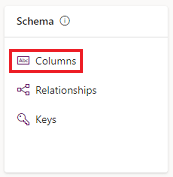
Select a column you want to turn on for auditing, and then expand Advanced options.
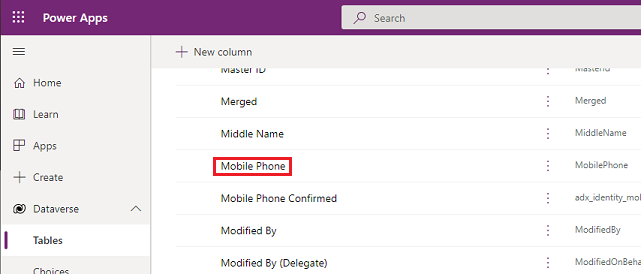
Select the Enable auditing checkbox.
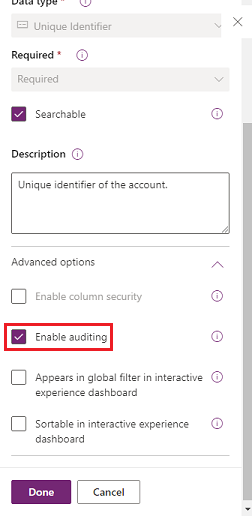
Select Save.
Repeat steps 3–10 for all tables and columns you want to edit.
Turn on or off auditing for tables and columns
System administrators or customizers can change the default audit settings for tables and for specific columns of a table.
Turn on or off auditing for a table
Sign in to Power Apps by using your system administrator or system customizer credentials.
Select the environment for which you want to configure auditing.
Note
Manage the audit configuration as part of a solution. This approach makes it easy to find your customizations, apply your own solution published prefix, and export your solution for distribution to other environments. For more information, see Use a solution to customize. When using a solution, add all tables you want to configure for auditing to your solution, then perform steps 3–8 before saving and publishing your solution.
Select Dataverse > Tables.
Select a table.
On the command bar, select Edit.
On the command bar, select Edit table properties.
Expand Advanced options.
Select the Audit changes to its data checkbox to turn on auditing for the table.
-or-
Clear the Audit changes to its data checkbox to turn off auditing for the table.
Select Save.
If you turn on the Read Logs in the environment's audit settings, you need to turn on the Single record auditing. Log a record when opened and Multiple record auditing. Log all records displayed on an opened page auditing settings to see the read audit logs from this table.
Publish the customization. To publish for a single table, choose the table, such as Account, and then select Publish on the toolbar.
Turn on or off auditing for a specific column on a table
- Under the table for which you want to turn on auditing with specific columns, select Columns.
- To turn auditing on or off for a single column, open the column, expand the Advanced options in the General section, and then select or clear the Enable auditing option.
- Select Save.
- Publish the customization. To publish for a single table, choose the table, such as Account, and then select Publish on the toolbar.
Learn more in Dataverse developer guide: Configure auditing > Configure tables and columns.
Note
When you turn off auditing for a column, the before-and-after values are sent as an "*" to Microsoft Purview. Learn more about Column-level security to control access.
Turn on or off auditing for Choice data type's original label
By default, the current label description of the Choice data type appears in the audit logs. For example, suppose you have a choice column for color and the label description can be red, white, and blue. When a user selects red and updates the record, the audit record shows that red was selected. If you later change the label description to pink in the choice data type, the audit record displays pink.
If you want to show the original label that the user selected in the audit logs, set this auditsetting, {"StoreLabelNameforPicklistAudits":true}, to true. Learn how to enable auditsetting.
Note
When you set StoreLabelNameforPicklistAudits to true, the new audit user experience on viewing the audit records can be found in the Audit Summary view. The audit history in model-driven app continues to show the by default behavior.
Use the Audit History in a model-driven app
Audit History helps users understand the update history of a single record. It answers questions such as "When was this record created and by whom?", "Who changed a particular field and what was the previous value?", or "Who shared the record with another user?"
Users need the View Audit History privilege to see the Audit History of a record.
Select a record in a model-driven app.
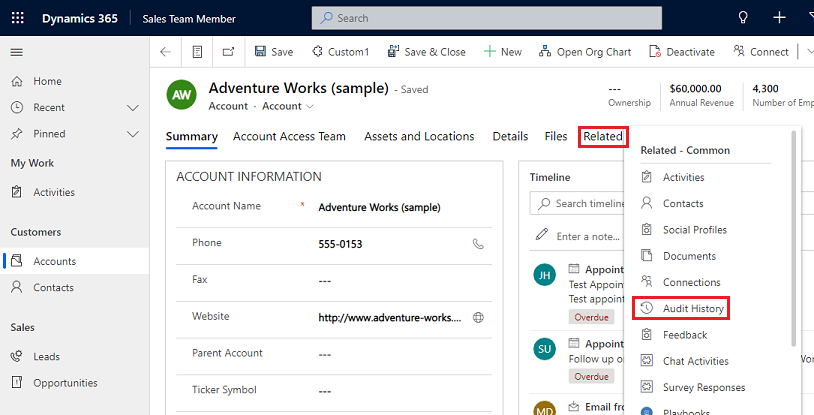
Select the Related tab and select Audit History.
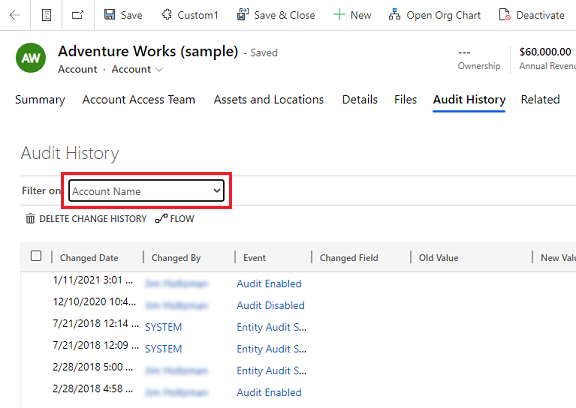
Choose a field in Filter on to filter results by a field in which you want to see the change history.
Use the Audit Summary view
The Audit Summary view is a comprehensive list of all audit logs in an environment. By filtering on various columns, users of the Audit Summary view can understand what happened in the environment over time. It helps answer questions such as "What actions did a user perform and when?", "Who deleted a particular record?", or "Who changed a user's role?"
Users need the View Audit Summary privilege to see the Audit Summary view.
Two ways lead to the Audit Summary page:
From the environment's Apps menu, select the Power Platform Environment Settings app.
From the app, select the Settings icon on the banner, select Advanced Settings, and then select System > Auditing > Audit Summary view.
Note
The Record column filter doesn't work and will be removed in the future. The filter options Equals and Does not equal of the Entity column filter don't show any table values. To filter by entity, use the Contains option and enter the table name.
Delete audit logs
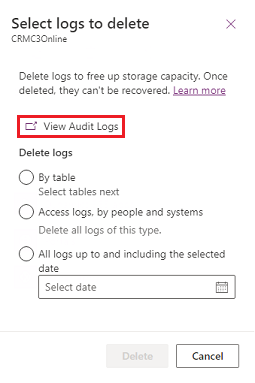
In the Auditing card, select Delete Logs.
Select View Audit Logs.
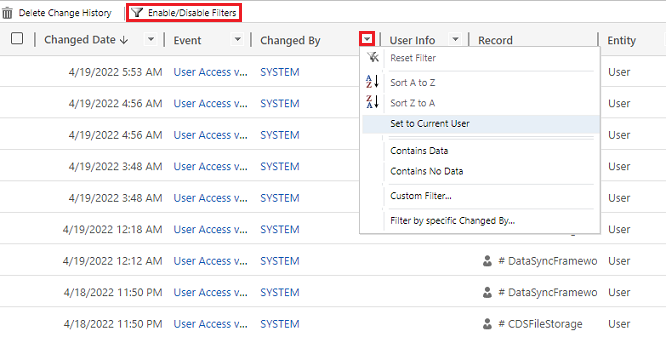
Use the Enable/Disable Filters option to narrow down the list of audit records. You can apply several filters at once.
Note
You can only sort by the Changed Date column.
Exporting audit logs isn't currently supported. Use the Web API or SDK for .NET to retrieve audit data from your environment. For more information, see Retrieve and delete the history of audited data changes.
Large attribute values, such as Email.description or Annotation, are limited to 5 KB or about 5,000 characters. A capped attribute value is recognized by three dots at the end of the text, such as "lorem ipsum, lorem ip… ".
For more information, see Dataverse developer guide: Retrieve the history of audited data changes.
Delete the change history for a record
Dataverse auditing supports the deletion of a single record's entire audit history. This feature is useful when responding to a customer's request to delete their data.
Users must have the Delete Audit Record Change History privilege to perform this action.
You can delete a record's audit history in a model-driven application's Audit History and in the environment's Audit Summary view.
Delete the change history for a record in the Audit History tab of a record
Select a record in a model-driven app.
Select the Related tab, and then select Audit History.
In Filter on, choose All fields, and then select Delete Change History to delete all logs for the selected record.
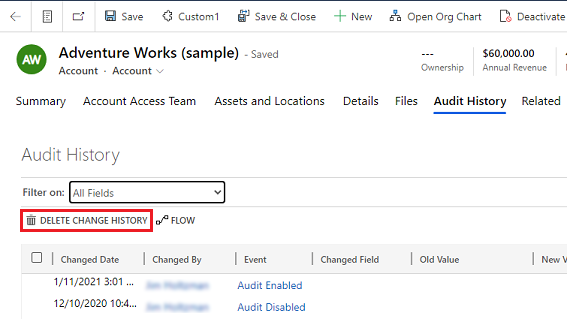
Select Delete to confirm.
Delete the change history for a record in the Audit Summary view
In the Auditing card, select Delete logs.
Select View Audit Logs.
Select a row in the audit history, and then select Delete Change History to delete all logs for the selected record.
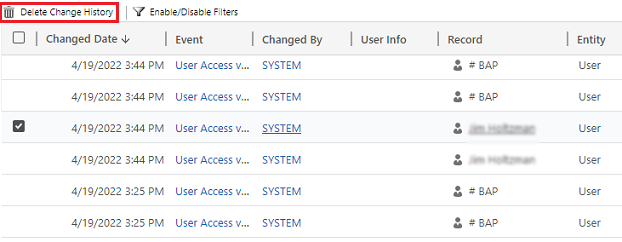
Select Delete to confirm.
Reduce log storage: Delete audit logs – legacy process
When you turn on Dataverse auditing, your apps create audit logs to store changes to the records and user access. You can delete audit logs when they're no longer needed to free up log capacity space.
Warning
When you delete audit logs, you can't view the audit history for the period covered by that audit log.
- In the upper-right corner of an app, select Settings > Advanced Settings > Settings > Auditing.
- Select Audit Log Management and then select View Audit Logs.
- Select the oldest audit log and then select Delete Logs.
- Select OK to confirm.
Note
You can only delete the oldest audit log in the system. To delete more than one audit log, repeat the deletion of the oldest available audit log until you delete enough logs.
Reduce log storage: Delete audit logs – new process
When you turn on Dataverse auditing, your apps create audit logs to store changes to the records and user access. You can delete audit logs when they're no longer needed to free up log capacity space.
The following table describes the options available to delete audit logs.
| Delete logs | Description | System job name |
|---|---|---|
| By table | Select one or more tables for which you want to delete audit logs. By default, all tables in the environment are shown, whether or not they contain audit data. | Delete logs for [number of] tables. |
| Access logs, by people and systems | Delete all access logs. This action deletes all logs for all users and systems. | Delete access logs. |
| All logs up to and including the selected date | Delete logs including the date selected. | Delete all logs before and including [timestamp]. |
Warning
When you delete audit logs, you can no longer view the audit history for the tables, user access, or period covered by that audit log.
For Unified Interface, in the upper-right corner, select Settings > Advanced Settings > Settings.
- Sign in to the Power Platform admin center and then select an environment.
- Select Manage in the navigation pane.
- In the Manage pane, select Environments. Then select an environment.
- Under Auditing, select Delete audit logs.
- Choose how to select logs to delete.
- Select Delete and then confirm.
Note
Audit logs are deleted in an asynchronous background system job. The duration of the deletion depends on the number of audit records to be deleted. The current rate is approximately 100 million records per day, or approximately 4 million records per hour.
To monitor the status of audit delete jobs, see the next section.
Monitor system jobs
For information about how to monitor system jobs, go to Monitor system jobs.
Monitor the status of audit delete jobs
To monitor the status of audit delete jobs, use the Bulk deletion view in the Power Platform admin center.
- Sign in to the Power Platform admin center.
- Select Manage in the navigation pane.
- In the Manage pane, select Environments. Then select an environment.
- Select Settings > Data management > Bulk deletion.
- Select the system job name to open details about your delete job.
Access audit data using Azure Synapse Link for Dataverse
Use Azure Synapse Link for Dataverse to link the audit table and create reports by using Power BI to meet your external and internal auditing, compliance, and governance needs. For more information, go to Access audit data using Azure Synapse Link for Dataverse and Power BI.
Access Power Platform activity log data in Microsoft Purview
Access Power Platform activity log data in Microsoft Purview to analyze and report on user and system activities within your Power Platform environments. This integration allows you to leverage Purview's data governance and compliance capabilities to meet your organization's auditing requirements. For more information, see Overview of Power Platform activity logging and auditing in Microsoft Purview.