Note
Access to this page requires authorization. You can try signing in or changing directories.
Access to this page requires authorization. You can try changing directories.
In this article, you learn how to enable vulnerability assessment classic, so you can find and remediate database vulnerabilities. We recommend that you enable vulnerability assessment using the express configuration so you aren't dependent on a storage account (generally available for Azure SQL Database, Azure Managed Instance and Azure Synapse Analytics Workspace).
Prerequisites
Before you enable the classic configuration, make sure you meet these prerequisites:
- Make sure that Microsoft Defender for Azure SQL is enabled so that you can run scans on your Azure SQL databases.
- Make sure you read and understand the differences between the express and classic configuration.
Enable vulnerability assessment classic configuration
By default, when you enable the Defender for Azure SQL plan in Defender for Cloud, Defender for Cloud enables Advanced Threat Protection and vulnerability assessment in the express configuration for Azure SQL databases in the selected subscription.
If your environment still depends on storage-account based scanning, you can enable vulnerability assessment in the classic configuration.
If you have Azure SQL databases with vulnerability assessment enabled in the classic configuration, you can enable the express configuration so that assessments don't require a storage account.
If you have Azure SQL databases with vulnerability assessment disabled, you can enable vulnerability assessment with the classic configuration.
To enable vulnerability assessment with a storage account, use the classic configuration:
In the Azure portal, open the resource you want to configure in Azure SQL Database, SQL Managed Instance Database, or Azure Synapse.
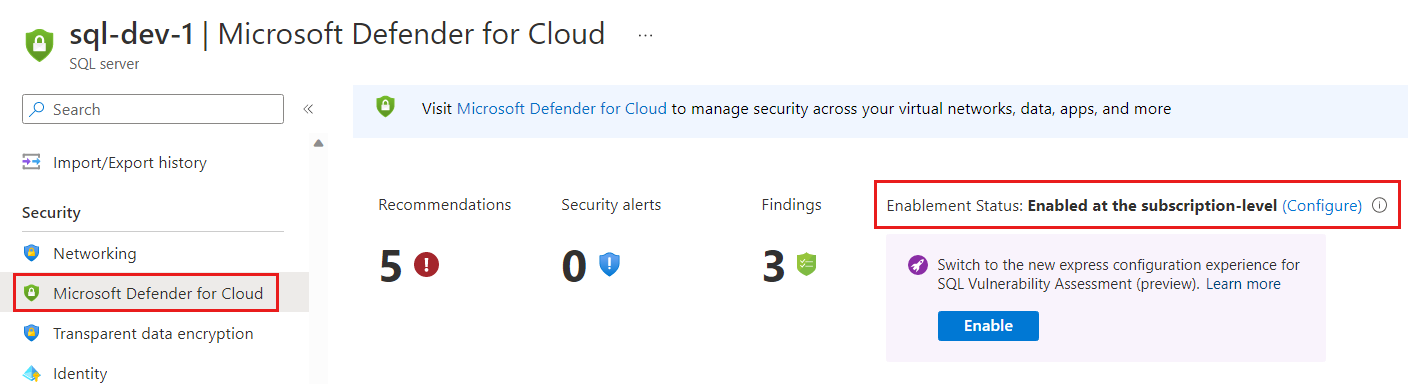
Under the Security heading, select Defender for Cloud.
Select Configure to open the Microsoft Defender for SQL settings pane for the server or managed instance.
In the Server settings page, enter the Microsoft Defender for SQL settings:
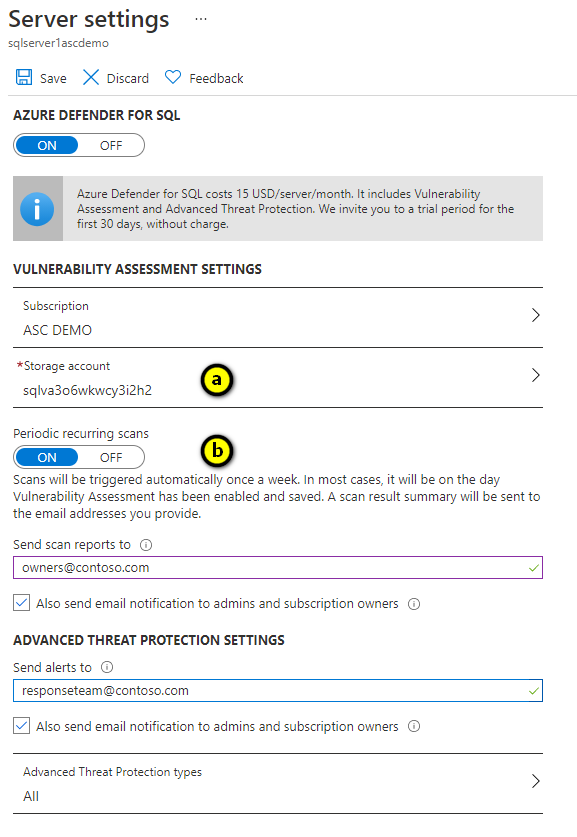
Configure a storage account where your scan results for all databases on the server or managed instance will be stored. For information about storage accounts, see About Azure storage accounts.
To configure vulnerability assessments to automatically run weekly scans to detect security misconfigurations, set Periodic recurring scans to On. The results are sent to the email addresses you provide in Send scan reports to. You can also send email notification to admins and subscription owners by enabling Also send email notification to admins and subscription owners.
Note
Each database is randomly assigned a scan time on a set day of the week. Email notifications are scheduled randomly per server on a set day of the week. The email notification report includes data from all recurring database scans that were executed during the preceding week (does not include on-demand scans).
Next steps
Learn more about: