Dear @Ravpreet Sethi,
Thank you for reaching out to the Microsoft 365 Q&A forum community support team. It is a pleasure to assist you with your Project Plan 3 trial setup.
I understand you have successfully opted for the Planner and Project Plan 3 trial and are now looking to install the Project Online Desktop Client on your computer. Since Plan 3 specifically includes the full desktop version (unlike Plan 1), you are indeed eligible to download it.
Note: Project Plan 3 is part of Microsoft Project and is designed for work or school accounts (Microsoft 365 organizational accounts). It does not support personal Microsoft accounts (e.g., @outlook.com, @hotmail.com). To use it, you need an organizational account or a Microsoft 365 Business/Enterprise subscription. If you only have a personal account, you can use Microsoft Project for the Web (free version) or alternatives like Planner or To Do, which work with personal accounts.
Option 1: If you use business account:
Please follow these steps to download and install the application directly from your Microsoft 365 portal:
- Go to microsoft365.com and sign in with the work or school account associated with your trial.
- On the home page, locate the Install apps button (usually in the upper-right corner).
- Select Other install options from the dropdown menu.
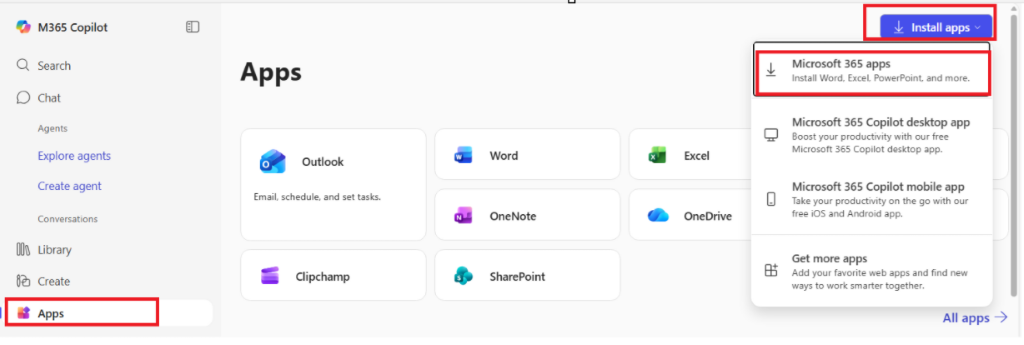
- On the left-hand navigation pane, select Apps & devices.
- Locate Project in the list of available software.
- Choose your preferred language and version (we recommend 64-bit for most modern systems), then click Install Project.
Note: If you do not see Project listed, ensure that your trial license has been properly assigned to your user account in the Admin Center.
Important considerations
- Operating system: Please note that the Project Desktop application is only compatible with Windows. If you are using a Mac, you can use the web-based version of Project or a virtual machine environment.
- Internet connection: Ensure you have a stable connection during the download, as the installer will stream the necessary files to your device.
For further details and visual aids, you can refer to the official Microsoft Support guide: Install Project - Microsoft Support and Create a project in Project desktop - Microsoft Support
Microsoft Project Plan 3 Trial Setup Guide
This video provides a visual walkthrough of the Project Plan 3 trial registration and the specific steps to access the offline desktop installer from the portal.
Note: Microsoft is providing this information as a convenience to you. The sites are not controlled by Microsoft. Microsoft cannot make any representations regarding the quality, safety, or suitability of any software or information found there. Please make sure that you completely understand the risk before retrieving any suggestions from the above link.
Would you like me to guide you through the process of assigning the license to your account if the "Project" option is missing from your install list?
Option 1: If you use personal account:
Here are your options to access the trial:
Select 1: Use an existing Work or School account
If you have access to a Microsoft 365 account provided by your work, school, or any organization, you can start the trial there. An administrator in that organization may need to enable trial subscriptions in the admin center.
Select 2: Set up a new business trial environment
If you’re evaluating this for personal projects, freelance work, or a new business, you can sign up for a Microsoft 365 Business Premium trial. This creates the right type of account (a "business tenant"). Once that’s set up, you can then easily activate the Project Plan 3 trial within it.
Important: Please remember to cancel the trial subscription once your issue is resolved to avoid any charges.
I know it's an extra step, and I wish it were simpler. The licensing and backend features for Project are built for organizational use, which is why this workaround is necessary.
Please note that as a forum moderator, I don’t have access to backend tools or internal systems to investigate further, and certain settings or configurations are managed exclusively by your organization’s administrators, so I’m unable to check or make changes on that side. That said, I truly hope these suggestions help you move forward.
We hope this helps you get started with your project management tasks! Please let us know if you encounter any specific error codes during the installation process.
If the answer is helpful, please click "Accept Answer" and kindly upvote it. If you have extra questions about this answer, please click "Comment".
Note: Please follow the steps in our documentation to enable e-mail notifications if you want to receive the related email notification for this thread.
' cx='32' cy='32' r='32' /%3E%3Ctext x='50%25' y='55%25' dominant-baseline='middle' text-anchor='middle' fill='%23FFF' %3ERS%3C/text%3E%3C/svg%3E)

' cx='32' cy='32' r='32' /%3E%3Ctext x='50%25' y='55%25' dominant-baseline='middle' text-anchor='middle' fill='%23FFF' %3ESN%3C/text%3E%3C/svg%3E)