Note
Access to this page requires authorization. You can try signing in or changing directories.
Access to this page requires authorization. You can try changing directories.
Applies to: ✔️ Fleet Manager ✔️ Fleet Manager with hub cluster
Platform admins managing large number of clusters often have problems with staging the updates of multiple clusters (for example, upgrading node OS image or Kubernetes versions) in a safe and predictable way. To address this challenge, Azure Kubernetes Fleet Manager allows you to orchestrate updates across multiple clusters using update runs.
Update runs consist of stages, groups, and strategies. You can apply update runs manually for one-time updates or automatically for ongoing regular updates by using auto-upgrade profiles. All update runs, both manual and automated, honor cluster maintenance windows.
Understanding Update Runs
An update run represents an update being applied to a collection of AKS clusters. It consists of the update goal and sequence. The update goal describes the desired updates. For example, upgrading to a specific Kubernetes version or applying a consistent node image across all clusters.
To achieve the best results when using update runs, it's important to understand the following concepts.
Update Strategy: describes a reusable update sequence consisting of stages and groups of clusters. A cluster appears in a group in a stage based on the update group it's assigned. For further information, see understanding update strategies.
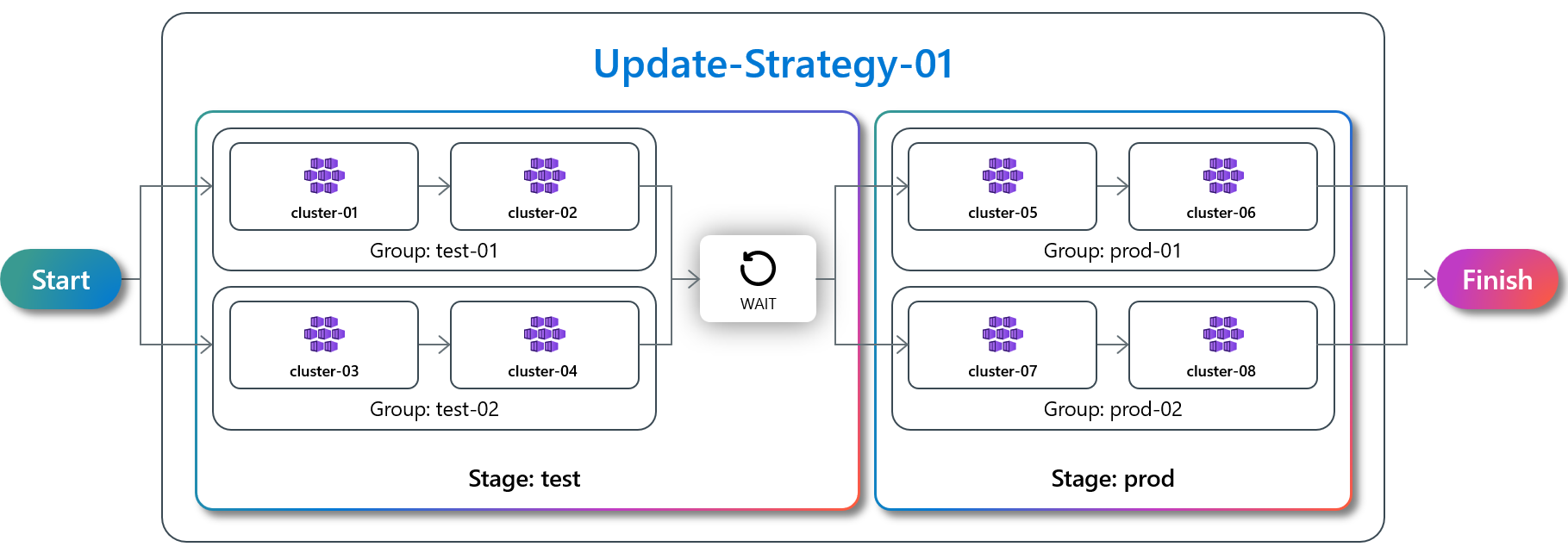
Update Stage: an Update Strategy is divided into Update Stages, which are applied sequentially. For example, test environment clusters are in the first Update Stage, while production environment clusters go in a second Update Stage. An Update Stage contains one or more Update Groups. You can use additional controls such as maximum concurrency, wait times, and approval gates for more control over Update Stage execution.
Update Group: Each Update Stage contains one or more Update Groups, which select clusters to update. Assign member clusters to Update Groups by using the Update Group property of the cluster. Update Groups in an Update Stage update in parallel.
Note
The maximum number of Update Groups in each Update Stage is 50.
Further flow controls: more controls are available to provide flexibility over how fast a fleet of clusters can be updated:
Maximum Concurrency (preview): use the Maximum Concurrency configuration to change how many clusters are upgraded in parallel. You can configure this behavior at both the Stage and Group level.
Approval gates: You can configure these gates before or after each Stage or Group. Approvals pause the update run, which either automated or manual checks use to determine if it's OK to proceed. After the approval is cleared, the update run continues.
Auto-upgrade Profile: automatically create and start an update run when new Kubernetes or node image versions are made available by AKS. For further information, see understanding auto-upgrade profiles.
Update Run options
Update runs can apply three types of upgrades:
- Upgrade Kubernetes versions for the control plane and the nodes. This upgrade includes upgrading the node image.
- Upgrade Kubernetes versions for only the control plane of the clusters.
- Upgrade only the node images.
You can specify the target Kubernetes version to upgrade to, but you can't select the target node image versions. The system automatically selects the target node image versions based on your preferences:
- Latest: Use the latest node images available in the Azure region of each cluster when the upgrade of that cluster starts. As a result, different image versions could be used across the fleet, depending on which Azure region a cluster is in and when its upgrade actually starts.
- Consistent: When the update run starts, pick image versions that are currently available in all Azure regions where the clusters in this run are located. As such, consistent image versions are used across all clusters.
Choose Latest to use fresher image versions and minimize security risks. Choose Consistent to improve reliability by using and verifying those images in clusters in earlier stages before using them in later clusters.
Update Run states
To understand the lifecycle of an update run, you need to know each status, the actions you can take, and how the status is calculated.
| Status | Possible Transitions | Description | Possible Actions |
|---|---|---|---|
| Not Started | - Running - Pending |
Update run hasn't started. | None |
| Running | - Pending - Failed - Stopped |
Update run is in progress for at least one cluster. | Stop |
| Pending | - Running - Failed - Stopped |
The current Stage is Pending. See detailed pending status overview. |
Stop |
| Skipped | - Stopped | See detailed skipped status overview. | Stop |
| Stopped | - Running - Pending - Failed |
A user stopped the Update Run. | Start |
| Stopping | - Stopped - Failed |
A user request or cluster upgrade failures triggered the Update Run to stop. Updating clusters are finishing. |
None |
| Failed | - Running - Pending - Failed |
A cluster upgrade has failed, so the Update Run is stopped with a Failed status. See detailed failed status overview. |
Start |
| Completed | None | The update run successfully finished. | None |
Note
You can restart a failed or stopped update run at any time. The restarted update run begins with the last unprocessed cluster.
Pending status
- Update Run: if the current stage is in
Pendingstate. - Update Stage: if all Update Groups in the stage are
Pendingor not started, or if it has aPendinggate. - Update Group: if all clusters in the group are
Pendingor not started, or if it has aPendinggate. When a cluster moves toPending, the update run attempts to upgrade the next cluster in the group. If all members arePending, the group moves toPending. The update run waits for all groups in a stage to complete before moving on to the next stage. - Member cluster: for any of the following reasons, which you can view in the message field.
- Maintenance window isn't open. Message indicates next opening time.
- Target Kubernetes or node image version isn't yet available in the cluster's Azure region. Message links to the AKS release tracker to check release status.
Skipped status
- Update Run: the system detected that all stages were
Skipped. - Update Stage: a user marked the stage, or all groups in the stage as
Skipped. - Update Group: a user marked the group, or all clusters in the group as
Skipped. - Member cluster: for any of the following reasons, which you can view in the message field.
- User explicitly skipped the cluster, group, or stage.
- Cluster is already at the target Kubernetes version (if update run mode is
FullorControlPlaneOnly) and all node pools are at the target node image version. - When consistent node image is selected and it's not possible to find the target image version for one of the node pools. This situation can occur when a new node pool with a new Virtual Machine (VM) SKU is added after an update run is started.
Failed status
The failed status cascades from clusters as shown. A summary error message displays the cause of the failed cluster upgrade.
- Update Run: at least one cluster in the current group failed.
- Update Stage: at least one cluster in a group in the stage failed.
- Update Group: at least one cluster in the group failed.
- Member cluster: the upgrade failed and the cluster status is set as
Failed.
Note
Even when a cluster update fails, other in-progress cluster updates continue. The update run status shows as Stopping until all in-progress cluster updates finish.
Planned maintenance windows
Update runs honor planned maintenance windows that you set at the AKS cluster level.
AKS clusters support two distinct maintenance windows - one for Kubernetes (control plane) upgrades and one for node image upgrades. Maintenance windows define periods when updates can be applied to a cluster, but aren't an update trigger.
Fleet Manager update runs honors AKS maintenance windows as follows:
| Fleet Manager update channel | AKS upgrade option | AKS maintenance window setting |
|---|---|---|
| Kubernetes Control Plane | Kubernetes Version | AKSManagedAutoUpgradeSchedule |
| Kubernetes + Node Image | Kubernetes Version | AKSManagedAutoUpgradeSchedule |
| Node Image Only | Node Image | AKSManagedNodeOSAutoUpgradeSchedule |
Update run prioritizes upgrading clusters based on planned maintenance in the following order:
- Cluster with an open ongoing maintenance window.
- Cluster with maintenance window opening in the next four hours.
- Cluster with no maintenance window.
- Cluster with a closed maintenance window.
Understanding Auto-upgrade Profiles
Use Auto-upgrade Profiles to automatically trigger Update Runs when new Kubernetes or node image versions are available for AKS.
In an Auto-upgrade Profile, you configure:
- a Channel (Rapid, Stable, TargetKubernetesVersion, NodeImage, SecurityPatch (preview)) which determines the type of update applied to the clusters.
- an UpdateStrategy that configures the sequence in which the clusters are upgraded. If you don't supply a strategy, clusters update one by one sequentially.
- the NodeImageSelectionType (Latest, Consistent) to specify how the node image is selected when upgrading the Kubernetes version.
Note
When you create an auto-upgrade profile, it can take days or weeks before a new Kubernetes or node image release from AKS causes auto-upgrade to create and execute an update run.
You can generate an update run from an auto-upgrade profile at any time using the az fleet autoupgradeprofile generate-update-run command. The resulting update run is based on the current AKS-published Kubernetes or node image version.
For more information on creating an on-demand update run from an auto-upgrade profile, see generate an update run from an auto-upgrade profile.
Rapid channel
The Rapid channel is always the most recent AKS-supported Kubernetes minor release. Cluster minor versions automatically change when AKS releases a new Kubernetes minor version.
Examples:
- The latest supported minor version is 1.30. Any patch release in the 1.30 minor range is considered for Rapid channel updates.
- A new minor Kubernetes version of 1.31 is published. 1.30 shifts to the Stable channel. Any cluster previously receiving updates from 1.30 is updated to the most recent patch for 1.31 that's now the Rapid channel.
Stable channel
The Stable channel is always the minor version before the Rapid channel. Sometimes, people refer to Stable as "N-1", where "N" is the latest (Rapid channel) supported Kubernetes minor version. Cluster minor versions automatically change when AKS releases a new Kubernetes minor version.
Examples:
- The latest supported minor Kubernetes version is 1.30. Any patch releases in the 1.29 minor range would be considered for Stable channel updates.
- A new minor Kubernetes version of 1.31 is published. The Stable channel considers any patch release in the 1.30 minor range for updates. Any cluster previously receiving updates from 1.29 is updated to the most recent patch for 1.30.
TargetKubernetesVersion channel
The TargetKubernetesVersion channel gives you control over when to move your clusters to the next Kubernetes minor version. You must specify the target Kubernetes version in the format "{major}.{minor}" (for example, "1.33"). Fleet Manager automatically upgrades clusters to the latest patch release of the specified target Kubernetes version when the patch is available. Fleet Manager doesn't upgrade to the next minor version until the auto-upgrade profile's target Kubernetes version is updated.
Examples:
- You create an auto upgrade profile by using the TargetKubernetesVersion channel and specify a target Kubernetes version of "1.30". A new patch version 1.30.5 is published. An update run is automatically created with the target of 1.30.5.
- You create an auto-upgrade profile by using the TargetKubernetesVersion channel, specify a target Kubernetes version of "1.29", and enable LongTermSupport (LTS) in the auto-upgrade profile. The latest community supported minor version is "1.33". A new patch version 1.29.5 is published. An update run is automatically created with the target of 1.29.5. If the generated update run includes clusters without LTS enabled, it fails.
Minor version skipping behavior
Auto-upgrade doesn't move clusters between minor Kubernetes versions when there's more than one minor Kubernetes version difference (for example: 1.28 to 1.30). When administrators have a diverse set of Kubernetes versions, first use one or more update run to bring clusters into a set of consistently versioned releases so that configured Stable or Rapid channel updates ensure consistency is maintained in future.
NodeImage channel
Member cluster nodes are updated with a newly patched VHD containing security fixes and bug fixes on a weekly cadence. The update to the new VHD is disruptive, following maintenance windows and surge settings. No extra VHD cost is incurred when choosing this option.
If you use this channel, Linux unattended upgrades are disabled by default. Node image upgrades support patch versions that are deprecated, so long as the minor Kubernetes version is still supported. Node images are AKS-tested, fully managed, and applied with safe deployment practices.
Nodes on different operating systems are updated in accordance with the node image versions aligned to those operating systems.
Example:
- A cluster has nodes with a NodeImage of AKSWindows-2022-containerd of version 20348.2582.240716. A new NodeImage version 20348.2582.240916 is released and the cluster nodes are automatically upgraded to version 20348.2582.240916.
Important
Node image versions are only valid for 90 days from their original publish date. If the target node image version selected by an update run exceeds the 90-day window by the time a member cluster is upgraded, the upgrade for that member cluster might fail.
Understanding node image upgrades and snapshots
When a cluster has agent pools that were created from a node pool snapshot, the outcome of the node image upgrade depends on the Fleet Manager Update Run node image selection.
| Node image selection | Upgrade outcome |
|---|---|
| Latest | Follows standard AKS upgrade behavior. The agent pool keeps its reference to the snapshot (creationData), and the node image isn't modified. |
| Consistent | The node image is upgraded to the version determined by Fleet Manager. The reference to the snapshot (creationData) is removed from the agent pool. |
SecurityPatch channel (preview)
Update member cluster Linux nodes with only security fixes on a weekly cadence. Canonical Ubuntu and Azure Linux make OS security patches available once a day. Microsoft tests these patches and bundles them into weekly updates to node images.
Important
Azure Kubernetes Fleet Manager preview features are available on a self-service, opt-in basis. Previews are provided "as is" and "as available," and they're excluded from the service-level agreements and limited warranty. Azure Kubernetes Fleet Manager previews are partially covered by customer support on a best-effort basis. As such, these features aren't meant for production use.
This Fleet Manager Auto-upgrade channel is less disruptive by using OS live patching, but it requires that you store patched disk images (VHDs) in your subscription for use by newly provisioned nodes, which incurs a nominal charge.
Only Linux-based nodes are updated when using SecurityPatch, and Windows-based nodes are automatically skipped.
If you need bug fixes that come with new node images (VHD), or a consistent experience with Windows nodes, choose the NodeImage channel instead.
Understanding Update Strategies
Administrators can control the order in which clusters are updated by building reusable Update Strategies using series of Update Stages and Groups. They can configure when approvals and pauses should occur within those stages and groups. The entire configuration can be saved as an Update Strategy which can be managed independently of Update Runs or Auto-upgrade Profiles, allowing strategies to be reused as required.
Maximum concurrency (preview)
Maximum concurrency is an optional setting on your update strategy that controls how many clusters can upgrade concurrently. You can set Maximum concurrency at two levels:
- Stage level: Defines the maximum number of clusters that can upgrade at the same time across all groups in a stage. Acts as a global ceiling for the stage.
- Group level: Defines the maximum number of clusters that can upgrade concurrently within a specific group.
Important
Azure Kubernetes Fleet Manager preview features are available on a self-service, opt-in basis. Previews are provided "as is" and "as available," and they're excluded from the service-level agreements and limited warranty. Azure Kubernetes Fleet Manager previews are partially covered by customer support on a best-effort basis. As such, these features aren't meant for production use.
Note
The upper limits of Maximum Concurrency values are:
- Stage level: Can't exceed the system limit of 50.
- Group level: Can't exceed the stage-level Maximum Concurrency value, and can't exceed the number of clusters in the group.
- If a configured value exceeds these limits, the operation is rejected.
When no Maximum Concurrency is specified, the defaults are stage.maxConcurrency = 50 and group.maxConcurrency = 1.
Existing update strategies and update runs created before this feature was available automatically receive these defaults the next time the resource is updated.
Maximum Concurrency accepts two value forms:
- Fixed integer: For example,
"3"limits concurrency to exactly three clusters. - Percentage: For example,
"25%"limits concurrency to a percentage of clusters. For stage-level settings, the percentage is calculated from all clusters in the stage. For group-level settings, the percentage is calculated from the clusters in that group. Percentages are calculated at runtime, rounded down, and enforced with a minimum resolved value of 1.
Concurrency control suggestions
If you want to upgrade with safety (less speed, but less likely to end with multiple broken clusters): set maximum concurrency to a smaller value. If you want to upgrade with speed (more speed, but more likely end with multiple broken clusters): set maximum concurrency to a larger value.
How stage and group limits interact
The stage-level Maximum concurrency always acts as the overall ceiling. Even if individual groups allow higher concurrency, the stage limit takes precedence. Group-level concurrency might be lower than configured due to the stage-level limit, group size, or member-specific conditions.
Example 1: Fixed limits
| Setting | Value |
|---|---|
stage.maxConcurrency |
"4" |
groupA.maxConcurrency |
"2" |
groupB.maxConcurrency |
"2" |
Result: Up to four clusters total, with a maximum of two per group.
Example 2: Stage limit throttles groups
| Setting | Value |
|---|---|
stage.maxConcurrency |
"2" |
groupA.maxConcurrency |
"5" |
groupB.maxConcurrency |
"5" |
Result: Only two clusters total upgrade at the same time because the stage limit takes precedence.
Example 3: Percentage-based rollout
A stage has 20 clusters across two groups: Group A (eight clusters) and Group B (12 clusters).
| Setting | Value | Resolves to |
|---|---|---|
stage.maxConcurrency |
"25%" |
5 |
groupA.maxConcurrency |
"50%" |
4 |
groupB.maxConcurrency |
"25%" |
3 |
Result: Up to five concurrent upgrades total, distributed across groups according to their individual limits.
Note
Keep the following information in mind when using auto upgrade:
Auto-upgrade only updates to generally available versions of Kubernetes and doesn't update to preview versions.
Auto-upgrade requires the cluster's Kubernetes version to be within the AKS support window.
If a cluster has no defined planned maintenance window, it's upgraded immediately when the update run reaches the cluster.
If you want to have your Kubernetes version upgraded, you need to create an Auto-upgrade Profile with
Rapid,Stable, orTargetKubernetesVersionchannels.When using the
TargetKubernetesVersionchannel, you must specify the target Kubernetes version using the--target-kubernetes-versionparameter.If you want to have your Node Image version upgraded, you need to create an Auto-upgrade Profile with
NodeImage, orSecurityPatchchannels.The
SecurityPatchchannel applies security patches to Linux nodes only. Windows nodes are skipped.You can create multiple auto-upgrade profiles for the same Fleet Manager.