Note
Access to this page requires authorization. You can try signing in or changing directories.
Access to this page requires authorization. You can try changing directories.
Azure Infrastructure Resiliency Manager provides a set of management and AI-assisted experiences within Resiliency in Azure to help enterprises Start Resilient, Get Resilient, and Stay Resilient. Build resilience into new applications, improve the posture of existing workloads, and validate recovery readiness as applications change. The current release focuses on zone resilience.
Use the management experience in the Azure portal to review posture and configure goals, recommendations, drills, and recovery plans. Use Azure Copilot Resiliency Agent (preview) as a conversational interface to help accomplish tasks across the same journey. For design and infrastructure-as-code tasks in your development workflow, use the focused Resiliency Agent capabilities in GitHub Copilot (limited preview).
Note
Infrastructure Resiliency Manager is a global, nonregional service that operates independently of any specific Azure region, enabling it to manage and orchestrate resources across all Azure regions.
Start Resilient
Design resilience into applications before deployment. With Resiliency Agent, describe an application in natural language, upload an architecture diagram, or provide existing infrastructure-as-code (IaC) templates. Review the architecture guidance and generate resilient Bicep, Azure Resource Manager (ARM) JSON, or Terraform templates.
You can also assess architecture and generate or review resilient IaC from a local repository in GitHub Copilot in Visual Studio Code or GitHub Copilot CLI. This limited-preview experience focuses on design and IaC tasks; it doesn't provide all the Azure portal management workflows.
Start with Design new applications with Resiliency Agent or Use Azure Resiliency Agent in GitHub Copilot. Review and test generated templates before deployment.
Get Resilient
Understand and improve the resilience of applications already running in Azure:
- View resource resilience posture without first creating a service group.
- Define application boundaries and create service groups. If you don't know which resources belong together, use Resiliency Agent to discover application resources and relationships, review the proposed boundaries, and create or update service groups.
- Assign zone resilience goals and view application posture.
- Review recommendations, prioritize gaps, and use the portal or agent-assisted remediation to improve supported resources.
For a guided portal workflow, follow the Infrastructure Resiliency Manager quickstart.
Stay resilient
Maintain resilience as applications change, and validate readiness before an outage:
- Reassess service groups to identify posture, observability, drill, and recovery-plan gaps.
- Create and configure recovery orchestration plans to coordinate recovery for resources that require active failover.
- Define and execute Availability Zone Down Drills to test recovery readiness.
- Use Resiliency Agent to assess readiness, prepare plans and drills, and investigate configuration blockers. Execute drills, failover, and reprotect operations from the portal, not through the agent.
Drill and recovery-plan configuration alone doesn't guarantee successful recovery. Validate your application with drills, review the results, and update your configuration as needed.
Supported capabilities
The management and AI-assisted experiences support tasks across the three journeys:
| Journey | Capability | Description |
|---|---|---|
| Start Resilient | Architecture guidance and resilient IaC | Use Resiliency Agent to review application designs and generate resilient templates before deployment. |
| Get Resilient | Application discovery | Discover application resources, review proposed boundaries, and organize resources into service groups. |
| Get Resilient | At-scale resilience posture | View zone resilience posture across resources and service groups from a centralized overview. |
| Get Resilient | Goals and recommendations | Set zone resilience goals, review targeted recommendations, and track progress. |
| Stay Resilient | Availability Zone Down Drills | Simulate zone outages to assess application resilience and identify improvement areas. |
| Stay Resilient | Recovery orchestration plan | Orchestrate recovery across multiple resources within an application during zone outages. |
You can use at-scale posture, goals, and recommendations at no additional cost without a usage plan. To use paid advanced capabilities, including Availability Zone Down Drills and Recovery Orchestration Plans, enroll the service group in a usage plan. Usage plans don't have tiers. For billing details and enrollment steps, see Billing and pricing.
Important
A service group with only goals assigned is still billed if it's enrolled in a valid usage plan. To retain the free capabilities without these charges, remove the service group's usage-plan enrollment.
View resilience posture at scale
Use Resiliency in the Azure portal to get comprehensive visibility into resilience gaps across your Azure estate. Select Overview in the left menu to access the following tabs:
- Get started: Find entry points to the Resiliency overview, Infrastructure resiliency, and Backup & Recovery experiences. Use Top Actions to start relevant tasks with Resiliency Agent.
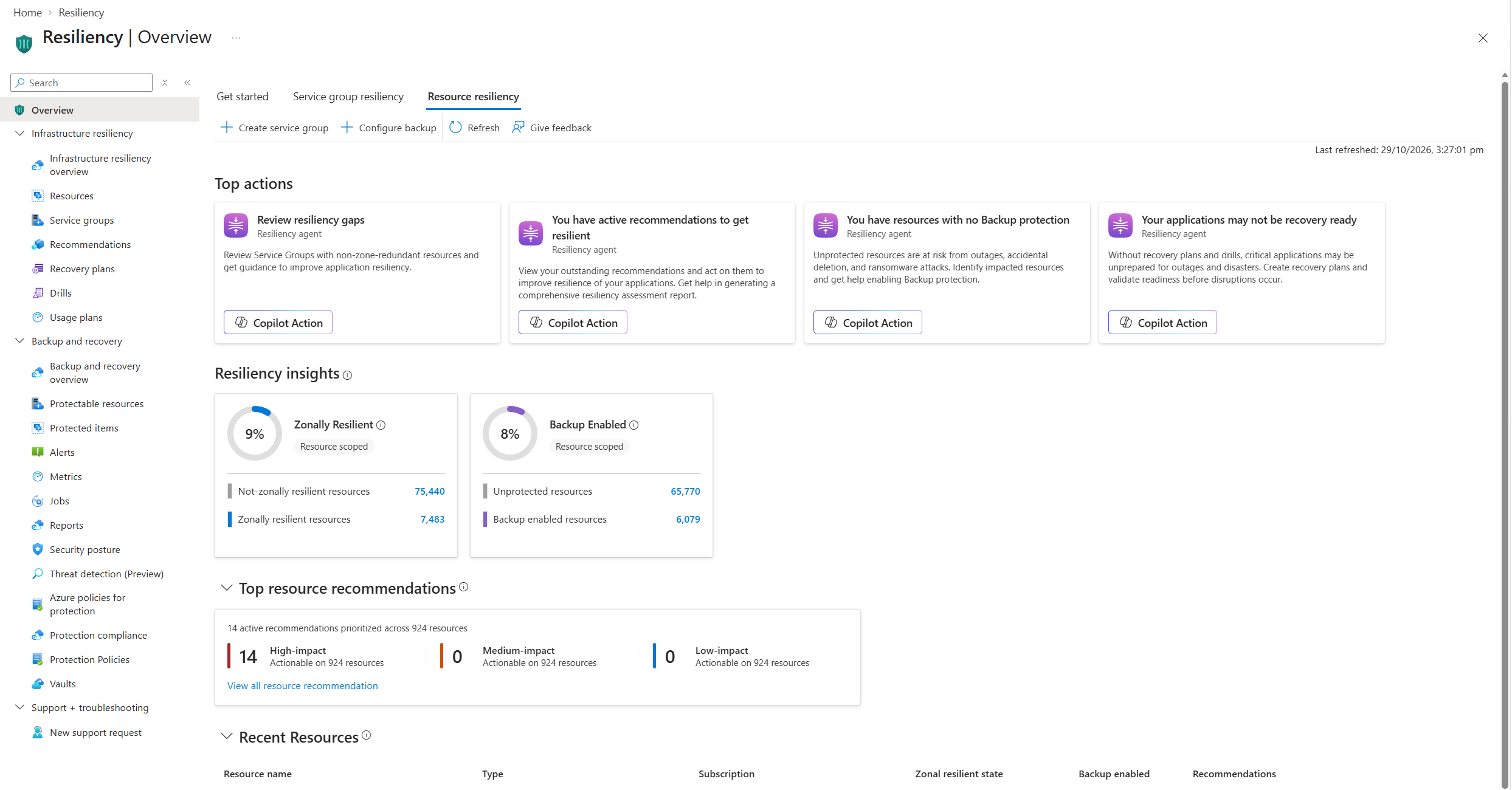
- Resource resiliency: Review resource-level zone resilience, backup protection, and recommendations.
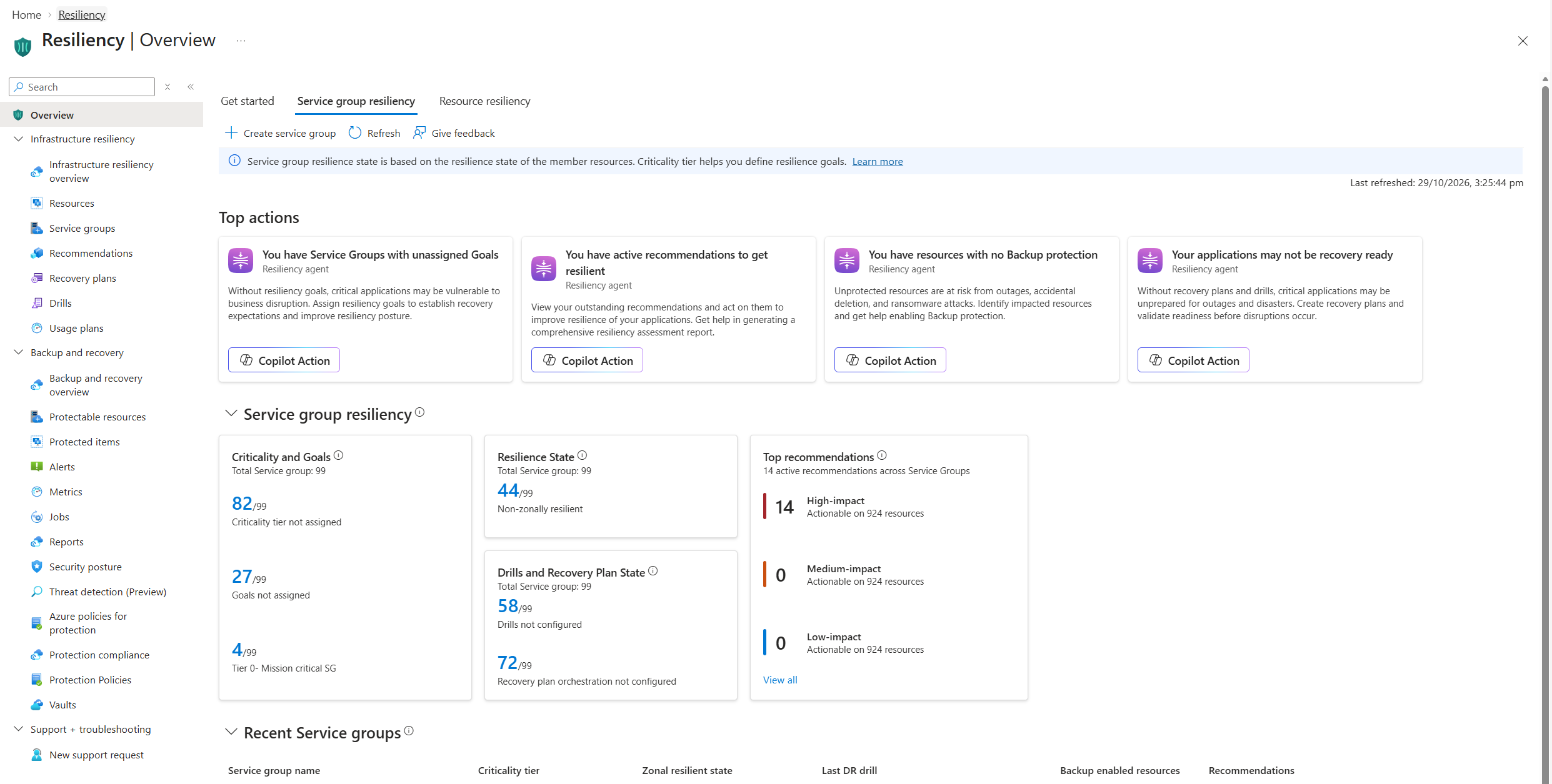
- Service group resiliency: Review application-level posture, goals, and recovery-readiness indicators across your service groups.
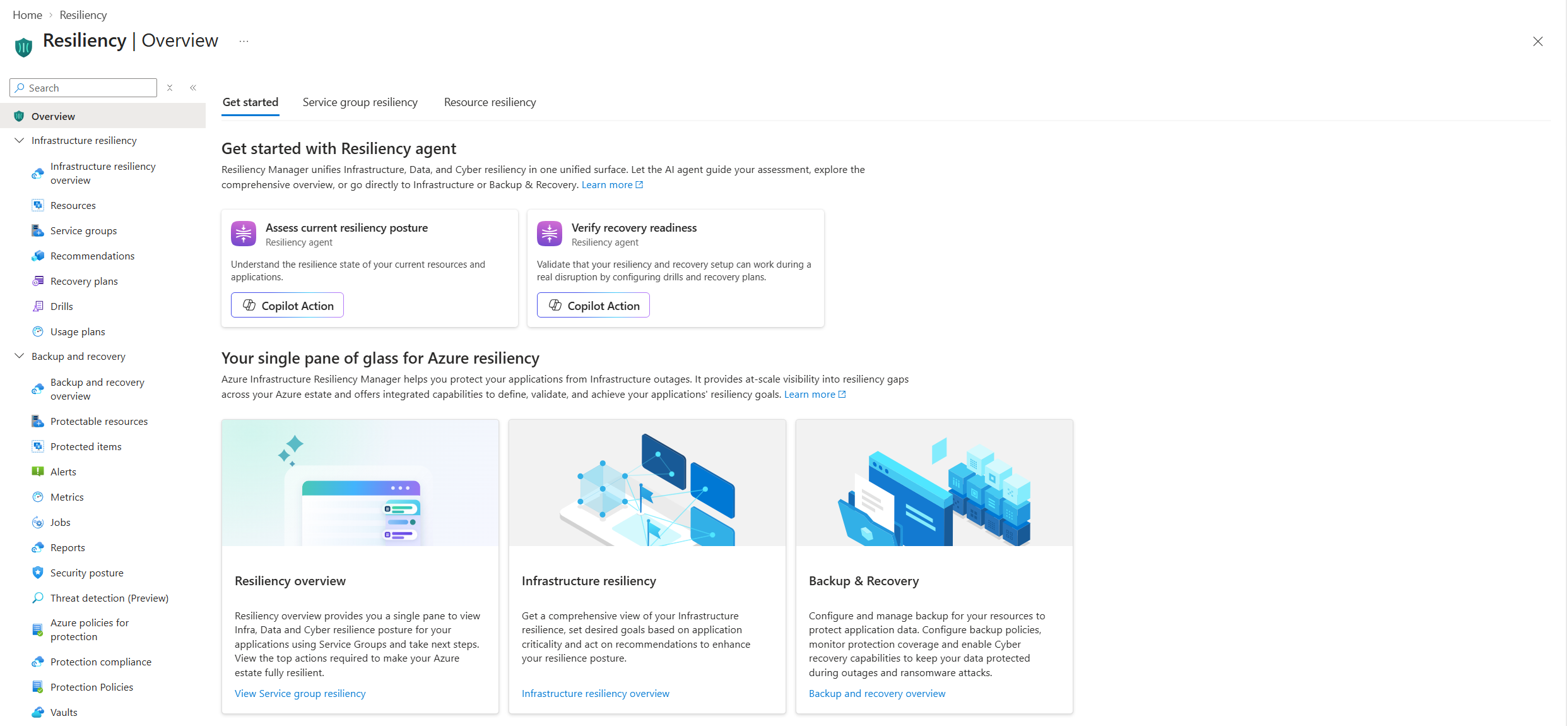
The overview combines infrastructure resilience and backup insights. For infrastructure-specific views and workflows, expand Infrastructure resiliency in the left menu to access Infrastructure resiliency overview, Resources, Service groups, Recommendations, Recovery plans, Drills, and Usage plans.
If you didn't create service groups yet, use the Resource resiliency tab to get a summary. For backup configuration guidance, see Configure protection for datasources.
Manage resilience for your resources
On the Resource resiliency tab, use Resiliency insights to review resource-scoped summaries:
- Zonally Resilient: View the percentage and counts of zone-resilient and not-zone-resilient resources. A resource is considered zone-resilient when a zone resilience solution is detected.
- Backup Enabled: View the percentage and counts of backup-enabled and unprotected resources. Backup protection is separate from zone resilience.
The Top actions section provides Copilot Action entry points for reviewing resilience gaps, acting on recommendations, addressing backup protection gaps, and preparing for recovery.
Use Top resource recommendations to review recommendations grouped by high, medium, and low impact. The Recent Resources table shows resource information, zone resilience state, backup status, and recommendation links. From this view, you can drill into individual resources and review recommendations for nonresilient resources.
For step-by-step instructions on navigating the resource-level view, see View resilience at scale - Resource-level view.
Tip
If you want a more tailored view for your scenario that ensures non-critical resources aren't flagged and you can manually attest resources that are made zone resilient through a custom setup, create service groups. You can create service groups directly from the Resiliency experience.
Create a service group from resource view
Use Create service group on the Resource resiliency tab to group resources into an application. After the service group is created, assign goals to it for zone resilience evaluation.
For step-by-step instructions, see Create a service group from the at-scale view.
Manage resilience at a service group level
On the Service group resiliency tab, review posture and configuration gaps across your service groups. The Service group resiliency section includes the following summaries:
- Criticality and Goals: Identify service groups without a criticality tier or assigned goals, and view criticality information.
- Resilience State: Identify service groups that aren't zone-resilient based on the resilience state of their member resources.
- Drills and Recovery Plan State: Identify service groups without configured drills or recovery plan orchestration. For more information, see Availability Zone Down Drills and Recovery orchestration plan.
- Top recommendations: Review recommendations grouped by high, medium, and low impact.
The Top actions section provides Copilot entry points for addressing unassigned goals, recommendations, backup protection gaps, and recovery readiness.
Note
Drill and recovery plan configuration indicators don't, by themselves, confirm that an application can recover successfully. Use drills to assess recovery readiness.
After you assign goals, you can drill into individual service groups to see detailed resilience information, include or exclude resources, manually attest resources, and review recommendations.
For step-by-step instructions, see View resilience at scale - Service group–level view.
When to use service groups
Create service groups for scenarios where you want to:
- Get an application-centric view of resilience posture. Understand gaps and misses at an application level rather than reviewing individual resources in isolation.
- Model shared resources across applications. Represent scenarios where a single resource is shared across multiple applications by including it in more than one service group.
- Group resources across subscriptions, resource groups, and tags. Define application boundaries that span different subscriptions, resource groups, or tag values within your Azure estate.
- Scope out non-critical resources. Exclude resources that don't require zone resilience from evaluation to reduce noise and focus on what matters.
Next steps
- Start Resilient: Design applications with Resiliency Agent
- Get Resilient: Discover application resources and dependencies
- Stay Resilient: Assess and prepare recovery readiness with Resiliency Agent
- Quickstart: Get started with Infrastructure Resiliency Manager
- About goals and recommendations
- About Availability Zone Down Drills
- About Recovery Orchestration Plan
- Assign goals and view resilience posture