Note
Access to this page requires authorization. You can try signing in or changing directories.
Access to this page requires authorization. You can try changing directories.
Important
Some information relates to prereleased product which may be substantially modified before it's commercially released. Microsoft makes no warranties, express or implied, with respect to the information provided here.
Microsoft recommends that you use roles with the fewest permissions. This helps improve security for your organization. Global Administrator is a highly privileged role that should be limited to emergency scenarios when you can't use an existing role.
To implement a multitenant delegated access solution, take the following steps:
Enable role-based access control in Defender for Endpoint and connect with Microsoft Entra ID groups.
Configure Governance Access Packages for access request and provisioning.
Manage access requests and audits in Microsoft MyAccess.
Enable role-based access controls in Microsoft Defender for Endpoint
Complete the following steps to enable role-based access controls and connect them with Microsoft Entra ID groups.
Create access groups for MSSP resources in Customer Entra ID: Groups
These groups are linked to the Roles you create in Defender for Endpoint. To create these access groups, in the customer Entra ID tenant, create three groups. In our example approach, we create the following groups:
- Tier 1 Analyst
- Tier 2 Analyst
- MSSP Analyst Approvers
Create Defender for Endpoint roles for appropriate access levels in Customer Defender for Endpoint.
To enable RBAC in the customer Microsoft Defender portal, go to Settings > Endpoints > Permissions > Roles, and then select Turn on roles.
Then, create RBAC roles to meet MSSP SOC Tier needs. Link these roles to the created user groups via assigned user groups. There are two possible roles: Tier 1 Analysts, and Tier 2 Analysts.
Tier 1 Analysts - Perform all actions except for live response and manage security settings.
Tier 2 Analysts - Tier 1 capabilities with the addition to live response
For more information, see Use role-based access control.
Configure Governance Access Packages
Use the following steps to configure Governance Access Packages for MSSP access.
Add MSSP as Connected Organization in Customer Entra ID: Identity Governance
Adding the MSSP as a connected organization allows the MSSP to request and have access provisioned.
To add the MSSP as a connected organization, in the customer Entra ID tenant, access Identity Governance: Connected organization. Add a new organization and search for your MSSP Analyst tenant via Tenant ID or Domain. We suggest creating a separate Entra ID tenant for your MSSP Analysts.
Create a resource catalog in Customer Entra ID: Identity Governance
Resource catalogs are a logical collection of access packages, created in the customer Entra ID tenant.
To create a resource catalog, in the customer Entra ID tenant, access Identity Governance: Catalogs, and add New Catalog. In our example, it's called, MSSP Accesses.
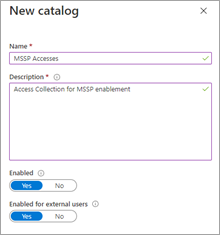
Further more information, see Create a catalog of resources.
Create access packages for MSSP resources Customer Entra ID: Identity Governance
Access packages are the collection of rights and accesses that a requestor is granted upon approval.
To create an access package, in the customer Entra ID tenant, access Identity Governance: Access Packages, and add New Access Package. Create an access package for the MSSP approvers and each analyst tier. For example, a Tier 1 Analyst access package can be configured to:
- Requires a member of the Entra ID group MSSP Analyst Approvers to authorize new requests
- Has annual access reviews, where the SOC analysts can request an access extension
- Can only be requested by users in the MSSP SOC Tenant
- Access auto expires after 365 days
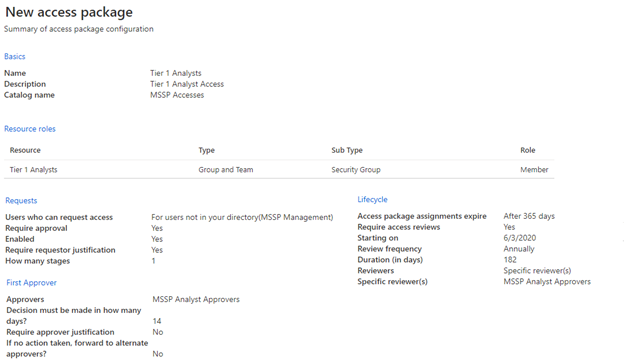
For more information, see Create a new access package.
Provide access request link to MSSP resources from Customer Entra ID: Identity Governance
The My Access portal link is used by MSSP SOC analysts to request access through the MSSP access packages created in Identity Governance. The My Access portal link is durable and can be reused over time for new analysts. The analyst request goes into a queue for approval by the MSSP Analyst Approvers.
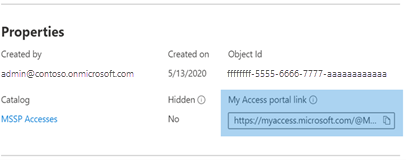
The My Access portal link is located on the overview page of each access package.
Manage MSSP access in Microsoft Defender for Endpoint
Review and authorize access requests in Customer and/or MSSP MyAccess.
Access requests are managed in the customer My Access, by members of the MSSP Analyst Approvers group.
To review and authorize access requests, access the customer's MyAccess using:
https://myaccess.microsoft.com/@<Customer Domain>.Example:
https://myaccess.microsoft.com/@M365x440XXX.onmicrosoft.com#/Approve or deny requests in the Approvals section of the UI.
After a request is approved, analyst access is provisioned, and each analyst should be able to access the customer's Microsoft Defender portal:
https://security.microsoft.com/?tid=<CustomerTenantId>