Note
Access to this page requires authorization. You can try signing in or changing directories.
Access to this page requires authorization. You can try changing directories.
In this quickstart, you create a HorizonDB database in Microsoft Fabric HorizonDB and validate it with a PostgreSQL query.
Important
Fabric HorizonDB is in public preview. Capabilities, limits, and behavior might change before general availability. For more information, see Microsoft Fabric preview features.
Prerequisites
- A Fabric tenant and an eligible workspace assigned to active Fabric capacity.
- Contributor or Admin access to the workspace and permission to create PostgreSQL database items.
- Fabric HorizonDB availability in the workspace region.
- A Microsoft Entra identity enabled for the preview.
Use a dedicated development or test workspace and synthetic, nonsensitive data. Confirm tenant, workspace, capacity, and region enablement with your administrator or preview contact.
Create the database
Sign in to the Fabric portal.
Open the target workspace.
Select + New item.
Search for HorizonDB database.
Select HorizonDB database (preview).
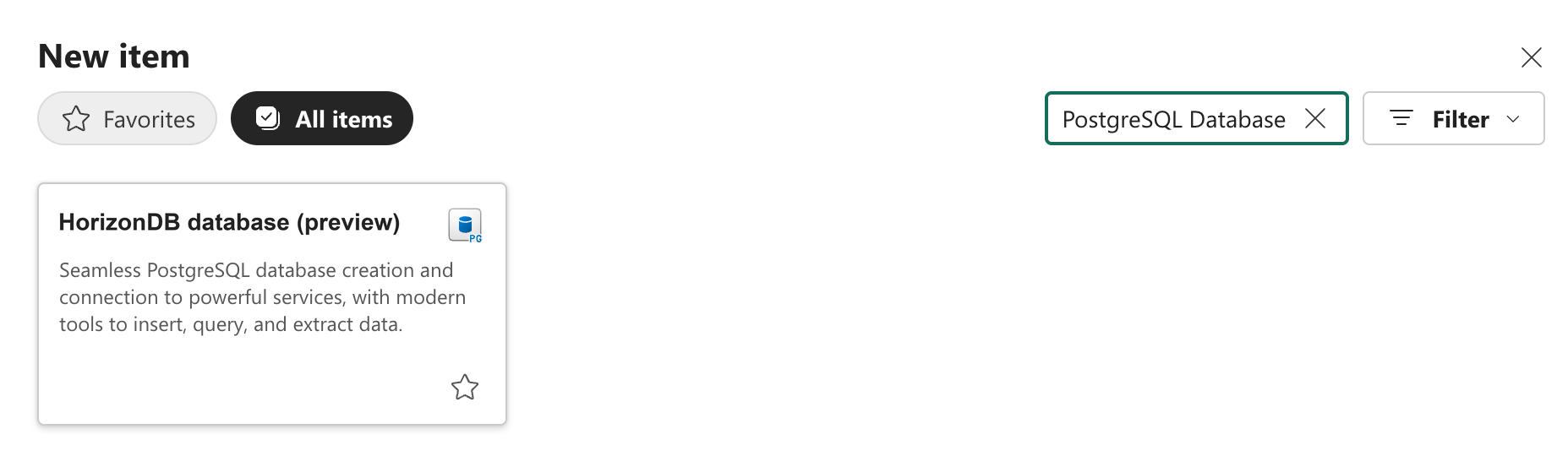
Enter a unique item name such as
contoso-horizondb.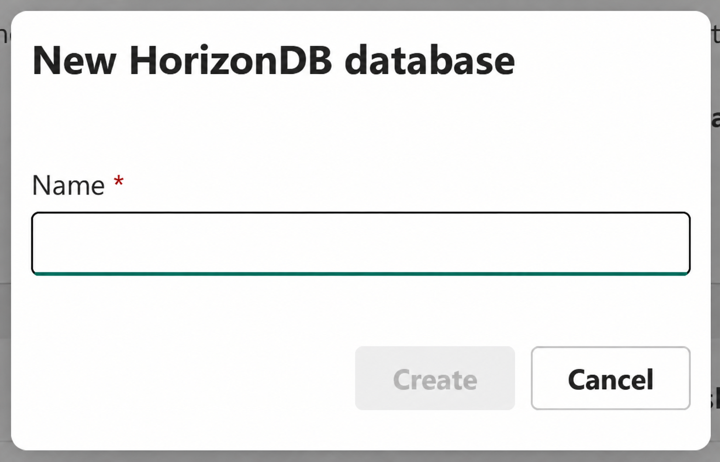
Select Create, and wait for the item to report Online or Ready.
Creation is asynchronous. Don't create a duplicate item if the operation remains in progress. Open the item details and record its operation or correlation ID if provisioning reports a failure.
The database is usable only after the item reports a ready state and its PostgreSQL endpoint accepts an authorized query. Fabric integrations can continue initializing independently.
Validate the database
Open the database item.
Select New Query.
Paste the following PostgreSQL query, select the full statement, and select Run:
SELECT
    current_database() AS database_name,
    current_user AS signed_in_user,
    current_setting('server_version') AS server_version,
    current_setting('server_version_num') AS server_version_number,
    pg_backend_pid() AS session_id,
    clock_timestamp() AS validated_at;
Confirm that:
database_namematches the PostgreSQL database name in the item's connection details. In the current preview, this ispostgres, not the Fabric item display name.signed_in_userrepresents your expected Microsoft Entra principal.server_versionreports the engine version used by your preview database.- The query returns one session ID and timestamp.
Only the Microsoft Entra identity that created the database can connect in the current preview. Sharing the item doesn't enable another user or principal to connect. See Validate PostgreSQL access.
Review connection information
Select Visual Studio Code in the database toolbar to open the connection pane. Record the nonsensitive values your client needs:
- PostgreSQL host.
- Port.
- Database name.
- Microsoft Entra user format.
- Released TLS mode and certificate guidance.
Don't copy a token into a document, notebook output, shell history, or source file. Don't use the SQL analytics endpoint for an operational PostgreSQL connection.
Understand the initial compute state
The platform manages compute resources. Use only the controls shown in your database item. Where scale to zero is enabled, an idle database can pause and a connection through the same endpoint resumes it. Allow for startup latency; don't assume a fixed idle interval or resume time.