Note
Access to this page requires authorization. You can try signing in or changing directories.
Access to this page requires authorization. You can try changing directories.
As colleagues share Power BI content with you, you might have access to an extensive list of content. It can be difficult to recall specific items that you want to revisit to answer a data question.
Through the standalone Copilot experience, you can find Power BI content and chat with your data. In Power BI Copilot search, the terms content and items refer to reports, semantic models, workspace apps, organizational apps, and data agents. This article explains when Copilot needs to search for content, the metadata that Copilot uses to find your content, the signals that boost the relevancy of certain items, and how to make items more discoverable for your users.
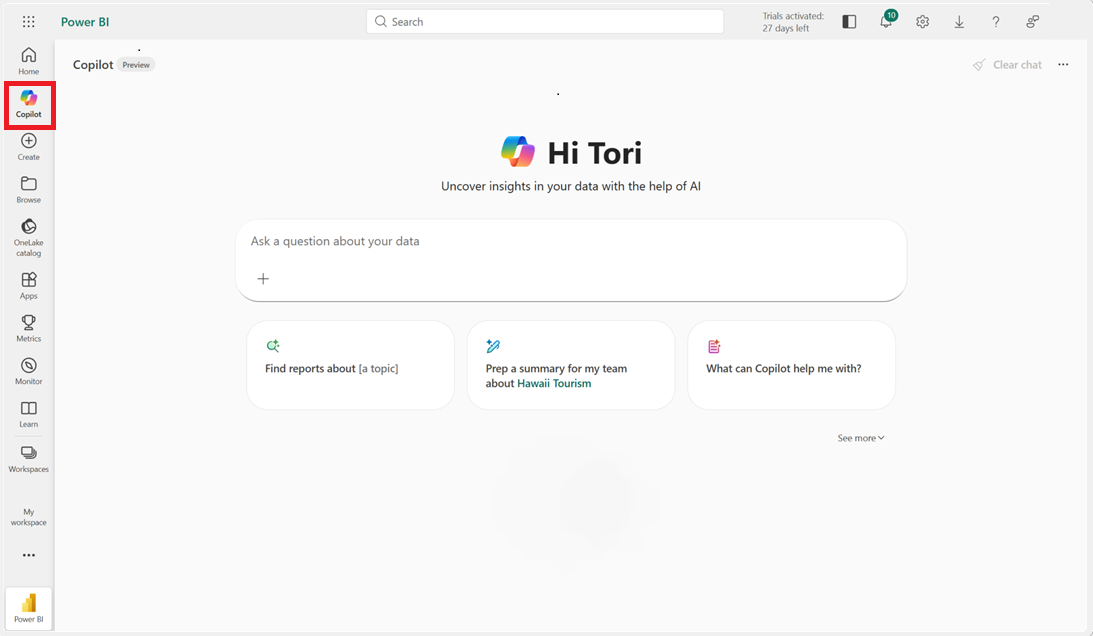
Enable Power BI Copilot search
Copilot search is available only through the standalone Copilot experience. To access this feature, enable a few tenant settings. To use Power BI's Copilot search, enable both Fabric Copilot and the standalone Copilot experience for your tenant.
For users to discover Power BI content through Copilot search, enable the global search setting. Without global search, users can browse recent content but can't search for reports, semantic models, or other supported items.
To further improve search relevance, enable the setting to share data across geographic boundaries. This setting lets Copilot semantically search on similar terms and is necessary only if Azure OpenAI isn't available in your home tenant's region.
Use search to find an item
In the standalone Copilot, notice the Find an item section in the starter prompts. These prompts are examples of the kind of questions you can ask to get Copilot to search for content.
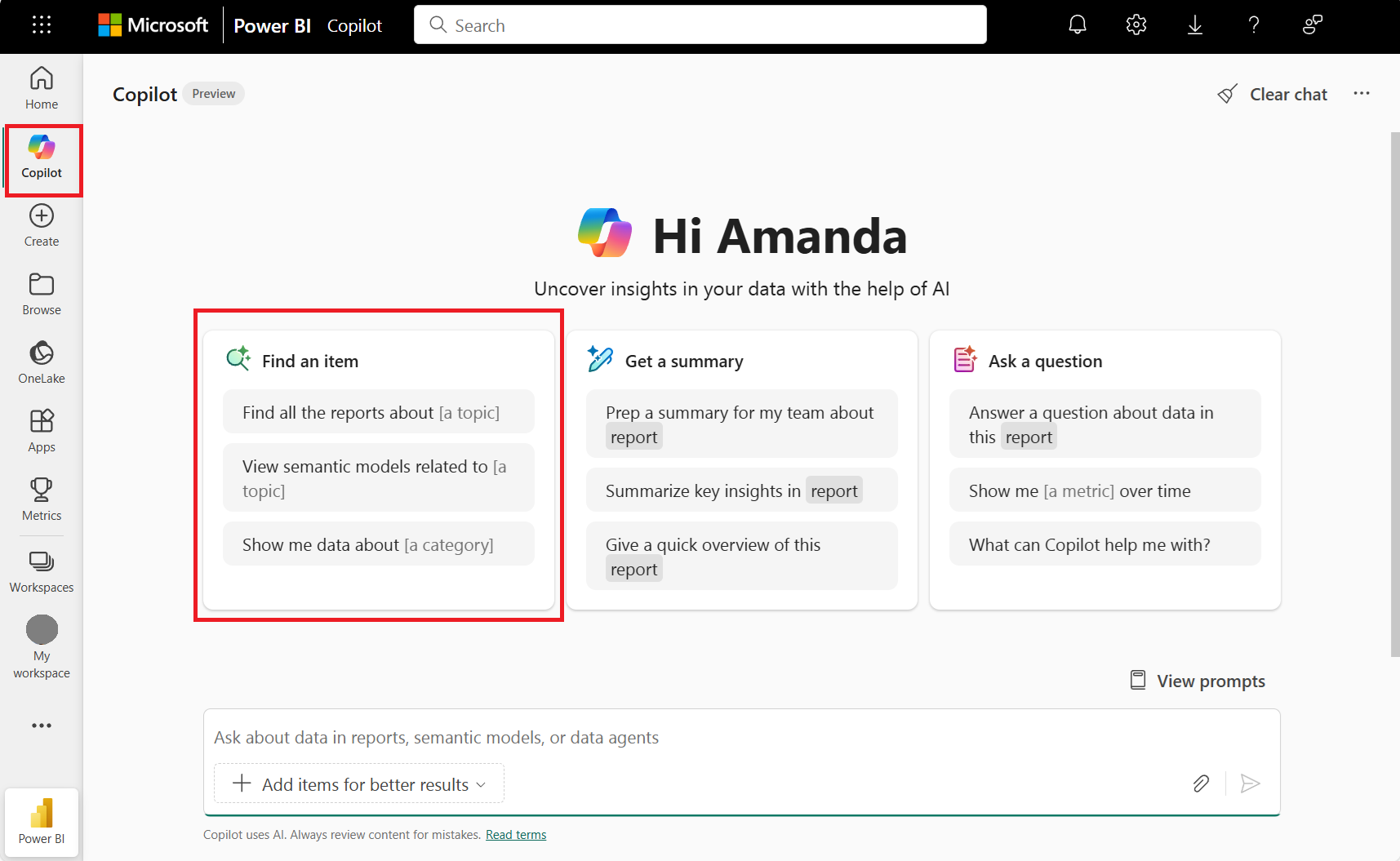
When you ask a question like "Find items about sales revenue," Copilot responds with a list of items related to your topic:
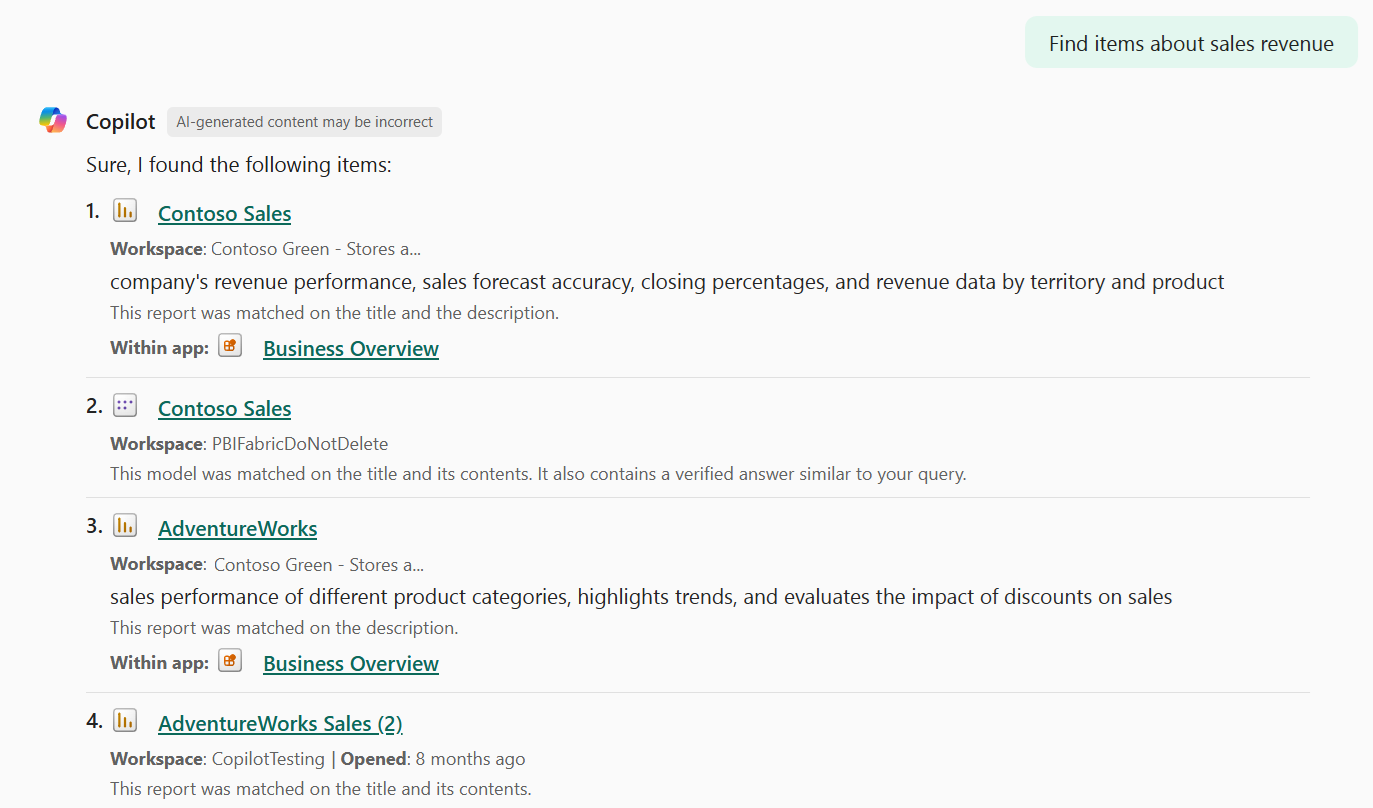
In these search results, Copilot shows icons for the item type, the title of the item, the workspace the item belongs to, when you last opened it, the description if it has one, the metadata this item matched with from your input, and whether a report is part of an app.
Copilot generates a description of the item's content if the author didn't add one. Copilot generates this description from the item's metadata.
The title includes a hyperlink that opens the item in a new tab. This hyperlink lets you view your item contents while maintaining chat history to browse the other items or to continue chatting with your data.
Tip
After you receive search results, continue the conversation by asking Copilot to "Summarize report 1" or ask Copilot, "What is revenue for the month to date using 2?"
Use search to find the right item to answer a question
Power BI's standalone Copilot searches for content when you ask a question without attaching a report or semantic model. If you start by asking a broad question like "How many tourists visited in January?" you see a list of items that Copilot can use to answer the question.
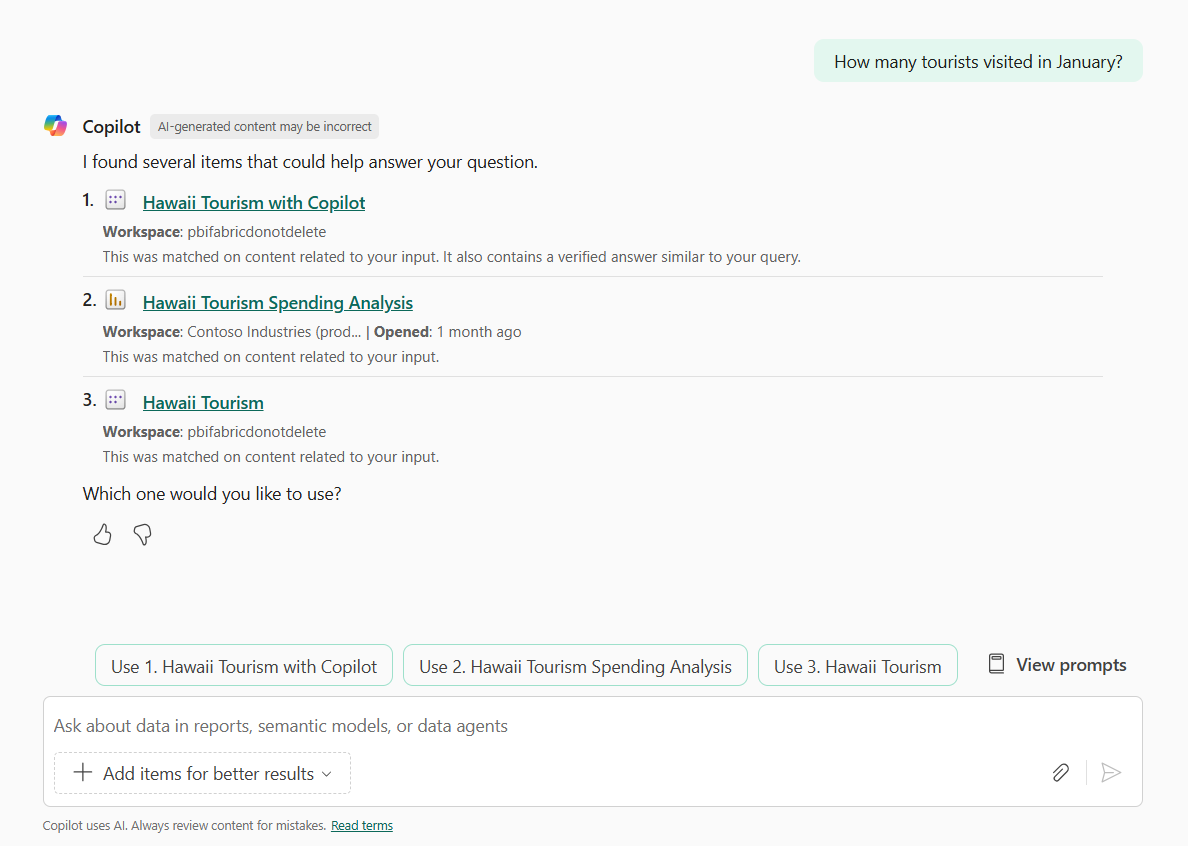
Copilot asks for confirmation to ensure that you recognize the content it uses to answer your question. If these items aren't what you expect, provide feedback by using the thumbs down icon. To direct Copilot to use a specific item, type "Use 1" or select the suggested input prompts above the chat input field.
Find content through metadata
Copilot uses a wide range of metadata to find content. Power BI Copilot search finds reports, semantic models, data agents, workspace apps, and organizational apps.
To determine the most relevant items, Copilot looks through metadata such as the following types of metadata:
- Title of an item
- Description of an item
- Name of the item's workspace
- Content within an item, which the next section explains
Content types Copilot looks at
Copilot searches through content metadata to find the most relevant item. It looks at the following information within an item:
- For reports:
- Page names
- Visual titles
- Filter pane titles
- Text boxes
- For semantic models:
- Table names
- Table descriptions
- Column names
- Column descriptions
- Measure names
- Measure descriptions
- Verified answer prompts
- Verified answer charts
- For data agents:
- Published descriptions
- Example queries
- Data source schema information
- For workspace apps and org apps:
- Reports in the app
Use signals to boost content in search results
You might have a lot of content. When Copilot finds multiple items, it ranks items with the following attributes higher than items without these attributes:
- If you marked the item as a favorite
- If you recently opened the item
- If the item is endorsed
- If the item is popular or frequently viewed in your organization
- If the item is part of a workspace app or org app
- If the item is approved for Copilot
Make items more discoverable to Copilot
Follow these best practices to make your items more discoverable in the standalone Copilot experience:
Add item descriptions: Give context to your business users by adding a description. Use natural language when writing item descriptions to help Copilot and your business users understand what an item is about.
Use unique keywords: Many items have similar names, and it can be hard to distinguish one from the other. Use unique keywords to help your business users better recall and navigate to an item.
Apply an endorsement label: Endorsement labels show that content is trustworthy. Any creator with edit access can add a Promoted label.
Favorite an item: Marking an item as a Favorite is an explicit signal to Copilot that it's important to you. By marking an item as a Favorite, you're more likely to see it in your search results.
Limit Copilot search to items approved for Copilot
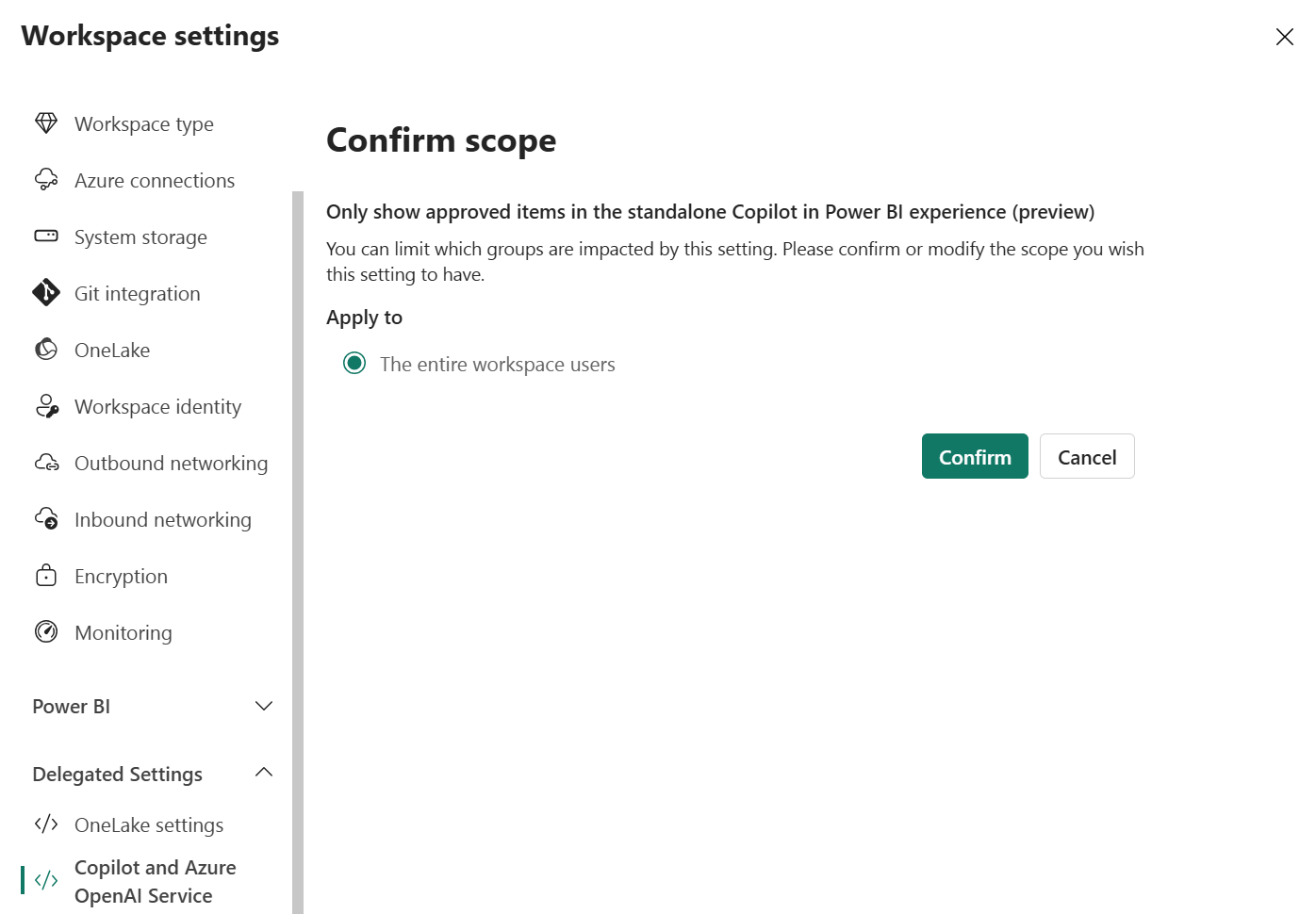
Workspace admins control whether Copilot searches all workspace content or just content Approved for Copilot. Workspace admins can make this change themselves in Workspace settings under Delegated settings > Copilot and Azure OpenAI service. Tenant admins can also set a default for the entire tenant by using the tenant setting Only show approved items in the standalone Copilot in Power BI experience (preview). Changes to these settings take up to 24 hours to appear in the search experiences.
When is an item approved for Copilot?
- For search purposes, Fabric data agents always count as approved for Copilot.
- A creator must select the Approved for Copilot checkbox on Power BI semantic models.
- After a creator selects the setting, all reports that use the model also count as approved for Copilot.
- Power BI workspace and org apps count as approved for Copilot, but reports inside those apps only count as approved if a creator explicitly marks the report's semantic model. As a result, you might find apps by using search prompts, but Copilot might not answer data questions from those apps in the standalone Copilot experience.
In standalone Copilot, you can always manually attach items that you have access to and ask questions of those items directly, even if the item doesn't have the Approved for Copilot label.
Considerations and limitations
- Copilot respects user permissions and only searches over attributes you have access to. It doesn't provide search results containing items you can't access.
- Copilot respects app audiences, if defined, and only searches over reports that you have access to within an app.
- Copilot doesn't find semantic models marked as discoverable unless you already have direct access to the model.
- Currently, users who have only view access to semantic models can't see models in their search result listings, but can attach models directly to questions.
- Currently, users with access to items via Microsoft 365 groups (sometimes called unified groups) can't find those items by using Copilot.
- Copilot respects hidden elements such as hidden table and column names, and doesn't search over these fields.
- Copilot generates descriptions for reports to show in search responses alongside information like the report's name and workspace location to help users choose relevant reports. Copilot refreshes descriptions at most once daily after report updates.
- Copilot doesn't generate descriptions for other item types, like semantic models or Fabric data agents.
- Copilot best understands natural language. When you're searching for items through the standalone Copilot, adding more context helps you find more relevant content. For example, searching for "Find reports about Q4 revenue over time" yields better results than a search for the keyword "Q4."
- If you edit an item directly (for example, update a visual or rename titles), the changes appear in search results within five minutes. If you edit an item indirectly (such as renaming the workspace), the changes might take up to 24 hours to appear in the search results.
- Reports might not reflect the approved status of the associated semantic model for up to 24 hours.
- Search is part of the standalone Copilot experience, subject to the same limitations.