Note
Access to this page requires authorization. You can try signing in or changing directories.
Access to this page requires authorization. You can try changing directories.
If you purchased storage after April 2019, or if you have a mix of storage purchases made before and after April 2019, you see your storage capacity entitlement and usage by database, file, and log as it appears in the Microsoft Power Platform admin center today.
Data volume continues to grow exponentially as businesses advance their digital transformation journey and bring data together across their organizations. Modern business applications need to support new business scenarios, manage new data types, and help organizations with the increasing complexity of compliance mandates. To support the growing needs of today's organizations, data storage solutions need to evolve continuously and provide the right solution to support expanding business needs.
Note
For licensing information, see the Power Platform Licensing Guide.
If you purchased your Dynamics 365 subscription through a Microsoft partner, contact them to manage storage capacity. The following steps don't apply to partner-based subscriptions.
Licenses for Microsoft Dataverse capacity-based storage model
The following licenses provide capacity by using the new storage model. You see the new model report if you have any of these licenses:
- Dataverse for Apps Database Capacity
- Dataverse for Apps File Capacity
- Dataverse for Apps Log Capacity
To check whether you have any of these licenses, sign in to the Microsoft 365 admin center and then go to Billing > Licenses.
Note
If you have a mix of legacy model licenses and new model licenses, a new model report is displayed.
If you have none of the legacy model licenses nor the new model licenses, a new model report is displayed.
Verifying your Microsoft Dataverse capacity-based storage model
To view the Capacity add-ons summary page, you need one of the following roles:
- Tenant administrator
- Power Platform administrator
- Dynamics 365 administrator
Alternatively, a user with any of the preceding roles can grant permissions to the environment administrator to view the Capacity summary tab within the Tenant setting page.
Follow these steps to verify that you have the Microsoft Dataverse capacity-based storage model:
- Sign in to the Power Platform admin center.
- On the navigation pane, select Licensing.
- On the Licensing pane, select Capacity add-ons to go to the Capacity add-ons summary page where you can see your tenant's storage, add-ons, and Microsoft Power Platform requests.
Learn more in Dataverse capacity-based storage overview.
Capacity page details
The tabs Summary, Dataverse, Microsoft Teams, Add-ons, and Trial are available on the Capacity add-ons page.
Summary tab
On the Capacity page, Summary is the default view where you see a tenant-level view of where your organization is using storage capacity. You can view:
- Storage capacity usage
- Storage capacity, by source
- Top storage usage, by environment
All Dataverse tables, including system tables, are included in the storage capacity reports. Files such as .pdf (or any other file attachment type) are stored in file storage. However, the database stores certain attributes needed to access the files.
Storage capacity usage
In the storage capacity usage section, you can see:
File and database: The following tables store data in file and database storage:
- Attachment
- AnnotationBase
- Any custom or out-of-the-box table that has columns of datatype file or image (full size)
- Any table used by one or more install Insights applications and that ends in - Analytics
- WebResourceBase
- RibbonClientMetadataBase
Log: The following tables are used:
- AuditBase
- PlugInTraceLogBase
- Elastic tables
Database only: All other tables count for your database
Storage capacity, by source
In the storage capacity, by source section, you can see:
- Org (tenant) default: The default capacity given at the time of sign up.
- User licenses: More capacity added for every user license purchased.
- Additional storage: Any extra storage you bought.
- Total: Total storage available.
- View self-service sources: Learn more at View self-service license amounts and storage capacity.
Top storage usage, by environment
In the top storage usage, by environment section, you can see the environments that consume the most capacity.
Add-ons
In the add-ons section, you can see the details of add-ons that your organization purchased. Learn more at View capacity add-ons in Power Platform admin center.
In the add-ons section, you can also select Manage to assign add-ons to environments or Download reports to view a downloaded report. Add-on reports expire after 30 days.
Dataverse tab
On the Capacity page, select Dataverse. This page provides information similar to the summary tab, but with an environment-level view of where your organization is using capacity.
Note
There's no technical limit on the size of a Dataverse environment. The limits mentioned on this page are entitlement limits based on product licenses you purchase.
This table highlights some of the features you can see on the Dataverse page.
| Feature | Description |
|---|---|
| Download | Select Download above the list of environments to download an Excel .csv file with high-level storage information for each environment that the signed-in admin can see in the Power Platform admin center. |
| Search | Use Search to search by environment name and environment type. |
| Details | Select the Details button ( ) to see an environment-level detailed view of where your organization is using capacity, in addition to the three types of capacity consumption.
 |
| Default environment tip | The calculated storage usage in this view only displays what is above the default environment's included capacity. Tool tips indicate how to view actual usage in the Details section. |
Note
- The following environments don't count against capacity and show as 0 GB:
- Microsoft Teams
- Trial
- Preview
- Support
- Developer
- The default environment has the following included storage capacity: 3 GB Dataverse database capacity, 3 GB Dataverse file capacity, and 1 GB Dataverse log capacity.
- You can select an environment that's showing 0 GB and then go to its environment capacity analytics page to see the actual consumption.
- For the default environment, the list view shows the amount of capacity consumed beyond the included quota. Select the Details button (
) to see usage.
- The capacity check—conducted before creating new environments—excludes the default environment's included storage capacity when calculating whether you have sufficient capacity to create a new environment.
Environment storage capacity details
Select the Details button (
) associated with the environment you want to see more information about.
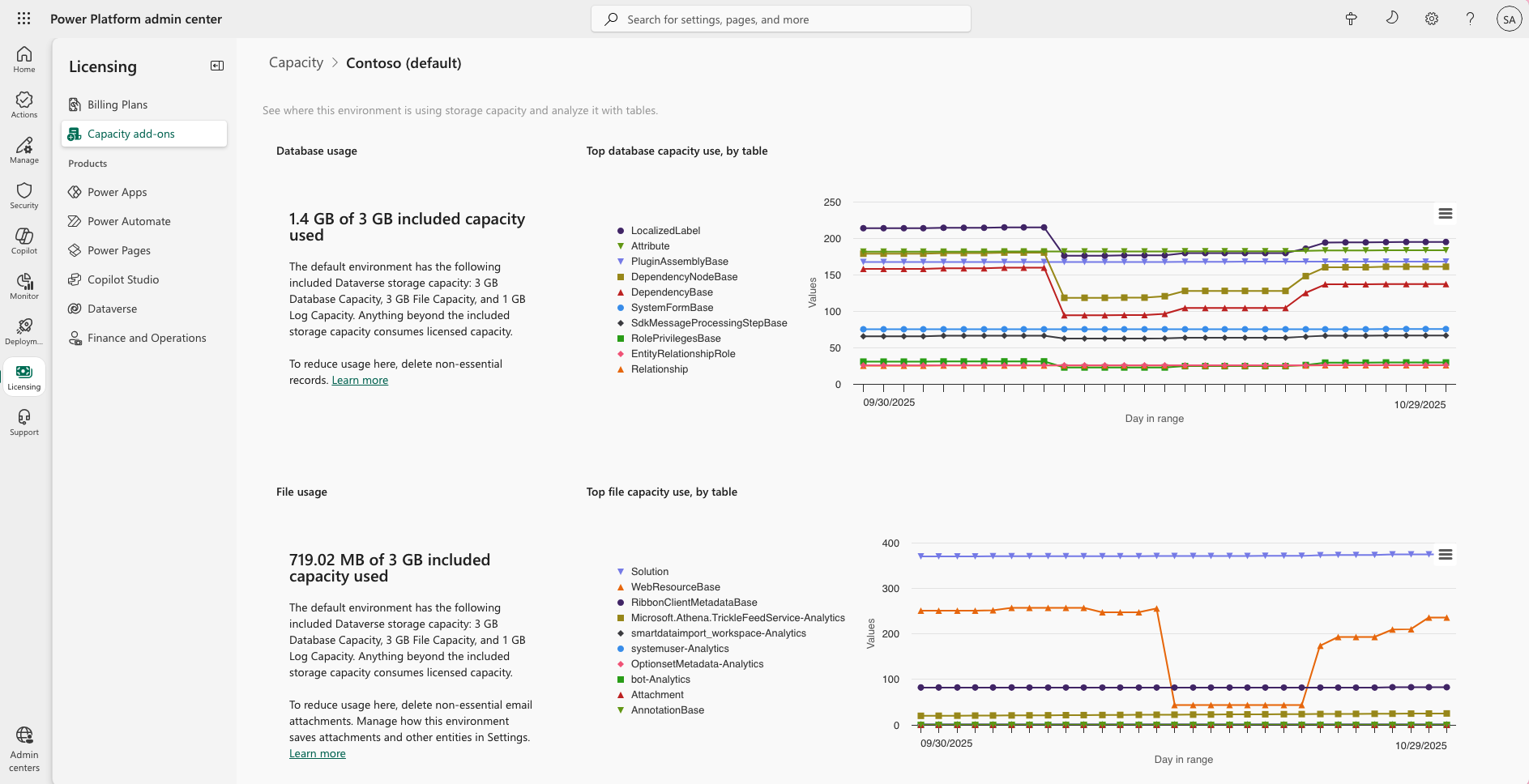 The following details are provided:
- Actual database usage
- Top database tables and their growth over time
- Actual file usage
- Top files tables and their growth over time
- Actual log usage
- Top tables and their growth over time
Note
Refer to the storage capacity reports under Dataverse long term retention to understand details on storage capacity with the retention feature.
Microsoft Teams tab
On the Capacity page, select Microsoft Teams. This tab shows the capacity storage used by your Microsoft Teams environments. Teams environment capacity usage doesn't count toward your organization's Dataverse usage.
| Feature | Description |
|---|---|
| Download | Select Download above the list of environments to download an Excel .csv file with high-level storage information for each environment that the signed-in admin can see in the Power Platform admin center. |
| Search | Use Search to search by environment name and environment type. |
Add-ons tab
On the Capacity page, select Add-ons. This tab shows your organization's add-on usage details and lets you assign add-ons to environments. For more information, see View capacity add-ons in Power Platform admin center.
Note
This tab only appears if your tenant includes add-ons.
Trial tab
On the Capacity page, select Trial. This tab shows the capacity storage used by your trial environments. Trial environment capacity usage doesn't count toward your organization's Dataverse usage.
| Feature | Description |
|---|---|
| Download | Select Download above the list of environments to download an Excel .csv file with high-level storage information for each environment that the signed-in admin can see in the Power Platform admin center. |
| Search | Use Search to search by environment name and environment type. |
Dataverse page in Licenses
Track tenant usage
You can track and manage Dataverse capacity in the Licenses section of the Power Platform admin center.
- Sign in to the Power Platform admin center.
- On the navigation pane, select Licensing.
- On the Licensing pane, select Dataverse under Products.
Usage per storage type
In the Usage per storage type tile, you can view the consumption of your database, log, and file storage. This section displays your prepaid entitled capacity along with the corresponding usage. Additionally, it indicates if any part of your Dataverse usage is billed under a pay-as-you-go plan.
The tile provides the following details for database, file, and log storage:
- Total prepaid entitlement: Database and file capacity can be pooled across Dataverse and Operations workloads respectively. Log entitlement is provided separately for Dataverse only.
- Total consumption: Combined usage from both Dataverse and finance and operations environments.
- Reserved capacity: Capacity reserved for specific environments. Currently applicable to Dataverse only.
- Pay-as-you-go usage: Any consumption that exceeds prepaid entitlement and is billed under a pay-as-you-go plan.
Dataverse - Database capacity: Tracks structured data stored directly in Dataverse, including table rows, metadata, and relational data created by Power Apps, Power Automate, Dynamics 365 customer engagement apps (Dynamics 365 Sales, Dynamics 365 Service, Dynamics 365 Marketing), and custom model-driven apps.
Operations - Database capacity: Tracks structured data stored in finance and operations environments, including Dynamics 365 Finance, Dynamics 365 Supply Chain Management, Dynamics 365 Project Operations, and Dynamics 365 Commerce.
Although displayed separately in the admin center, Dataverse and Operations database capacity form a single combined pool for enforcement purposes. Similarly, Dataverse and Operations file capacity are pooled together. This means:
- Your total Database entitlement covers both Dataverse and Operations database usage combined.
- Your total File entitlement covers both Dataverse and Operations file usage combined.
- Log entitlement is tracked separately for Dataverse only.
Select any of the following categories to view a day-by-day usage trend for that storage type:
- Dataverse – Database
- Operations – Database
- Dataverse – File
- Operations – File
- Dataverse – Log
Select the See Dataverse capacity per license button in the Summary (Dataverse & Operations) Database usage tab to see a detailed breakdown of how your entitlement was calculated, including base capacity and per-user license accruals.
Top environment consuming storage
The Top environment consuming storage tile displays the environments using the most capacity. It also indicates whether any of these top-consuming environments are in overage and provides a breakdown of prepaid versus pay-as-you-go usage. You can select Database, File, or Log to view the corresponding consumption details.
Dataverse environment usage
In the Top environments consuming storage tile, select See all environments to view capacity consumption across all your Dataverse environments. The following details are provided:
- Name of the environment
- Overage status if capacity is allocated to the environment
- Whether capacity is preallocated to the environment
- Environment type
- Managed environment status
- Pay-as-you-go plan linkage status
- Ability to draw capacity from available tenant pool
- Database, file, and log consumption
Track environment usage
- On the Dataverse page, select Environment and choose an environment from the list.
- Alternatively, in the Top environment consuming storage tile, select See all environments and select an environment name.
Usage per storage type tile
In the Usage per storage type tile, you can view the consumption of your database, log, and file storage. This section displays your prepaid allocated capacity, if any, along with the corresponding usage. It also indicates if any part of your Dataverse usage is billed under a pay-as-you-go plan.
Consumption per table
In the Consumption per table section, you can view the amount of storage consumed by each Dataverse table. To see table consumption for a specific storage type, select Database, File, or Log in the Usage per storage type tile. Select the table name for the consumption trend, with the option to track daily usage trends, for up to the past three months.
Dataverse storage advisor (preview)
Preview features aren't meant for production use and may have restricted functionality. These features are available before an official release so that customers can get early access and provide feedback.
Dataverse storage advisor analyzes table-level storage consumption and recommends data you can clean up to reduce storage usage. The advisor surfaces these recommendations directly in the Licensing > Dataverse capacity view, so you can act on them without leaving the Power Platform admin center.
Note
Dataverse storage advisor is rolling out gradually and might not be available in your environment yet. When it's available, recommendations appear only for environments that have storage you can clean up.
When recommendations are available, the advisor adds the following experiences:
Storage recommendation banner: A banner appears above the capacity details that estimates how much space the advisor can help you reclaim—for example, Storage advisor has action plans to clean up space and manage the environment. Select the banner to open the Dataverse storage advisor pane.
Clean up column: The Consumption per table grid includes a Clean up column that shows the estimated space the advisor recommends cleaning up for each table. The environment list in the Manage capacity experience shows a similar Cleanup value so you can compare opportunities across environments.
Free up storage space: The Dataverse storage advisor pane includes a Free up storage space section that lists per-table cleanup recommendations. For each recommended table, you can review the Cleanable data and preview the records that match the cleanup criteria. These records are moved to long-term retention when you act on the recommendation, which keeps them available for audit or compliance needs while freeing up active Dataverse storage and improving performance.
Act on a storage recommendation
From a storage recommendation, you can choose how to reclaim space:
- Create an archival policy: Turn a recommendation into a long-term retention archival policy that moves inactive data out of active storage. For more information, see Long term retention policies.
- Bulk delete data: Remove obsolete or unnecessary data through a bulk delete operation to free up storage capacity, see Bulk deletion.
- Manage capacity: Adjust capacity allocation for the environment from the same view.
The table trends pane also shows Cleanup recommendations with curated Microsoft Learn articles to help you manage a table's growth. For more ways to reduce storage, see Free up storage space.
Dataverse search consumption and reporting
In addition to database and file storage, Dataverse search includes the indexes that power different experiences. These indexes support search and generative AI across structured or tabular data and unstructured data stored in Dataverse, such as files.
Storage consumed by Dataverse search is reported at the environment level as a table called DataverseSearch. It was previously named RelevanceSearch.
Dataverse search can also be monitored at the Dataverse Environment report in the Power Platform admin center
The Dataverse Environment report is located at the Licensing > Dataverse > Environments tab (consumption per table reporting).
Cost of the indexed Dataverse search data
All Dataverse indexes are reported at the Dataverse database capacity rate. Turning on Dataverse search doesn't turn on any other experience automatically. For more information, see What is Dataverse search?
Allocate capacity for an environment
When you select the Dataverse tab, you can allocate capacity to a specific environment. After you allocate capacity, you can view the status of your environments to see whether they're within capacity or in an overage state.
- Sign in to the Power Platform admin center.
- On the navigation pane, select Licensing.
- On the Licensing pane, select Dataverse in the Products section.
- On the Summary page, select Manage capacity.
- Select the environment for which you want to allocate capacity.
- In the Manage capacity panel, view the currently allocated and consumed capacity for the environment.
- Allocate capacity by entering the desired value in the Database, File, and Log fields. Ensure the capacity values are positive integers and don't exceed the available capacity displayed at the top of the panel.
- Opt in to receive daily email alerts sent to tenant and environment admins when the consumed capacity (database, log, or file) reaches a set percentage of the allocated capacity.
- Select Save to apply the changes. To manage environment-level storage overages, see Manage an environment-level capacity overage.
Changes for exceeding storage capacity entitlements
Microsoft notifies administrators when the organization's effective database, file, or log consumption approaches or exceeds its entitled capacity. Effective consumption is calculated after eligible cross capacity-type borrowing is applied. Notifications help administrators identify the affected storage type, review the environments contributing to consumption, and begin remediation before further restrictions apply.
Environment lifecycle operations, such as creating, copying, restoring, recovering, or converting environments, are evaluated differently from storage notifications and overage status. While notifications and overage status are based on the tenant's effective capacity position after cross-capacity type borrowing, these operations require sufficient available capacity in the underlying Database, File, or Log capacity types. As a result, some environment lifecycle operations may be unavailable when the required capacity type does not have sufficient available capacity, even if the tenant's overall capacity position remains within entitlement limits after borrowing.
The following administrative environment lifecycle operations aren't available when the required storage capacity isn't available to support the operation:
- Create new environment (requires minimum 1-GB capacity available)
- Copy an environment (requires minimum 1-GB capacity available)
- Restore an environment (requires minimum 1-GB capacity available)
- Convert a trial environment to paid (requires minimum 1-GB capacity available)
- Recover an environment (requires minimum 1-GB capacity available)
- Add Dataverse database to an environment
Dataverse capacity banner and email notifications
A notification email and banner appear in Dataverse-only tenants across the Power Platform admin center, Power Apps maker portal, Power Automate maker portal, Power Pages maker portal, and Dynamics 365 apps when database, file, or log capacities have less than 15% remaining capacity or exceed capacity after cross capacity-type borrowing is applied. Notifications are triggered when database, file, or log storage falls below 15% remaining capacity, followed by an additional warning when available capacity drops below 5%. The final notification tier is triggered when the tenant exceeds its entitled capacity after cross capacity-type borrowing is applied.
Global admins, Power Platform admins, and Dynamics 365 admins, system admins, and makers receive these notifications automatically on a weekly basis. There's no option for a customer to opt out of these notifications or delegate these notifications to someone else.
For more information, see Example storage capacity notification and validation scenarios. Banner notifications are based on periodic storage evaluations and might not always update immediately after a capacity change. Storage capacity is evaluated approximately every 24 hours, while banner visibility is refreshed through a separate asynchronous process that runs every seven days.
The following behavior applies:
- If the banner is not dismissed, it remains visible while the tenant continues to meet the notification criteria.
- If the storage issue is resolved, the banner doesn't disappear immediately. It's removed during the next banner refresh cycle, which can take up to seven days from when the banner was originally created.
- If the banner is dismissed, it remains hidden for seven days, even if the tenant continues to meet the notification criteria during that period.
- After seven days, the banner is reevaluated and reappears if the tenant still meets the notification criteria.
- Because storage capacity is evaluated more frequently than banner visibility, you might notice a temporary difference between reported capacity status and the presence of banner notifications.
- In model-driven apps, dismissed banners reappear when the page is refreshed if the tenant continues to meet the notification criteria.
These banner notifications are visible to tenant admins and system admins.
Note
The storage-driven capacity model calculation of these thresholds also considers the cross capacity-type borrowing and overflow usage allowed in the storage-driven model. For example, extra database capacity can be used to cover log and file overuse, and extra log capacity can be used to cover file overuse. Therefore, cross capacity-type borrowing is taken into consideration to reduce the number of emails a tenant admin receives.
For tenant admins
The banner displays two call-to-action buttons:
- Buy more capacity: Takes you directly to the Microsoft 365 admin center where you can purchase more storage capacity. Learn how to add more Dataverse capacity to your tenant.
- Manage capacity: Takes you to the Licensing page in the Power Platform admin center where you can view capacity consumption by type (database, log, file) and by environment. From there, you can:
- Free up storage for environments.
- Set up a pay-as-you-go plan to be billed automatically through Azure.
- Delete environments to recover storage.
- Request a capacity extension.
For system admins
The banner displays one call-to-action button: Manage environment, which takes you to your environments in Power Platform admin center where you can free up storage to optimize capacity usage. If freeing up storage doesn't resolve your capacity concerns, reach out to your IT department or tenant admin to purchase more storage. Learn to free up storage space for environments.
How storage overages are calculated
Storage overages are calculated by comparing your organization's combined Dataverse and Finance & Operations (F&O) storage usage against its total entitled storage capacity. To determine whether a tenant is in overage, Microsoft first combines storage entitlements and consumption across Dataverse and Finance & Operations for each capacity type separately: Database, Log, and File. It then applies eligible cross capacity-type borrowing. This process ensures that available capacity is used as efficiently as possible before an overage is identified.
Cross capacity-type borrowing allows unused capacity from a higher-value storage type to offset excess usage in a lower-value storage type. Capacity can flow only from Database to File, and never in the opposite direction: Database → Log → File.
| Capacity type | Can borrow from |
|---|---|
| Database | None |
| Log | Database |
| File | Log, then Database |
For example:
- Database capacity can be used to offset Log or File overages.
- Log capacity can be used to offset File overages.
- File capacity can't be used to offset Database or Log overages.
- Database overages can't be offset because Database is the highest-value storage type.
A tenant is considered to be in storage overage only after all eligible cross capacity-type borrowing has been applied and one or more storage types still exceed their effective available capacity. If borrowing fully offsets any deficits, the tenant isn't considered to be in overage, even if an individual storage type initially exceeded its allocated entitlement.
Storage overage lifecycle
Note
This section provides guidance for the upcoming Dataverse Storage Validation experience and applies after the feature rollout. For rollout details, see the related Message center communication.
When a tenant exceeds its entitled storage capacity, it enters a series of progressively more restrictive states, until/unless the overage is remediated. The following progressive restrictions apply when a tenant remains over its entitled storage capacity for an extended period:
| Stage | When it happens | Customer experience | Recommended action |
|---|---|---|---|
| Early notification | Effective consumption is more than 85% | Informational or warning notifications appear. | Review growth and begin remediation. |
| Stage 1: Restricted | The tenant first exceeds 100% effective consumption (time zero, or T0). | Critical notifications appear. Environment create, copy, restore, and recover operations are blocked. | Free storage, archive eligible data, add capacity, configure pay-as-you-go billing, or request a capacity extension. |
| Stage 2: Administration mode | The overage remains unresolved for 30 days from T0 | In addition to the restrictions applied in Stage 1, access to affected sandbox environments is limited to administrators. | Administrators can temporarily take affected sandbox environments out of Administration mode to perform remediation activities. However, the storage overage lifecycle and timer continue to progress until the overage is resolved. |
| Stage 3: Disabled | The overage remains unresolved for 90 days from T0 | In addition to the restrictions applied in Stage 1, sign-in to affected sandbox environments is blocked for all users, including administrators. The environment and its data remain retained. | Return the tenant to compliance, and then re-enable the environment. If tenant remains in overage, customer can reach the Microsoft support for the sole purpose of directing data export options, if needed. |
The date the tenant first exceeds 100% effective consumption is the start of the lifecycle timeline. Resolving the effective deficit before the next stage prevents further progression. Sandbox environments with pay-as-you-go enabled do not progress through the storage overage lifecycle.
Note
- Effective consumption represents the storage usage remaining after cross-capacity-type borrowing has been applied. Storage notifications, overage calculations, and storage validation actions are based on effective consumption rather than raw storage consumption.
- Affected environments are sandbox environments that don't have pay-as-you-go billing enabled and are therefore subject to Administration mode and disablement when the organization remains in storage overage.
Scope and exclusions
Note
This section provides guidance for the upcoming Dataverse Storage Validation experience and applies after the feature rollout. For rollout details, see the related Message center communication.
In scope for Dataverse storage validation
The Dataverse storage validation applies only to Dataverse-only tenants without Dynamics 365 Finance and Operations environments or consumption. The products in scope are:
- Microsoft Dynamics 365 Sales
- Microsoft Dynamics 365 Customer Service
- Microsoft Dynamics 365 Field Service
- Microsoft Dynamics 365 Customer Insights
- Microsoft Dynamics 365 Customer Voice
- Microsoft Dynamics 365 Contact
- Microsoft Dynamics 365 Project Operations (Dataverse deployments)
Exclusions
- Production environments don't go through the administration mode and become disabled.
- Sandbox environments with active pay-as-you-go billing don't go through the administration mode and become disabled.
- Tenants with Dynamics 365 Finance and Operations environments or consumption are out of scope for the Dataverse storage validation.
Example storage capacity scenarios and impact
Stay within the limits for your entitled capacity for database, log, and file storage. If you use more capacity than you're entitled to, free up some space or buy more capacity. However, if you overuse database, log, or file capacity, review the following scenarios to understand when environment lifecycle operation restrictions apply.
Scenario 1: Database storage is running low, no restrictions
| Type | Entitled | Consumed | Status |
|---|---|---|---|
| Database | 100 GB | 97 GB | Running low |
| Log | 10 GB | 5 GB | Within capacity |
| File | 400 GB | 200 GB | Within capacity |
Database can't borrow from Log or File and hence receives less than 5% capacity remaining banner and email notifications. No restrictions are applied.
Scenario 2: Log storage remains low after cross capacity-type borrowing, no restrictions
| Type | Entitled | Consumed | Status |
|---|---|---|---|
| Database | 200 GB | 160 GB | Within capacity |
| Log | 100 GB | 130 GB | Running low |
| File | 500 GB | 300 GB | Within capacity |
How the calculation works
- Calculate the capacity Log needs to reach the 85% threshold.
130 GB ÷ 85% = 152.94 GB
Log therefore needs an effective entitlement of 152.94 GB to avoid a capacity notification. - Calculate how much Log would need to borrow.
152.94 GB - 100 GB = 52.94 GB
Log needs to borrow 52.94 GB, but Database has only 40 GB available. - Apply the available borrowing.
100 GB + 40 GB = 140 GB effective Log entitlement - Calculate Log usage after borrowing.
130 GB ÷ 140 GB = 92.86% consumed
100% - 92.86% = 7.14% remaining - Determine the outcome.
Log still has less than 15% effective capacity remaining, so administrators receive the less-than-15%-remaining capacity banner. However, because Log consumption is below its effective entitlement of 140 GB, the tenant isn't over capacity and no restrictions are applied.
Note
Borrowing doesn't reduce Log consumption or change the tenant's purchased entitlement. It temporarily reallocates eligible unused capacity for notification calculations. In this example, Database can provide only 40 GB of the 52.94 GB needed to bring Log usage down to 85%, leaving Log at 92.86% usage and 7.14% remaining.
Scenario 3: File storage borrows from both Database and Log but remains low, no restrictions
| Type | Entitled | Consumed | Status |
|---|---|---|---|
| Database | 100 GB | 80 GB | Within capacity |
| Log | 100 GB | 70 GB | Within capacity |
| File | 100 GB | 140 GB | Running low |
How the calculation works
- Calculate the capacity File needs to reach the 85% threshold.
140 GB ÷ 85% = 164.71 GB
File needs an effective entitlement of 164.71 GB to avoid a capacity notification. - Calculate how much File needs to borrow.
164.71 GB - 100 GB = 64.71 GB
File needs to borrow 64.71 GB, but Database and Log have only 50 GB available in total. - Apply the available borrowing.
File borrows 20 GB from Database and 30 GB from Log:
100 GB + 20 GB + 30 GB = 150 GB effective File entitlement - Calculate File usage after borrowing.
140 GB ÷ 150 GB = 93.33% consumed
100% - 93.33% = 6.67% remaining - Determine the outcome.
Borrowing removes the File storage deficit because its 140 GB consumption is covered by the 150 GB effective entitlement. However, only 6.67% remains, so administrators receive the less-than-15%-remaining capacity banner. The tenant isn't over capacity, so no restrictions are applied.
Scenario 4: Database storage is over capacity, restrictions applied
| Type | Entitled | Consumed | Status |
|---|---|---|---|
| Database | 100 GB | 110 GB | 10GB Deficit |
| Log | 10 GB | 5 GB | Available |
| File | 400 GB | 200 GB | Available |
The tenant has a 10-GB effective Database deficit and is over capacity. Database is the highest-value storage type and can't borrow unused capacity from Log or File. The 5 GB of unused Log capacity and 200 GB of unused File capacity can't cover the Database deficit. The tenant should free up Database storage or purchase more Database capacity.
To resolve the overage, see Manage storage overage. If the overage limits access to an affected sandbox environment, see Restore user access to affected sandbox environments.
Scenario 5: Log storage is over capacity, restrictions applied
| Type | Entitled | Consumed | Status |
|---|---|---|---|
| Database | 100 GB | 95 GB | Available |
| Log | 10 GB | 20 GB | 5GB Deficit |
| File | 400 GB | 200 GB | Available |
How the calculation works
- Calculate the initial Log deficit.
Log has 10 GB of entitlement but is consuming 20 GB:
20 GB consumed - 10 GB entitled = 10 GB raw deficit - Use the unused Database capacity to cover part of the Log deficit.
Database is entitled to 100 GB and consumes 95 GB, leaving 5 GB unused:
100 GB Database entitlement - 95 GB Database consumption = 5 GB available
Log can use this 5 GB for the capacity calculation, increasing its effective entitlement from 10 GB to 15 GB:
10 GB Log entitlement + 5 GB borrowed = 15 GB effective Log entitlement
Log is still consuming 20 GB, so a 5 GB deficit remains:
20 GB Log consumption - 15 GB effective entitlement = 5 GB effective deficit - Check the available File capacity.
File has 200 GB available, but File capacity can't be used to cover a Log deficit. The remaining 5 GB deficit therefore can't be covered through borrowing. - Determine the outcome.
The tenant remains 5 GB over its effective Log capacity and receives a critical over-capacity notification. The tenant should free up Log storage or purchase more Log or eligible Database capacity.
To resolve the overage, see Manage storage overage. If the overage limits access to an affected sandbox environment, see Restore user access to affected sandbox environments.
Scenario 6: File storage is over capacity, restrictions applied
| Type | Entitled | Consumed | Status |
|---|---|---|---|
| Database | 100 GB | 20 GB | Available |
| Log | 10 GB | 5 GB | Available |
| File | 200 GB | 290 GB | 5GB Deficit |
File borrows all 80 GB of unused Database capacity and all 5 GB of unused Log capacity. This covers 85 GB of the 90-GB raw File deficit, but leaves the tenant with a 5-GB effective File deficit. The tenant should free up File storage or purchase more File, Log, or eligible Database capacity.
To resolve the overage, see Manage storage overage. If the overage limits access to an affected sandbox environment, see Restore user access to affected sandbox environments.
Scenario 7: Log storage is over its original capacity but covered by borrowing, no restrictions
| Type | Entitled | Consumed | Status |
|---|---|---|---|
| Database | 100 GB | 80 GB | Available |
| Log | 10 GB | 20 GB | Available |
| File | 400 GB | 200 GB | Available |
Log storage is above its original entitled capacity, but eligible Database borrowing increases its effective Log entitlement to 20 GB. The tenant has no effective storage deficit and isn't considered over capacity. Although eligible Database borrowing currently covers the Log deficit, the tenant has no effective Log capacity remaining. The tenant should remove unneeded data or environments, review Log growth, or purchase the appropriate additional capacity to avoid entering overage and experiencing related restrictions.
Manage storage overage
Manage a tenant-level capacity overage
Use the Dataverse tenant capacity report to confirm:
- Current database, file, and log entitlement.
- Current consumption by storage type.
- The effective deficit after eligible borrowing.
- The environments and tables contributing most to consumption.
- Recent growth and expected future demand.
Contact Microsoft Support if the entitlement details and consumption shown in Power Platform admin center reports don't align with the information in the Dynamics 365 Licensing Guide.
Use one or more of the following remediation options.
Free storage
Remove data that no longer has business, legal, regulatory, audit, or recovery value. Common cleanup opportunities include:
- Remove data and apps that you no longer need.
- Remove unused environments.
- Establish data governance policies in Dataverse to prevent future overages. Go to Manage > Dataverse in Power Platform admin center.
Explore best practices for storage management.
Retain inactive data
Use Dataverse long-term retention for eligible inactive data that you must keep for business, legal, audit, or regulatory reasons but no longer need in active operations.
Long-term retention can reduce active database capacity consumption. Policy processing and capacity reporting aren't immediate. For details, see long-term retention (LTR).
Purchase capacity
Purchase the storage type indicated by the validated effective deficit. Plan capacity by using:
Required capacity = effective deficit + expected growth + operating buffer - confirmed cleanup not yet reported
Purchase database capacity for a database deficit, file capacity for a file deficit, and log capacity for a log deficit. File capacity can't resolve a database deficit. For details, see capacity add-ons.
Use pay-as-you-go
Pay-as-you-go links an environment to an Azure billing policy. It can be appropriate when storage demand is variable, urgent, or isolated to specific environments.
Review the applicable meter, pricing, Azure subscription ownership, procurement process, and budget before linking an environment. Complete the billing setup and verify that the environment is linked. Linking a sandbox environment to pay-as-you-go removes overage restrictions, even if the tenant remains in an overage state.
For details, see Set up a pay-as-you-go plan.
Enable capacity extension
Go to the Dataverse Licenses page in the Power Platform admin center.
If you're running low on storage capacity, the Enable capacity extension tab is highlighted.
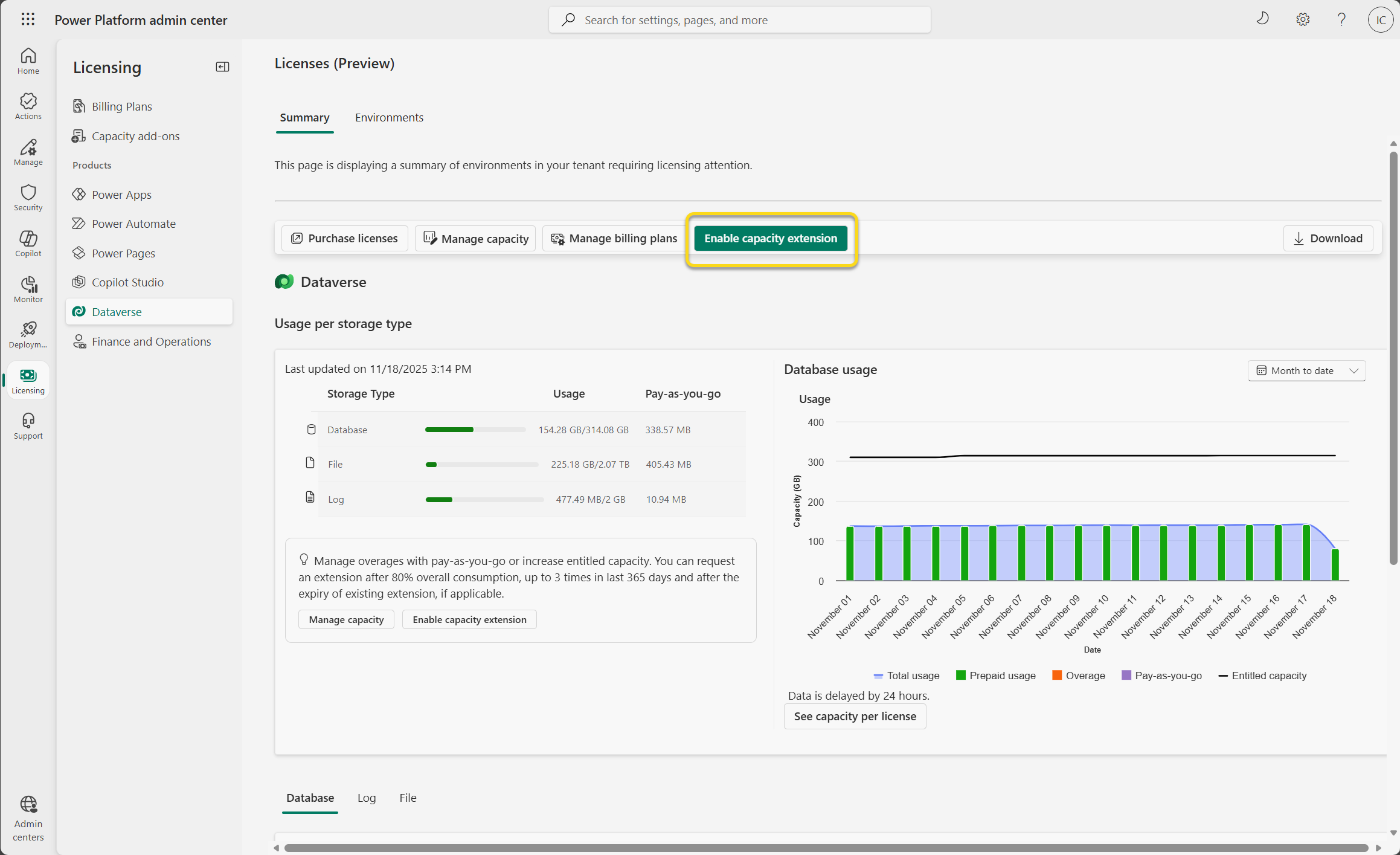
Review the details of the capacity overage. The 25% capacity is calculated based on capacity used and applies to each capacity type (database, file, and log). Select Enable capacity extension.
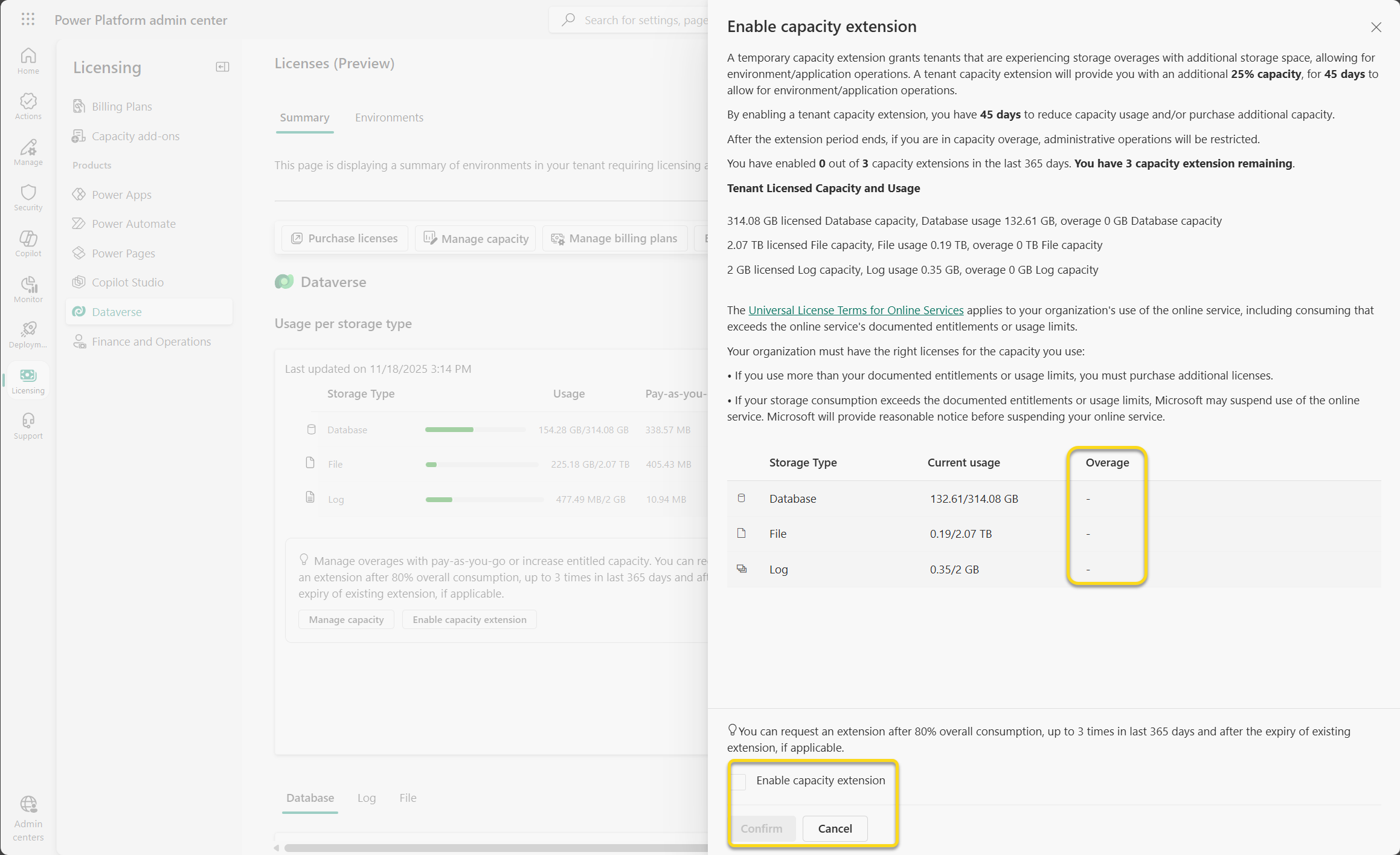
Select Confirm.
About extensions
- An extension is at the tenant level.
- An extension applies to both the legacy and new storage capacity models.
- You can request a capacity extension after consumption reaches over 80% overall.
- An extension allows you to create an environment, copy, restore, and convert if the extension covers the storage in overage.
- An extension is granted for 25% of the consumption and for a maximum of 45 days.
- Your organization can request an extension a maximum of three times in the last 365 days.
- After extension, copying and restoring environments is blocked again if the tenant doesn't have available storage capacity. To avoid this situation, admins should reduce storage usage and/or purchase more storage capacity.
Manage an environment-level capacity overage
An environment-level overage means an environment consumes more than its allocated capacity. The tenant might still have unused capacity.
Allocate capacity for an environment
Sign in to the Power Platform admin center as a system admin.
On the navigation pane, select Licensing.
Select Dataverse.
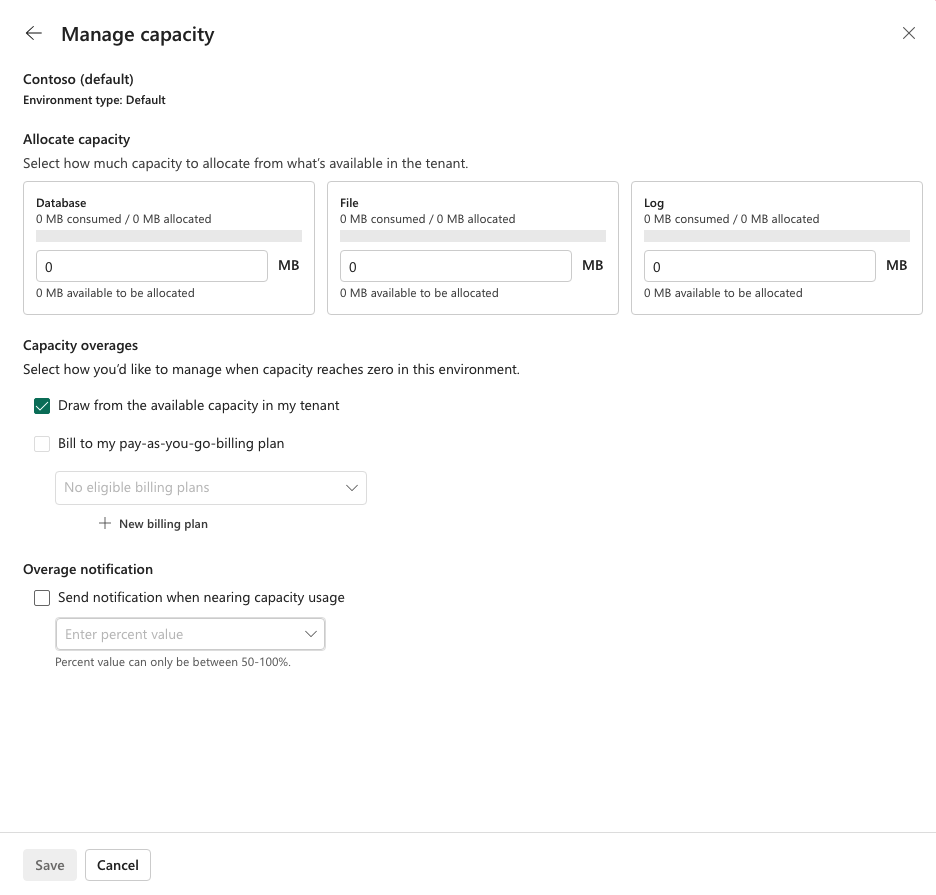
Select Manage capacity.
On the Manage capacity pane, select an environment to see capacity management options for that environment. You can draw from available capacity within the tenant or bill to your pay-as-you-go billing plan. You can also select the option to receive an overage notification when the environment nears reaching any amount between 50-100%.
Select Save.
Use pay-as-you-go
Pay-as-you-go links an environment to an Azure billing policy. It can be appropriate when storage demand is variable, urgent, or isolated to specific environments.
Review the applicable meter, pricing, Azure subscription ownership, procurement process, and budget before linking an environment. Complete the billing setup and verify that the environment is linked. Linking a sandbox environment to pay-as-you-go removes overage restrictions, even if the tenant remains in an overage state.
For details, see Set up a pay-as-you-go plan.
Restore user access to affected sandbox environments.
Note
This section provides guidance for the upcoming Dataverse Storage Validation experience and applies after the feature rollout. For rollout details, see the related Message center communication.
Exit administration mode
A tenant administrator can use the Power Platform admin center to exit administration mode for an affected sandbox environment. You perform this action one environment at a time.
Exiting administration mode can restore access temporarily, but it doesn't:
- Resolve the tenant storage overage.
- Add storage entitlement.
- Pause or reset the overage lifecycle timeline.
- Prevent the environment from progressing to the next stage if the tenant remains over capacity.
- Complete a tenant-level remediation to stop the overage lifecycle.
Re-enable a disabled sandbox
Before re-enabling a disabled sandbox, bring the tenant back within its effective storage entitlement by following one of these remediation options.
After capacity validation confirms that the tenant is within entitlement, an administrator can re-enable each affected environment in the Power Platform admin center. If the customer remains in an overage state, they can contact Microsoft Support for the sole purpose of directing data export options, if needed.
Frequently asked questions about storage (FAQ)
Why does my storage consumption decrease in the database and grow in the file storage?
Microsoft constantly optimizes Dataverse for ease of use, performance, and efficiency. Part of this ongoing effort is moving data to the best possible storage with the lowest cost for customers. File-type data such as "Annotation" and "Attachment" is moving from database to file storage. This change leads to decreased usage of database capacity and an increase in file capacity.
Why could my database table size decrease while my table and file data sizes remain the same?
As part of moving file-type data such as "Annotation" and "Attachment" out from database and into file storage, Microsoft periodically reclaims the freed database space. This change leads to decreased usage of database capacity, while the table and file data size computations remain unchanged.
Do indexes affect database storage usage?
Database storage includes both the database rows and index files that improve search performance. You create and optimize indexes for peak performance. The system frequently updates them by analyzing data use patterns. You don't need to take any action to optimize the indexes, as all Dataverse stores have tuning enabled by default. An increase or decrease in the number of indexes can cause a fluctuation in database storage. Dataverse is continually being tuned to increase efficiency and incorporate new technologies that improve user experience and optimize storage capacity. Common causes for an increase in index size include:
- An organization uses new functionality. This functionality can be custom, out of the box, or part of an update or solution installation.
- Data volume or complexity changes.
- A change in usage patterns that indicates new indexes need reevaluation.
If you configure Quick Find lookups for data that's frequently used, this configuration also creates more indexes in the database. Admin-configured Quick Find values can increase the size of the indexes based on:
- The number of columns chosen and the data type of those columns.
- The volume of rows for the tables and columns.
- The complexity of the database structure.
Because an admin creates custom Quick Find lookups in the org, these indexes can be user-controlled. Admins can reduce some of the storage used by these custom indexes by taking the following actions:
- Remove unneeded columns or tables.
- Eliminate multiline text columns from inclusion.
Note
The Dataverse search indexed data is the data that improves the search quality for the global search and generative AI experiences, as well as interpreting the content by using natural language. This index data accrues to the overall Dataverse search consumption.
I just bought the new capacity-based licenses. How do I provision an environment by using this model?
You can provision environments through the Power Platform admin center. Learn more in Create and manage environments in the Power Platform admin center.
I'm a new customer and I recently purchased the new offers. My usage of database, log, or file is showing red. What should I do?
Consider buying more capacity by using the Licensing Guide. Alternatively, you can free up storage.
I'm an existing customer, and my renewal is coming up. Will I be affected?
Customers who renew existing subscriptions can choose to continue to transact by using the existing offers for a certain period of time. Contact your Microsoft partner or Microsoft sales team for details.
I'm a Power Apps or Power Automate customer and have environments with and without database. Do they consume storage capacity?
Yes. All environments consume 1 GB, regardless of whether they have an associated database.
Do I get notified through email when my organization is over capacity?
Yes, tenant admins receive email notifications on a weekly basis if their organization is at or over capacity. Additionally, tenant admins get notified when their organization reaches 15 percent of available capacity, 5 percent of available capacity or exceeds entitled capacity.
Is there a database size restriction for backing-up or restoring an organization through the user interface or API?
Refer here.
Can an environment operation be blocked when the tenant report shows no deficit?
Yes. Tenant notifications apply eligible cross capacity-type borrowing. An environment operation such as environment creatinn, copy, restore, recover, or converting environments can require available capacity in the native database, file, or log storage type.
Does reallocating capacity between environments resolve a tenant overage?
No. Reallocation only changes how existing tenant capacity is distributed. Resolve a tenant overage by reducing consumption, adding capacity, using an eligible billing option, or requesting temporary tenant capacity.
Why am I no longer getting storage notifications?
Tenant admins receive capacity email notifications weekly based on three different thresholds (>85%, 95% or 100%). If you're no longer getting storage notifications, check your admin role.
I'm an existing customer. Should I expect my file and log usage to change?
Log and files data usage isn't expected to be exactly the same size as when the same data is stored by using database, due to different storage and indexing technologies. The current set of out-of-the-box tables stored in file and log storage might change in the future.
The capacity report shows the entitlement breakdown per license, but I have more licenses in my tenant and not all of them are listed in the breakdown. Why?
Not all licenses give per-user entitlement. For example, the Team Member license doesn't give any per-user database, file, or log entitlement. So in this case, the license isn't listed in the breakdown.
Which environment types does the capacity report count for consumption?
The capacity report counts default, production, and sandbox environments for consumption. It doesn't count trial, preview, support, and developer environments.
What are tables ending in – analytics in my capacity report?
Tables ending in – analytics are tables used by one or more Insights applications, such as Sales Insights, Customer Service Hub, or Field Service and resource scheduling and optimization analytics dashboard, to generate predictive insights or analytics dashboards. The data syncs from Dataverse tables. For documentation about the installed Insights applications and the tables they use to create insights and dashboards, see the More information section.
Why can't I see the Summary tab in my capacity report?
In April 2023, Microsoft changed the roles that can see the Summary tab in the capacity report. Now, only users with the tenant admin, Power Platform admin, or Dynamics 365 admin roles can see the Summary tab. Users with other roles, such as environment admins, no longer see this tab and are redirected to the Dataverse tab when accessing the report. If you need access to the Summary tab, ask your admin to assign one of the required roles.
Who can allocate capacity?
Users with global admin, Power Platform admin, and Dynamics 365 admin roles can allocate Dataverse capacity.
Does allocating capacity affect the total available capacity in my tenant?
Allocating capacity doesn't affect the overall capacity available at the tenant level. Admins can choose to pre-allocate capacity from the tenant pool to an environment. When they pre-allocate capacity, it reduces the tenant level's total available capacity for use by other environments.
What happens if capacity consumption goes beyond the allocated capacity?
Currently, only soft enforcement through email notification is turned on. Power Platform admins and environment admins start receiving notifications when capacity usage exceeds 85 percent of the allocated capacity. As part of the upcoming Dataverse storage validation, affected sandbox environments will experience restrictions. Refer storage overage lifecycle for details about the impact on sandbox environments. For rollout information, see the Message center communication.
What types of Dataverse capacity can I allocate?
You can allocate database, file, and log capacity.
Do I need to allocate capacity to every environment like other supported currencies?
No, admins can select specific environments to allocate capacity.
Can I receive a capacity notification when my deficit is 0 GB?
Yes. Informational and warning notifications appear before capacity is exhausted. For example, a tenant at 90% effective consumption has no deficit but has less than 15% capacity available.
Why can an operation be blocked when the tenant report shows no deficit?
Notifications evaluate the tenant's effective storage position after eligible borrowing. An environment operation performs a separate validation and can require available capacity in a native storage type.
Should I purchase capacity or use pay-as-you-go?
Capacity add-ons can suit predictable, sustained tenant demand. Pay-as-you-go can suit variable or environment-specific usage. Consider pricing, procurement, Azure billing ownership, the number of environments, and expected growth.
Does a capacity extension permanently resolve an overage?
No. An extension is temporary. Continue cleanup or procurement so the tenant remains within entitlement after the extension expires.
Are production environments disabled as part of the upcoming Dataverse storage validation?
No. Production environments don't enter the administration mode or disabled stages. Production work can still be affected when it depends on a blocked create, copy, restore, or recovery operation.
Frequently asked questions about Dataverse search (FAQ)
What is the DataverseSearch table and how can I reduce it?
The DataverseSearch table (previously known as RelevanceSearch) stores indexed data for the global search and generative AI experiences. It includes data from all searchable, retrievable, and filterable fields of the tables you indexed for your environment and Copilot semantic indexes.
For more information, see Managing Dataverse search.
Can I manage Dataverse search?
An admin can manage Dataverse search through the three states associated with this setting: On, Default, and Off. Learn more in Configure Dataverse search for your environment.
Note
- Dataverse search is set to On for any new production, sandbox, or default environment type. It's set to Default for any other type of new environment.
- If you set Dataverse search to On or Default, no other setting is turned on.
What actions can makers take?
Depending on the experience that uses Dataverse search and its usage, the consumption size might increase. Learn more in What is Dataverse search?
Important
Don't turn off Dataverse search. Turning off Dataverse search directly impacts all dependent generative AI experiences in your different applications and all users using them.
Turning off Dataverse search
When you turn off Dataverse search, the system deletes its indexed Dataverse data. All experiences that depend on this data, including search and generative AI conversational capabilities, become limited or unusable for all users.
Environment admins have 12 hours to turn the feature back on without losing indexed data.
During 12 hours:
- You can turn Dataverse search back on without losing indexed data.
After 12 hours:
- The system permanently deletes all indexed Dataverse data.
- Turning Dataverse search back on retriggers the indexing of Dataverse data.
Important
Turning off Dataverse search deprovisions and removes the index within a period of 12 hours. If you turn on Dataverse search after it's been off for 12 hours, it provisions a fresh index that needs to go through a full sync. Syncing might take up to an hour or more for average size organizations, and a couple of days for large organizations. Be sure to consider these implications when you turn off Dataverse search temporarily.
Index removal (or provisioning) can take multiple days to complete, depending on the amount of Dataverse search consumption. For example, an organization with 10 GB of indexed data might take one day to clean up all indexes, while an organization with 500 GB might take multiple days to see it reflected in Dataverse search reporting. You should wait a few days to a week before submitting a support ticket, to ensure a complete removal of Dataverse search indexed data.
What happens if I turn off Dataverse search?
All experiences that use Dataverse search become limited. For more information, see Frequently asked questions about Dataverse search.
Turning on Dataverse search again
Selecting On: When you set Dataverse search to On after setting it to Off, the system immediately retriggers all indexes across all enabled experiences for them to work accordingly, and Dataverse search costs resume.
Selecting Default: When you set Dataverse search to Default after setting it to Off, the system only regenerates the indexes when triggered. Examples include when a Copilot Studio agent uses a file—such as a local file, OneDrive file, SharePoint file upload, or Dataverse table—or if a prompt is submitted to an agent or Copilot. When the indexes are triggered, Dataverse search costs resume.
Note
You can't turn Dataverse search On or Off for different applications in the same environment. The status of the setting applies to all applications in the environment that use Dataverse search.