Note
Access to this page requires authorization. You can try signing in or changing directories.
Access to this page requires authorization. You can try changing directories.
Microsoft Power Platform Build Tools add Power Platform tasks to Azure Pipelines. Use them to automate how a Power Pages site moves from development to test and production.
This article covers the Power Pages-specific tasks and patterns. For every task and parameter, see Microsoft Power Platform Build Tools tasks.
Prerequisites
- An Azure DevOps project with the Microsoft Power Platform Build Tools extension installed.
- A service connection for each environment. Use a service principal. For steps, see Configure service connections using a service principal.
- The site content in a Git repository. For details, see Set up source control and branching for Power Pages.
Add the Power Platform Tool Installer task as the first task in each pipeline that uses Build Tools.
Choose tasks for your site type
| Site type | Build Tools tasks |
|---|---|
| Standard data model site | Power Platform Download PAPortal and Power Platform Upload PAPortal |
| Enhanced data model site | Solution tasks, such as Power Platform Export Solution and Power Platform Import Solution. You can also use the PAPortal tasks with the site data model set to 2. |
| SPA code site | Solution tasks, such as Power Platform Export Solution and Power Platform Import Solution. |
Build: download the site and publish an artifact
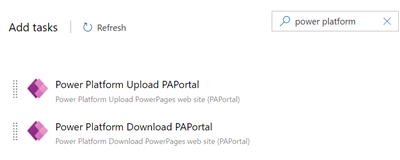
In the build pipeline, use Power Platform Download PAPortal to download the site content from the development environment. Then publish the downloaded folder as a pipeline artifact so that each release stage deploys the same content.
If you download the site with Power Platform CLI and commit it to your repository instead, the build pipeline can publish the committed files as the artifact.
The following YAML uses the task and inputs documented in Power Platform Download PAPortal:
steps:
- task: microsoft-IsvExpTools.PowerPlatform-BuildTools.tool-installer.PowerPlatformToolInstaller@2
  displayName: 'Power Platform Tool Installer '

- task: microsoft-IsvExpTools.PowerPlatform-BuildTools.download-paportal.PowerPlatformDownloadPaportal@2
  displayName: 'Power Platform Download PAPortal '
  inputs:
    authenticationType: PowerPlatformSPN
    PowerPlatformSPN: 'Contoso development'
    DownloadPath: '$(Build.ArtifactStagingDirectory)'
    WebsiteId: '<website-id>'
    Overwrite: true
    ModelVersion: 1
Set ModelVersion to 1 for standard data model sites or 2 for enhanced data model sites. The default value is 1.
Release: upload the site to each stage
In the release pipeline, add a stage for each target environment, such as test and production. In each stage, use Power Platform Upload PAPortal with the service connection for that environment:
steps:
- task: microsoft-IsvExpTools.PowerPlatform-BuildTools.upload-paportal.PowerPlatformUploadPaportal@2
  displayName: 'Power Platform Upload PAPortal '
  inputs:
    authenticationType: PowerPlatformSPN
    PowerPlatformSPN: 'Contoso test'
    UploadPath: '$(Pipeline.Workspace)/<artifact-name>/<site-folder>'
    ModelVersion: 1
Because the artifact comes from a different environment than the target, the upload is a full upload rather than a delta upload. For details, see Understand delta and full uploads.
Apply environment-specific values
Use a deployment profile for each target stage to apply environment-specific values during upload. The Upload PAPortal parameters don't list a deployment profile input. If you need deployment profiles in Azure Pipelines, run pac pages upload --deploymentProfile <profile-name> in a script step.
For more about deployment profiles, see Manage environment-specific values in Power Pages ALM.
Add approvals
To require a review before a stage deploys, target an Azure DevOps environment from the stage and add approvals and checks to that environment. For example, require approval before the production stage runs.
Deploy enhanced data model and SPA code sites with solutions
For enhanced data model and SPA code sites, promote the site as a solution:
- Add the site and its dependencies to a solution. For details, see Use solutions with Power Pages.
- In the build pipeline, use Power Platform Export Solution to export the solution from the primary development environment as managed.
- In each release stage, use Power Platform Import Solution to import the same managed solution.
- Provide environment variable values and connection references for each target in a deployment settings file.
- After the first deployment to a target environment, reactivate the site.
You can also run Power Platform Checker on the exported solution as a quality gate. For SPA code sites, see CI/CD for single-page applications with developer tools.