Note
Access to this page requires authorization. You can try signing in or changing directories.
Access to this page requires authorization. You can try changing directories.
This article explains how to configure data quality scans for Azure Synapse Analytics assets in Microsoft Purview Unified Catalog. You'll learn how to set up Data Map scans, create connections, and run data profiling and quality scans for both Synapse dedicated data warehouse and Synapse serverless SQL pools.
Microsoft Azure Synapse Analytics is an enterprise analytics service that accelerates time to insight across data warehouses and big data systems. For more details, see the Azure Synapse Analytics documentation.
The following example shows a Synapse workspace with a Dedicated Synapse Data Warehouse (DWH) table called EMPLOYEE and a Serverless Database (SQL_ON_DEMAND) with a SynapseSalesDelta table.
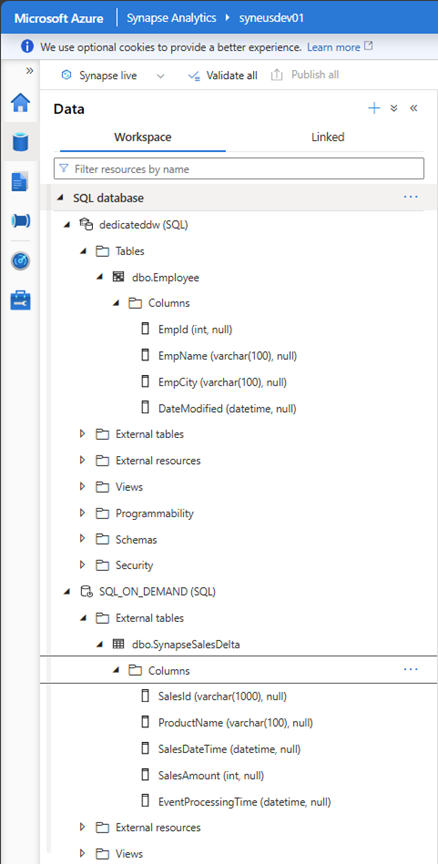
After you scan Azure Synapse assets, the scanned assets appear in Microsoft Purview. The following example shows an Employee table on a Synapse Analytics Dedicated instance.
Set up data quality for Azure Synapse Analytics dedicated SQL pool
To configure data quality for a Synapse dedicated SQL pool, set up a Data Map scan, create a connection, and then run profiling and data quality scans.
Set up Data Map scan for Synapse dedicated SQL
To scan Azure Synapse Analytics dedicated SQL pool, see Register and scan a Synapse workspace. To grant the necessary managed identity permissions on the dedicated SQL instance, see Use a managed identity for dedicated SQL databases.
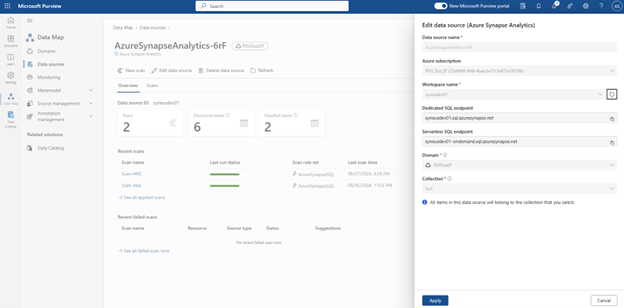
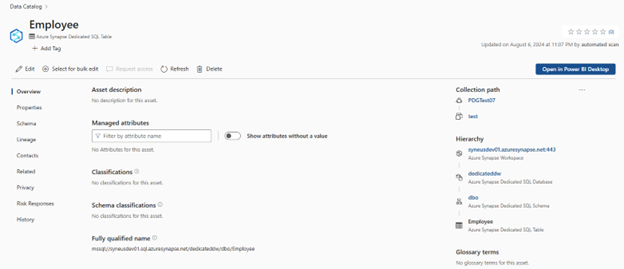
After the Data Map scan completes, the Synapse dedicated SQL assets appear in Microsoft Purview Unified Catalog. The following example shows an Employee table on a Synapse Analytics dedicated instance:
Set up connection to your Synapse dedicated data warehouse
After the Data Map scan completes and the dedicated SQL asset appears in Unified Catalog, the asset is ready for cataloging and governance.
Important
- Data Quality stewards need read-only access to the Synapse dedicated data warehouse to set up the data quality connection.
- If your Synapse data source is behind a private endpoint, you must first enable managed virtual networks. See Set up managed virtual networks. In managed virtual network setups, you can't test the connection.
Associate the scanned asset to the data product in a governance domain. At the Data Quality tab, add a new Azure SQL Database connection and enter the database name manually.
In Unified Catalog, go to Health management > Data quality and select a governance domain.
On the governance domain's details page, select Manage, then select Connections.
On the Connections page, select New and configure connection with the following information, as seen in the example below:
- Add connection name and description.
- Select source type Azure Synapse Analytics.
- Select Azure subscription.
- Select Workspace name.
- Select Dedicated SQL endpoint.
- Select serverless SQL endpoint.
- Select Endpoint type.
- Select Database.
- Add MSI as Credential.
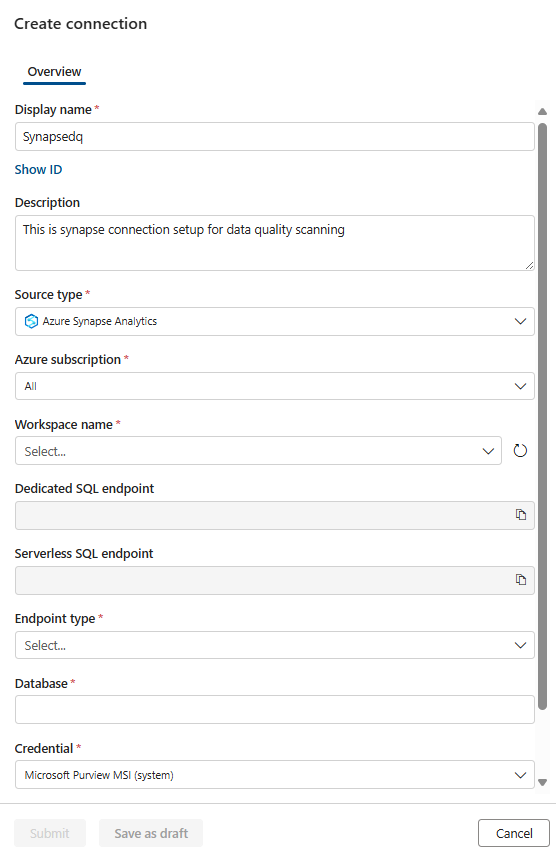
Test the connection. After configuring the data source connection and successfully testing it, you can proceed to configure and run data profiling and data quality scans.
Profiling and data quality scanning for data in Synapse dedicated data warehouse
After you set up the connection, you can profile your data, create and apply rules, and run a data quality scan for your data in Synapse dedicated data warehouse.
Important
Before you run profiling or data quality scans, verify that your dedicated SQL pool configuration and concurrency limits can support these jobs. Data quality assessment jobs open connections on the dedicated SQL pool and might fail if the instance is underprovisioned or exceeds concurrency limits. Concurrency limits might lead to job termination. Higher DW limits (such as DWU 1000) provide the capacity to run the queries. For more information, see Memory and concurrency limits.
Use the following articles for step-by-step guidance:
Set up data quality for Azure Synapse Analytics serverless SQL pool
To configure data quality for a Synapse serverless SQL pool, set up a Data Map scan, create a connection, and then run profiling and data quality scans.
Set up Data Map scan for Synapse serverless SQL
To scan Azure Synapse Analytics serverless SQL pool, see Register and scan a Synapse workspace. To grant the necessary managed identity permissions, see Use a managed identity for dedicated SQL databases. After the Data Map scan completes, the serverless assets appear in Unified Catalog.
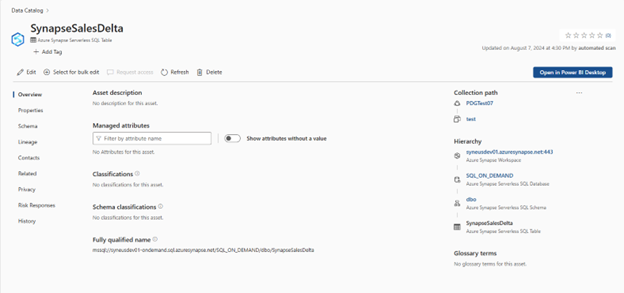
Set up connection to your Synapse serverless SQL pool
After the Data Map scan completes and the serverless SQL asset appears in Unified Catalog, the asset is ready for cataloging and governance.
Important
- Data Quality stewards need read-only access to the Synapse dedicated data warehouse to set up the data quality connection.
- If your Synapse data source is behind a private endpoint, you must first enable managed virtual networks. See Set up managed virtual networks.
- In Synapse serverless setup, the external table points to Delta formatted data stored in ADLS Gen2.
- The Synapse connector only detects and supports sql.azuresynapse.net. If the Fully Qualified Name (FQN) generated by your Data Map scan contains database.windows.net, the Synapse connection for data quality scan will fail.
Associate the scanned asset to the data product in a governance domain. In Data Quality, add a new SQL Database connection and enter the database name manually.
In Unified Catalog, go to Health management > Data quality and select a governance domain.
On the governance domain's details page, select Manage, then select Connections.
On the Connections page, select New and configure connection with the following information, as seen in the example below
- Add connection name and description.
- Select source type Azure Synapse Analytics.
- Select Azure subscription.
- Select Workspace name.
- Select Dedicated SQL endpoint.
- Select serverless SQL endpoint.
- Select Endpoint type.
- Select Database.
- Add MSI as Credential.
Test the connection. After configuring the data source connection and successfully testing it, you can proceed to configure and run data profiling and data quality scans.
Profiling and data quality scanning for data in Synapse serverless
After you set up the connection, you can profile your data, create and apply rules, and run a data quality scan for your data in Synapse serverless SQL pool.
Important
Data quality assessments and profiling run on Spark in the background, where each Spark node opens a connection. For Azure Synapse serverless SQL, no concurrency limits apply. Performance depends on the Delta Parquet optimizations on your ADLS Gen2 instance. The engine works with external lakehouse sources such as Delta format tables.
Use the following articles for step-by-step guidance:
Performance and connection reference for Synapse serverless
Use the following references for serverless performance and connection details: