Note
Access to this page requires authorization. You can try signing in or changing directories.
Access to this page requires authorization. You can try changing directories.
Microsoft Fabric uses Microsoft Entra ID Conditional Access as part of its identity-based, Zero Trust security model. Every request to Fabric is authenticated with Microsoft Entra ID, and Conditional Access policies can determine access based on signals such as user identity, device state, and location. Common policies include:
- Require multifactor authentication (MFA).
- Allow only Intune-enrolled devices to access specific services.
- Restrict user locations and IP ranges.
Conditional Access is one of several security controls available for protecting access to Fabric. It complements network‑based protections such as private links and supports a layered security approach aligned with Zero Trust principles. For more information on the full capabilities of Conditional Access, see Microsoft Entra Conditional Access documentation.
Best practices for Fabric Conditional Access policies
To ensure a smooth and secure experience across Microsoft Fabric and its connected services, set up one common Conditional Access policy. This approach helps:
- Reduce unexpected sign-in prompts caused by different policies on downstream services.
- Maintain a consistent security setup across all tools.
- Improve the overall user experience.
Include the following target resources in the policy:
- Power BI Service
- Azure Data Explorer
- Azure SQL Database
- Azure Storage
- Azure Cosmos DB
If your policy is too restrictive - for example, if it blocks all apps except Power BI - some features, such as dataflows, might not work.
Note
- If you already have a Conditional Access policy configured for Power BI, include the resources listed here in your existing Power BI policy. Otherwise, Conditional Access might not operate as intended in Fabric.
- Fabric doesn't support the continuous access evaluation (CAE) session control in Conditional Access.
Set up a Conditional Access policy for Fabric
The following steps show how to get started with configuring a Conditional Access policy for Fabric, including how to configure the recommended Target resources assignments.
Sign in to the Microsoft Entra admin center as at least a Conditional Access Administrator.
Browse to Entra ID > Conditional Access > Policies.
Select New policy.
Enter a name for your policy. Create a meaningful standard for the names of your policies.
Configure the controls under the Assignments and Access sections of the policy based on your scenario. For common policy design patterns, see the Conditional Access How-to guides.
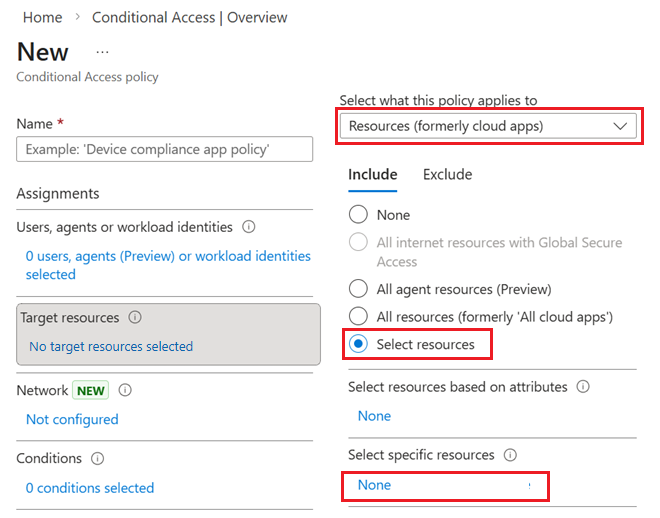
Under Target resources, select the link and configure the following options:
Under Select what this policy applies to, select Resources (formerly cloud apps).
On the Include tab, choose Select resources.
Select the link under Select specific resources.
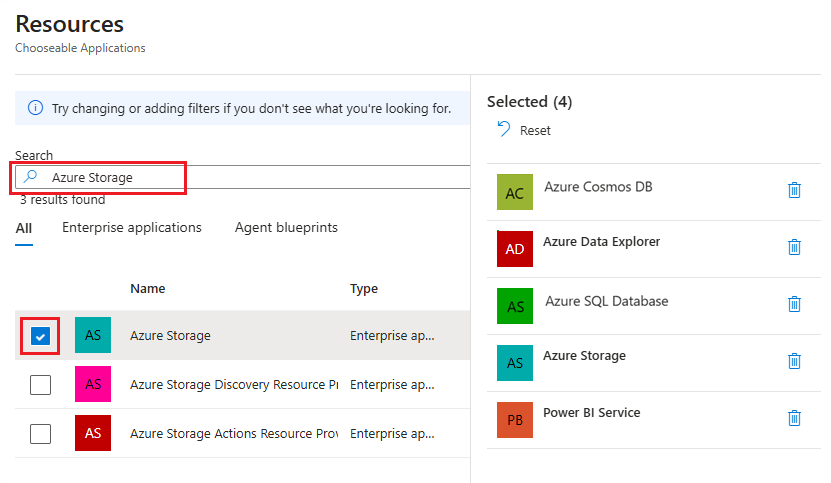
In the Resources side pane that appears, find and select Power BI Service, Azure Data Explorer, Azure SQL Database, Azure Storage, and Azure Cosmos DB. After you select all five items, close the side pane by choosing Select.
When all assignment and access controls are configured for the policy, select Create or Save.
Related content
- Microsoft Entra Conditional Access documentation - Learn more about Conditional Access features, policy design, and best practices.
- Azure security baseline for Microsoft Fabric – Review recommendations from Microsoft cloud security benchmark standards.
- Protect inbound traffic to Microsoft Fabric – Understand how Conditional Access works alongside private links to control inbound access to Fabric.