Note
Access to this page requires authorization. You can try signing in or changing directories.
Access to this page requires authorization. You can try changing directories.
APPLIES TO:  Meetings Events
Note
In Teams events, this feature is available only in events with up to 1,000 attendees.
To ensure a seamless meeting experience, it's essential to manage how anonymous and unverified external participants join meetings and events within your organization. Anonymous participants include users who join a Teams meeting without signing in, through the Teams web app, or through external meeting platforms.
If anonymous and unverified external users are allowed to bypass the lobby, web bots might join and disrupt meetings and events. As an admin, you can use this per-organizer policy to enforce human verification checks for these users to join meetings in your organization. Implementing a CAPTCHA challenge helps prevent unwanted web-based bots from joining, recording, and causing disturbances in meetings and events. Users can choose between a text CAPTCHA with Latin characters and an audio CAPTCHA in English.
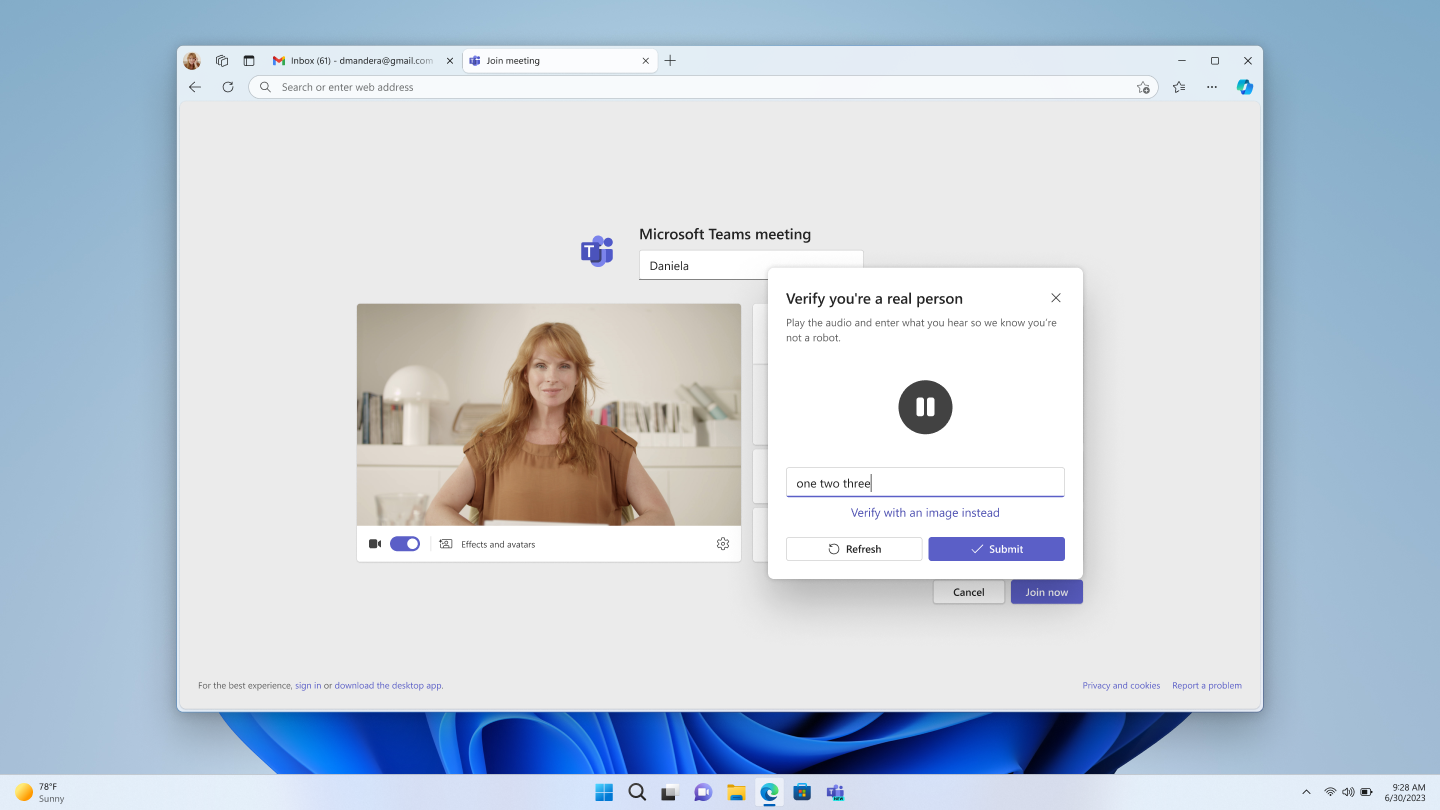
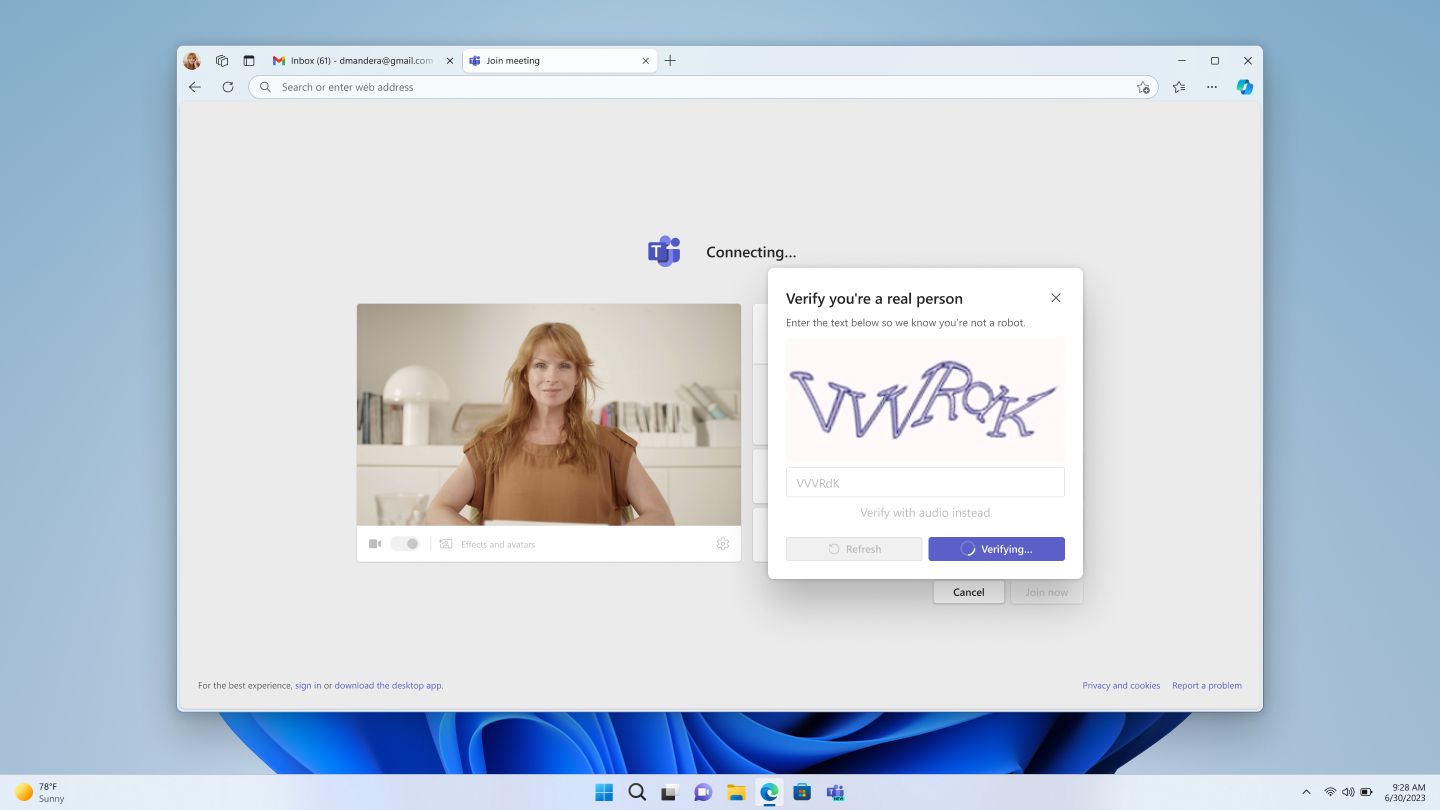
Manage verification checks for meetings and events in your organization
Use the Teams admin center or PowerShell to manage verification checks for meetings and events in your organization.
| Teams admin center policy value | PowerShell setting value | Behavior |
|---|---|---|
| Not required | NotRequired |
This is the default value. When organizers with this policy create meetings and events, no users in that meeting complete a verification check before joining the meeting. |
| Anonymous users and people from untrusted organizations | AnonymousUsersAndUntrustedOrganizations |
When organizers with this policy create meetings and events, anonymous users and people from untrusted organizations must complete a verification check before joining the meeting. |
Manage verification checks in the Teams admin center
- In the left navigation of the Teams admin center, go to Meetings > Meeting policies.
- Select an existing policy or create a new one.
- In the Meeting join & lobby section, select one of the following options for the Require a verification check from setting:
- Not Required (default)
- Anonymous users and people from untrusted organizations
- Select Save.
Manage verification checks by using PowerShell
To manage whether a verification check is required for meetings and events that organizers with this policy create, use the -CaptchaVerificationForMeetingJoin parameter within the CsTeamsMeetingPolicy PowerShell cmdlet.
To require anonymous users and users from untrusted organizations to complete a verification check before joining meetings and events created by organizers with this policy, run the following command:
Set-CsTeamsMeetingPolicy -Identity <policy name> -CaptchaVerificationForMeetingJoin AnonymousUsersAndUntrustedOrganizations
To prevent users from completing a verification check before joining meetings and events created by organizers with this policy, run the following command:
Set-CsTeamsMeetingPolicy -Identity <policy name> -CaptchaVerificationForMeetingJoin NotRequired
Client and platform support
Supported
Verification checks are supported on the following clients and platforms:
Clients: Teams, Outlook
Platforms: Desktop, Web, Virtualized Desktop Infrastructure (VDI), and mobile applications (iOS and Android)
Not supported
When participants from the following clients and platforms attend meetings that require a verification check, they join without completing the CAPTCHA challenge:
Clients: Cloud Video Interop (CVI), Azure Communication Services (ACS) platform, Microsoft Teams Rooms on Windows, Microsoft Teams Rooms on Android
Platforms: Third-party devices joining Teams meetings via Direct Guest Join