Note
Access to this page requires authorization. You can try signing in or changing directories.
Access to this page requires authorization. You can try changing directories.
APPLIES TO:  Meetings
  Events
Important
Licensing update for Teams Premium and Teams Enterprise
As of April 1, 2026, some features that were previously only available with Teams Premium are now included with Teams Enterprise. Teams Premium continues to offer advanced meeting protection, advanced communication (like the Queues app), branding and personalization, and intelligence capabilities. Learn more.
Customers who purchased Teams Premium licenses before April 1, 2026 will continue to have access to all the previously included Teams Premium features and product experiences included with these licenses until they expire.
To manage Teams Premium features, your tenant must have at least one active Teams Premium license.
Overview
Teams events support a range of structured communication experiences, from interactive sessions to broadcast-style events for large audiences.
This article provides admins with an overview of Teams events, including planning considerations, policy controls, and guidance to help prepare for events in your organization.
Understanding Teams events
Licensing and capacity for Teams events
With Teams Enterprise, organizers can:
- Host events for up to 1,000 attendees with the following engagement capabilities: attendee microphone and camera, interactive chat, reactions, raise hand, polls, and Q&A.
- Host events for up to 3,000 attendees with the following engagement capabilities: meeting chat for large events, reactions, raise hand, polls, and Q&A.
- Host events for up to 10,000 attendees in a view-only experience, with Q&A.
With an Attendee Capacity Pack add-on license, organizers can scale events up to 100,000 attendees.
The availability of some features depends on event capacity. For more information, see Event features at scale.
Note
We recommend using Teams Events Services for events with more than 20,000 attendees.
The Events app
The Events app (formerly the Meet app) in Teams provides a centralized way for users in your organization to create, discover, and manage digital and hybrid events. The app is preinstalled for all Teams users.
Organizers use a unified creation flow to configure event settings—such as registration and attendee interaction—based on event capacity and scenario, rather than selecting a fixed event type. This approach replaces preset configurations tied to specific event types and provides a consistent, flexible experience that enables organizers to tailor events to their audience and goals.
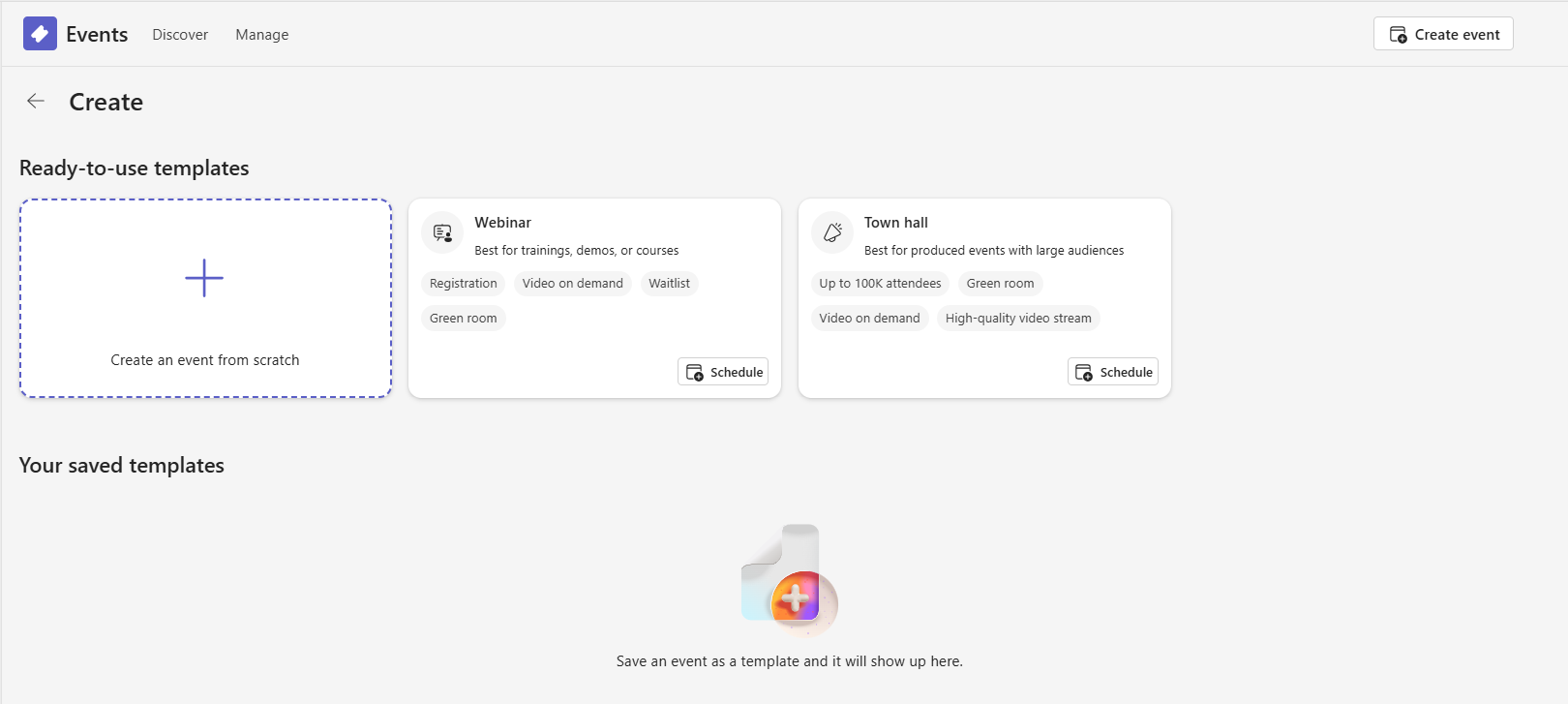
Existing Teams webinar and town hall policies continue to apply, so admins can control who can create events and which capabilities organizers can use without adopting a new policy model. When allowed by policy, organizers can create events from scratch and configure options for their scenario or use prebuilt webinar or town hall templates. Interactive events up to 1,000 attendees use webinar policy settings, while events optimized for large audiences use town hall policy settings.
Optimize for large audience in Teams events
The event scheduling form and templates in the Events app include the Optimize for large audience option. This option optimizes an event for broadcast-style delivery to support large audiences.
When Optimize for large audience is on, the event respects all town hall settings in Teams events policy (CsTeamsEventsPolicy).
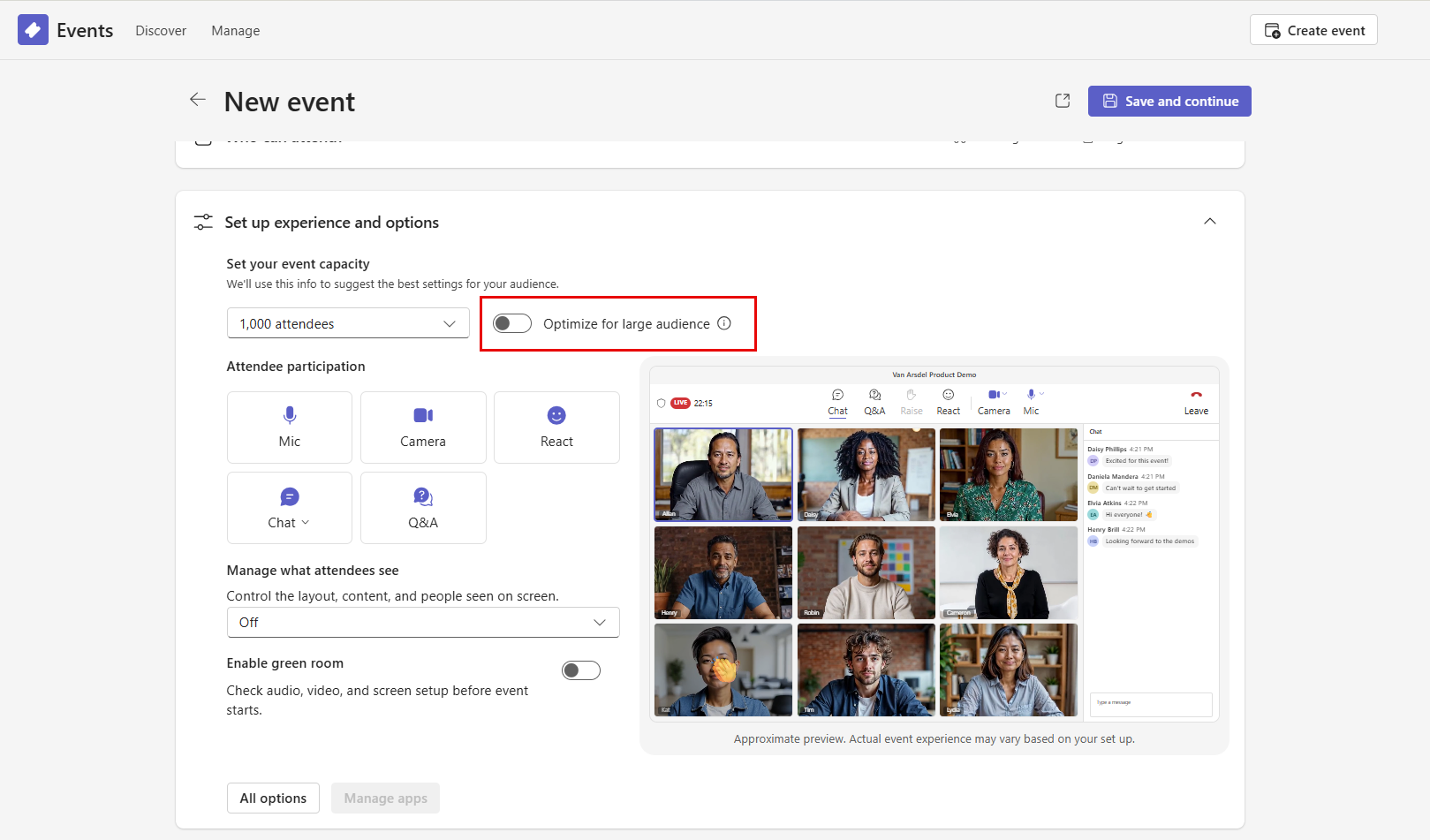
Organizers have the following experience when they create events:
- For events with up to 1,000 attendees, Optimize for large audience is off, and organizers can choose to turn it on.
- For events with more than 1,000 attendees, Optimize for large audience is on and can't be turned off.
For more information about how policy settings work with Optimize for large audience, see Manage who can schedule and attend events in Microsoft Teams.
Event experience based on Optimize for large audience
When Optimize for large audience is on, the event uses town hall policy settings. Some attendee features are limited or adjusted and settings are applied to support large-scale delivery. For example, attendees can't turn on their microphones and cameras on demand, and attendees view the event at a slight delay and can pause and rewind the live video. Attendees also use an enterprise content delivery network (eCDN), if applicable.
When Optimize for large audience is off, the event uses webinar policy settings and supports a more interactive experience. Attendees can use features such as microphone, camera, and interactive chat.
Keep in mind that the town hall template uses town hall policy settings unless Optimize for large audience is turned off, and the webinar template uses webinar policy settings, unless Optimize for large audience is turned on.
For a list of features available in events with up to 1,000 attendees and in events optimized for large audiences, see Meetings and events feature comparison.
Note
Customers in China currently can't create Teams events optimized for large audiences, such as town halls. They can join events optimized for large audiences hosted in a tenant outside of China if they're added as a guest account (the recommended approach for authenticated participation) or anonymously if the organizer enables anonymous access.
Understand your policies
Teams events are managed through a combination of Teams meeting policies (CsTeamsMeetingPolicy), Teams events policies (CsTeamsEventsPolicy), and organizer and attendee settings. Meeting policies control core capabilities that apply across meetings and events, while events policies control event-specific capabilities. Organizer settings further define the experience for events within the boundaries set by admin policies.
For a high-level overview of policy management for Teams meetings and events, see Manage meeting and event policies in Microsoft Teams.
For a list of admin policies and organizer settings for events, see Admin and organizer policy and setting controls later in this article.
Plan and configure
Decide who can attend events that organizers create
You control whether organizers can schedule public events that everyone can attend or in-org events that only people in your organization can attend.
Some key differences exist between in-org events and public events. Consider the following information when you manage who can attend events.
| Capability | In-org event | Public event |
|---|---|---|
| Includes guests | |
|
| Members of the organization that created the event can join | |
|
| Anyone with a registration link can join | |
|
| Anonymous users can register | |
|
| Attendees type their name on the registration form when registering | |
|
| Attendees must reenter their information after selecting the join link | |
|
| Attendees have unique join links | |
|
| Organizers can decide whether attendees with a registration link can bypass the lobby | |
|
| Organizers can decide whether anyone who can't bypass the lobby is automatically rejected | |
|
| Attendees can dial in to join | |
|
| Includes external presenters | |
|
Get your network ready for events optimized for large audiences
Follow these steps to ensure your network is set up to support events optimized for large audiences.
- Ensure your Teams environment is set up to connect to our services
Ensure that your network connectivity to Microsoft 365 follows the network connectivity principles outlined in Microsoft 365 network connectivity principles. The network connectivity principles are standard principles to follow for all Microsoft 365 services, and not just specific to Teams events. - Ensure your devices are optimized to connect to our services
As part of the network connectivity principles, ensure that the Microsoft 365 endpoints are reachable as defined in Microsoft 365 endpoints. - Understand special considerations for events in VPN environments
If your organization uses VPN connectivity for remote participants, review the guidance in Special considerations for Teams events in VPN environments. This article details how to optimize the attendee traffic for direct connectivity (also known as split tunneling) to the service. - Plan for bandwidth considerations for events
Follow the bandwidth requirements documented in Prepare your organization's network for Teams for your organizers, co-organizers, and presenters. Without an enterprise content delivery Network (eCDN), bandwidth requirements can be approximated at 2 Mbps per viewer at each location. (Update to 3 Mbps for 1080p). For physical locations with a high number of attendees or dense network environments, we recommend implementing an eCDN solution to optimize bandwidth usage and ensure a smooth streaming experience. - Optimize your internal network via eCDN
An eCDN takes the video content from the internet and distributes the content throughout your enterprise without affecting network performance.
By default, Microsoft eCDN is enabled for organizers of events optimized for large audiences. You can also select from one of the following certified eCDN partner solutions to optimize your network for events held within your organization:- Hive
- Kollective
- Ramp To turn off Microsoft eCDN for organizers and to learn more about our partner solutions, see Enterprise content delivery networks for streaming Microsoft Teams events. For more information about Microsoft eCDN, see Introduction to Microsoft eCDN.
- Perform a silent test
Before large-scale events, we recommend performing a silent test to evaluate network performance and identify potential bottlenecks. If you’re using Microsoft eCDN, see Perform a silent test for steps on validating network readiness. If you're using an eCDN partner solution, work directly with your provider to schedule and execute a silent test in advance of your event. - Plan for a dry run
Always schedule a dry run ahead of your event to ensure readiness. This includes conducting an eCDN silent test (if applicable) to validate network performance and proactively surface any gaps before going live.
Teams for Virtualized Desktop Infrastructure (VDI)
Users in your organization might use VDI. To learn which event capabilities are supported in VDI environments, see:
Operate and monitor
Monitor events in your organizations
Real-time monitoring
You can use real-time data telemetry to monitor events and troubleshoot technical issues.
Real-time monitoring of the presenter and organizer experience
You can view scheduled events and see audio, video, content sharing, and network-related issues. As an admin, you can use this telemetry to investigate any issues presenters and organizers experience during the event and troubleshoot in real time. To learn more, see Use real-time telemetry to troubleshoot poor meeting quality.
For more information, see Monitor and troubleshoot Teams meetings and calls from the Teams admin center.
Real-time monitoring of the attendee experience
You can use the Microsoft eCDN analytics dashboard for performance analysis and network troubleshooting of the attendee experience during events.
For more information about real-time monitoring of attendees, see Microsoft eCDN real time analytics.
Call Quality Dashboard
Use the Call Quality Dashboard (CQD) to monitor event quality at the org-wide level and optimize your network to drive performance quality.
For more information about using CQD for events in your org, see What is Call Quality Dashboard (CQD). You can use the Microsoft Call Quality connector to view specialized 'Teams Events Overview' and 'Event Health Details' reports in Power BI Desktop.
To get started, download the latest CQD Quality of Experience (QER) report template.
For more information about the dimensions and measurements visible through CQD for events, search for the word "events" in Dimensions and measurements available in Call Quality Dashboard (CQD).
Teams event insights for organizers
During an event, organizers and co-organizers can see real-time event analytics like viewer count, attendee country or region, and more. The analytics consist of several data widgets, including charts and graphs, breakdowns tables, and a viewing experience timeline.
For more information, see Teams event insights.
Reference
Admin and organizer policy and setting controls
Admins and organizers have different policies and settings to control the event experience. The following table lists event features and how admin and organizer policies and settings interact.
| Feature | Admins | Organizers |
|---|---|---|
| Announce when callers join or leave | Control whether an entry and exit announcement plays when attendees who dialed in to the event join or leave. | No control. |
| Anonymous participants | Manage how anonymous attendees access Teams meetings in your org. | Can prevent anonymous users from joining specific events if admin allows. |
| Attendance and engagement reports | Can enforce on or off or allow organizer to choose. | Can turn on or off if allowed by admin. Organizers can also see engagement information that captures how attendees reacted and interacted during the meeting or event. |
| Audio and video | Can set audio and video modes and network settings. | Can allow or prevent attendee microphones and cameras. |
| Cameras | Can use the IP Mode for Video policy to control both outgoing and incoming video for the events users organize or attend. | Can use the Allow camera for attendees setting when creating the event to manage whether attendees can turn on cameras. |
| Chat | Can manage whether organizers, presenters, co-organizers, and attendees can read and write chat messages. | Can manage whether chat is available for their events. |
| Choose co-organizers | No control | Can assign different roles in an event to give users specific permissions. |
| Collaboration features | Can control the availability of PowerPoint Live, whiteboard, and shared notes. | No control. |
| Compliance recording | Can implement an admin policy for automatic recording. | No control |
| Content sharing | Can control sharing mode and who can request control and can set a default for who can present. | Can control who can present. |
| Convenience recording | Can allow or prevent recording and set recording expiration time. | If the admin allows recording, organizers can manage who can record (Teams Premium) and automatic recording. |
| Custom backgrounds (Teams Premium) | Can upload images for your users to display in the background of their video feed during meetings. | Can use the backgrounds you upload. |
| Decorate my background (Teams Premium) | No control | Teams Premium licensed organizers, co-organizers, presenters, and participants can use AI to decorate their backgrounds. |
| Custom dictionary for Teams (Microsoft 365 Copilot) | Can upload a custom dictionary in the Microsoft 365 admin center to improve the quality of transcription for Teams meetings and events. | No control |
| Download transcripts | No control. | Can download transcripts from their events. |
| Email communications | Can control whether event organizers and co-organizers can edit email templates for their events. | Can edit email templates before they're sent out. |
| External presenters | No control. | Can invite presenters from outside of your organization. External presenters have a unique join link to join the event without waiting in the lobby. |
| Green room | No control. | Can choose if green room is used for an event. Can use the End meeting button to end the event for attendees while allowing organizers and presenters to stay in the green room until they're ready to leave. |
| Intelligent recap (Teams Premium and Microsoft 365 Copilot) | Assigned licenses and transcription policies control this feature. | No control. Organizers, co-organizers, and presenters can access intelligent recap after the event ends. Attendees don't have access to intelligent recap. |
| Join verification check | Can require human verification checks for anonymous users to join events in your org. | No control |
| Limit presenter role permissions | Can limit presenter role permissions for the tenant. | No control. |
| Live stream with RTMP-Out | Can decide whether organizers can stream events to external endpoints by providing a Real-Time Messaging Protocol (RTMP) URL and key to the built-in custom Streaming app in Teams. | Can stream events with through apps like Custom Streaming. |
| Live translated captions (Teams Premium) | Can control whether organizers with a Premium license can have live translated captions for their events. | Can enable live translated captions for themselves; attendees can always turn on live translated captions. |
| Live translated transcription (Teams Premium) | Can control whether organizers with a Premium license can have live translated transcription for their events. | Can turn on live translated transcription for themselves; attendees can always turn on live translated transcription. |
| Lobby | Can set the defaults for new events. | Can choose lobby settings for certain events. |
| Manage what attendees see | No control | Can decide whose avatars or video feeds to spotlight during a Teams meeting. Others are hidden from view. |
| Manage who can schedule events | Can disable events for users and groups, control which organizers can schedule events, and decide whether organizers can schedule public events. | Can schedule events if allowed by admin. |
| Meeting themes (Teams Premium) | Can define meeting themes, including colors, images, and logo. | Can turn the admin-defined theme on or off. |
| Microphones | Can use the IP Mode for Audio policy to control both outgoing and incoming audio for the events users organize or attend. | Can use the Allow mic for attendees setting when creating the event to manage whether attendees can turn on their microphones. |
| Microsoft 365 Copilot in Teams meetings and events | Can control the default values and enforce specific values for Microsoft 365 Copilot in Teams meetings and events in organizers’ meeting options. | Can control whether Microsoft 365 Copilot in Teams meetings and events is used Only during the meeting, During and after the meeting, or Off during their events. Attendees can use Copilot if they have a Copilot Microsoft 365 Copilot license. |
| Microsoft Teams Rooms (Windows) can join as a presenter | No control. | Can add Microsoft Teams Rooms on Windows with a Pro license as a presenter. Microsoft Teams Rooms see, but can't send chat messages. Organizers must add Microsoft Teams Rooms from external organizations as external presenters. |
| Outlook add-in (classic Outlook) | Can control whether users can schedule events from classic Outlook. | If admin allows, can schedule events from classic Outlook. |
| Prevent copying or forwarding chat, captions, and transcripts (Teams Premium) | Can prevent copying or forwarding of chat contents by using a meeting template or sensitivity label. | Can manage options if admin doesn't lock label or template settings. |
| Q&A | Can manage if organizers can use Q&A in events. | Can decide if Q&A is available for their events if allowed by admins. Organizers and co-organizers can export the event's questions and answers to a CSV file. |
| Quality of service (QoS) | Can prioritize real-time network traffic that's sensitive to network delays over traffic that's less sensitive. | No control. |
| Reactions | Can control the default value in organizers' meeting options. | Can control whether reactions can be used in their events. |
| Recording | Can allow or prevent event recording. | If the admin enables recording, organizers can set who can record and automatic recording. |
| Registration | Can manage who can register for events. | Organizers can decide how many people can register for an event. They can also require manual registration approval, enable a waitlist, and limit registration start and end time. |
| Registration form | Can manage the types of questions an organizer can require attendees to answer when registering for events. | Can edit the registration form depending on admin settings. |
| RTMP-In | Can allow or disable RTMP-in for organizers. | Can produce their event directly from an external hardware or software-based encoder using Real-Time Messaging Protocol (RTMP). |
| Speaker Coach | Manage whether users in your organization can use Speaker Coach during events. | No control- all participants can use Speaker Coach if the admin allows. |
| Teams events usage report | View activity and usage trends for all events created in your organization. | No control. |
| Theming | No control. | Can customize their event's theme. |
| Transcription and captions | Can allow or prevent transcription and closed captions for attendees. | Can enable captions. |
| Video effects | Control whether users can customize their video background. | If the admin allows, organizers and attendees can blur their video background, choose from the default set of images, or upload custom images to use as their background. |
| VOD publishing | Can manage the types of recordings organizers can publish. | Can publish and modify event recordings. |
| Voice isolation | Can control whether users can use voice isolation in events. | Can enable voice isolation. |
| Watermarks (Teams Premium) | Can allow or prevent watermarks for attendee video and shared content | Can enforce watermarks if the admin allows. |
| Join and lobby | Can set the defaults for new meetings and events. | Can choose meeting join and lobby settings for each event. |
Need help with your events?
Are you and your organizers new to hosting events or just need some extra help? Teams Events Services offers guidance and assistance to help you plan, set up, produce, and run events in Teams. For more information, see Teams Events Services.