Note
Access to this page requires authorization. You can try signing in or changing directories.
Access to this page requires authorization. You can try changing directories.
A server endpoint represents a specific location on a registered server, such as a folder on a server volume. A server endpoint must meet the following conditions:
- A server endpoint must be a path on a registered server (rather than a mounted share). Network attached storage (NAS) isn't supported.
- Although the server endpoint can be on the system volume, server endpoints on the system volume can't use cloud tiering.
- A registered server can support multiple server endpoints, however, a sync group can only have one server endpoint per registered server at any given time. Other server endpoints within the sync group must be on different registered servers.
- Multiple server endpoints can exist on the same volume if their namespaces aren't overlapping (for example, F:\sync1 and F:\sync2) and each endpoint is syncing to a unique sync group.
This article helps you understand the options and decisions needed to create a new server endpoint and start sync. For this to work, you need to have finished planning for your Azure File Sync deployment and also have deployed resources needed in prior steps to create a server endpoint.
Prerequisites
To create a server endpoint, ensure that the following criteria are met:
- Install the Azure File Sync agent on the server and register it. See Register/unregister a server with Azure File Sync for details.
- Deploy a Storage Sync Service. See How to deploy Azure File Sync for details.
- Create a sync group. See Create a sync group for details.
- Connect the server to the internet so that Azure is accessible. Azure File Sync uses port 443 for all communication between the server and the cloud service.
- Verify that you're within the allowed limits for creating endpoints. See Azure File Sync scale targets for details.
- Choose a permanent path for the server endpoint. Changing the path or drive letter after creation isn't supported.
Create a server endpoint
Go to the newly created sync group.
Under Server endpoints, select +Add server endpoint.
On the Add server endpoint pane, enter the following information:
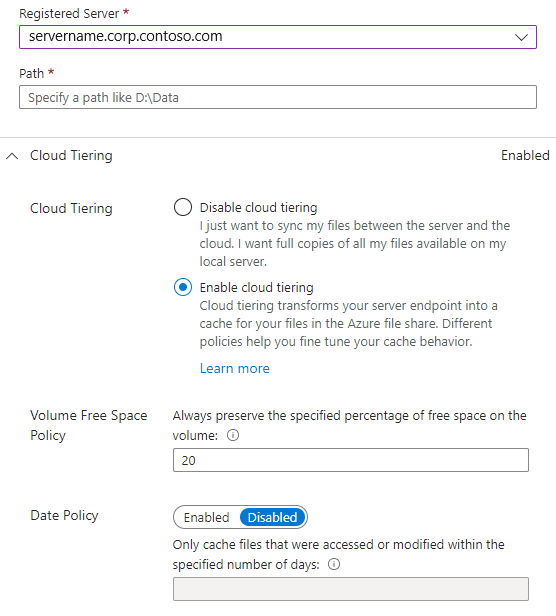
Registered Server: Select the name of the server or cluster where you want to create the server endpoint.
Path: Enter the path on the Windows Server instance to be synced to the Azure file share. The path can be a folder (for example, D:\Data), volume root (for example, D:\), or volume mount point (for example, D:\Mount).
Cloud Tiering: This section includes a switch to enable or disable cloud tiering. With cloud tiering, infrequently used or accessed files can be tiered to Azure Files. When you enable cloud tiering, there are two policies that you can set to inform Azure File Sync when to tier cool files:
Volume Free Space Policy: The amount of free space to reserve on the volume on which the server endpoint is located. For example, if volume free space is set to 50% on a volume that has only one server endpoint, roughly half the amount of data is tiered to Azure Files. Regardless of whether cloud tiering is enabled, your Azure file share always has a complete copy of the data in the sync group.
Date Policy: Files are tiered to the cloud if they aren't accessed (that is, read or written to) for the specified number of days. For example, if you notice that files that go more than 15 days without being accessed are typically archival files, you should set your date policy to 15 days.
Initial Sync: This section is available only for the first server endpoint in a sync group. (The section changes to Initial Download when you're creating more than one server endpoint in a sync group.) You can select the following behavior:
Initial Upload: How the server initially uploads the data to the Azure file share. Two options are available:
- Merge the content of this server path with the content in the Azure file share. Files with the same name and path will lead to conflicts if their content is different. Both versions of those files are stored next to each other. If your server path or Azure file share is empty, always choose this option.
- Authoritatively overwrite files and folders in the Azure file share with content in this server's path. This option avoids file conflicts.
To learn more, see Initial sync.
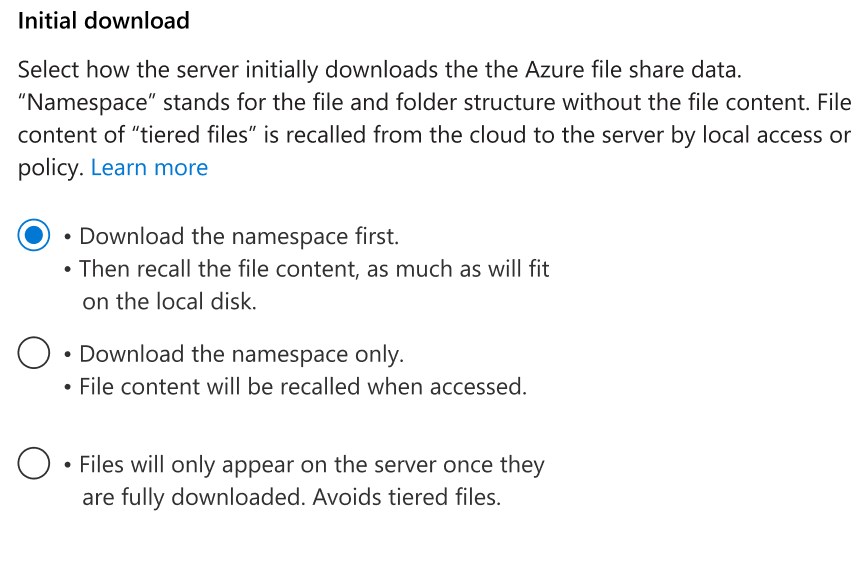
Initial Download: How the server initially downloads the Azure file share data. This setting is important when the server is connecting to an Azure file share that contains files. Three options are available:
- Download the namespace first and then recall the file content, as much as you can fit on the local disk. Namespace stands for the file and folder structure without the file content.
- Download the namespace only. The file content is recalled when it's accessed.
- Avoid tiered files. Files appear on the server only after they're fully downloaded. Local access or policy recalls the file content of tiered files from the cloud to the server.
To learn more, see Initial download.
To finish adding the server endpoint, select Create. Your files are now kept in sync across your Azure file share and Windows Server instance.
Note
Azure File Sync takes a snapshot of the Azure file share as a backup before it creates the server endpoint. You can use this snapshot to restore the share to the state from before the server endpoint was created.
The snapshot isn't removed automatically after the server endpoint is created. You can delete it manually if you don't need it.
You can find the snapshots that Azure File Sync created by viewing the snapshots for the Azure file share and checking for AzureFileSync in the Initiator column.
Cloud tiering
When you create a new server endpoint, you can opt into the cloud tiering feature of Azure File Sync. You can change the options in the Cloud tiering section later. However, different options in the following section are available based on whether you enable cloud tiering for your new server endpoint.
For more information, see cloud tiering overview and cloud tiering policies.
Initial sync
The Initial sync section is available only for the first server endpoint in a sync group. For any additional server endpoint, see the Initial download.
Two initial sync behaviors are available:
Merge
Merge is the standard option and is selected by default. Keep the selection on Merge unless you have certain migration scenarios.
- When you join a server location, in most scenarios either the server location or the Azure file share is empty. In these cases, Merge is the right behavior and leads to expected results.
- When both locations contain files and folders, the namespaces merge. If there are files or folder names on the server that also exist in the Azure file share, a sync conflict occurs. Conflicts are automatically resolved.
Within the Merge option, you can select how content from the Azure file share initially arrives on the server. This selection has no impact if the Azure file share is empty. You can find more details in the Initial download.
Authoritative upload
Authoritative upload is an initial sync option reserved for a specific migration scenario. It syncs the same server path that you also used to seed the Azure file share, for example by using Azure Data Box. In this case, the cloud and the server locations have mostly the same data, but the server is slightly newer. Users keep making changes while Data Box is in transport. This migration scenario then calls for updating the cloud seamlessly with the changes on the server (newer) without producing any conflicts. So the server is the authority of the shape of the namespace and Data Box was used to avoid large-scale initial upload from the server. Server authoritative upload enables a zero-downtime adoption of the cloud, even when an offline data transport mechanism was used to seed the cloud storage.
A server endpoint can only succeed provisioning with the authoritative upload option when the server location has data in it. This block protects from accidental misconfigurations. Authoritative upload works like Robocopy /MIR. This mode mirrors source to target. The source is the Azure File Sync server and the target is the Azure file share. Authoritative upload shapes the target in the image of the source.
- New or updated files and folders are uploaded from the server.
- Files and folders that no longer exist on the server are deleted from the Azure file share.
- Metadata-only changes to files and folders on the server are efficiently moved to the Azure file share as metadata-only updates.
- Files and folders might exist on server and the Azure file share. But some files or folders might have changed their parent directory on the server since the seeding of the Azure file share. These files and folders are purged from the Azure file share and uploaded again. Because of this, it's best to avoid restructuring your namespace at a larger scale during a migration.
Initial download
The Initial download section is available for the second and any additional server endpoints in a sync group. The first server endpoint in a sync group has extra options that relate to migration with Azure Data Box. These options don't apply if this server endpoint isn't the first one in your sync group.
Note
Selecting an initial download option has no impact if the Azure file share is empty.
As part of this section, you choose how content from the Azure file share will initially arrive on the server.
| Download the namespace first | Download the namespace only | Avoid tiered files | |
|---|---|---|---|
| Description | Downloads the entire namespace first. File content is recalled from the cloud as a background activity to the server based on the heat map (a record of recent file access frequency), which recalls recently accessed data sooner. If the free space on server volume is less than 10%, the remaining files stay as tiered files. | Only the namespace (file and folder structure) is downloaded. No file content is brought to the server. | Downloads each file in its entirety before the file shows up in the folder on server. This option avoids a tiered file to ever exist on the server. A namespace item and file content are always present at the same time. |
| Default settings | Default if cloud tiering isn't enabled for this server endpoint. | Default if cloud tiering is enabled for this server endpoint. | Not selected as a default option. This option is only available when cloud tiering isn't enabled. |
| Behavior when tiering is enabled | When cloud tiering is enabled, the background recall of the tiered files will stop as soon as it meets the criteria for the specified cloud tiering policy (respects volume free policy and date policy too, if present). | Only the namespace (file and folder structure) is downloaded. No file content is brought to the server. | Option not available. |
| Behavior when tiering isn't enabled | When cloud tiering isn't enabled, the intent is to recall all the data to the server endpoint via background recall. You would need to provision a volume that is large enough to accommodate all of the data. If the volume doesn't have enough free space, some files will be left as tiered even when cloud tiering is disabled. | Only the namespace (file and folder structure) is downloaded. No file content is brought to the server. | Downloads each file in its entirety before the file shows up in the folder on server. |
| When to use |
|
Ideal for applications that need to recall data less often or only small amount of data on-demand. |
|
| Implications | The CPU/memory should be sized based on the namespace scale and resource needs to avoid I/O performance issues. For details, see Recommended System Resources for Azure File Sync | - |
|
After you select an initial download option, you can't change it after you confirm to create the server endpoint.
Note
When adding a server endpoint and files exist in the Azure file share, if you choose to download the namespace first, files will show up as tiered until they're downloaded locally. Files are downloaded using a single thread by default to limit network bandwidth usage. To improve the file download performance, use the Invoke-StorageSyncFileRecall cmdlet with a thread count greater than 1.
File download behavior after initial download finishes
How files appear on the server after the initial download finishes depends on your use of the cloud tiering feature and whether you opt to proactively recall changes in the cloud (automatically download new and changed files from other server endpoints before users access them). This feature is useful for sync groups with multiple server endpoints in different geographic locations.
Cloud tiering is enabled
New and changed files from other server endpoints appear as tiered files on this server endpoint. These changes only come down as full files if you opt for proactive recall of changes in the Azure file share by other server endpoints.
Cloud tiering is disabled
New and changed files from other server endpoints appear as full files on this server endpoint. They don't appear as tiered files first and then recalled. Tiered files with cloud tiering off are a fast disaster recovery feature and appear only during initial provisioning.
Provisioning steps
When you create a new server endpoint by using the portal or PowerShell, the server endpoint isn't ready to use immediately. Depending on how much data is present on the corresponding file share in the cloud, it might take a few minutes to hours for the server endpoint to become functional and ready to use.
Previously, if you wanted to check the server endpoint provisioning status and whether the server is ready for users to access data, you had to sign in to the server endpoint and see if all the data was downloaded. By using provisioning steps, you can understand whether a server endpoint is ready to use or not and if the sync is fully functional directly from the Azure portal, in the server endpoint overview.
For supported scenarios, the Provisioning steps tab provides information on what's happening on the server endpoint, including when the server endpoint is ready for user access.
Supported scenarios
Currently, provisioning steps are only displayed when the new server endpoint being added has no data on the server path selected for the server endpoint. In other scenarios, the provisioning steps tab isn't available.
Provisioning status
Here are the different statuses that are displayed when server endpoint provisioning is in progress and what they mean:
- In progress: The server endpoint isn't ready for user access.
- Ready (sync not functional): Users can access data, but changes don't sync to the cloud file share.
- Ready (sync functional): Users can access data and changes are synced to the cloud share, making the endpoint fully functional.
- Failed: Provisioning failed because of an error.
The Azure portal displays the provisioning steps tab only for supported scenarios. If you don't see the tab, your scenario isn't currently supported.
See also
The following articles help you understand advanced options, best practices, and troubleshooting for Azure Files and Azure File Sync.