Note
Access to this page requires authorization. You can try signing in or changing directories.
Access to this page requires authorization. You can try changing directories.
Agent Library is a centralized hub in Copilot Agent Kit that helps makers discover, install, and manage prebuilt agent templates and reusable components. Instead of building agents from scratch, you can browse a curated catalog of ready-to-use templates and components, install them directly into your environment, and customize them to fit your business needs.
Note
Agent Library is available starting with the April 2026 release of Copilot Agent Kit. Make sure you're running the latest version to access this feature.
Prerequisites
Before you use Agent Library:
- Install and configure Copilot Agent Kit in your Power Platform environment.
- The signed-in user has the CSK - Maker security role assigned in Copilot Agent Kit to browse and install templates and components.
- The signed-in user has the CSK - Administrator security role assigned in Copilot Agent Kit to create, edit, publish/unpublish, and delete custom templates.
- The Power Platform environment has Copilot Studio enabled.
Agent Library dashboard
In Copilot Agent Kit, select Agent Library from the left pane under the Productivity section. The Agent library dashboard has three tabs: All, Templates, and Components.
All tab
The All tab is selected by default when you open Agent Library. It shows all available templates and components—both system and custom—in a single unified view, giving you a complete picture of everything the catalog offers.
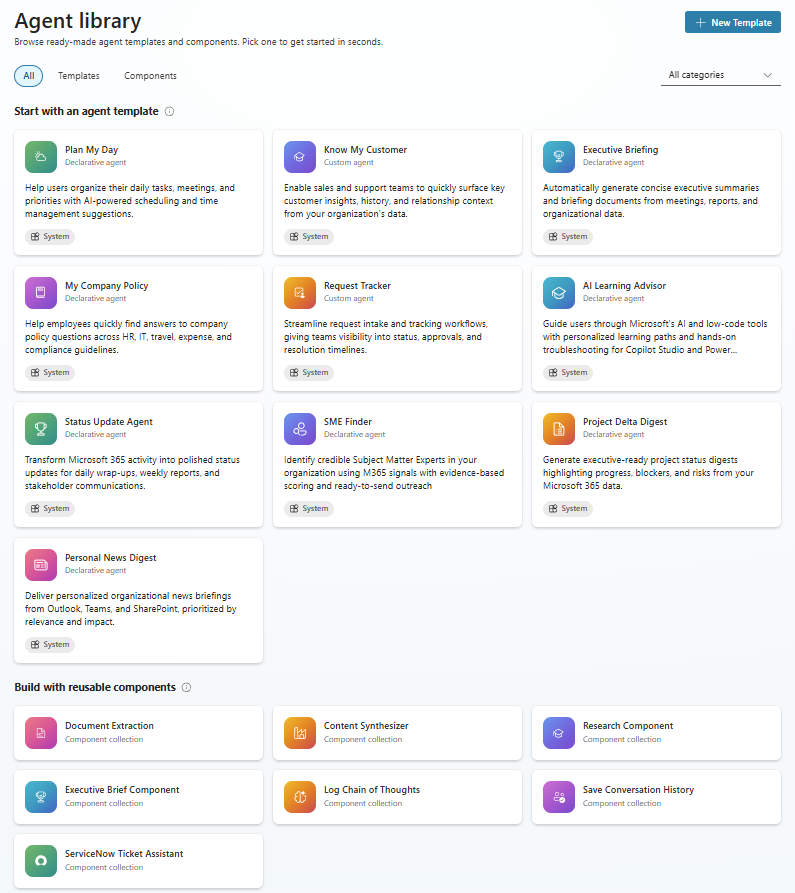
From the All tab, you can:
- Browse all content. See every template and component in one place.
- Filter by category. Use the category filters to narrow results.
- Identify custom templates. Custom templates display a "Custom" chip on the card to distinguish them from system templates.
- Select any card to open the details panel for a template or component to view its description, setup instructions, and available actions.
Use the All tab when you want a broad overview of the full catalog or when you're not sure whether you need a template or a component.
Templates tab
The Templates tab filters the catalog to show only agent templates or custom templates. Use the All templates dropdown to further filter by template source or agent type.
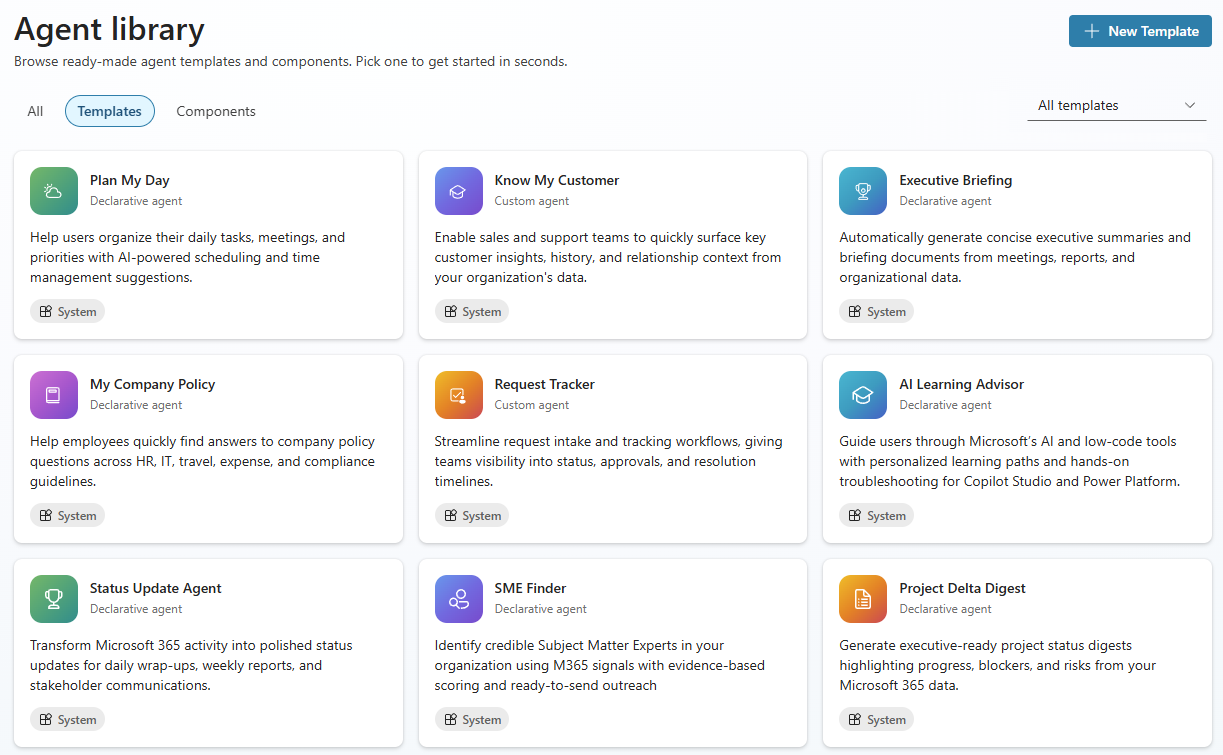
Learn more in Templates overview.
Components tab
The Components tab filters the catalog to show only reusable components that you can add to your agents. Each component is packaged as its own component collection, so you can install only the components you need. Use the All categories dropdown to filter by component category.
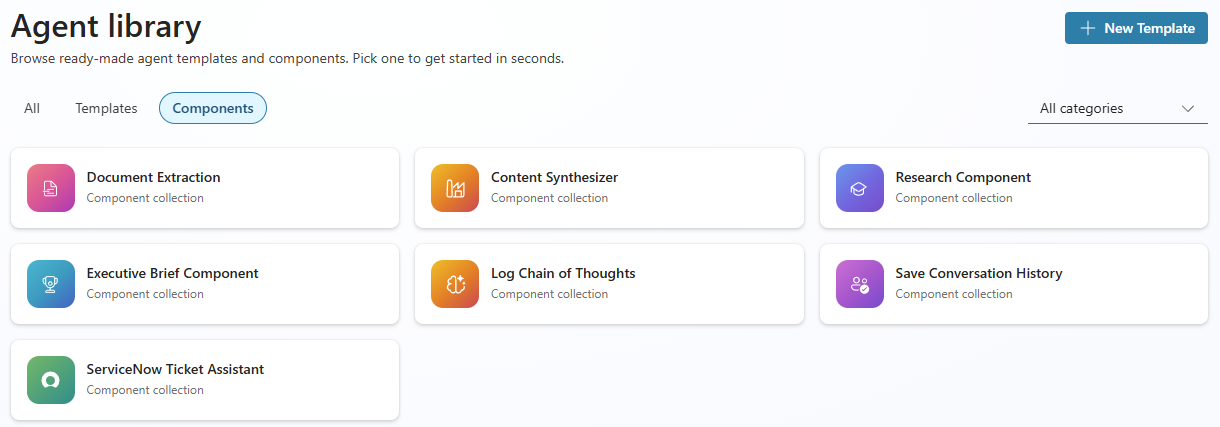
Learn more in: