Note
Access to this page requires authorization. You can try signing in or changing directories.
Access to this page requires authorization. You can try changing directories.
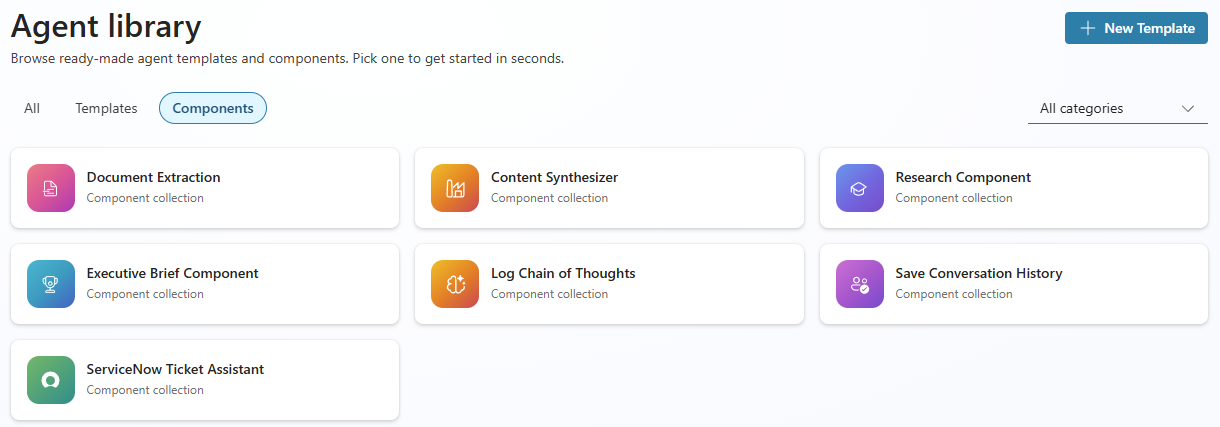
Components in Agent Library are reusable, prebuilt component collections you can add to any Copilot Studio agent. Each component is packaged as its own component collection, so you install only the components you need.
This article is the per-component reference. For an overview of components, how to browse and install components from the kit, and how to add them to your agent, see Components management in Agent Library.
Note
The Agent Library is available as both a managed and an unmanaged solution. Use the managed solution to add components to your agents without modification. Use the unmanaged solution only if you need to edit component internals. There's only one instance of each component per environment, so any edit you make to a topic, prompt, or flow inside the Agent Library applies to every agent that uses that component in the same environment.
Components at a glance
The Agent Library includes the following components shipped across their solutions. Components that require no connection references are in their own base solution. Components that share a common connector are grouped together.
| Component collection | Description | Components | Connections |
|---|---|---|---|
| Document Extraction | Transforms uploaded documents into structured data using AI Builder. | 1 prompt | Dataverse |
| Content Synthesizer | Shared AI Builder prompt that synthesizes research content into evidence-based sections with citations. | 1 prompt | Dataverse |
| Research Component | Three-stage AI pipeline that synthesizes web sources into a comprehensive research report. | 1 topic + 3 prompts (Stage 2 calls Content Synthesizer) | Dataverse |
| Executive Brief Component | Three-stage AI pipeline that produces decision-oriented executive summaries. | 1 topic + 3 prompts (Stage 2 calls Content Synthesizer) | Dataverse |
| ServiceNow Ticket Assistant | End-to-end ServiceNow incident management using adaptive cards. | 5 topics + 1 connection reference | Dataverse, ServiceNow |
Important
Fields marked No for Required have built-in defaults and work without configuration. Provide a value only to override the default behavior.
Prerequisites
Before you begin, make sure the following prerequisites are met:
- Install and configure Copilot Agent Kit in your Power Platform environment.
- The signed-in user has the CSK - Maker security role assigned in Copilot Agent Kit to browse and install components.
- The Power Platform environment has Copilot Studio enabled.
- Have AI Builder credits available in your environment (required for prompt-based components).
- For ServiceNow Ticket Assistant, have a ServiceNow instance with REST API access and a configured ServiceNow connection in Power Platform. Learn more in ServiceNow service principal setup.
Document Extraction
| Property | Value |
|---|---|
| Type | AI Builder prompt (TaskDialog) |
| Category | Data acquisition and integration |
| Interaction model | Tool-initiated. The agent orchestrator invokes this tool when the user's intent matches the tool description. |
Document Extraction transforms uploaded documents into structured data. It uses an AI Builder prompt to parse and extract key fields based on a configurable schema.
When to use: Invoice processing, contract review, form digitization, or any scenario that requires pulling structured information from unstructured documents.
How Document Extraction works
- The user uploads a document to the agent conversation.
- The component processes the document with AI Builder.
- The component returns extracted data as structured output that you can store, display, or pass to downstream flows.
Document Extraction inputs
| Name | Display name | Required | Description |
|---|---|---|---|
| DocumentContent | Document Content | Yes | Full text from the file or pasted content. |
| ExtractionSchema | Extraction Schema | Yes | Key fields to extract from the document content. For example, an invoice schema might contain fields like name, invoice number, and date. |
Document Extraction outputs
All AI Builder prompt outputs are returned.
Content Synthesizer
| Property | Value |
|---|---|
| Type | AI Builder prompt (TaskDialog) |
| Category | Content generation and transformation |
| Interaction model | Module. Invoked by a parent pipeline (Research Component or Executive Brief Component) as the Stage 2 synthesis step. Can also be used as a standalone tool. |
Content Synthesizer transforms raw search results into a structured, evidence-based research section with inline citations. It's the shared synthesis engine used by both the Research Component and Executive Brief Component pipelines. It can also be added to any agent as a standalone tool for on-demand content synthesis.
When to use: Any scenario that requires synthesizing multiple source documents into a cohesive, citation-backed narrative either as part of a multi-stage pipeline or as a standalone content generation tool.
How Content Synthesizer works
- The parent pipeline (or agent) passes a research prompt, raw search-result content, and optional style instructions.
- The prompt integrates insights across all sources by theme. It doesn't summarize source by source.
- Evidence is grounded in the provided content with specific data points such as numbers, percentages, dates, and named entities.
- The output is a JSON object containing the synthesized markdown section and an array of extracted citations.
Content Synthesizer inputs
| Name | Display name | Required | Type | Description |
|---|---|---|---|---|
| Content | Content | Yes | Automatic | Markdown research output generated from the user's query, used as input for synthesizing content. Expected format includes Title:, Source:, and Content: blocks. |
| ResearchPrompt | Research Prompt | Yes | Automatic | The user's research question or query. All content is framed around this objective. |
Content Synthesizer outputs
The prompt returns a JSON object with two fields:
| Field | Type | Description |
|---|---|---|
| SectionContentMarkdown | String | Full synthesized section in markdown. Organized by theme with headings, key findings, key takeaways, and a confidence/recency footer. |
| Citations | Array | List of cited sources formatted as "Title - URL". Each entry corresponds to an inline [n] marker in the section content. |
Content Synthesizer output structure
The synthesized section follows this structure:
- Opening: Leads with the most important finding and previews key themes.
- Body: Organized by theme (not by source), with inline attribution and
[n]citation markers, bold Key Finding callouts, and optional[CHART SUGGESTION]markers. - Key Takeaways: Three to five concise, actionable bullet points.
- Footer: Confidence assessment (High to Low), data recency, and notable gaps.
Research Component
| Property | Value |
|---|---|
| Type | Topic + 3 AI Builder prompts + web search |
| Category | Data analysis and insight |
| Interaction model | Tool-initiated. Three-stage pipeline: research planning, content synthesis, report finalization. |
Research Component synthesizes information from multiple sources into a comprehensive research report. It uses a three-stage AI pipeline to plan, research, and compile findings.
When to use: Competitive analysis, market research, policy review, or any scenario that requires a consolidated view across multiple information sources.
How Research Component works
- The user provides a research question or topic.
- Stage 1 (Research Planner): Creates a structured research plan with sections and queries.
- Stage 2 (Content Synthesizer): Searches web sources for each section and generates content with citations.
- Stage 3 (Report Finalizer): Combines all sections and citations into a polished report.
- The final report is displayed inline in the conversation.
Research Component inputs
| Name | Display name | Required | Description |
|---|---|---|---|
| ResearchPrompt | Research Prompt | Yes | The main topic or subject to research, such as "Overview of electric vehicle market." |
| AdditionalInstructions | Additional Instructions | No | Optional context such as focus areas or constraints. Defaults to "Begin with clear research objective" if empty. |
| InstructionsForInformationCompiler | Instructions For Information Compiler | No | Controls the style and length of each synthesized section. Defaults to "Simple style, 200 words max" if empty. |
| InstructionsForReportFinalizer | Instructions For Report Finalizer | No | Controls how the final report is assembled. Defaults to synthesizing all sections into a cohesive report. |
Research Component outputs
The component displays the report inline in the conversation.
Executive Brief Component
| Property | Value |
|---|---|
| Type | Topic + 3 AI Builder prompts + internal/web search |
| Category | Content generation and transformation |
| Interaction model | Tool-initiated. Three-stage pipeline: strategic planning, insight synthesis, brief finalization. |
Executive Brief Component generates concise, decision-oriented summaries from complex inputs. It uses a three-stage AI pipeline to plan, synthesize insights, and compile a polished executive brief.
When to use: Board meeting preparation, project status updates, quarterly business reviews, or any scenario that requires a polished summary for stakeholders.
How Executive Brief Component works
- The user provides a brief topic or question.
- Stage 1 (Executive Brief Planner): Creates a strategic research plan with research areas.
- Stage 2 (Insight Synthesizer, powered by Content Synthesizer): Searches internal and web sources for each area and extracts key facts and citations.
- Stage 3 (Brief Finalizer): Compiles all insights and citations into a polished executive brief.
- The brief is displayed inline in the conversation.
Executive Brief Component inputs
| Name | Display name | Required | Description |
|---|---|---|---|
| ResearchPrompt | Research Prompt | Yes | The brief topic or question, such as "AI adoption strategy for mid-market companies." |
| AdditionalInstructions | Additional Instructions | No | Optional company context, focus areas, or constraints. |
Executive Brief Component outputs
The component displays the executive brief inline in the conversation.
ServiceNow Ticket Assistant
| Property | Value |
|---|---|
| Type | 5 topics + ServiceNow connector + adaptive cards |
| Category | Action execution and system integration |
| Interaction model | Conversation-initiated. The agent routes to the appropriate topic based on user intent. Each topic uses adaptive cards to collect required fields. |
ServiceNow Ticket Assistant provides end-to-end ServiceNow incident management directly from a Copilot Studio agent. It includes five topics that cover the full incident lifecycle.
When to use: IT help desk, employee self-service, or any scenario that involves ServiceNow incident management.
ServiceNow included topics
| Topic | Description |
|---|---|
| Create Incident | Collects short description, detailed description, impact, and urgency through an adaptive card, then creates the incident in ServiceNow. |
| Check Status | Accepts an incident number (for example, INC0010002) and returns state, priority, dates, and description. |
| Resolve/Close Incident | Updates an incident's state (Resolved, Closed, Canceled, On Hold, In Progress) with resolution code and notes. |
| Get Recent Incidents | Automatically retrieves up to 10 recent incidents for the signed-in user. No input is required. |
| Next Actions | Displays a navigation menu after completing a ServiceNow operation, routing to other ServiceNow topics or general conversation. |
Note
ServiceNow topics use adaptive cards to collect user input directly in the conversation. No tool-level inputs are required.
ServiceNow prerequisites
This component ships in its own solution (CopilotStudioKit_ServiceNow_Components) because it requires a ServiceNow connection reference during import. Before you import this solution, make sure you have:
- A ServiceNow instance with REST API access.
- A connection configured in Power Platform for ServiceNow. You're prompted to set this up during solution import.
- Appropriate ServiceNow user permissions for the operations needed.
ServiceNow service principal setup
To set up a ServiceNow Power Platform connection that uses Microsoft Entra ID, follow the steps in How to set up a ServiceNow Power Platform connection that uses Microsoft Entra ID.
How ServiceNow Ticket Assistant works
- The user expresses an intent (for example, "I need to create a ticket" or "What's the status of INC0012345?").
- The appropriate topic is triggered and presents an adaptive card to collect the required inputs.
- The component calls the ServiceNow API through a connector and returns the result.
- After the operation completes, the Next Actions topic presents options for the next step.
Create incident
Creates a new ServiceNow incident by collecting details from the user and submitting them to ServiceNow through a connector.
When to use: IT help desk, employee self-service, or any scenario where users need to log new incidents directly from conversation.
Create incident flow
- The user expresses an intent to create an incident, such as "I need to create a ticket for a broken laptop."
- An adaptive card collects the required incident details.
- The component calls the ServiceNow API to create the incident and returns a confirmation with the incident number.
- A Next Actions menu is presented so the user can continue with another ServiceNow operation.
Create incident inputs through adaptive card
| Field | Required | Description |
|---|---|---|
| ShortDescription | Yes | Brief summary of the issue |
| Description | No | Detailed description of the problem |
| Impact | Yes | Business impact level (1-High, 2-Medium, 3-Low) |
| Urgency | Yes | Urgency level (1-High, 2-Medium, 3-Low) |
Create incident outputs
Confirmation message with the created incident number displayed inline.
Check incident status
Retrieves the latest status and details of an existing ServiceNow incident.
Check incident status flow
- The user asks about an incident, for example, "What's the status of INC0010002?"
- An adaptive card collects the incident number.
- The component queries ServiceNow and returns the incident details.
Check incident status inputs through adaptive card
| Field | Required | Description |
|---|---|---|
| IncidentNumber | Yes | The incident number to look up, such as INC0010002. |
Check incident status outputs
| Field | Description |
|---|---|
| IncidentNumber | The incident identifier |
| State | Current state of the incident |
| Priority | Priority level |
| CreatedDate | When the incident was created |
| LastUpdatedDate | When the incident was last modified |
Resolve or close incident
Updates an existing ServiceNow incident's state to Resolved, Closed, Canceled, On Hold, or In Progress, along with resolution details.
Resolve or close incident flow
- The user expresses an intent to resolve or close an incident, such as "Close ticket INC0010002."
- An adaptive card collects the incident number, target state, resolution code, and resolution notes.
- The component updates the incident in ServiceNow and returns a confirmation.
Resolve or close incident prerequisites
A ServiceNow instance with REST API access and a ServiceNow connection in Power Platform.
Resolve or close incident inputs through adaptive card
| Field | Required | Description |
|---|---|---|
| IncidentNumber | Yes | The incident number to update |
| State | Yes | Target state (Resolved, Closed, Canceled, On Hold, In Progress) |
| ResolutionCode | Yes | Resolution category, such as Solved Remotely or Solved by Caller |
| ResolutionNotes | Yes | Description of the resolution |
Resolve or close incident outputs
Confirmation message with the updated incident state displayed inline.
Get recent incidents
Retrieves and displays up to 10 recent ServiceNow incidents for the current user. No input fields are needed. The component uses the signed-in user's email automatically.
When to use: When users want a quick overview of their recent or open incidents.
Get recent incidents flow
- The user asks about their incidents, such as "Show my recent incidents."
- The component queries ServiceNow for up to 10 recent incidents matching the signed-in user's email.
- Incident details are displayed inline in the conversation.
Get recent incidents inputs
None. The component automatically uses the signed-in user's email.
Get recent incidents outputs
| Field | Description |
|---|---|
| IncidentNumber | The incident identifier |
| State | Current state of the incident |
| Priority | Priority level |
| ShortDescription | Brief summary of the issue |
| CreatedDate | When the incident was created |
| LastUpdatedDate | When the incident was last modified |
Note
All ServiceNow components include a Next Actions navigation menu that appears after each operation, allowing the user to quickly move to another ServiceNow action or return to general conversation.
Component details panel
When you open a component from the Agent Library in Copilot Agent Kit, the details panel shows the component description, category, input and output variables, and technology used.
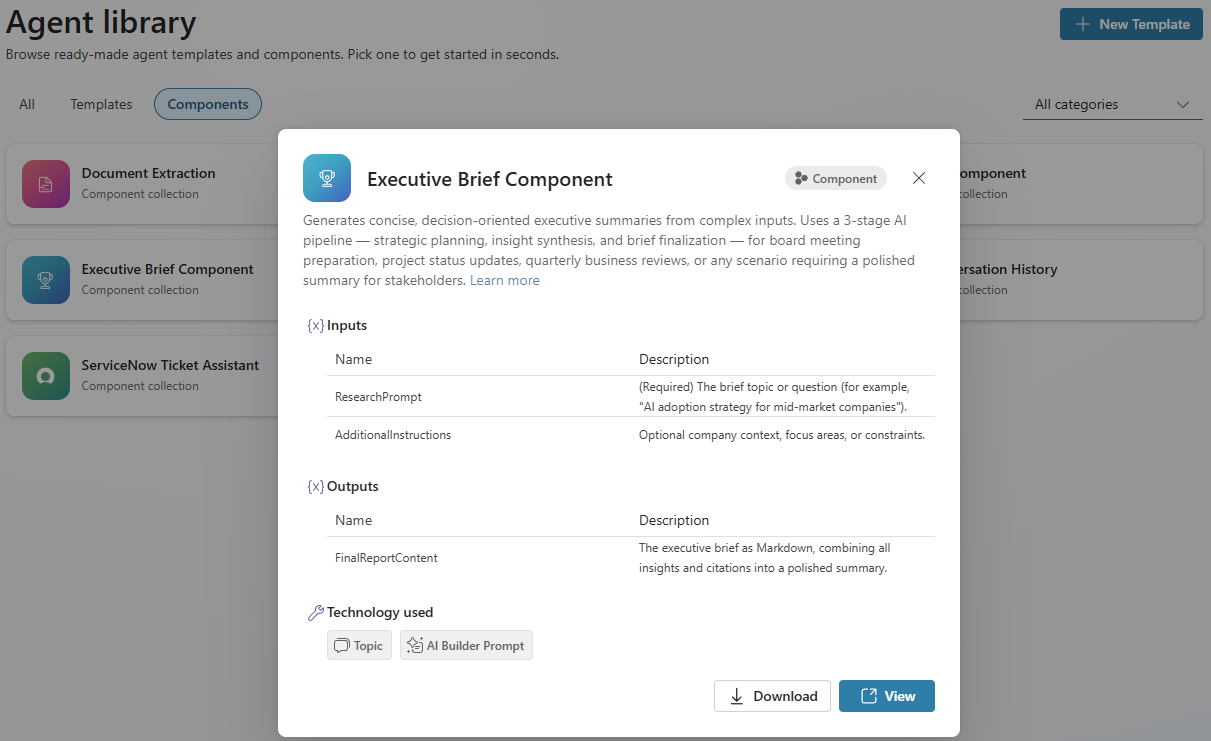
To install a component and add it to an agent workflow, see Components management.
Use components with a managed solution
Use the managed solution for most users. The imported components are read-only. You can add them to your agents and use them without risk of accidentally modifying the underlying topics, prompts, or flows.
Even without editing the components themselves, you have two ways to control behavior: agent instructions and tool input defaults.
Agent instructions
Your Copilot Studio agent's Instructions field is the primary way to shape how components are used. Through natural-language instructions, you can control:
- When a component is invoked: Describe the scenarios or user intents that should trigger each tool.
- What data is passed: Tell the agent what context, variables, or conversation history to include.
- How results are presented: Specify formatting, tone, follow-up actions, or routing after a component returns its output.
- Overall orchestration: Define the order of operations when multiple components are involved, such as "After completing the research, generate an executive brief from the findings."
Tool input defaults
When you add components as tools, such as AI Builder prompts, you can configure input parameters directly in Copilot Studio, even when using a managed solution. These inputs let you set defaults that are more specific than what agent instructions alone can achieve. For example:
- Provide a default
ExtractionSchematailored to your business documents, such as invoice fields like name, invoice number, and date. - Pre-fill
AdditionalInstructionswith your organization's preferred writing style or compliance requirements.
Input defaults are configured per agent, so different agents can pass different values to the same shared component.
Customize components with an unmanaged solution
If you need to modify the component internals, such as changing prompt logic, editing topic flows, or rewiring connectors, you must import the unmanaged solution. This solution gives you full edit access to every topic, prompt, and flow in the Agent Library.
Important
Component collections are shared across the environment. There's only one instance of each component per environment, so any edit you make to a topic, prompt, or flow inside the Agent Library applies to every agent that uses that component in the same environment. Before you modify a component, confirm the change is appropriate for all consumers.
Common customizations include:
- Modify prompts: Adjust AI Builder prompts to match your domain and output format.
- Change data sources: Point components to your own Dataverse tables, SharePoint lists, or external connectors.
- Adjust topics: Update conversation flows to match your organization's terminology and processes.
- Update trigger phrases: Add trigger phrases that reflect how your users naturally ask for things.
- Add authentication: Configure authentication if components need to access user-specific data.
Tip
If you need different behavior for different agents, consider creating a copy of the component in a separate solution rather than editing the shared instance.