Official FAQ for Azure Monitor Application Insights. Find answers to questions about using Application Insights with Azure Monitor.
Overview
How do I instrument an application?
For detailed information about instrumenting applications to enable Application Insights, see data collection basics.
How do I use Application Insights?
After enabling Application Insights by instrumenting an application, we suggest first checking out Live metrics and the Application map.
What telemetry does Application Insights collect?
From server web apps:
- HTTP requests.
- Dependencies such as SQL, HTTP, Azure Cosmos DB, Azure Table Storage, Azure Blob Storage, and Azure Queue Storage calls.
- Exceptions and stack traces.
- Runtime metrics from supported instrumentation.
- Custom events and metrics that you send by using OpenTelemetry custom telemetry, the JavaScript SDK, or Click Analytics.
- Trace logs if you configure the appropriate collector.
From client webpages:
Uncaught exceptions in your app, including information on
- Stack trace
- Exception details and message accompanying the error
- Line & column number of error
- URL where error was raised
- Network Dependency Requests made by your app XML Http Request (XHR) and Fetch (fetch collection is disabled by default) requests, include information on:
- Url of dependency source
- Command & Method used to request the dependency
- Duration of the request
- Result code and success status of the request
- ID (if any) of user making the request
- Correlation context (if any) where request is made
User information (for example, Location, network, IP)
Device information (for example, Browser, OS, version, language, model)
Session information
Note
For some applications, such as single-page applications (SPAs), the duration isn't always recorded and, in those cases, defaults to 0.
For more information, see Data collection, retention, and storage in Application Insights.
From other sources, if you configure them:
Where does telemetry collected with traditional logging frameworks go?
When using logging frameworks like Serilog, log messages are ingested by Application Insights as Trace telemetry and stored in the traces table (or AppTraces in Log Analytics). This is by design, since tables like requests, dependencies, and exceptions are reserved for their respective telemetry types.
For details, see the Application Insights telemetry data model.
How many Application Insights resources should I deploy?
To understand the number of Application Insights resources required to cover your application or components across environments, see the Application Insights deployment planning guide.
How can I manage Application Insights resources with PowerShell?
You can write PowerShell scripts by using Azure Resource Monitor to:
- Create and update Application Insights resources.
- Set the pricing plan.
- Get the connection string.
- Add a metric alert.
- Add an availability test.
You can't set up a metrics explorer report or set up continuous export.
How can I query Application Insights telemetry?
Use the REST API to run Log Analytics queries.
Can I send telemetry to the Application Insights portal?
We recommend the Azure Monitor OpenTelemetry Distro.
The ingestion schema and endpoint protocol are available publicly.
How long does it take for telemetry to be collected?
Most Application Insights data has a latency of under 5 minutes. Some data can take longer, which is typical for larger log files. See the Application Insights service-level agreement.
What is the Application Insights pricing model?
Application Insights is billed through the Log Analytics workspace into which its log data ingested. The default Pay-as-you-go Log Analytics pricing tier includes 5 GB per month of free data allowance per billing account. Learn more about Azure Monitor logs pricing options.
Are there data transfer charges between an Azure web app and Application Insights?
- If your Azure web app is hosted in a datacenter where there's an Application Insights collection endpoint, there's no charge.
- If there's no collection endpoint in your host datacenter, your app's telemetry incurs Azure outgoing charges.
This answer depends on the distribution of our endpoints, not on where your Application Insights resource is hosted.
Do I incur network costs if my Application Insights resource is monitoring an Azure resource (that is, telemetry producer) in a different region?
Yes, you can incur more network costs, which vary depending on the region the telemetry is coming from and where it's going. Refer to Azure bandwidth pricing for details.
If you're seeing unexpected charges or high costs in Application Insights, this guide can help. It covers common causes like high telemetry volume, data ingestion spikes, and misconfigured sampling. It's especially useful if you're troubleshooting issues related to cost spikes, telemetry volume, sampling not working, data caps, high ingestion, or unexpected billing. To get started, see Troubleshoot high data ingestion in Application Insights.
What TLS versions are supported?
Application Insights uses Transport Layer Security (TLS) 1.2 and 1.3.
Important
On 1 March 2025, Azure will retire legacy versions of TLS across all services. At that time, Application Insights no longer supports TLS 1.0, TLS 1.1, and the listed legacy TLS 1.2/1.3 cipher suites and elliptic curves.
For any general questions around the legacy TLS problem, see Solving TLS problems and Azure Resource Manager TLS Support.
Where can I get more information about Application Insights?
For more information, see Introduction to Application Insights.
Data collection, retention, storage, and privacy
How does Application Insights handle data collection, retention, storage, and privacy?
Context
Application Insights collects telemetry from your app and stores it in a Log Analytics workspace. It works for apps hosted anywhere, not only in Azure.
What is collected and from where
Telemetry comes from: (1) the SDK you add to your app, including any custom telemetry you send, (2) optional server agents, and (3) Microsoft-run availability tests. Typical data includes requests, dependencies, exceptions and crashes, performance counters, client and server context, traces, and any custom events or metrics you send. To verify what is being sent, run your app in debug mode and check your IDE Output or Diagnostics windows. For webpages, open your browser developer tools and inspect the Network tab. You can filter or enrich telemetry before it is sent by implementing a telemetry processor.
Retention and storage
Raw data retention can be set to 30, 60, 90, 120, 180, 270, 365, 550, or 730 days. Retention beyond 90 days can incur extra charges. Aggregated metrics are retained at 1-minute granularity for 90 days. Debug snapshots are retained for 15 days. Data is stored in the region you choose when creating the resource. Telemetry is immutable after ingestion. You cannot edit telemetry. Purge is available to delete data when required.
Access, security, and encryption
Data is visible to you and teammates with access and can be exported. Microsoft uses your data only to provide the service with restricted personnel access and may use aggregate statistics to improve the service. Telemetry is sent over HTTPS and data is encrypted at rest and as it moves between datacenters.
Privacy and responsible use
Default SDK modules focus on performance, usage, and diagnostics and typically do not include sensitive personal data. Do not put sensitive data in URLs. Review custom telemetry so it does not include personal data. Client IP is used for geolocation, then the stored IP field is zeroed by default. If you need masking, add a telemetry initializer. If your app needs an opt-out, disable collection in code. Also review seemingly innocuous fields, for example device name on personal devices. You can control or disable some collection in configuration or via code. For more information, see Geolocation and IP address handling.
TLS
Use modern TLS for data in transit. Do not hardcode older protocol versions. Allow the platform to negotiate newer versions as they become available. For more information, see Secure your Azure Monitor deployment.
Local buffering and outages
If connectivity to Azure is lost or throttled, supported OpenTelemetry exporters and current SDKs can buffer telemetry locally and retry. For current OpenTelemetry behavior, see Offline storage and automatic retries. For browser buffering settings, see the JavaScript SDK configuration.
What usage data does Microsoft collect?
In many instances, Application Insights automatically collects data about product usage for Microsoft. This data is stored in a Microsoft data store and doesn't affect customers' monitoring volume and cost. Application Insights collects essential and nonessential metrics about:
The three main purposes of this data collection are:
- Service health and reliability - Monitoring the connectivity to the ingestion endpoint from an external perspective to ensure the service is functioning correctly.
- Support diagnostics - Offering self-help insights and assisting customer support with diagnosing and resolving issues.
- Product improvement - Gathering insights for Microsoft to optimize product design and enhance the overall user experience.
Note
Usage data collection doesn't support Azure Private Link.
Supported languages
| Metrics | .NET | Java | JavaScript | Node.js | Python |
|---|---|---|---|---|---|
| Essential metrics | |||||
| Network | ❌ | ✅ | ❌ | ✅ | ✅ |
| Attach | ✔️* | ✅ | ❌ | ✅ | ✅ |
| Feature | ❌ | ✅ | ❌ | ✅ | ✅ |
| Non-essential metrics | |||||
| Disk I/O failure | ❌ | ✅ | ❌ | ❌ | ❌ |
Supported EU regions
Usage data collection supports EU Data Boundary for Application Insights resources in the following regions:
| Geo name | Region name |
|---|---|
| Europe | North Europe |
| Europe | West Europe |
| France | France Central |
| France | France South |
| Germany | Germany West Central |
| Norway | Norway East |
| Norway | Norway West |
| Sweden | Sweden Central |
| Switzerland | Switzerland North |
| Switzerland | Switzerland West |
| United Kingdom | United Kingdom South |
| United Kingdom | United Kingdom West |
Collected usage data
Network metrics
| Metric name | Unit | Supported dimensions |
|---|---|---|
| Request Success Count | Count | Resource Provider, Attach Type, Instrumentation Key, Runtime Version, Operating System, Language, Version, Endpoint, Host |
| Requests Failure Count | Count | Resource Provider, Attach Type, Instrumentation Key, Runtime Version, Operating System, Language, Version, Endpoint, Host, Status Code |
| Request Duration | Count | Resource Provider, Attach Type, Instrumentation Key, Runtime Version, Operating System, Language, Version, Endpoint, Host |
| Retry Count | Count | Resource Provider, Attach Type, Instrumentation Key, Runtime Version, Operating System, Language, Version, Endpoint, Host, Status Code |
| Throttle Count | Count | Resource Provider, Attach Type, Instrumentation Key, Runtime Version, Operating System, Language, Version, Endpoint, Host, Status Code |
| Exception Count | Count | Resource Provider, Attach Type, Instrumentation Key, Runtime Version, Operating System, Language, Version, Endpoint, Host, Exception Type |
Attach metrics
| Metric name | Unit | Supported dimensions |
|---|---|---|
| Attach | Count | Resource Provider, Resource Provider Identifier, Attach Type, Instrumentation Key, Runtime Version, Operating System, Language, Version |
Feature metrics
| Metric name | Unit | Supported dimensions |
|---|---|---|
| Feature | Count | Resource Provider, Attach Type, Instrumentation Key, Runtime Version, Feature, Type, Operating System, Language, Version |
Nonessential metrics
Track the Disk I/O failure when you use disk persistence for reliable telemetry.
| Metric name | Unit | Supported dimensions |
|---|---|---|
| Read Failure Count | Count | Resource Provider, Attach Type, Instrumentation Key, Runtime Version, Operating System, Language, Version |
| Write Failure Count | Count | Resource Provider, Attach Type, Instrumentation Key, Runtime Version, Operating System, Language, Version |
Firewall configuration
Metrics are sent to the following locations, to which outgoing connections must be opened in firewalls:
| Location | URL |
|---|---|
| Europe | westeurope-5.in.applicationinsights.azure.com |
| Outside of Europe | westus-0.in.applicationinsights.azure.com |
Disable usage data collection
.NET
Usage data collection is enabled by default. It can be disabled by setting the environment variable APPLICATIONINSIGHTS_STATSBEAT_DISABLED to true.
Java
Note
Only nonessential metrics can be disabled in Java.
To disable nonessential metrics, add the following configuration to your config file:
{
  "preview": {
    "statsbeat": {
        "disabled": "true"
    }
  }
}
You can also disable this feature by setting the environment variable APPLICATIONINSIGHTS_STATSBEAT_DISABLED to true. This setting then takes precedence over disabled, which is specified in the JSON configuration.
Node.js
Usage data collection is enabled by default. It can be disabled by setting the environment variable APPLICATION_INSIGHTS_NO_STATSBEAT to true.
Python
Usage data collection is enabled by default. It can be disabled by setting the environment variable APPLICATIONINSIGHTS_STATSBEAT_DISABLED_ALL to true.
Archived Information
For archived information, see Data collection, retention, and storage in Application Insights.
TLS support
Determine if TLS retirement affects you
Application Insights and Azure Monitor don't control the TLS version used for HTTPS connections. The TLS version depends on the operating system and runtime environment where your application runs.
To confirm the TLS version in use:
- Review the documentation for your operating system and runtime or framework.
- Contact the appropriate support team if you need further help. Don't open a support request with Application Insights.
Example language and runtime support for TLS 1.2+
The following versions include integrated support for TLS 1.2 or higher:
- .NET / .NET Core: .NET Framework 4.6.2 or later, and all versions of .NET Core
- Java: Java 8 update 161 (8u161) or later
- Python: Python distributions built with OpenSSL 1.0.1 or later
- Node.js: Node.js version 10 or later
Example operating system support for TLS 1.2+
The following operating systems include integrated support for TLS 1.2 or higher:
- Windows: Windows 8, Windows Server 2012, and later
- Linux: Most modern Linux distributions that use OpenSSL 1.0.1 or later
How do I ensure my resources aren't affected?
To avoid service disruptions, each remote endpoint (including dependent requests) your resource interacts with needs to support at least one combination of the same Protocol Version, Cipher Suite, and Elliptical Curve mentioned earlier. If the remote endpoint doesn't support the needed TLS configuration, it needs to be updated with support for some combination of the post-deprecation TLS configuration.
After May 1, 2025, what is the behavior for affected resources?
Affected Application Insights resources stop ingesting data and can't access required application components. As a result, some features stop working.
Which components does the deprecation affect?
The Transport Layer Security (TLS) deprecation detailed in this document should only affect the behavior after May 1, 2025. For more information about CRUD operations, see Azure Resource Manager TLS Support. This resource provides more details on TLS support and deprecation timelines.
Where can I get Transport Layer Security (TLS) support?
For any general questions around the legacy TLS problem, see Solving TLS problems.
Where can I get more information about TLS support in Application Insights?
For more information, see TLS support.
ASP.NET Core applications
How can I track telemetry that's not automatically collected?
For current instrumentation, use OpenTelemetry APIs and language-specific logging or metrics APIs. For examples, see Collect custom telemetry.
For browser custom events, use the Application Insights JavaScript SDK or Click Analytics. For server-side custom events, use OpenTelemetry custom events.
How do I capture Request and Response body in my telemetry?
ASP.NET Core has built-in support for logging HTTP request and response information, including the body. This can expose personally identifiable information (PII) and can significantly increase performance and ingestion costs, so evaluate the risks carefully before using it.
How do I customize ILogger logs collection?
For current .NET applications, configure log collection through OpenTelemetry and your standard .NET logging configuration. Use Logging:LogLevel in appsettings.json to choose application log levels, and configure OpenTelemetry log export as part of Azure Monitor OpenTelemetry setup. See Enable OpenTelemetry with Application Insights and Modify telemetry.
I'm deploying my ASP.NET Core application to Web Apps. Should I still enable the Application Insights extension from Web Apps?
Choose one instrumentation path for the application. For code-based current setup, use Azure Monitor OpenTelemetry. For no-code App Service monitoring, use Application monitoring without code changes. Avoid overlapping instrumentation for the same app unless you're validating a migration.
Can I enable Application Insights monitoring without changing application code?
For new application monitoring, use the Azure Monitor OpenTelemetry Distro or current autoinstrumentation paths. See Enable OpenTelemetry with Application Insights and Application monitoring without code changes.
Where can I get more information about using Application Insights for ASP.NET Core applications?
For current ASP.NET Core instrumentation, see Enable OpenTelemetry with Application Insights.
ASP.NET performance counters
What's the difference between the Exception rate and Exceptions metrics?
Exception rate: The Exception rate is a system performance counter. The CLR counts all the handled and unhandled exceptions that are thrown and divides the total in a sampling interval by the length of the interval. The Application Insights SDK collects this result and sends it to the portal.Exceptions: The Exceptions metric counts exception telemetry received by the portal in the sampling interval of the chart. It includes handled exceptions that your instrumentation reports. It might not include every unhandled exception.
Where can I get more information about ASP.NET performance counters?
For current metrics guidance, see Metrics in Application Insights.
ASP.NET event counters
Can I see EventCounters in Live Metrics?
Live Metrics don't show EventCounters. Use Metric Explorer or Analytics to see the telemetry.
After I enabled Application Insights from the Azure Web App Portal, why can't I see event counters?
App Service monitoring without code changes doesn't currently support this feature for ASP.NET Core.
Where can I get more information about ASP.NET event counters?
For current metrics guidance, see Metrics in Application Insights.
Dependency tracking
How does the automatic dependency collector report failed calls to dependencies?
Failed dependency calls have the success field set to false. Dependency telemetry doesn't automatically create a separate exception item for every failed dependency call. The full data model for dependency telemetry is described in Application Insights telemetry data model.
How do I calculate ingestion latency for my dependency telemetry?
Use this code:
dependencies
| extend E2EIngestionLatency = ingestion_time() - timestamp
| extend TimeIngested = ingestion_time()
How do I determine the time the dependency call was initiated?
In the Log Analytics query view, timestamp represents the moment the dependency telemetry operation was initiated, which occurs immediately after the dependency call response is received. To calculate the time when the dependency call began, you would take timestamp and subtract the recorded duration of the dependency call.
Does dependency tracking in Application Insights include logging response bodies?
Dependency tracking in Application Insights doesn't include logging response bodies as it would generate too much telemetry for most applications.
Where can I get more information about dependency tracking in Application Insights?
For current dependency and custom span guidance, see Add custom spans.
Availability tests
Can I run availability tests on an intranet server?
Availability tests run on points of presence that are distributed around the globe. There are two solutions:
- Firewall door: Allow requests to your server from the long and changeable list of web test agents.
- Custom code: Write your own code to send periodic requests to your server from inside your intranet. You could run Visual Studio web tests for this purpose. Emit an internal health signal and alert on the resulting log or metric.
What is the user agent string for availability tests?
The user agent string is Mozilla/5.0 (compatible; MSIE 9.0; Windows NT 6.1; Trident/5.0; AppInsights)
Where can I get more information about Application Insights availability tests?
For more information, see Availability tests.
TLS support for availability tests
How does the deprecation impact my web test behavior?
Availability tests act as a distributed client in each of the supported web test locations. Every time a web test is executed the availability test service attempts to reach out to the remote endpoint defined in the web test configuration. A TLS Client Hello message is sent which contains all the currently supported TLS configuration. If the remote endpoint shares a common TLS configuration with the availability test client, then the TLS handshake succeeds. Otherwise, the web test fails with a TLS handshake failure.
How do I validate what TLS configuration a remote endpoint supports?
There are several tools available to test what TLS configuration an endpoint supports. One way would be to follow the example detailed on this page. If your remote endpoint isn't available via the Public internet, you need to ensure you validate the TLS configuration supported on the remote endpoint from a machine that has access to call your endpoint.
Note
For steps to enable the needed TLS configuration on your web server, it is best to reach out to the team that owns the hosting platform your web server runs on if the process is not known.
After May 1, 2025, what will the web test behavior be for impacted tests?
There's no one exception type that all TLS handshake failures impacted by this deprecation would present themselves with. However, the most common exception your web test would start failing with would be The request was aborted: Couldn't create SSL/TLS secure channel. You should also be able to see any TLS related failures in the TLS Transport Troubleshooting Step for the web test result that is potentially impacted.
Can I view what TLS configuration is currently in use by my web test?
The TLS configuration negotiated during a web test execution can't be viewed. As long as the remote endpoint supports common TLS configuration with availability tests, no impact should be seen post-deprecation.
Which components does the deprecation affect in the availability test service?
The TLS deprecation detailed in this document should only affect the availability test web test execution behavior after May 1, 2025. For more information about interacting with the availability test service for CRUD operations, see Azure Resource Manager TLS Support. This resource provides more details on TLS support and deprecation timelines.
Where can I get TLS support?
For any general questions around the legacy TLS problem, see Solving TLS problems.
Where can I get more information about TLS support for availability tests?
For more information, see Supported TLS configurations.
Monitoring in Azure App Service for .NET, Node.js, Python, and Java applications
What does Application Insights modify in my project?
The changes depend on the instrumentation path. No-code App Service monitoring typically uses app settings and platform configuration. Code-based monitoring uses the OpenTelemetry package and startup configuration for the selected language. For current guidance, see Enable application monitoring in Azure App Service and Enable OpenTelemetry with Application Insights.
What's the difference between standard metrics from Application Insights vs. Azure App Service metrics?
Application Insights collects telemetry for the requests that made it to the application. If the failure occurs in Web Apps or the web server and the request didn't reach the user application, Application Insights doesn't have telemetry about it.
The duration for serverresponsetime calculated by Application Insights doesn't necessarily match the server response time observed by Web Apps. Application Insights counts the duration when the request reaches the user application. If the request is stuck or queued in the web server, the waiting time is included in the Web Apps metrics but not in Application Insights metrics.
Where can I get more information about monitoring in Azure App Service for .NET, Node.js, Python, and Java applications?
For more information, see Enable application monitoring in Azure App Service.
Autoinstrumentation
Should the term "autoinstrumentation" be hyphenated?
We follow the Microsoft Style Guide for product documentation published to the Microsoft Learn platform.
In general, we don't include a hyphen after the "auto" prefix.
Where can I get more information about autoinstrumentation?
For more information, see What is autoinstrumentation for Azure Monitor Application Insights?.
Connection strings
Do new Azure regions require the use of connection strings?
New Azure regions require the use of connection strings instead of instrumentation keys. Connection string identifies the resource that you want to associate with your telemetry data. It also allows you to modify the endpoints your resource uses as a destination for your telemetry. Copy the connection string and add it to your application's code or to an environment variable.
Should I use connection strings or instrumentation keys?
We recommend that you use connection strings instead of instrumentation keys.
When do I need to set the environment variable?
Set the APPLICATIONINSIGHTS_CONNECTION_STRING manually in all scenarios where the system doesn't provide it automatically. These scenarios include, but aren't limited to: local development and .NET Isolated Functions using ASP.NET Core integration. In these cases, the environment variable ensures the OpenTelemetry pipeline can send telemetry to Application Insights. For more information on configuring connection strings with an environment variable, see Configuring OpenTelemetry in Application Insights.
Should I use a separate Application Insights resource for browser telemetry if I use authenticated server-side ingestion or OTLP?
Not strictly. A single Application Insights resource can receive browser telemetry from the Application Insights JavaScript SDK and server-side telemetry sent by using authenticated ingestion when local authentication remains enabled for browser ingestion. Server-side telemetry can use Microsoft Entra authenticated ingestion, and OTLP ingestion by using the OpenTelemetry Collector requires Microsoft Entra authentication. You don't need to avoid OpenTelemetry or OTLP solely because your application also collects browser telemetry.
The main exception is when you disable local authentication on an Application Insights resource to require Microsoft Entra authentication for all ingestion. In that configuration, the JavaScript SDK can't authenticate directly from the browser and browser telemetry might stop flowing. For browser telemetry in that scenario, use a separate browser telemetry resource with local authentication enabled or route browser telemetry through an authenticated proxy pattern. For more information, see Authenticated browser telemetry using connection strings.
Even when a single resource works technically, consider using a separate Application Insights resource for browser/client-side telemetry as a risk-isolation best practice. Browser instrumentation runs in an untrusted client environment, so its connection string is visible to users and can't be treated as a secret. An exposed connection string can potentially be used to send spoofed, irrelevant, or high-volume telemetry to the associated resource, which can pollute dashboards, alerts, troubleshooting queries, and increase ingestion cost.
A separate browser telemetry resource can help you:
- Rotate or replace the browser-side connection string without disrupting server-side telemetry.
- Contain spoofed, spam, or garbage telemetry to the browser-specific resource.
- Protect the quality of server-side telemetry used for diagnostics, alerting, and operational analysis.
- Apply different access control, ownership, or governance settings when needed.
Balance these benefits against the added management overhead of multiple resources, including additional connection strings, RBAC assignments, configuration, and cross-resource investigations. End-to-end correlation can still work across multiple Application Insights resources when the user has access to the relevant resources. For more information, see Application map and Transaction diagnostics.
Private Link and ingestion authentication are separate controls. Private Link controls network access to Azure Monitor resources; Microsoft Entra authentication controls whether telemetry ingestion is authorized by an identity. Don't use Private Link as a substitute for ingestion authentication, and don't treat resource separation as a requirement for authenticated server-side ingestion.
How do I instrument a global web application to meet regional data compliance requirements?
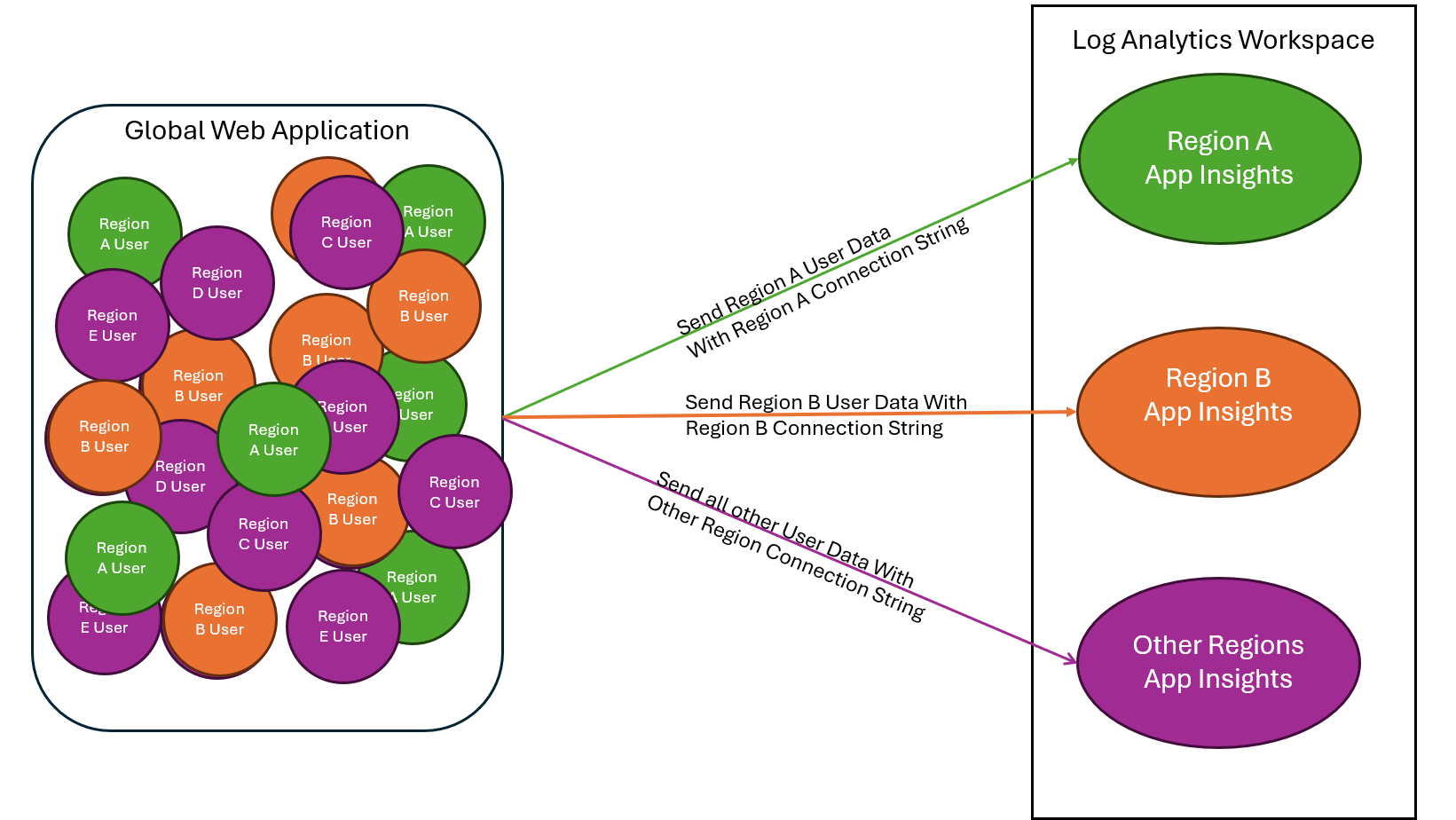
To meet regional data compliance requirements, use regional Application Insights endpoints instead of the global endpoint. The global endpoint doesn't guarantee that data stays within a specific region. Regional endpoints help ensure that telemetry from users in regulated areas is sent only to data centers in those regions.
To configure your global web application for regional compliance:
- Create one Application Insights resource per region with strict compliance requirements, such as the European Union or the United States.
- Create another Application Insights resource for users in all other regions.
- Configure your application to send telemetry to the appropriate Application Insights resource based on each user’s region. Determine the region using signals like IP address, account metadata, or location settings.
- Connect all Application Insights resources to a Log Analytics workspace if you need a unified query experience across regions.
For example:
- Send data from Region A users to the Region A Application Insights resource using the Region A connection string.
- Send data from Region B users to the Region B Application Insights resource using the Region B connection string.
- Send all other user data to a general-purpose Application Insights resource using a different connection string.
Important
Using the global endpoint does not ensure regional compliance. To meet data residency requirements, always use region-specific endpoints and route telemetry based on the user’s region.
The following diagram shows an example setup for a global web application:
Where can I get more information about connection strings in Application Insights?
For more information, see Connection strings.
Creating and configuring Application Insights resources
How do I move an Application Insights resource to a new region?
Transferring existing Application Insights resources between regions isn't supported, and you can't migrate historical data to a new region. The workaround involves:
- Creating a new Application Insights resource in the desired region.
- Re-creating any unique customizations from the original resource in the new one.
- Updating your application with the new region resource's connection string.
- Testing to ensure everything works as expected with the new Application Insights resource.
- Decide to either keep or delete the original Application Insights resource. Deleting a classic resource means to lose all historical data. If the resource is workspace-based, the data remains in Log Analytics, enabling access to historical data until the retention period expires.
Unique customizations that commonly need to be manually re-created or updated for the resource in the new region include but aren't limited to:
- Re-create custom dashboards and workbooks.
- Re-create or update the scope of any custom log/metric alerts.
- Re-create availability alerts.
- Re-create any custom Azure role-based access control settings that are required for your users to access the new resource.
- Replicate settings involving ingestion sampling, data retention, daily cap, and custom metrics enablement. These settings are controlled via the Usage and estimated costs pane.
- Any integration that relies on API keys, such as release annotations and live metrics secure control channel. You need to generate new API keys and update the associated integration.
- Continuous export in classic resources must be configured again.
- Diagnostic settings in workspace-based resources must be configured again.
Can I use providers('Microsoft.Insights', 'components').apiVersions[0] in my Azure Resource Manager deployments?
We don't recommend using this method of populating the API version. The newest version can represent preview releases, which might contain breaking changes. Even with newer non-preview releases, the API versions aren't always backward compatible with existing templates. In some cases, the API version might not be available to all subscriptions.
Where can I get more information about creating and configuring Application Insights resources?
For more information, see Create and configure Application Insights resources.
Telemetry data model
How can I report data model or schema problems and suggestions?
To report data model or schema problems and suggestions, use our GitHub repository.
How would I measure the impact of a monitoring campaign?
PageView Telemetry includes URL and you could parse the UTM parameter using a regex function in Kusto.
Occasionally, this data might be missing or inaccurate if the user or enterprise disables sending User Agent in browser settings. The UA Parser regexes might not include all device information. Or Application Insights might not have adopted the latest updates.
Why would a custom measurement succeed without error but the log doesn't show up?
This can occur if you're using string values. Only numeric values work with custom measurements.
Where can I get more information about the telemetry data model?
For more information, see Application Insights telemetry data model.
Logging with .NET
What Application Insights telemetry type is produced from ILogger logs? Where can I see ILogger logs in Application Insights?
OpenTelemetry log records are stored in the traces table in Application Insights Logs. To view them in the Azure portal, open your Application Insights resource, select Logs, and query the traces table.
Example query: traces | where message contains "YourSearchTerm".
How do I customize ILogger logs collection?
For current .NET applications, configure log collection through OpenTelemetry and your standard .NET logging configuration. Use Logging:LogLevel in appsettings.json to choose application log levels, and configure OpenTelemetry log export as part of Azure Monitor OpenTelemetry setup. See Enable OpenTelemetry with Application Insights and Modify telemetry.
Why do some ILogger logs not have the same properties as others?
When logs are emitted before application telemetry configuration is complete, they can have fewer enriched properties than logs emitted later in the application lifecycle.
How should I send custom telemetry manually?
For current instrumentation, send custom telemetry with OpenTelemetry APIs or the Azure Monitor OpenTelemetry Distro. For examples, see Collect custom telemetry.
Where can I get more information about logging with .NET?
For current .NET instrumentation, see Enable OpenTelemetry with Application Insights.
Java Profiler
What is Azure Monitor Application Insights Java Profiling?
The Java Profiler uses Java Flight Recorder (JFR) to profile your application using a customized configuration.
What is Java Flight Recorder?
Java Flight Recorder (JFR) is a tool for collecting profiling data of a running Java application. JFR is integrated into the Java Virtual Machine (JVM) and is used for troubleshooting performance issues. Learn more about Java SE JFR Runtime.
What is the price and/or licensing fee implications for enabling App Insights Java Profiling?
Java Profiling is a free feature with Application Insights. Azure Monitor Application Insights pricing is based on ingestion cost.
Which Java profiling information is collected?
Profiling data collected by the JFR includes: method and execution profiling data, garbage collection data, and lock profiles.
How can I use App Insights Java Profiling and visualize the data?
JFR recording can be viewed and analyzed with your preferred tool, for example Java Mission Control (JMC).
Are performance diagnosis and fix recommendations provided with App Insights Java Profiling?
'Performance diagnostics and recommendations' is a new feature that is available soon as Application Insights Java Diagnostics. You can sign up to preview this feature. JFR recording can be viewed with Java Mission Control (JMC).
What's the difference between on-demand and automatic Java Profiling in App Insights?
On-demand is user triggered profiling in real-time whereas automatic profiling is with preconfigured triggers.
Use Profile Now for the on-demand profiling option. Profile Now immediately profiles all agents that are attached to the Application Insights instance.
Automated profiling is triggered by reaching a resource threshold.
Which Java profiling triggers can I configure?
Application Insights Java Agent currently supports monitoring of CPU and memory consumption. CPU threshold is configured as a percentage of all available cores on the machine. Memory is the current Tenured memory region (OldGen) occupancy against the maximum possible size of the region.
What are the required prerequisites to enable Java Profiling?
Review the Prerequisites.
Can I use Java Profiling for a microservices application?
Yes, you can profile a JVM running microservices using the JFR.
Where can I get more information about Java Profiler?
For more information, see Azure Monitor Application Insights Profiler for Java.
Sampling overrides - Application Insights for Java
Do I need to use manual instrumentation to enable sampling overrides?
No, sampling overrides is now generally available (GA) and can be used with both autoinstrumentation and manual instrumentation.
How do I configure sampling overrides when using Azure App Service with autoinstrumentation?
If you use autoinstrumentation, update the applicationinsights.json file in the Azure portal.
Is it necessary to manually upload the Application Insights agent file for sampling overrides?
For autoinstrumentation, no manual agent upload is required. However, for manual instrumentation, you still need to include the Application Insights agent JAR file and configuration files in your deployment package.
What is the difference between "local development" and "application server" in the context of manual instrumentation?
Local development refers to the environment where the app is being built or tested, such as a developer's machine or an Azure Cloud Shell instance. Application server refers to the web server running the application, such as Tomcat 11 in an Azure App Service environment. When using manual instrumentation, you must ensure that the agent JAR file is correctly placed on the application server.
If I'm using an Azure App Service with a Java runtime (for example, Tomcat 11), how do I configure sampling overrides?
For autoinstrumentation, you can configure sampling overrides via the Azure portal. If using manual instrumentation, you should place the Application Insights agent JAR in the appropriate directory and include the applicationinsights.json file with your desired sampling settings.
Where can I get more information about sampling overrides?
For more information, see Sampling overrides - Azure Monitor Application Insights for Java.
Telemetry processors
Why doesn't the log processor process logs outside OpenTelemetry instrumentation?
OpenTelemetry processors can work with telemetry that flows through the OpenTelemetry pipeline. Logs or files that are written outside that pipeline aren't processed by OpenTelemetry processors unless you explicitly collect them.
Where can I get more information about telemetry processors?
For more information, see Telemetry processors (preview) - Azure Monitor Application Insights for Java.
JavaScript SDK
What are the user and session counts?
- The JavaScript SDK sets a user cookie on the web client, to identify returning users, and a session cookie to group activities.
- If there's no client-side script, you can set cookies at the server.
- If one real user uses your site in different browsers, or by using in-private/incognito browsing, or different machines, they're counted more than once.
- To identify a signed-in user across machines and browsers, use the JavaScript SDK authenticated user context or set the OpenTelemetry
enduser.idattribute.
What is the JavaScript SDK performance/overhead?
The Application Insights JavaScript SDK has a minimal overhead on your website. At just 36 KB gzipped, and taking only ~15 ms to initialize, the SDK adds a negligible amount of load time to your website. The minimal components of the library are quickly loaded when you use the SDK, and the full script is downloaded in the background.
Additionally, while the script is downloading from the CDN, all tracking of your page is queued, so you don't lose any telemetry during the entire life cycle of your page. This setup process provides your page with a seamless analytics system that's invisible to your users.
What browsers are supported by the JavaScript SDK?

|

|

|

|

|
|---|---|---|---|---|
| Chrome Latest ✔ | Firefox Latest ✔ | v3.x: IE 9+ & Microsoft Edge ✔ v2.x: IE 8+ Compatible & Microsoft Edge ✔ |
Opera Latest ✔ | Safari Latest ✔ |
Where can I find code examples for the JavaScript SDK?
For runnable examples, see Application Insights JavaScript SDK samples.
What is the ES3/Internet Explorer 8 compatibility with the JavaScript SDK?
We need to take necessary measures to ensure that this SDK continues to "work" and doesn't break the JavaScript execution when loaded by an older browser. It would be ideal to not support older browsers, but numerous large customers can't control which browser their users choose to use.
This statement doesn't mean that we only support the lowest common set of features. We need to maintain ES3 code compatibility. New features need to be added in a manner that wouldn't break ES3 JavaScript parsing and added as an optional feature.
See GitHub for full details on Internet Explorer 8 support.
Is the JavaScript SDK open-source?
Yes, the Application Insights JavaScript SDK is open source. To view the source code or to contribute to the project, see the official GitHub repository.
Where can I get more information about the JavaScript SDK?
For more information, see Enable Azure Monitor Application Insights Real User Monitoring.
JavaScript SDK configuration
How can I update my third-party server configuration for the JavaScript SDK?
The server side needs to be able to accept connections with those headers present. Depending on the Access-Control-Allow-Headers configuration on the server side, it's often necessary to extend the server-side list by manually adding Request-Id, Request-Context, and traceparent (W3C distributed header).
Access-Control-Allow-Headers: Request-Id, traceparent, Request-Context, <your header>
How can I disable distributed tracing for the JavaScript SDK?
Distributed tracing can be disabled in configuration.
Are the HTTP 502 and 503 responses always captured by Application Insights?
No. The "502 bad gateway" and "503 service unavailable" errors aren't always captured by Application Insights. If only client-side JavaScript is being used for monitoring, this behavior would be expected because the error response is returned prior to the page containing the HTML header with the monitoring JavaScript snippet being rendered.
If the 502 or 503 response was sent from a server with server-side monitoring enabled, the errors are collected by the Application Insights SDK.
Even when server-side monitoring is enabled on an application's web server, sometimes a 502 or 503 error isn't captured by Application Insights. Many modern web servers don't allow a client to communicate directly. Instead, they employ solutions like reverse proxies to pass information back and forth between the client and the front-end web servers.
In this scenario, a 502 or 503 response might be returned to a client because of an issue at the reverse proxy layer, so it isn't captured out-of-box by Application Insights. To help detect issues at this layer, you might need to forward logs from your reverse proxy to Log Analytics and create a custom rule to check for 502 or 503 responses. To learn more about common causes of 502 and 503 errors, see Troubleshoot HTTP errors of "502 bad gateway" and "503 service unavailable" in Azure App Service.
Where can I get more information about JavaScript SDK configuration?
For more information, see Application Insights JavaScript SDK configuration.
JavaScript framework extensions
How does Application Insights generate device information like browser, OS, language, and model?
The browser passes the User Agent string in the HTTP header of the request. The Application Insights ingestion service uses UA Parser to generate the fields you see in the data tables and experiences. As a result, Application Insights users are unable to change these fields.
Occasionally, this data might be missing or inaccurate if the user or enterprise disables sending User Agent in browser settings. The UA Parser regexes might not include all device information. Or Application Insights might not have adopted the latest updates.
Where can I get more information about JavaScript framework extensions?
For more information, see Enable a framework extension for Application Insights JavaScript SDK.
Managed workspaces
Do I need to update scripts or automation that reference classic resources?
No. Existing ARM templates and API calls continue to work. When you attempt to create a classic resource, a workspace-based resource with a managed workspace is created instead.
Am I notified before my resource is migrated?
No. Notification for individual resource migrations isn't available. To control when and how your resources are migrated, use manual migration.
How long does the migration process take?
Individual migrations usually complete in less than two minutes. The full rollout takes place over several weeks across all regions.
How can I tell if a resource is migrated?
After migration, the resource links to a Log Analytics workspace on the Overview page. The classic retirement notice is removed, and the retirements workbook no longer lists the resource.
Will my billing change after migration?
Costs typically remain similar. Workspace-based Application Insights enables cost-saving features and we recommend reviewing pricing plans.
If you're on a legacy billing model, review the pricing documentation for details.
Do I lose alerts or availability tests during migration?
No. All alerts, dashboards, and availability tests remain intact and continue to function after migration.
Where can I get more information about managed workspaces?
For more information, see Managed workspaces in Application Insights.
Node.js
How can I disable telemetry correlation?
For current instrumentation, review distributed tracing and telemetry correlation. For JavaScript browser telemetry, see JavaScript SDK configuration.
How can I configure the desired log level?
To configure the desired log level that Application Insights will use, use the APPLICATIONINSIGHTS_INSTRUMENTATION_LOGGING_LEVEL environment variable.
The supported values are NONE, ERROR, WARN, INFO, DEBUG, VERBOSE and ALL.
For more information, see ApplicationInsights-node.js.
Where can I get more information about monitoring Node.js services and apps with Application Insights?
For current Node.js instrumentation, see Enable OpenTelemetry with Application Insights.
Azure Monitor OpenTelemetry
Where can I find a list of Application Insights SDK versions and their names?
A list of SDK versions and names is hosted on GitHub. For more information, see SDK Version.
Where can I get more information about OpenTelemetry?
For more information, see Collect telemetry with OpenTelemetry in Application Insights.
Migrate from .NET Application Insights SDKs to Azure Monitor OpenTelemetry
Where can I get migration guidance?
See Migrate from Application Insights SDKs to Azure Monitor OpenTelemetry. Keep migration-specific guidance on that page so current setup articles can continue to present one recommended OpenTelemetry path.
How do I manually track telemetry using OpenTelemetry?
Use OpenTelemetry APIs and language-specific logging or metrics APIs. For examples, see Collect custom telemetry.
OpenTelemetry sampling
Is the Application Insights custom sampler tail-based?
The Application Insights custom sampler makes sampling decisions after span creation, rather than before, so it doesn't follow a traditional head-based approach. Instead, it applies sampling decisions at the end of span generation—after the span is complete but before export.
Although this behavior resembles tail-based sampling in some ways, the sampler doesn't wait to collect multiple spans from the same trace before deciding. Instead, it uses a hash of the Trace ID to help ensure trace completeness.
This approach balances trace completeness and efficiency, and avoids the higher cost associated with full tail-based sampling.
To make sampling decisions based on the outcome of an entire trace (for example, determining if any span within the trace failed), full tail-based sampling is required in a downstream Agent or Collector. This capability isn't currently supported, but you can request it as a new feature through the Feedback Hub.
How does the Application Insights custom sampler compare to OpenTelemetry head-based or tail-based sampling?
| Sampling Method | Point of decision | Strengths | Weaknesses |
|---|---|---|---|
| Head-based | Before a span starts | Low latency, minimal overhead | May sample out desired traces including failures |
| Tail-based | After spans are buffered based on time or volume thresholds | Allows highly selective trace sampling criteria | Higher cost and added processing delay |
| Azure Monitor custom sampler | End of span generation | Balances trace completeness with efficiency | Required for Live Metrics compatibility |
Can I sample dependencies, requests, or other telemetry types at different rates?
No, the sampler applies a fixed rate across all telemetry types in a trace. Requests, dependencies, and other spans follow the same sampling percentage. To apply different rates per telemetry type, consider using OpenTelemetry span processors or (ingestion-time transformations)[app-insights-overview.md#telemetry-routing].
How does the Application Insights custom sampler propagate sampling decisions?
The Application Insights custom sampler propagates sampling decisions using the W3C Trace Context standard by default. This standard enables sampling decisions to flow between services. However, because the sampler makes sampling decisions at the end of span generation—after the call to downstream services—the propagation carries incomplete sampling information. This limitation complies with the W3C Trace Context specification, but downstream services can't reliably use this propagated sampling decision.
Does the Application Insights custom sampler respect sampling decisions from upstream services?
No, the Application Insights custom sampler always makes an independent sampling decision, even if the upstream service uses the same sampling algorithm. Sampling decisions from upstream services, including those using W3C Trace Context headers, don't influence the downstream service's decision. However, it does sample based on a hash of the Trace ID to ensure trace completeness. To improve consistency and reduce the chance of broken traces, configure all components in the system to use the same sampler and sampling rate.
Why do some traces appear incomplete even when using the Application Insights custom sampler?
There are several reasons traces can appear incomplete:
- Different nodes in a distributed system use different sampling approaches that don't coordinate decisions. For example, one node applies OpenTelemetry head-based sampling, and another node applies sampling via the Azure Monitor Custom Sampler.
- Different nodes are set to different sampling rates, even if they both use the same sampling approach.
- You set filtering, sampling, or rate caps in the service-side pipeline, and this configuration randomly samples out spans without considering trace completeness.
If one component applies head-based sampling without propagating the sampling decision (via W3C Trace Context headers), downstream services sample the trace independently, which can result in discarded spans. As a result, some parts of the trace aren't always available when viewed in Application Insights.
How does the Application Insights custom sampler work alongside ingestion sampling?
Ingestion sampling only drops what reaches the service, so it can't counteract or override the Application Insights custom sampler decisions. If both are enabled, the effective rate is multiplicative. For example, an SDK rate of 20 percent combined with an ingestion rate of 50 percent results in roughly 10 percent of data being stored. Microsoft recommends doing sampling at the source with the Azure Monitor OpenTelemetry sampler to keep traces intact and predictable, and using ingestion sampling only as a fallback.
Where can I get more information about OpenTelemetry sampling?
For more information, see Sampling in Azure Monitor Application Insights with OpenTelemetry.
OpenTelemetry support and feedback
What is OpenTelemetry?
It's an open-source standard for observability. Learn more at OpenTelemetry.
Why is Microsoft Azure Monitor investing in OpenTelemetry?
Microsoft is investing in OpenTelemetry for the following reasons:
- It's vendor-neutral and provides consistent APIs/SDKs across languages.
- Over time, we believe OpenTelemetry will enable Azure Monitor customers to observe applications written in languages beyond our supported languages.
- It expands the types of data you can collect through a rich set of instrumentation libraries.
- OpenTelemetry Software Development Kits (SDKs) are designed for performant, vendor-neutral telemetry at scale.
- OpenTelemetry aligns with Microsoft's strategy to embrace open source.
What's the status of OpenTelemetry?
See OpenTelemetry Status.
What is the Azure Monitor OpenTelemetry Distro?
You can think of it as a thin wrapper that bundles together all the OpenTelemetry components for a first-class experience on Azure. This wrapper is also called a distribution in OpenTelemetry.
Why should I use the Azure Monitor OpenTelemetry Distro?
There are several advantages to using the Azure Monitor OpenTelemetry Distro over native OpenTelemetry from the community:
- Reduces enablement effort
- Supported by Microsoft
- Brings in Azure-specific features such as:
- Sampling compatible with classic Application Insights SDKs
- Microsoft Entra authentication
- Offline Storage and Automatic Retries
- Application Insights Standard Metrics
- Detect resource metadata to autopopulate Cloud Role Name and Cloud Role Instance on various Azure environments
- Live Metrics
In the spirit of OpenTelemetry, we designed the distro to be open and extensible. For example, you can add:
- An OpenTelemetry Protocol (OTLP) exporter and send to a second destination simultaneously
- Other instrumentation libraries not included in the distro
Because the Distro provides an OpenTelemetry distribution, the Distro supports anything supported by OpenTelemetry. For example, you can add more telemetry processors, exporters, or instrumentation libraries, if OpenTelemetry supports them.
For languages without a supported standalone OpenTelemetry exporter, the Azure Monitor OpenTelemetry Distro is the only currently supported way to use OpenTelemetry with Azure Monitor. For languages with a supported standalone OpenTelemetry exporter, you have the option of using either the Azure Monitor OpenTelemetry Distro or the appropriate standalone OpenTelemetry exporter depending on your telemetry scenario. For more information, see When should I use the Azure Monitor OpenTelemetry exporter?.
Should I use OpenTelemetry for new Application Insights projects?
Yes. We recommend using the Azure Monitor OpenTelemetry Distro for new projects.
If you're migrating an existing .NET or Node.js application from older Application Insights SDKs, see Migrate from Application Insights SDKs to Azure Monitor OpenTelemetry.
When should I use the Azure Monitor OpenTelemetry exporter?
For ASP.NET Core, Java, Node.js, and Python, we recommend using the Azure Monitor OpenTelemetry Distro. It's one line of code to get started.
For all other .NET scenarios, including classic ASP.NET, console apps, Windows Forms (WinForms), etc., we recommend using the .NET Azure Monitor OpenTelemetry exporter: Azure.Monitor.OpenTelemetry.Exporter.
For more complex Python telemetry scenarios that require advanced configuration, we recommend using the Python Azure Monitor OpenTelemetry Exporter.
What's the current release state of features within the Azure Monitor OpenTelemetry Distro?
The Azure Monitor OpenTelemetry Distro supports the current recommended Application Insights instrumentation path.
For the latest details about code analysis experiences, see .NET Profiler and Snapshot Debugger.
Can OpenTelemetry be used for web browsers?
Yes, but we don't recommend it and Azure doesn't support it. OpenTelemetry JavaScript is heavily optimized for Node.js. Instead, we recommend using the Application Insights JavaScript SDK.
When can we expect the OpenTelemetry SDK to be available for use in web browsers?
The OpenTelemetry web SDK doesn't have a determined availability timeline. We're likely several years away from a browser SDK that is a viable alternative to the Application Insights JavaScript SDK.
Can I test OpenTelemetry in a web browser today?
The OpenTelemetry web sandbox is a fork designed to make OpenTelemetry work in a browser. It's not yet possible to send telemetry to Application Insights. The SDK doesn't define general client events.
Is running Application Insights alongside competitor agents like AppDynamics, DataDog, and NewRelic supported?
This practice isn't something we plan to test or support, although our Distros allow you to export to an OTLP endpoint alongside Azure Monitor simultaneously.
Can I use preview features in production environments?
We don't recommend it. See Supplemental terms of use for Microsoft Azure previews.
Can I use the OpenTelemetry Collector?
Some customers use the OpenTelemetry Collector as an agent alternative, even though Microsoft doesn't officially support an agent-based approach for application monitoring yet. In the meantime, the open-source community contributed an OpenTelemetry Collector Azure Monitor Exporter that some customers are using to send data to Azure Monitor Application Insights. This is not supported by Microsoft.
In Grafana, why do I see "Status 500. Can't visualize trace events using the trace visualizer"?
You could be trying to visualize raw text logs rather than OpenTelemetry traces.
In Application Insights, the 'Traces' table stores raw text logs for diagnostic purposes. They aid in identifying and correlating traces associated with user requests, other events, and exception reports. However, the 'Traces' table doesn't directly contribute to the end-to-end transaction view (waterfall chart) in visualization tools like Grafana.
With the growing adoption of cloud-native practices, there's an evolution in telemetry collection and terminology. OpenTelemetry became a standard for collecting and instrumenting telemetry data. In this context, the term 'Traces' took on a new meaning. Rather than raw logs, 'Traces' in OpenTelemetry refer to a richer, structured form of telemetry that includes spans, which represent individual units of work. These spans are crucial for constructing detailed transaction views, enabling better monitoring and diagnostics of cloud-native applications.
How should I instrument Blazor Apps?
To instrument a Blazor app, first identify the hosting model. Blazor Server supports full OpenTelemetry-based instrumentation. Blazor WebAssembly runs in the browser and supports limited instrumentation through JavaScript.
Overview dashboard
Can I display more than 30 days of data?
No, there's a limit of 30 days of data displayed in a dashboard.
I'm seeing a "resource not found" error on the dashboard.
A "resource not found" error can occur if you move or rename your Application Insights instance.
To work around this behavior, delete the default dashboard and select Application Dashboard again to re-create a new one.
Where can I get more information about the Overview dashboard?
For more information, see Application Insights Overview dashboard.
Telemetry channels
Does Application Insights guarantee telemetry delivery?
OpenTelemetry exporters and SDKs generally use best-effort delivery. Telemetry can still be lost if an application crashes, the process exits before pending telemetry is exported, storage is unavailable, or network and service outages last beyond retry limits. For current OpenTelemetry behavior, see Offline storage and automatic retries.
Does the SDK create temporary local storage? Is the data encrypted at storage?
Some current exporters and SDKs can create temporary local storage during network problems or throttling. Local temporary storage isn't encrypted by Application Insights, so secure any directory you configure. For current OpenTelemetry behavior, see Offline storage and automatic retries.
Where can I get more information about telemetry delivery behavior?
For current OpenTelemetry retry and storage behavior, see OpenTelemetry configuration.
Search
How much data is retained?
See the Limits summary.
How can I see POST data in my server requests?
We don't log POST data automatically. Use application logging carefully if you need to capture request body details, and avoid collecting sensitive data.
Why does my Azure Function search return no results?
Azure Functions doesn't log URL query strings.
Where can I get more information about Search?
For more information, see Search and Diagnostics.
Transaction Diagnostics
Why do I see a single component on the chart and the other components only show as external dependencies without any details?
Potential reasons:
- Are the other components instrumented with Application Insights?
- Are they using the latest stable Application Insights SDK?
- If these components are separate Application Insights resources, validate you have access. If you do have access and the components are instrumented with the latest Application Insights SDKs, let us know via the feedback channel in the upper-right corner.
I see duplicate rows for the dependencies. Is this behavior expected?
Currently, we're showing the outbound dependency call separate from the inbound request. Typically, the two calls look identical with only the duration value being different because of the network round trip. The leading icon and distinct styling of the duration bars help differentiate between them. Is this presentation of the data confusing? Give us your feedback!
What about clock skews across different component instances?
Timelines are adjusted for clock skews in the transaction chart. You can see the exact timestamps in the details pane or by using Log Analytics.
Why is the new experience missing most of the related items queries?
This behavior is by design. All the related items, across all components, are already available on the left side in the top and bottom sections. The new experience has two related items that the left side doesn't cover: all telemetry from five minutes before and after this event and the user timeline.
Is there a way to see fewer events per transaction when I use the Application Insights JavaScript SDK?
The transaction diagnostics experience shows all telemetry in a single operation that shares an Operation ID. By default, the Application Insights SDK for JavaScript creates a new operation for each unique page view. In a single-page application (SPA), only one page view event is generated and a single Operation ID is used for all telemetry generated. As a result, many events might be correlated to the same operation.
In these scenarios, you can use Automatic Route Tracking to automatically create new operations for navigation in your SPA. You must turn on enableAutoRouteTracking so that a page view is generated every time the URL route is updated (logical page view occurs). If you want to manually refresh the Operation ID, call appInsights.properties.context.telemetryTrace.traceID = Microsoft.ApplicationInsights.Telemetry.Util.generateW3CId(). Manually triggering a PageView event also resets the Operation ID.
Why do transaction detail durations not add up to the top-request duration?
Time not explained in the Gantt chart is time that isn't covered by a tracked dependency. This issue can occur because external calls weren't instrumented, either automatically or manually. It can also occur because the time taken was in process rather than because of an external call.
If all calls were instrumented, in process is the likely root cause for the time spent. A useful tool for diagnosing the process is the .NET Profiler.
What if I see the message "Error retrieving data" while navigating Application Insights in the Azure portal?
This error indicates that the browser was unable to call into a required API or the API returned a failure response. To troubleshoot the behavior, open a browser InPrivate window and disable any browser extensions that are running, then identify if you can still reproduce the portal behavior. If the portal error still occurs, try testing with other browsers, or other machines, investigate DNS or other network related issues from the client machine where the API calls are failing. If the portal error continues and needs more investigation, collect a browser network trace while reproducing the unexpected portal behavior, then open a support case from the Azure portal.
Where can I get more information about Transaction Diagnostics?
For more information, see Investigate failures, performance, and transactions with Application Insights.
Usage analysis
Does the initial event represent the first time the event appears in a session or anytime it appears in a session?
The initial event on the visualization only represents the first time a user sent that page view or custom event during a session. If users can send the initial event multiple times in a session, then the Step 1 column only shows how users behave after the first instance of an initial event, not all instances.
Some of the nodes in my visualization have a level that's too high. How can I get more detailed nodes?
Use the Split by options on the Edit menu:
Select the event you want to break down on the Event menu.
Select a dimension on the Dimension menu. For example, if you have an event called Button Clicked, try a custom property called Button Name.
I defined a cohort of users from a certain country/region. When I compare this cohort in the Users tool to setting a filter on that country/region, why do I see different results?
Cohorts and filters are different. Suppose you have a cohort of users from the United Kingdom (defined like the previous example), and you compare its results to setting the filter Country or region = United Kingdom:
The cohort version shows all events from users who sent one or more events from the United Kingdom in the current time range. If you split by country or region, you likely see many countries and regions.
The filters version only shows events from the United Kingdom. If you split by country or region, you see only the United Kingdom.
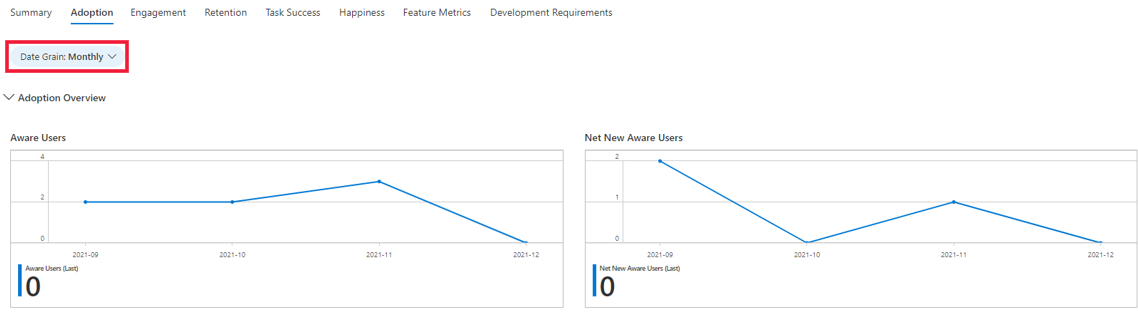
How do I view the data at different grains (daily, monthly, or weekly)?
You can select the Date Grain filter to change the grain. The filter is available across all the dimension tabs.
How do I access insights from my application that aren't available on the HEART workbooks?
You can dig into the data that feeds the HEART workbook if the visuals don't answer all your questions. To do this task, under the Monitoring section in Application Insights, select Logs, and query the customEvents table. Some of the Click Analytics attributes are contained within the customDimensions field.
An example query is shown here:
customEvents
| where isnotnull(customDimensions.actionType)
| extend parentid=tostring(customDimensions.parenId),
pagename=tostring(customDimensions.pageName),
actiontype=tostring(customDimensions.actionType)
| project actiontype,parentid,pagename,
user_AuthenticatedId,user_Id,session_Id,itemType,timestamp
To learn more about Logs in Azure Monitor, see Azure Monitor Logs overview.
Can I edit visuals in the workbook?
Yes. To learn how to edit workbook templates, see Azure Workbooks templates.
Where can I get more information about usage analysis?
For more information, see Usage analysis with Application Insights.
Worker Service applications
Which package should I use?
For current worker service applications, use the Azure Monitor OpenTelemetry Exporter or Distro. See Enable OpenTelemetry with Application Insights.
How can I track telemetry that's not automatically collected?
For current instrumentation, use OpenTelemetry APIs and language-specific logging or metrics APIs. For examples, see Collect custom telemetry.
For browser custom events, use the Application Insights JavaScript SDK or Click Analytics. For server-side custom events, use OpenTelemetry custom events.
Can I enable Application Insights monitoring without changing application code?
For new application monitoring, use the Azure Monitor OpenTelemetry Distro or current autoinstrumentation paths. See Enable OpenTelemetry with Application Insights and Application monitoring without code changes.
Are all features supported if I run my application in Linux?
Feature support depends on the language, hosting environment, and instrumentation path. For current support, start with Enable OpenTelemetry with Application Insights and the relevant language-specific configuration article.
Where can I get more information about Worker Service applications?
For current worker service instrumentation, see Enable OpenTelemetry with Application Insights.