Note
Access to this page requires authorization. You can try signing in or changing directories.
Access to this page requires authorization. You can try changing directories.
By Tom Dykstra, Jeremy Likness, and Jon P Smith
The Contoso University web app demonstrates how to create Razor Pages web apps using EF Core and Visual Studio. For information about the tutorial series, see the first tutorial.
If you run into problems you can't solve, download the completed app and compare that code to what you created by following the tutorial.
The previous tutorials worked with a basic data model that was composed of three entities. In this tutorial:
- More entities and relationships are added.
- The data model is customized by specifying formatting, validation, and database mapping rules.
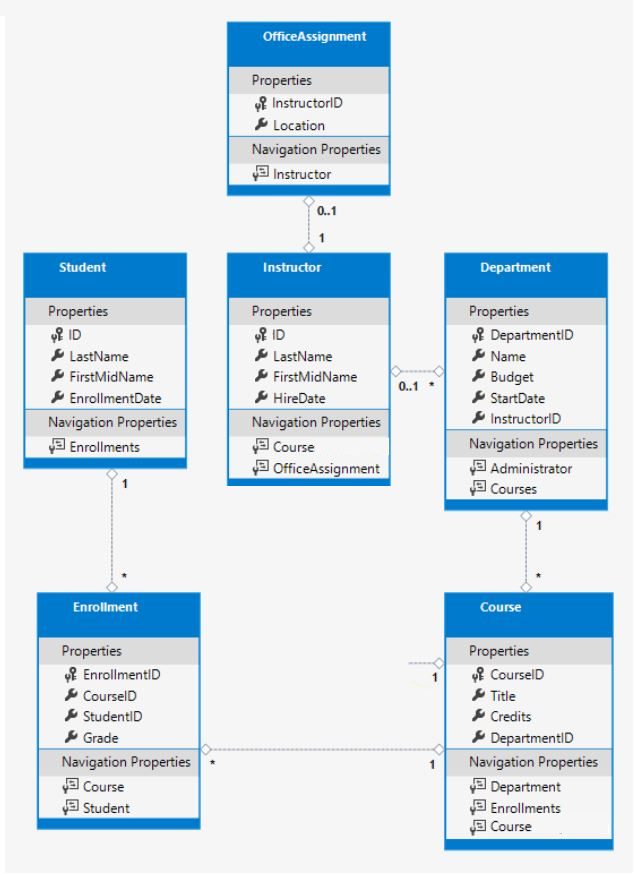
The completed data model is shown in the following illustration:
The following database diagram was made with Dataedo:
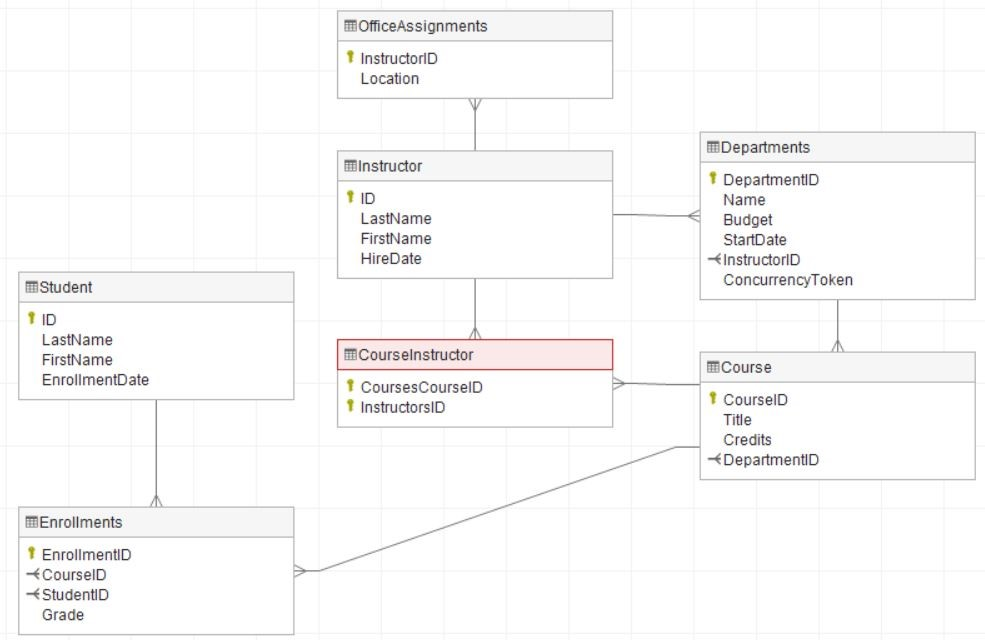
To create a database diagram with Dataedo:
- Deploy the app to Azure
- Download and install Dataedo on your computer.
- Follow the instructions Generate documentation for Azure SQL Database in 5 minutes
In the preceding Dataedo diagram, the CourseInstructor is a join table created by Entity Framework. For more information, see Many-to-many.
The Student entity
Replace the code in Models/Student.cs with the following code:
using System;
using System.Collections.Generic;
using System.ComponentModel.DataAnnotations;
using System.ComponentModel.DataAnnotations.Schema;

namespace ContosoUniversity.Models
{
    public class Student
    {
        public int ID { get; set; }
        [Required]
        [StringLength(50)]
        [Display(Name = "Last Name")]
        public string LastName { get; set; }
        [Required]
        [StringLength(50, ErrorMessage = "First name cannot be longer than 50 characters.")]
        [Column("FirstName")]
        [Display(Name = "First Name")]
        public string FirstMidName { get; set; }
        [DataType(DataType.Date)]
        [DisplayFormat(DataFormatString = "{0:yyyy-MM-dd}", ApplyFormatInEditMode = true)]
        [Display(Name = "Enrollment Date")]
        public DateTime EnrollmentDate { get; set; }
        [Display(Name = "Full Name")]
        public string FullName
        {
            get
            {
                return LastName + ", " + FirstMidName;
            }
        }

        public ICollection<Enrollment> Enrollments { get; set; }
    }
}
The preceding code adds a FullName property and adds the following attributes to existing properties:
The FullName calculated property
FullName is a calculated property that returns a value that's created by concatenating two other properties. FullName can't be set, so it has only a get accessor. No FullName column is created in the database.
The DataType attribute
[DataType(DataType.Date)]
For student enrollment dates, all of the pages currently display the time of day along with the date, although only the date is relevant. By using data annotation attributes, you can make one code change that will fix the display format in every page that shows the data.
The DataType attribute specifies a data type that's more specific than the database intrinsic type. In this case only the date should be displayed, not the date and time. The DataType Enumeration provides for many data types, such as Date, Time, PhoneNumber, Currency, EmailAddress, etc. The DataType attribute can also enable the app to automatically provide type-specific features. For example:
- The
mailto:link is automatically created forDataType.EmailAddress. - The date selector is provided for
DataType.Datein most browsers.
The DataType attribute emits HTML 5 data- (pronounced data dash) attributes. The DataType attributes don't provide validation.
The DisplayFormat attribute
[DisplayFormat(DataFormatString = "{0:yyyy-MM-dd}", ApplyFormatInEditMode = true)]
DataType.Date doesn't specify the format of the date that's displayed. By default, the date field is displayed according to the default formats based on the server's CultureInfo.
The DisplayFormat attribute is used to explicitly specify the date format. The ApplyFormatInEditMode setting specifies that the formatting should also be applied to the edit UI. Some fields shouldn't use ApplyFormatInEditMode. For example, the currency symbol should generally not be displayed in an edit text box.
The DisplayFormat attribute can be used by itself. It's generally a good idea to use the DataType attribute with the DisplayFormat attribute. The DataType attribute conveys the semantics of the data as opposed to how to render it on a screen. The DataType attribute provides the following benefits that are not available in DisplayFormat:
- The browser can enable HTML5 features. For example, show a calendar control, the locale-appropriate currency symbol, email links, and client-side input validation.
- By default, the browser renders data using the correct format based on the locale.
For more information, see the <input> Tag Helper documentation.
The StringLength attribute
[StringLength(50, ErrorMessage = "First name cannot be longer than 50 characters.")]
Data validation rules and validation error messages can be specified with attributes. The StringLength attribute specifies the minimum and maximum length of characters that are allowed in a data field. The code shown limits names to no more than 50 characters. An example that sets the minimum string length is shown later.
The StringLength attribute also provides client-side and server-side validation. The minimum value has no impact on the database schema.
The StringLength attribute doesn't prevent a user from entering white space for a name. The RegularExpression attribute can be used to apply restrictions to the input. For example, the following code requires the first character to be upper case and the remaining characters to be alphabetical:
[RegularExpression(@"^[A-Z]+[a-zA-Z]*$")]
In SQL Server Object Explorer (SSOX), open the Student table designer by double-clicking the Student table.
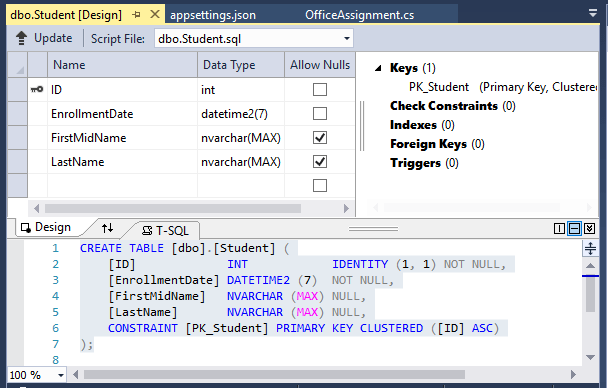
The preceding image shows the schema for the Student table. The name fields have type nvarchar(MAX). When a migration is created and applied later in this tutorial, the name fields become nvarchar(50) as a result of the string length attributes.
The Column attribute
[Column("FirstName")]
public string FirstMidName { get; set; }
Attributes can control how classes and properties are mapped to the database. In the Student model, the Column attribute is used to map the name of the FirstMidName property to "FirstName" in the database.
When the database is created, property names on the model are used for column names (except when the Column attribute is used). The Student model uses FirstMidName for the first-name field because the field might also contain a middle name.
With the [Column] attribute, Student.FirstMidName in the data model maps to the FirstName column of the Student table. The addition of the Column attribute changes the model backing the SchoolContext. The model backing the SchoolContext no longer matches the database. That discrepancy will be resolved by adding a migration later in this tutorial.
The Required attribute
[Required]
The Required attribute makes the name properties required fields. The Required attribute isn't needed for non-nullable types such as value types (for example, DateTime, int, and double). Types that can't be null are automatically treated as required fields.
The Required attribute must be used with MinimumLength for the MinimumLength to be enforced.
[Display(Name = "Last Name")]
[Required]
[StringLength(50, MinimumLength=2)]
public string LastName { get; set; }
MinimumLength and Required allow whitespace to satisfy the validation. Use the RegularExpression attribute for full control over the string.
The Display attribute
[Display(Name = "Last Name")]
The Display attribute specifies that the caption for the text boxes should be "First Name", "Last Name", "Full Name", and "Enrollment Date." The default captions had no space dividing the words, for example "Lastname."
Create a migration
Run the app and go to the Students page. An exception is thrown. The [Column] attribute causes EF to expect to find a column named FirstName, but the column name in the database is still FirstMidName.
The error message is similar to the following example:
SqlException: Invalid column name 'FirstName'.
There are pending model changes
Pending model changes are detected in the following:

SchoolContext
In the PMC, enter the following commands to create a new migration and update the database:
Add-Migration ColumnFirstName
Update-Database
The first of these commands generates the following warning message:
An operation was scaffolded that may result in the loss of data.
Please review the migration for accuracy.
The warning is generated because the name fields are now limited to 50 characters. If a name in the database had more than 50 characters, the 51 to last character would be lost.
Open the Student table in SSOX:
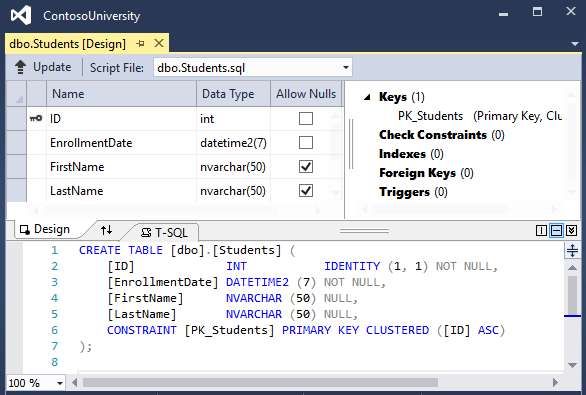
Before the migration was applied, the name columns were of type nvarchar(MAX). The name columns are now
nvarchar(50). The column name has changed fromFirstMidNametoFirstName.
- Run the app and go to the Students page.
- Notice that times are not input or displayed along with dates.
- Select Create New, and try to enter a name longer than 50 characters.
Note
In the following sections, building the app at some stages generates compiler errors. The instructions specify when to build the app.
The Instructor Entity
Create Models/Instructor.cs with the following code:
using System;
using System.Collections.Generic;
using System.ComponentModel.DataAnnotations;
using System.ComponentModel.DataAnnotations.Schema;

namespace ContosoUniversity.Models
{
    public class Instructor
    {
        public int ID { get; set; }

        [Required]
        [Display(Name = "Last Name")]
        [StringLength(50)]
        public string LastName { get; set; }

        [Required]
        [Column("FirstName")]
        [Display(Name = "First Name")]
        [StringLength(50)]
        public string FirstMidName { get; set; }

        [DataType(DataType.Date)]
        [DisplayFormat(DataFormatString = "{0:yyyy-MM-dd}", ApplyFormatInEditMode = true)]
        [Display(Name = "Hire Date")]
        public DateTime HireDate { get; set; }

        [Display(Name = "Full Name")]
        public string FullName
        {
            get { return LastName + ", " + FirstMidName; }
        }

        public ICollection<Course> Courses { get; set; }
        public OfficeAssignment OfficeAssignment { get; set; }
    }
}
Multiple attributes can be on one line. The HireDate attributes could be written as follows:
[DataType(DataType.Date),Display(Name = "Hire Date"),DisplayFormat(DataFormatString = "{0:yyyy-MM-dd}", ApplyFormatInEditMode = true)]
Navigation properties
The Courses and OfficeAssignment properties are navigation properties.
An instructor can teach any number of courses, so Courses is defined as a collection.
public ICollection<Course> Courses { get; set; }
An instructor can have at most one office, so the OfficeAssignment property holds a single OfficeAssignment entity. OfficeAssignment is null if no office is assigned.
public OfficeAssignment OfficeAssignment { get; set; }
The OfficeAssignment entity
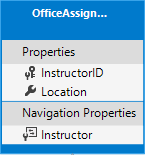
Create Models/OfficeAssignment.cs with the following code:
using System.ComponentModel.DataAnnotations;
using System.ComponentModel.DataAnnotations.Schema;

namespace ContosoUniversity.Models
{
    public class OfficeAssignment
    {
        [Key]
        public int InstructorID { get; set; }
        [StringLength(50)]
        [Display(Name = "Office Location")]
        public string Location { get; set; }

        public Instructor Instructor { get; set; }
    }
}
The Key attribute
The [Key] attribute is used to identify a property as the primary key (PK) when the property name is something other than classnameID or ID.
There's a one-to-zero-or-one relationship between the Instructor and OfficeAssignment entities. An office assignment only exists in relation to the instructor it's assigned to. The OfficeAssignment PK is also its foreign key (FK) to the Instructor entity. A one-to-zero-or-one relationship occurs when a PK in one table is both a PK and a FK in another table.
EF Core can't automatically recognize InstructorID as the PK of OfficeAssignment because InstructorID doesn't follow the ID or classnameID naming convention. Therefore, the Key attribute is used to identify InstructorID as the PK:
[Key]
public int InstructorID { get; set; }
By default, EF Core treats the key as non-database-generated because the column is for an identifying relationship. For more information, see EF Keys.
The Instructor navigation property
The Instructor.OfficeAssignment navigation property can be null because there might not be an OfficeAssignment row for a given instructor. An instructor might not have an office assignment.
The OfficeAssignment.Instructor navigation property will always have an instructor entity because the foreign key InstructorID type is int, a non-nullable value type. An office assignment can't exist without an instructor.
When an Instructor entity has a related OfficeAssignment entity, each entity has a reference to the other one in its navigation property.
The Course Entity
Update Models/Course.cs with the following code:
using System.Collections.Generic;
using System.ComponentModel.DataAnnotations;
using System.ComponentModel.DataAnnotations.Schema;

namespace ContosoUniversity.Models
{
    public class Course
    {
        [DatabaseGenerated(DatabaseGeneratedOption.None)]
        [Display(Name = "Number")]
        public int CourseID { get; set; }

        [StringLength(50, MinimumLength = 3)]
        public string Title { get; set; }

        [Range(0, 5)]
        public int Credits { get; set; }

        public int DepartmentID { get; set; }

        public Department Department { get; set; }
        public ICollection<Enrollment> Enrollments { get; set; }
        public ICollection<Instructor> Instructors { get; set; }
    }
}
The Course entity has a foreign key (FK) property DepartmentID. DepartmentID points to the related Department entity. The Course entity has a Department navigation property.
EF Core doesn't require a foreign key property for a data model when the model has a navigation property for a related entity. EF Core automatically creates FKs in the database wherever they're needed. EF Core creates shadow properties for automatically created FKs. However, explicitly including the FK in the data model can make updates simpler and more efficient. For example, consider a model where the FK property DepartmentID is not included. When a course entity is fetched to edit:
- The
Departmentproperty isnullif it's not explicitly loaded. - To update the course entity, the
Departmententity must first be fetched.
When the FK property DepartmentID is included in the data model, there's no need to fetch the Department entity before an update.
The DatabaseGenerated attribute
The [DatabaseGenerated(DatabaseGeneratedOption.None)] attribute specifies that the PK is provided by the application rather than generated by the database.
[DatabaseGenerated(DatabaseGeneratedOption.None)]
[Display(Name = "Number")]
public int CourseID { get; set; }
By default, EF Core assumes that PK values are generated by the database. Database-generated is generally the best approach. For Course entities, the user specifies the PK. For example, a course number such as a 1000 series for the math department, a 2000 series for the English department.
The DatabaseGenerated attribute can also be used to generate default values. For example, the database can automatically generate a date field to record the date a row was created or updated. For more information, see Generated Properties.
Foreign key and navigation properties
The foreign key (FK) properties and navigation properties in the Course entity reflect the following relationships:
A course is assigned to one department, so there's a DepartmentID FK and a Department navigation property.
public int DepartmentID { get; set; }
public Department Department { get; set; }
A course can have any number of students enrolled in it, so the Enrollments navigation property is a collection:
public ICollection<Enrollment> Enrollments { get; set; }
A course may be taught by multiple instructors, so the Instructors navigation property is a collection:
public ICollection<Instructor> Instructors { get; set; }
The Department entity
Create Models/Department.cs with the following code:
using System;
using System.Collections.Generic;
using System.ComponentModel.DataAnnotations;
using System.ComponentModel.DataAnnotations.Schema;

namespace ContosoUniversity.Models
{
    public class Department
    {
        public int DepartmentID { get; set; }

        [StringLength(50, MinimumLength = 3)]
        public string Name { get; set; }

        [DataType(DataType.Currency)]
        [Column(TypeName = "money")]
        public decimal Budget { get; set; }

        [DataType(DataType.Date)]
        [DisplayFormat(DataFormatString = "{0:yyyy-MM-dd}",
                       ApplyFormatInEditMode = true)]
        [Display(Name = "Start Date")]
        public DateTime StartDate { get; set; }

        public int? InstructorID { get; set; }

        public Instructor Administrator { get; set; }
        public ICollection<Course> Courses { get; set; }
    }
}
The Column attribute
Previously the Column attribute was used to change column name mapping. In the code for the Department entity, the Column attribute is used to change SQL data type mapping. The Budget column is defined using the SQL Server money type in the database:
[Column(TypeName="money")]
public decimal Budget { get; set; }
Column mapping is generally not required. EF Core chooses the appropriate SQL Server data type based on the CLR type for the property. The CLR decimal type maps to a SQL Server decimal type. Budget is for currency, and the money data type is more appropriate for currency.
Foreign key and navigation properties
The FK and navigation properties reflect the following relationships:
- A department may or may not have an administrator.
- An administrator is always an instructor. Therefore the
InstructorIDproperty is included as the FK to theInstructorentity.
The navigation property is named Administrator but holds an Instructor entity:
public int? InstructorID { get; set; }
public Instructor Administrator { get; set; }
The ? in the preceding code specifies the property is nullable.
A department may have many courses, so there's a Courses navigation property:
public ICollection<Course> Courses { get; set; }
By convention, EF Core enables cascade delete for non-nullable FKs and for many-to-many relationships. This default behavior can result in circular cascade delete rules. Circular cascade delete rules cause an exception when a migration is added.
For example, if the Department.InstructorID property was defined as non-nullable, EF Core would configure a cascade delete rule. In that case, the department would be deleted when the instructor assigned as its administrator is deleted. In this scenario, a restrict rule would make more sense. The following fluent API would set a restrict rule and disable cascade delete.
modelBuilder.Entity<Department>()
   .HasOne(d => d.Administrator)
   .WithMany()
   .OnDelete(DeleteBehavior.Restrict)
The Enrollment foreign key and navigation properties
An enrollment record is for one course taken by one student.
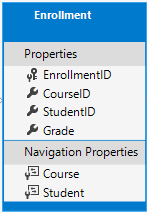
Update Models/Enrollment.cs with the following code:
using System.ComponentModel.DataAnnotations;

namespace ContosoUniversity.Models
{
    public enum Grade
    {
        A, B, C, D, F
    }

    public class Enrollment
    {
        public int EnrollmentID { get; set; }
        public int CourseID { get; set; }
        public int StudentID { get; set; }
        [DisplayFormat(NullDisplayText = "No grade")]
        public Grade? Grade { get; set; }

        public Course Course { get; set; }
        public Student Student { get; set; }
    }
}
The FK properties and navigation properties reflect the following relationships:
An enrollment record is for one course, so there's a CourseID FK property and a Course navigation property:
public int CourseID { get; set; }
public Course Course { get; set; }
An enrollment record is for one student, so there's a StudentID FK property and a Student navigation property:
public int StudentID { get; set; }
public Student Student { get; set; }
Many-to-Many Relationships
There's a many-to-many relationship between the Student and Course entities. The Enrollment entity functions as a many-to-many join table with payload in the database. With payload means that the Enrollment table contains additional data besides FKs for the joined tables. In the Enrollment entity, the additional data besides FKs are the PK and Grade.
The following illustration shows what these relationships look like in an entity diagram. (This diagram was generated using EF Power Tools for EF 6.x. Creating the diagram isn't part of the tutorial.)
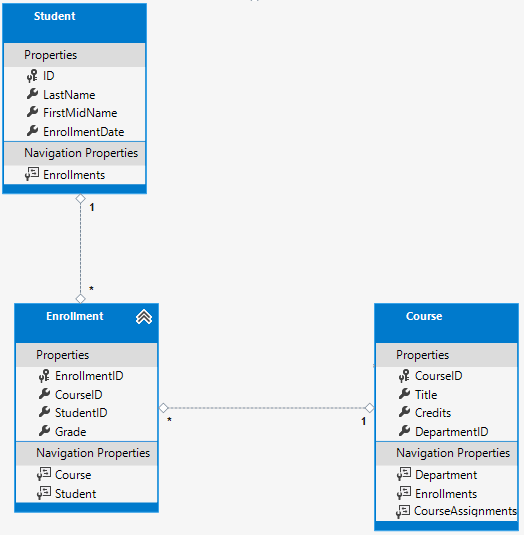
Each relationship line has a 1 at one end and an asterisk (*) at the other, indicating a one-to-many relationship.
If the Enrollment table didn't include grade information, it would only need to contain the two FKs, CourseID and StudentID. A many-to-many join table without payload is sometimes called a pure join table (PJT).
The Instructor and Course entities have a many-to-many relationship using a PJT.
Update the database context
Update Data/SchoolContext.cs with the following code:
using ContosoUniversity.Models;
using Microsoft.EntityFrameworkCore;

namespace ContosoUniversity.Data
{
    public class SchoolContext : DbContext
    {
        public SchoolContext(DbContextOptions<SchoolContext> options) : base(options)
        {
        }

        public DbSet<Course> Courses { get; set; }
        public DbSet<Enrollment> Enrollments { get; set; }
        public DbSet<Student> Students { get; set; }
        public DbSet<Department> Departments { get; set; }
        public DbSet<Instructor> Instructors { get; set; }
        public DbSet<OfficeAssignment> OfficeAssignments { get; set; }

        protected override void OnModelCreating(ModelBuilder modelBuilder)
        {
            modelBuilder.Entity<Course>().ToTable(nameof(Course))
                .HasMany(c => c.Instructors)
                .WithMany(i => i.Courses);
            modelBuilder.Entity<Student>().ToTable(nameof(Student));
            modelBuilder.Entity<Enrollment>().ToTable("Enrollment");
            modelBuilder.Entity<Instructor>().ToTable(nameof(Instructor));
        }
    }
}
The preceding code adds the new entities and configures the many-to-many relationship between the Instructor and Course entities.
Fluent API alternative to attributes
The OnModelCreating method in the preceding code uses the fluent API to configure EF Core behavior. The API is called "fluent" because it's often used by stringing a series of method calls together into a single statement. The following code is an example of the fluent API:
protected override void OnModelCreating(ModelBuilder modelBuilder)
{
    modelBuilder.Entity<Blog>()
        .Property(b => b.Url)
        .IsRequired();
}
In this tutorial, the fluent API is used only for database mapping that can't be done with attributes. However, the fluent API can specify most of the formatting, validation, and mapping rules that can be done with attributes.
Some attributes such as MinimumLength can't be applied with the fluent API. MinimumLength doesn't change the schema, it only applies a minimum length validation rule.
Some developers prefer to use the fluent API exclusively so that they can keep their entity classes clean. Attributes and the fluent API can be mixed. There are some configurations that can only be done with the fluent API, for example, specifying a composite PK. There are some configurations that can only be done with attributes (MinimumLength). The recommended practice for using fluent API or attributes:
- Choose one of these two approaches.
- Use the chosen approach consistently as much as possible.
Some of the attributes used in this tutorial are used for:
- Validation only (for example,
MinimumLength). - EF Core configuration only (for example,
HasKey). - Validation and EF Core configuration (for example,
[StringLength(50)]).
For more information about attributes vs. fluent API, see Methods of configuration.
Seed the database
Update the code in Data/DbInitializer.cs:
using ContosoUniversity.Models;
using System;
using System.Collections.Generic;
using System.Linq;

namespace ContosoUniversity.Data
{
    public static class DbInitializer
    {
        public static void Initialize(SchoolContext context)
        {
            // Look for any students.
            if (context.Students.Any())
            {
                return;   // DB has been seeded
            }

            var alexander = new Student
            {
                FirstMidName = "Carson",
                LastName = "Alexander",
                EnrollmentDate = DateTime.Parse("2016-09-01")
            };

            var alonso = new Student
            {
                FirstMidName = "Meredith",
                LastName = "Alonso",
                EnrollmentDate = DateTime.Parse("2018-09-01")
            };

            var anand = new Student
            {
                FirstMidName = "Arturo",
                LastName = "Anand",
                EnrollmentDate = DateTime.Parse("2019-09-01")
            };

            var barzdukas = new Student
            {
                FirstMidName = "Gytis",
                LastName = "Barzdukas",
                EnrollmentDate = DateTime.Parse("2018-09-01")
            };

            var li = new Student
            {
                FirstMidName = "Yan",
                LastName = "Li",
                EnrollmentDate = DateTime.Parse("2018-09-01")
            };

            var justice = new Student
            {
                FirstMidName = "Peggy",
                LastName = "Justice",
                EnrollmentDate = DateTime.Parse("2017-09-01")
            };

            var norman = new Student
            {
                FirstMidName = "Laura",
                LastName = "Norman",
                EnrollmentDate = DateTime.Parse("2019-09-01")
            };

            var olivetto = new Student
            {
                FirstMidName = "Nino",
                LastName = "Olivetto",
                EnrollmentDate = DateTime.Parse("2011-09-01")
            };

            var students = new Student[]
            {
                alexander,
                alonso,
                anand,
                barzdukas,
                li,
                justice,
                norman,
                olivetto
            };

            context.AddRange(students);

            var abercrombie = new Instructor
            {
                FirstMidName = "Kim",
                LastName = "Abercrombie",
                HireDate = DateTime.Parse("1995-03-11")
            };

            var fakhouri = new Instructor
            {
                FirstMidName = "Fadi",
                LastName = "Fakhouri",
                HireDate = DateTime.Parse("2002-07-06")
            };

            var harui = new Instructor
            {
                FirstMidName = "Roger",
                LastName = "Harui",
                HireDate = DateTime.Parse("1998-07-01")
            };

            var kapoor = new Instructor
            {
                FirstMidName = "Candace",
                LastName = "Kapoor",
                HireDate = DateTime.Parse("2001-01-15")
            };

            var zheng = new Instructor
            {
                FirstMidName = "Roger",
                LastName = "Zheng",
                HireDate = DateTime.Parse("2004-02-12")
            };

            var instructors = new Instructor[]
            {
                abercrombie,
                fakhouri,
                harui,
                kapoor,
                zheng
            };

            context.AddRange(instructors);

            var officeAssignments = new OfficeAssignment[]
            {
                new OfficeAssignment {
                    Instructor = fakhouri,
                    Location = "Smith 17" },
                new OfficeAssignment {
                    Instructor = harui,
                    Location = "Gowan 27" },
                new OfficeAssignment {
                    Instructor = kapoor,
                    Location = "Thompson 304" }
            };

            context.AddRange(officeAssignments);

            var english = new Department
            {
                Name = "English",
                Budget = 350000,
                StartDate = DateTime.Parse("2007-09-01"),
                Administrator = abercrombie
            };

            var mathematics = new Department
            {
                Name = "Mathematics",
                Budget = 100000,
                StartDate = DateTime.Parse("2007-09-01"),
                Administrator = fakhouri
            };

            var engineering = new Department
            {
                Name = "Engineering",
                Budget = 350000,
                StartDate = DateTime.Parse("2007-09-01"),
                Administrator = harui
            };

            var economics = new Department
            {
                Name = "Economics",
                Budget = 100000,
                StartDate = DateTime.Parse("2007-09-01"),
                Administrator = kapoor
            };

            var departments = new Department[]
            {
                english,
                mathematics,
                engineering,
                economics
            };

            context.AddRange(departments);

            var chemistry = new Course
            {
                CourseID = 1050,
                Title = "Chemistry",
                Credits = 3,
                Department = engineering,
                Instructors = new List<Instructor> { kapoor, harui }
            };

            var microeconomics = new Course
            {
                CourseID = 4022,
                Title = "Microeconomics",
                Credits = 3,
                Department = economics,
                Instructors = new List<Instructor> { zheng }
            };

            var macroeconmics = new Course
            {
                CourseID = 4041,
                Title = "Macroeconomics",
                Credits = 3,
                Department = economics,
                Instructors = new List<Instructor> { zheng }
            };

            var calculus = new Course
            {
                CourseID = 1045,
                Title = "Calculus",
                Credits = 4,
                Department = mathematics,
                Instructors = new List<Instructor> { fakhouri }
            };

            var trigonometry = new Course
            {
                CourseID = 3141,
                Title = "Trigonometry",
                Credits = 4,
                Department = mathematics,
                Instructors = new List<Instructor> { harui }
            };

            var composition = new Course
            {
                CourseID = 2021,
                Title = "Composition",
                Credits = 3,
                Department = english,
                Instructors = new List<Instructor> { abercrombie }
            };

            var literature = new Course
            {
                CourseID = 2042,
                Title = "Literature",
                Credits = 4,
                Department = english,
                Instructors = new List<Instructor> { abercrombie }
            };

            var courses = new Course[]
            {
                chemistry,
                microeconomics,
                macroeconmics,
                calculus,
                trigonometry,
                composition,
                literature
            };

            context.AddRange(courses);

            var enrollments = new Enrollment[]
            {
                new Enrollment {
                    Student = alexander,
                    Course = chemistry,
                    Grade = Grade.A
                },
                new Enrollment {
                    Student = alexander,
                    Course = microeconomics,
                    Grade = Grade.C
                },
                new Enrollment {
                    Student = alexander,
                    Course = macroeconmics,
                    Grade = Grade.B
                },
                new Enrollment {
                    Student = alonso,
                    Course = calculus,
                    Grade = Grade.B
                },
                new Enrollment {
                    Student = alonso,
                    Course = trigonometry,
                    Grade = Grade.B
                },
                new Enrollment {
                    Student = alonso,
                    Course = composition,
                    Grade = Grade.B
                },
                new Enrollment {
                    Student = anand,
                    Course = chemistry
                },
                new Enrollment {
                    Student = anand,
                    Course = microeconomics,
                    Grade = Grade.B
                },
                new Enrollment {
                    Student = barzdukas,
                    Course = chemistry,
                    Grade = Grade.B
                },
                new Enrollment {
                    Student = li,
                    Course = composition,
                    Grade = Grade.B
                },
                new Enrollment {
                    Student = justice,
                    Course = literature,
                    Grade = Grade.B
                }
            };

            context.AddRange(enrollments);
            context.SaveChanges();
        }
    }
}
The preceding code provides seed data for the new entities. Most of this code creates new entity objects and loads sample data. The sample data is used for testing.
Apply the migration or drop and re-create
With the existing database, there are two approaches to changing the database:
- Drop and re-create the database. Choose this section when using SQLite.
- Apply the migration to the existing database. The instructions in this section work for SQL Server only, not for SQLite.
Either choice works for SQL Server. While the apply-migration method is more complex and time-consuming, it's the preferred approach for real-world, production environments.
Drop and re-create the database
To force EF Core to create a new database, drop and update the database:
- Delete the Migrations folder.
- In the Package Manager Console (PMC), run the following commands:
Drop-Database
Add-Migration InitialCreate
Update-Database
Run the app. Running the app runs the DbInitializer.Initialize method. The DbInitializer.Initialize populates the new database.
Open the database in SSOX:
- If SSOX was opened previously, click the Refresh button.
- Expand the Tables node. The created tables are displayed.
Next steps
The next two tutorials show how to read and update related data.
Collaborate with us on GitHub
The source for this content can be found on GitHub, where you can also create and review issues and pull requests. For more information, see our contributor guide.

ASP.NET Core