Note
Access to this page requires authorization. You can try signing in or changing directories.
Access to this page requires authorization. You can try changing directories.
The SRE Agent Operations Hub gives you real-time visibility into how your Azure SRE Agent performs across incidents, automations, integrations, and operational health in one place. Instead of checking individual threads, setup pages, and automations separately, you see the unified signals that matter: agent health, pending actions, connector readiness, and automation reliability.
Tip
Key points:
- See incident analytics, automation health, and daily metrics in one dashboard, no switching between pages.
- Three tabs: Overview (metrics and system health), Incident Analytics (hours saved, resolution rates, time-to-mitigate), Automation (task and trigger KPIs).
- Select any KPI card to drill into detailed charts and breakdowns.
- Available for all agents. Appears automatically in the sidebar.
What is the Operations Hub?
Operations Hub consolidates operational intelligence about your SRE Agent into three focused dashboards. Without a central view, teams rebuild agent state manually by opening individual incident threads, checking automations one by one, and reviewing integrations across separate pages. This manual approach becomes unmanageable as your environment grows. Operations Hub moves your team from reactive investigation to proactive management by surfacing leading indicators of issues before they impact incident response.
How the Operations Hub dashboard works
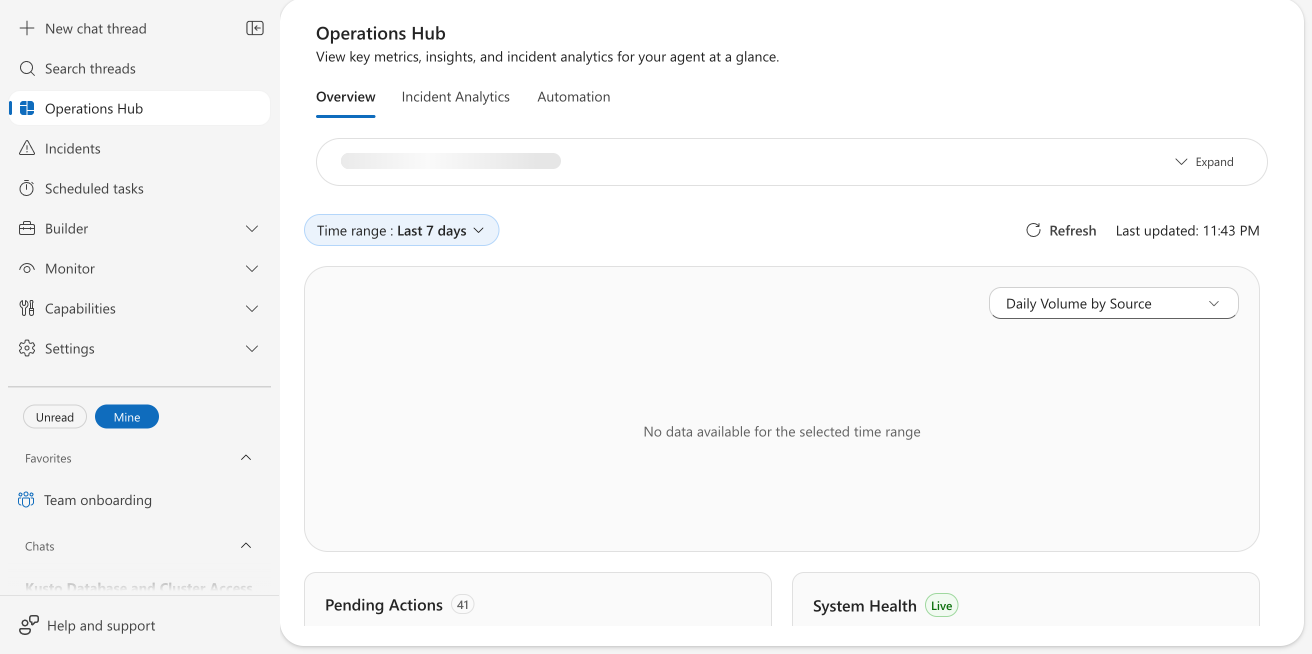
Operations Hub combines monitoring into three tabs accessible from the sidebar. Select Operations Hub in the left sidebar to open the dashboard.
Overview tab
Question: What needs my attention right now?
The default view shows your agent's operational status at a glance:
| Section | What it shows |
|---|---|
| Status bar | Data source connection health, which connectors are configured and which need attention. Select Complete setup to configure missing sources directly. |
| Metrics chart | Daily Volume by Source, Daily Active Flow Consumption (AAU), or Daily Custom Tool Calls. Select from the dropdown. |
| Pending Actions | Count of conversation threads waiting for your input, including approvals, questions, incident inputs, and pending command executions. |
| System Health | Live agent process status and connector health. |
Use the Time range selector at the top to adjust the reporting period (default: last 7 days). Select Refresh to load the latest data.
Incident Analytics tab
Question: Is the agent actually helping during incidents?
Incident analytics measures effectiveness, not just activity. An interactive analytics dashboard with four KPI cards:
| Card | What it shows |
|---|---|
| Estimated engineering time saved | Total hours your agent saved, with a daily breakdown drill-down |
| Agent-supported resolution rate | Percentage of incidents resolved, with outcome breakdown: agent mitigated, human mitigated (agent assisted), human mitigated (no agent), and in-progress |
| Median Time to Mitigate | P50 comparison, agent resolution time vs. human resolution time |
| IntentMet evaluation score | Quality rating (1-5 scale with star visualization) based on how effectively the agent resolved incidents |
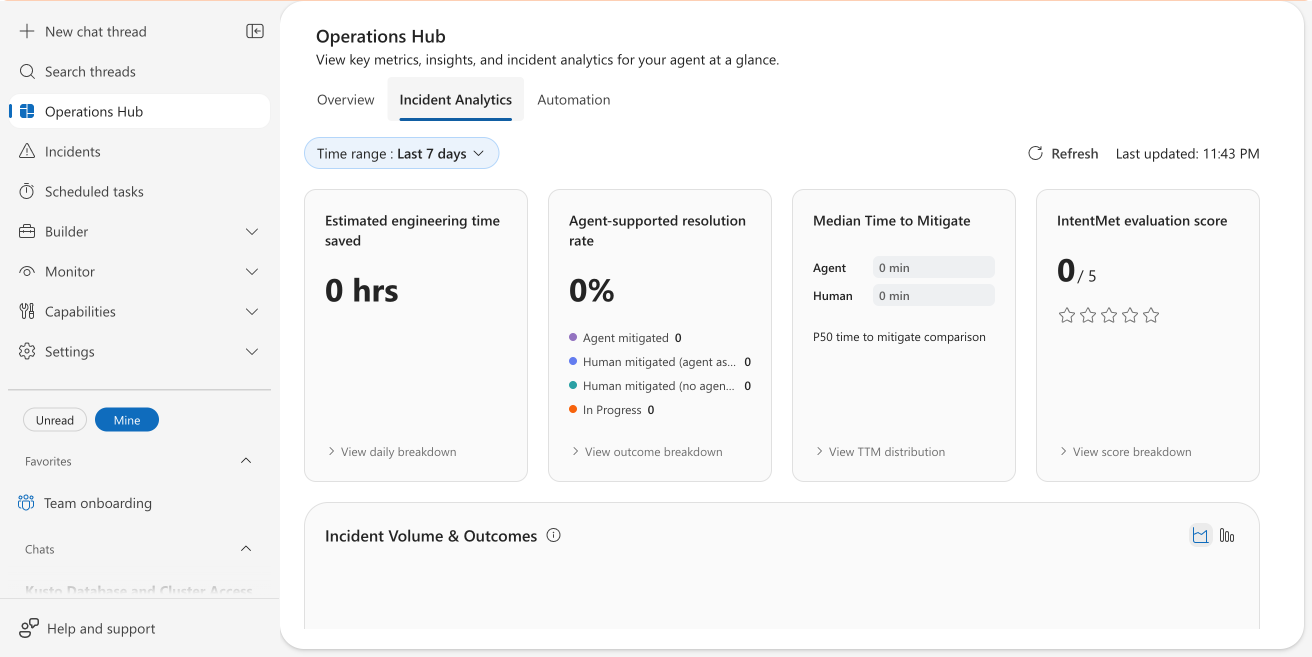
Select any KPI card to expand a drill-down view with detailed charts. Below the KPI cards, the Incident Volume & Outcomes chart shows incident trends over time.
Automation tab
Question: Are my recurring and event-driven workflows healthy and reliable?
A dashboard for monitoring scheduled tasks and HTTP triggers:
| Card | What it shows |
|---|---|
| Total Automations | Count of active automations, split by scheduled tasks and triggers |
| Total Runs | Execution count with trend comparison to the previous period |
| Success Rate | Percentage of successful runs with succeeded/failed counts |
| Avg Run Duration | Mean execution time with median and P95 percentiles |
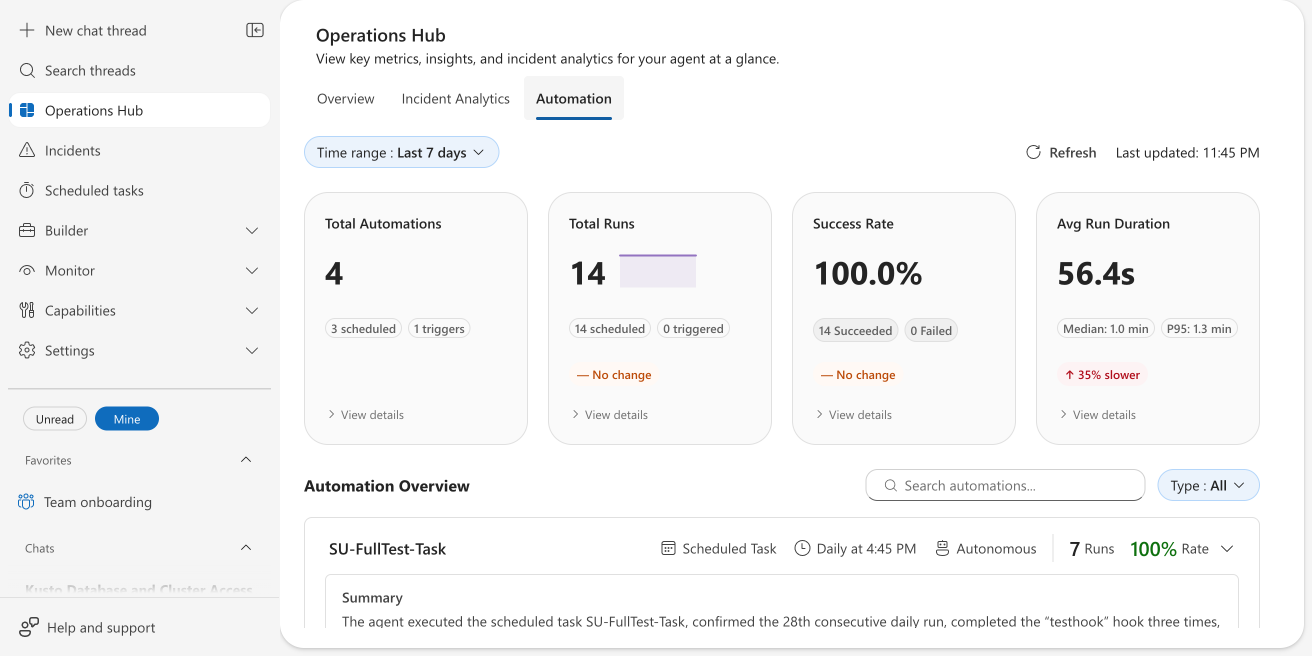
Below the KPI cards, the Automation Overview section lists each automation with its type (Scheduled Task or HTTP Trigger), schedule, autonomy mode, run count, and success rate. Expand any card to see an AI-generated summary of recent executions.
Use the Search box and Type filter to find specific automations.
How Operations Hub improves proactive management
The Operations Hub shifts your team from reactive investigation to proactive management. Instead of discovering issues after opening a thread or reviewing failed workflows, you see leading indicators early:
- Pending action buildup: Actions waiting on approval or user input.
- Connector degradation: Integration health declining over time.
- Activity trend changes: Shifts in agent usage patterns.
- Automation reliability decline: Increasing failure rates or run duration.
- Incident effectiveness shifts: Changes suggesting reduced incident response impact.
This proactive visibility builds trust in your SRE Agent. You can rely more confidently on the agent when you can monitor its behavior at a glance, instead of only after problems occur.
When to use Operations Hub
Use Operations Hub when you need to:
Monitor overall agent health: Get a system view rather than checking individual components.
Track incident response contribution: Measure whether the agent improves your incident outcomes.
Manage automation reliability: Identify patterns in automation performance before they cause outages.
Establish operational baselines: Understand normal behavior to spot anomalies early.
Before and after using Operations Hub
| Before | After | |
|---|---|---|
| Checking agent health | Visit multiple pages: Monitor, Settings, individual tasks | Open Operations Hub: one dashboard, three tabs |
| Incident analytics | Go to separate metrics views, manually cross-reference | Incident Analytics tab with KPI cards and drill-down charts |
| Automation monitoring | Select each scheduled task individually | Automation tab shows all automations with health indicators |
| AAU consumption | Go to Settings > Agent consumption | Overview tab metrics chart includes AAU data |
| Pending approvals | Scan chat threads for items waiting for input | Pending Actions count visible on the Overview tab |
Limitations
Operations Hub displays data for the last 30 days by default. Access to historical data beyond this period requires archival queries.
Automation analytics currently support runs triggered from the Operations Hub UI. Webhook and programmatic triggers show limited visibility in early releases.