Note
Access to this page requires authorization. You can try signing in or changing directories.
Access to this page requires authorization. You can try changing directories.
Bringing related data and actions together on one screen lets users get more done without switching between views. Microsoft Excel is a familiar example—you can read and edit data inline in the same grid.
With Power Apps, you can build the same kind of experience on top of any data source, and customize it further to fit your business.
This tutorial builds a sample catalog-management app that combines:
- A data source (Microsoft Dataverse in this example; you can use Excel or another connector instead).
- A form control to add new records.
- A gallery with text input controls to display and edit existing records inline.
- A search box to filter the gallery.
Prerequisites
- Access to a Power Platform environment.
- Permission to create tables in Microsoft Dataverse.
The tutorial uses a Dataverse table named Editable tables with the columns shown below. You can use your own table—just substitute your table and column names in the formulas.
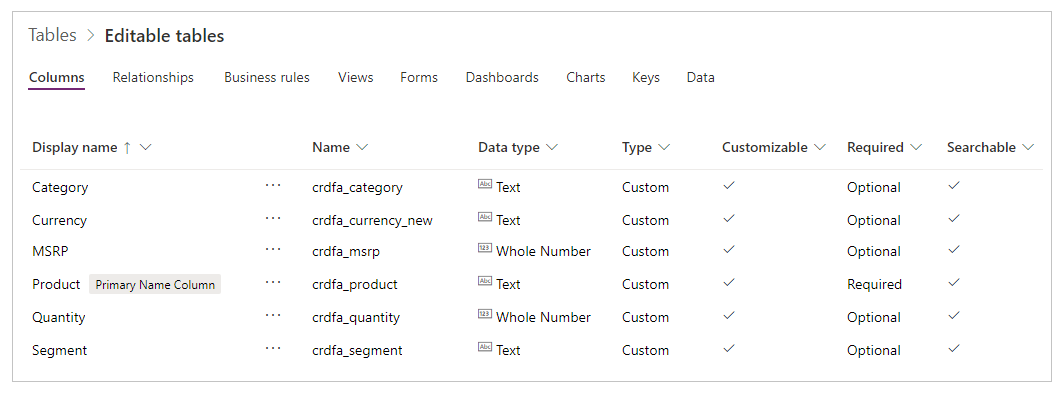
To learn more, see:
- Work with table columns
- Create a form and set the form order for adding new records.
Step 1: Create a blank canvas app
Create a blank canvas app named Catalog Management app with the Tablet layout.
Step 2: Add a data source
This tutorial uses a Dataverse table, but the same pattern works with Excel on SharePoint or OneDrive, or any other tabular connector.
- On the left pane, select Data > Add data.
- Select See all tables, and then select Editable tables (or your own table).
For more information, see Add a data source.
Step 3: Add a form to create new records
In this step, you add an Edit form so users can create new records.
On the left pane, select + Insert > Edit form.
On the Properties pane, set Data source to your table.
Select Edit fields to choose the columns to show on the form. Reorder them as needed.
Set Default mode to New.
Adjust Width and Height so the form fills the left half of the canvas.
Rename the form to NewProductForm so the formulas in this tutorial match what you see on screen.
On the left pane, select + Insert > Button.
Set the button's Text property to
"Add product".Set the button's OnSelect property to:
SubmitForm(NewProductForm); NewForm(NewProductForm)- SubmitForm saves the new record to your data source.
- NewForm resets the form so users can add another record right away.
Step 4: Add a gallery as an editable table
Now add a blank vertical gallery on the right half of the canvas. Each row holds one text-input control per column you want to edit.
On the left pane, select + Insert > Layout > Blank vertical gallery.
On the Properties pane, set the gallery's Items property to your table (for example,
'Editable tables').Rename the gallery to ProductGallery.
Resize the gallery to fill the right half of the canvas.
Select Edit (the pencil icon in the upper-left of the gallery) to enter template-editing mode.
On the left pane, select + Insert > Input > Text input. A new text input appears in the first cell of the gallery template—repeat this for each editable column.
Arrange the text inputs side by side across the top of the template so they form a single editable row:
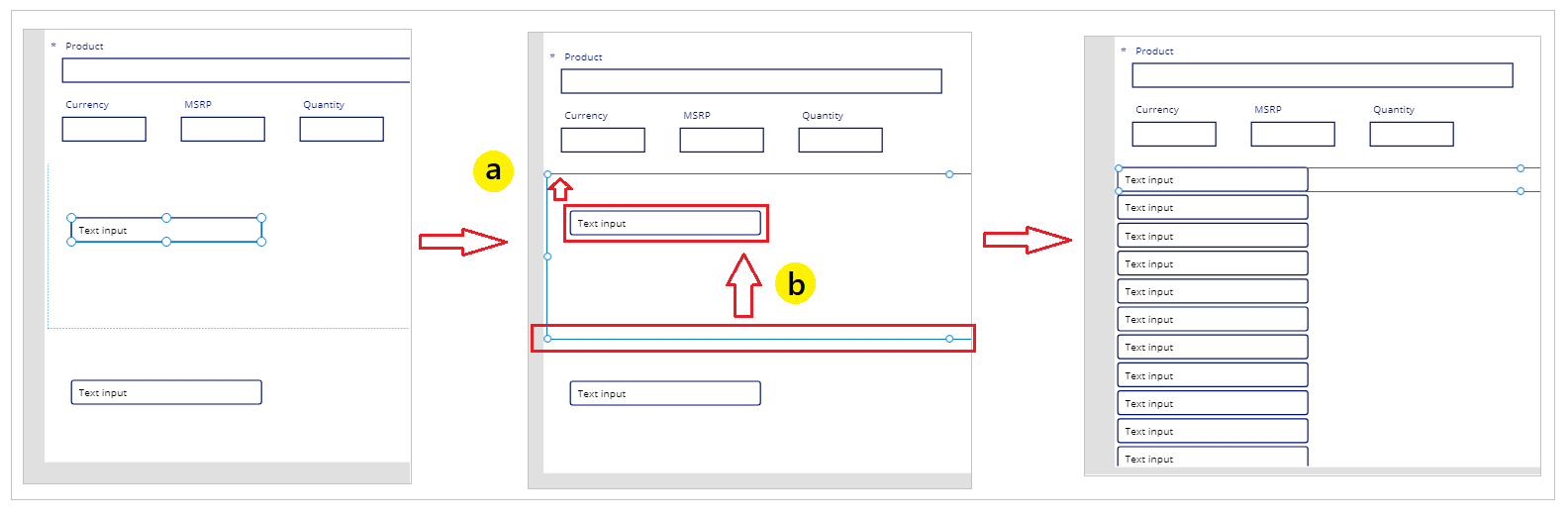
Resize the template height so it matches the input height. The gallery now renders one editable row per record.
Rename each text input to match its column (for example, ProductInput, SegmentInput). Named controls make the formulas in the rest of the tutorial easier to follow.
For each text input, set its Default property to the matching column on
ThisItem. For example:ThisItem.Product- ThisItem refers to the current record being rendered in the gallery.
- Replace
Productwith each column name as you configure the other inputs.
For each text input, set its OnChange property to write the user's edit back to the data source. For example, on
ProductInput:Patch('Editable tables', ThisItem, { Product: ProductInput.Text })- Patch updates the current record with the new value.
- Replace
'Editable tables',Product, andProductInputwith your table, column, and control names.
Tip
Adjust column widths by dragging the edges of the first row in each column, or by setting the Width property directly.
Step 5: Add edit and cancel controls
By default, the gallery is editable, which can lead to accidental changes. Add an explicit edit toggle so users only edit when they intend to.
On the left pane, select + Insert > Icons, and add an Edit icon and a Cancel (badge) icon. Place them where they're easy to find—for example, near the top of the gallery.
On the left pane, select Tree view, and then select App.
Set the App.OnStart property to:
Set(galleryDisplayMode, DisplayMode.Disabled)This creates a
galleryDisplayModevariable and sets the gallery to read-only when the app starts. Set creates or updates a global variable.Note
To run OnStart immediately so you can test, right-click App in the Tree view and select Run OnStart.
Select ProductGallery and set its DisplayMode property to:
galleryDisplayModeConfigure the Edit and Cancel icons:
Icon Property Formula Edit OnSelect Set(galleryDisplayMode, DisplayMode.Edit)Edit Visible galleryDisplayMode = DisplayMode.DisabledCancel OnSelect Set(galleryDisplayMode, DisplayMode.Disabled)Cancel Visible galleryDisplayMode = DisplayMode.EditOnly one icon is visible at a time—Edit when the gallery is locked, Cancel when it's editable.
Place the two icons in the same position. Because their Visible properties are mutually exclusive, users see a single toggle.
Tip
Press F5 (or select Preview in the upper-right) to test the app. To test a single action without entering full preview, hold Alt and select the control.
Step 6: Add a search box
As your data grows, finding a specific record gets harder. A search box filters the gallery in real time.
On the left pane, select + Insert > Input > Text input, and place it above the gallery.
Rename it to SearchInput, and clear its Default property.
Set SearchInput.HintText to
"Search products or segments".Update ProductGallery.Items to filter on the search text:
If( IsBlank(SearchInput.Text), 'Editable tables', Filter( 'Editable tables', SearchInput.Text in Product || SearchInput.Text in Segment ) )- If returns the full table when the search box is empty, or the filtered results otherwise.
- IsBlank detects an empty search box.
- Filter returns rows that match the criteria.
- The
inoperator does a case-insensitive substring match. ||is the logical OR operator. Add or remove columns to fit your scenario.
Tip
You can comment out parts of a formula with // to keep the original logic available while you experiment.
Step 7: Polish with branding, profile info, and a reset button
The app already works. These optional touches make it feel more complete. Apply them with the same control-and-property pattern used in earlier steps.
| Capability | Control | Properties | Notes |
|---|---|---|---|
| App title bar | Text label | Text "Admin Catalog Management"; Font size 28; Color blue; Align center |
Customize values as needed. |
| User display name | Text label | Text Office365Users.MyProfileV2().displayName |
Requires the Office 365 Users connector. |
| User profile photo | Image | Image Office365Users.UserPhotoV2(Office365Users.MyProfileV2().userPrincipalName) |
Requires the Office 365 Users connector. |
| Reset the search box | Reload icon | OnSelect Reset(SearchInput) |
Clears the search box so the gallery shows all rows. |
| Section heading above gallery | Text label | Text "Current products"; Font size 16; Font weight bold |
Customize as needed. |
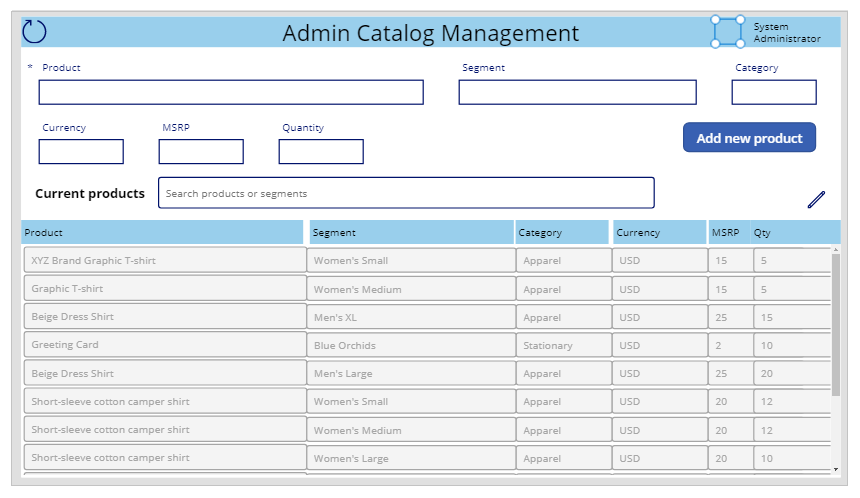
For example, the finished app looks like this:
Step 8: Save, publish, and share
Save and publish your app, then share it within your organization or with guests.