Note
Access to this page requires authorization. You can try signing in or changing directories.
Access to this page requires authorization. You can try changing directories.
This article covers Authenticator-specific requirements and configuration for passkeys in Microsoft Authenticator for Microsoft Entra ID.
Before you follow the steps in this article, enable passkeys and create a passkey profile. For steps, see Enable passkeys (FIDO2) in Microsoft Entra ID.
Prerequisites for passkeys in Authenticator
An account with at least Authentication Policy Administrator permissions to configure authentication methods.
You need to enable passkey sign-in in the Passkey (FIDO2) policy in Authentication methods in the Microsoft Entra admin center.
Android 14 and later or iOS 17 and later.
For cross-device registration and authentication:
Make sure that Bluetooth and an active internet connection are enabled on both devices. If your organization restricts Bluetooth usage, you can permit Bluetooth pairing exclusively with passkey-enabled FIDO2 authenticators to allow cross-device passkey sign-in and registration. Your organization needs to allow connectivity to endpoints in the following table to enable cross-device registration and authentication. Devices must be allowed to reach these URLs. For more information about requirements for Apple devices, see Use Apple products on enterprise networks.
Platform URL Android cable.ua5v.comiOS cable.auth.comapp-site-association.cdn-apple.comapp-site-association.networking.apple
Note
Users can't use cross-device registration if you enable attestation.
To learn more about FIDO2 support, see Support for FIDO2 authentication with Microsoft Entra ID.
Note
If you grant the Require device to be marked as compliant control as part of a Conditional Access policy, it doesn't block Microsoft Authenticator app access to the UserAuthenticationMethod.Read scope. Authenticator needs access to the UserAuthenticationMethod.Read scope during Authenticator registration to determine which credentials a user can configure. Authenticator needs access to UserAuthenticationMethod.ReadWrite to register credentials, which doesn't bypass the Require device to be marked as compliant check.
Configure a profile for passkeys in Authenticator
Sign in to the Microsoft Entra admin center as at least an Authentication Policy Administrator.
Browse to Entra ID > Authentication methods.
On the Authentication methods | Policies page, select Passkey (FIDO2) > Configure.
Select + Add profile.
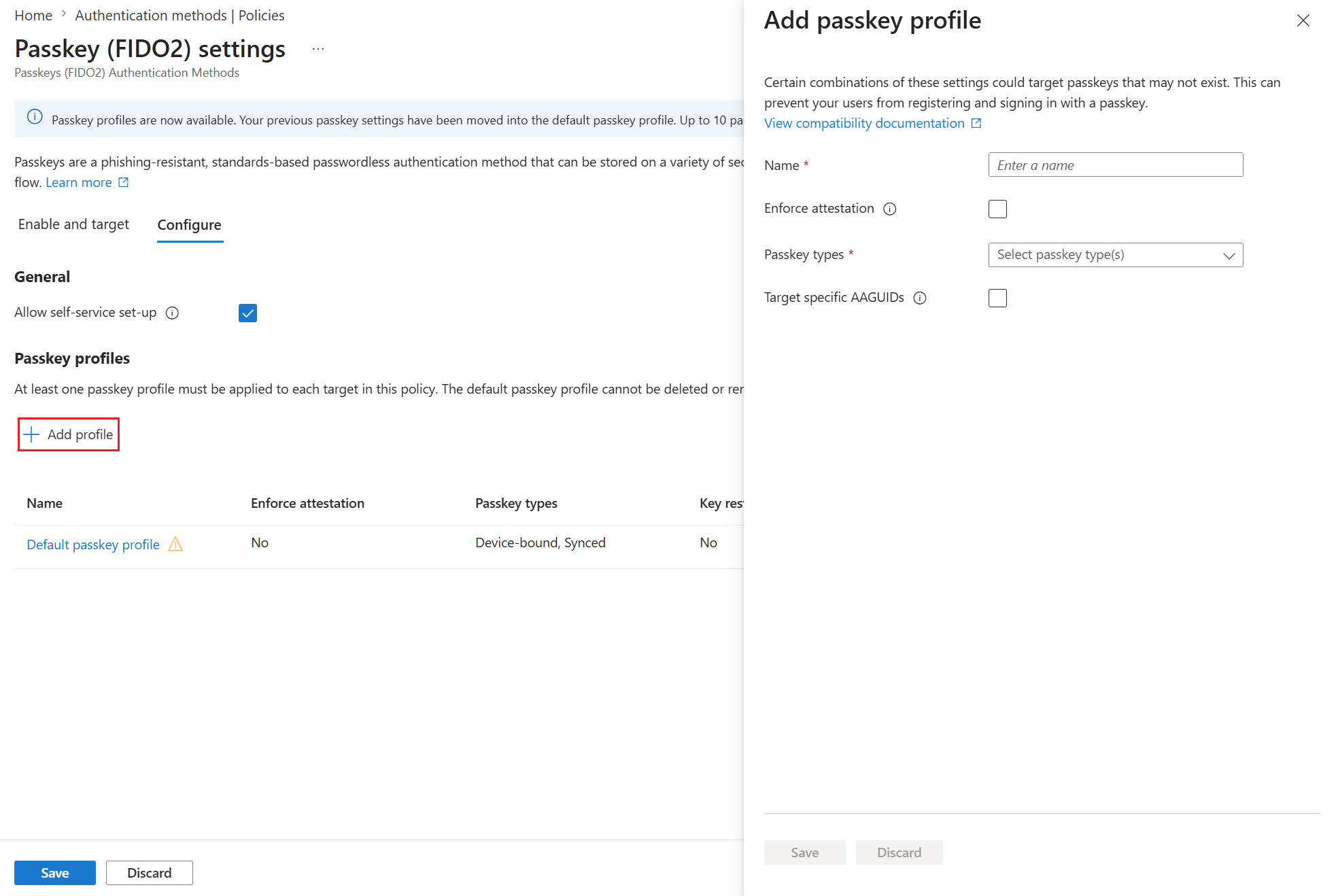
Enter a Name for the profile, such as Authenticator passkeys.
Choose whether to Enforce attestation. For more information, see Authenticator attestation.
For Passkey types, select Device-bound.
Select Target specific AAGUIDS and set Behavior to Allow.
Select + Add AAGUID > Microsoft Authenticator and Save.
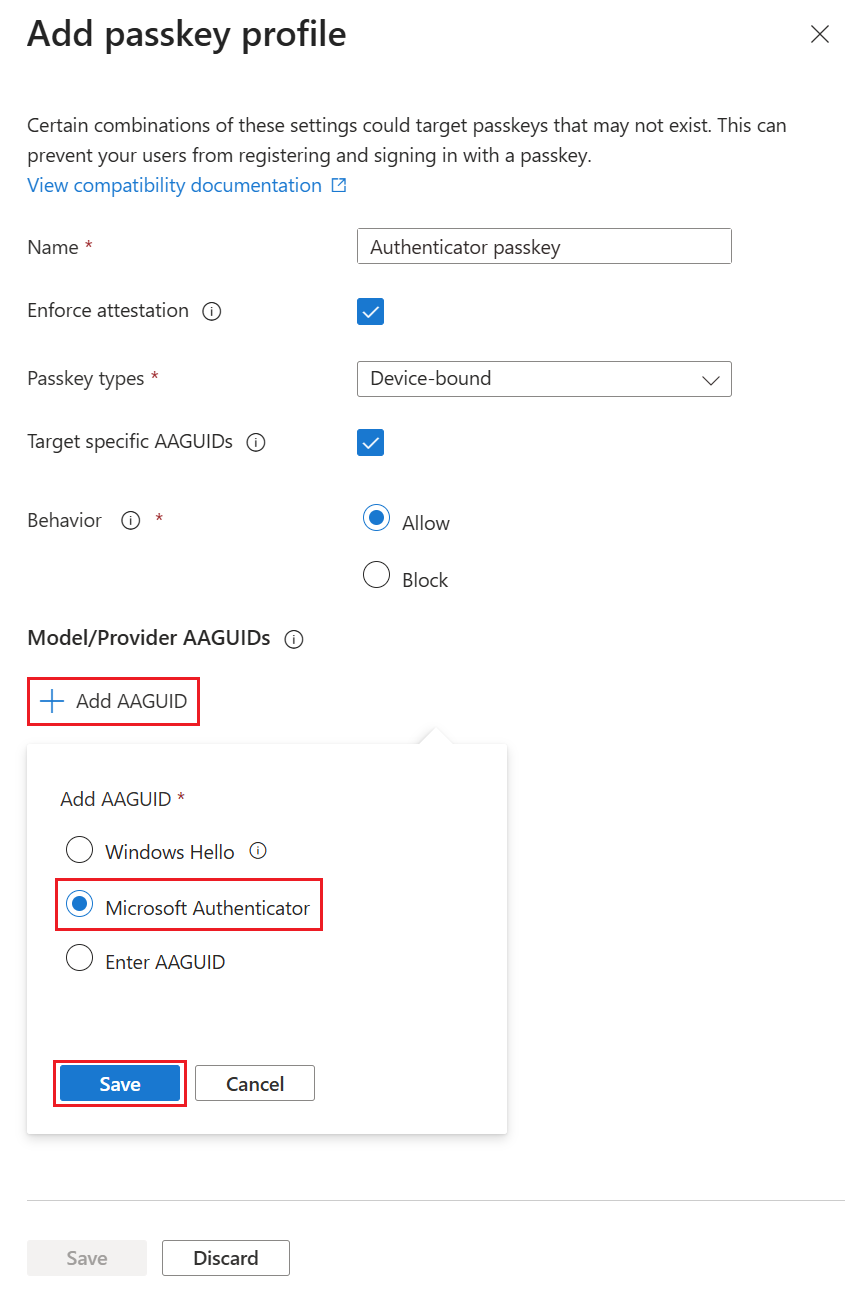
Enable and target groups for a profile for passkeys in Authenticator
Sign in to the Microsoft Entra admin center as at least an Authentication Policy Administrator.
Browse to Entra ID > Authentication methods.
On the Authentication methods | Policies page, select Passkey (FIDO2) > Enable and target.
On the Enable and Target tab, make sure Enable is On.
Select Add target, and choose All users or Select targets to choose specific groups.
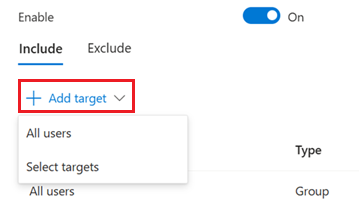
Select the profile for passkeys in Authenticator and Save.
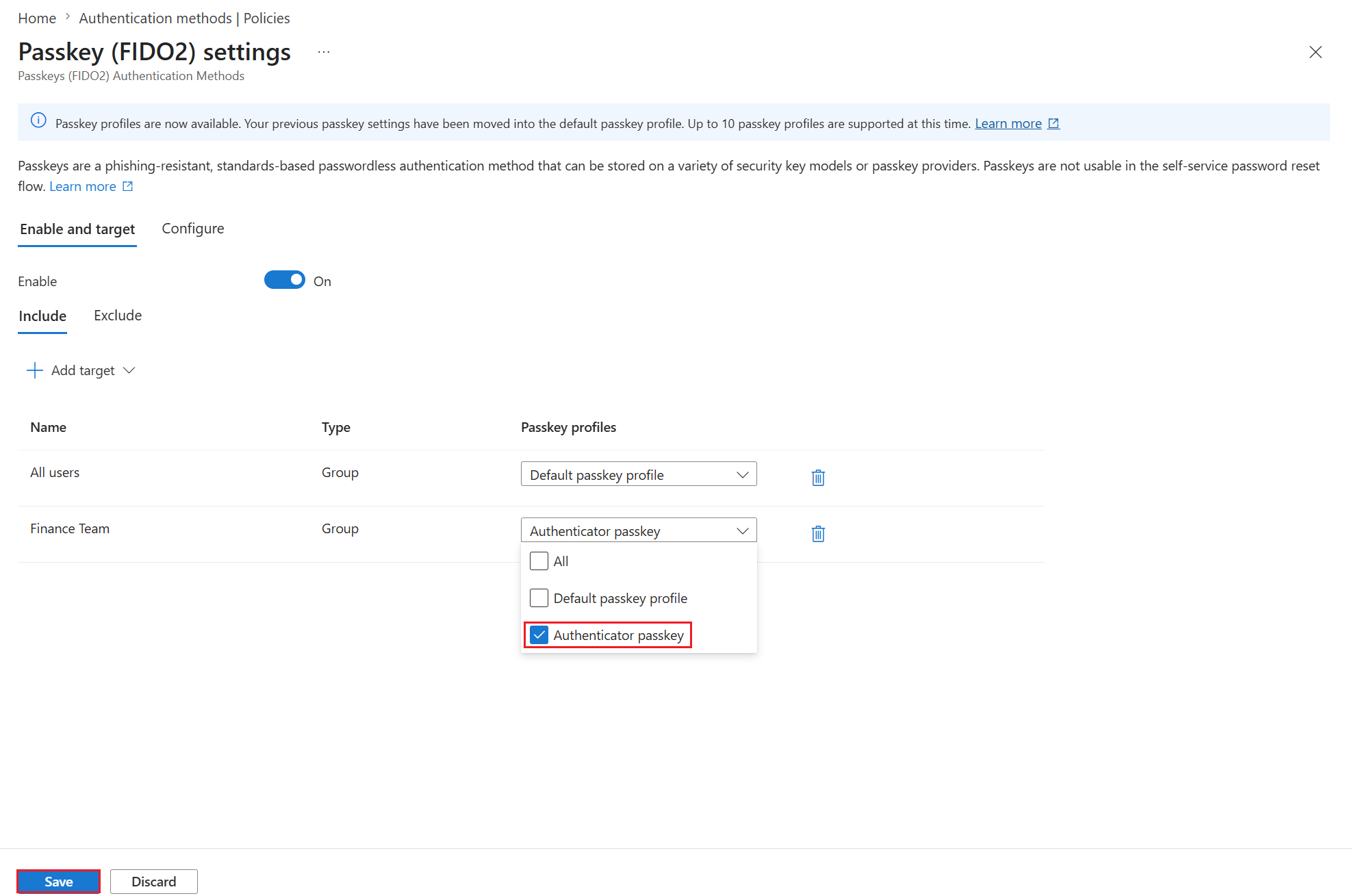
Note
A target group (for example, Engineering) can be scoped for multiple passkey profiles. When a user is scoped for multiple passkey profiles, registration and authentication with a passkey are allowed if the passkey fully satisfies the requirements of at least one of the scoped passkey profiles. There's no particular order to the check. If a user is a member of an excluded group in the Passkey (FIDO2) policy, they're blocked from passkey (FIDO2) registration or sign-in entirely. The block takes precedence over membership in any included groups.
Authenticator attestation
When you enable passkeys and create a passkey profile in the Microsoft Entra admin center, you can choose whether to enforce attestation. For general steps to configure passkey profiles, see Enable passkeys (FIDO2).
When attestation is enabled, Microsoft Entra ID verifies the legitimacy of the passkey being created. When the user is registering a passkey in the Authenticator, attestation verifies that the legitimate Authenticator app created the passkey by using Apple and Google services:
iOS: Authenticator attestation uses the iOS App Attest service to ensure the legitimacy of the Authenticator app before registering the passkey.
Android:
- For Play Integrity attestation, Authenticator attestation uses the Play Integrity API to ensure the legitimacy of the Authenticator app before registering the passkey.
- For Key attestation, Authenticator attestation uses key attestation by Android to verify that the passkey being registered is hardware-backed.
Note
For both iOS and Android, Authenticator attestation relies upon Apple and Google services to verify the authenticity of the Authenticator app. Heavy service usage can make passkey registration fail, and users might need to try again. If Apple and Google services are down, Authenticator attestation blocks registration that requires attestation until services are restored. To monitor the status of Google Play Integrity service, see Google Play Status Dashboard. To monitor the status of the iOS App Attest service, see System Status.
Users can only register attested passkeys directly in the Authenticator app. Cross-device registration flows don't support registration of attested passkeys.
Authenticator AAGUIDs
You can restrict users to use Authenticator passkeys by targeting the Authenticator Attestation Globally Unique Identifier (AAGUID) in the passkey profile.
If you prefer, you can also select + Add AAGUID and manually add the following AAGUIDs:
- Authenticator for Android:
de1e552d-db1d-4423-a619-566b625cdc84 - Authenticator for iOS:
90a3ccdf-635c-4729-a248-9b709135078f
If you remove an AAGUID that you previously allowed, users who previously registered an allowed method can no longer use it for sign-in.
Enable passkeys in Authenticator by using Graph Explorer
In addition to using the Microsoft Entra admin center, you can enable passkeys in Authenticator by using Graph Explorer. If you're assigned at least the Authentication Policy Administrator role, you can update the Authentication methods policy to allow the AAGUIDs for Authenticator.
Note
The following example uses the tenant-level FIDO2 configuration endpoint. For the profile-based approach to passkey management, see Enable passkeys (FIDO2).
To configure the policy by using Graph Explorer:
Sign in to Graph Explorer and consent to the Policy.Read.All and Policy.ReadWrite.AuthenticationMethod permissions.
Retrieve the Authentication methods policy:
GET https://graph.microsoft.com/v1.0/authenticationMethodsPolicy/authenticationMethodConfigurations/FIDO2To enable attestation enforcement and enforce key restrictions to allow only AAGUIDs for Authenticator, perform a
PATCHoperation by using the following request body:PATCH https://graph.microsoft.com/v1.0/authenticationMethodsPolicy/authenticationMethodConfigurations/FIDO2 Request Body: { "@odata.type": "#microsoft.graph.fido2AuthenticationMethodConfiguration", "isAttestationEnforced": false, "keyRestrictions": { "isEnforced": true, "enforcementType": "allow", "aaGuids": [ "90a3ccdf-635c-4729-a248-9b709135078f", "de1e552d-db1d-4423-a619-566b625cdc84" <insert previous AAGUIDs here to keep them stored in policy> ] } }Make sure that the passkey (FIDO2) policy is updated properly.
GET https://graph.microsoft.com/v1.0/authenticationMethodsPolicy/authenticationMethodConfigurations/FIDO2
Restrict Bluetooth usage to passkeys in Authenticator
Some organizations restrict Bluetooth usage, which includes the use of passkeys. In such cases, organizations can allow passkeys by permitting Bluetooth pairing exclusively with passkey-enabled FIDO2 authenticators. For more information about how to configure Bluetooth usage only for passkeys, see Passkeys in Bluetooth-restricted environments.
Troubleshoot passkeys in Authenticator
This section covers issues that users might see when they use passkeys in Authenticator and possible ways for administrators to resolve them.
Store passkeys in Android profiles
Passkeys on Android are used only from the profile where they're stored. If a passkey is stored in an Android Work profile, it's used from that profile. If a passkey is stored in an Android Personal profile, it's used from that profile. To make sure that users can access and use the passkey they need, users with both an Android Personal profile and an Android Work profile should create their passkeys in Authenticator for each profile.
Workarounds for an authentication strength Conditional Access policy loop
Users can get in a loop when they try to add a passkey in Authenticator if a Conditional Access policy requires phishing-resistant authentication to access All resources (formerly 'All cloud apps'). For example:
- Condition: All devices (Windows, Linux, macOS, Windows, Android)
- Targeted resource: All resources (formerly 'All cloud apps')
- Grant control: Authentication strength – Require passkey in Authenticator
The policy forces targeted users to use a passkey to sign in to all cloud applications, which includes the Authenticator app. It requires users to use a passkey when they try to add a passkey in Authenticator on either Android or iOS.
Here are some workarounds:
You can filter for applications and transition the policy target from All resources (formerly 'All cloud apps') to specific applications. Start with a review of applications that are used in your tenant. Use filters to tag Authenticator and other applications.
To further reduce support costs, you can run an internal campaign to help users adopt passkeys before you enforce them. When you're ready to enforce passkey usage, create two Conditional Access policies:
- A policy for mobile operating system (OS) versions
- A policy for desktop OS versions
Require a different authentication strength for each policy, and configure other policy settings listed in the following table. You can enable a Temporary Access Pass (TAP) for users or enable other authentication methods to help users register the passkey.
A TAP limits the time when users can register a passkey. You can accept it only on mobile platforms where you allow passkey registration.
Conditional Access policy Desktop OS Mobile OS Name Require a passkey in Authenticator to access a desktop OS. Require a TAP, a phishing-resistant credential, or any other specified authentication method to access a mobile OS. Condition Specific devices (desktop operating systems). Specific devices (mobile operating systems). Devices N/A. Android, iOS. Exclude devices Android, iOS. N/A. Targeted resource All resources. All resources. Grant control Authentication strength. Authentication strength.1 Methods Passkey in Authenticator. TAP, passkey in Authenticator. Policy result Users who can't sign in with a passkey in Authenticator are directed to the My Sign-ins wizard mode. After registration, they're asked to sign in to Authenticator on their mobile device. Users who sign in to Authenticator with a TAP or another allowed method can register a passkey directly in Authenticator. No loop occurs because the user meets the authentication requirements. 1For users to register new sign-in methods, your grant control for the mobile policy needs to match your Conditional Access policy to register Security info.
Note
With either workaround, users must also satisfy any Conditional Access policy that targets Register security info or they can't register the passkey. If you have other conditions set up with the All resources policies, those conditions must be met when the passkey is registered.
Users who can't register passkeys because of Require approved client app or Require app protection policy Conditional Access grant controls
Users can't register passkeys in Authenticator if they're included in the following Conditional Access policy:
- Condition: All devices (Windows, Linux, macOS, Windows, Android)
- Targeted resource: All resources (formerly 'All cloud apps')
- Grant control: Require approved client app or Require app protection policy
The policy forces users to sign in to all cloud applications by using an app that supports Microsoft Intune app protection policies. Authenticator doesn't support this policy on either Android or iOS.
Here are some workarounds:
You can filter for applications and transition the policy target from All resources (formerly 'All cloud apps') to specific applications. Start with a review of applications that are used in your tenant. Use filters to tag appropriate applications.
You can use mobile device management (MDM) and the Require device to be marked as compliant control. Authenticator can satisfy this grant control if MDM fully manages the device and it's compliant. For example:
- Condition: All devices (Windows, Linux, macOS, Windows, Android)
- Targeted resource: All resources (formerly 'All cloud apps')
- Grant control: Require approved client app, or Require app protection policy, or Require device to be marked as compliant
You can grant users a temporary exemption from the Conditional Access policy. Consider using one or more compensating controls:
- Allow the exemption for only a limited period of time. Communicate to the user when they're allowed to register a passkey. Remove the exemption after the time period. Then direct users to call the help desk if they missed their time.
- Use another Conditional Access policy to require that users register only from a specific network location or a compliant device.
Note
With any proposed workaround, users must also satisfy any Conditional Access policy that targets Register security info or they can't register the passkey. If you have other conditions set up with the All resources policies, they also must be met before users can register a passkey.
Register a passkey in Authenticator
After an admin enables passkeys in Authenticator, users can register a passkey in the app on their iOS or Android device.
For registration steps, see Register a passkey in Microsoft Authenticator.
Sign in with a passkey in Authenticator
After registration, users can sign in to Microsoft Entra ID by using the passkey in Authenticator on their device.
For sign-in steps, see Sign in with passkeys in Authenticator.