Note
Access to this page requires authorization. You can try signing in or changing directories.
Access to this page requires authorization. You can try changing directories.
URL filtering is an advanced type of web content filtering based on a full or partial URL. Unlike filtering based on fully qualified domain names (FQDNs) which are visible in the traffic header, URL filtering requires Transport Layer Security (TLS) inspection to see the specific destination that a user is attempting to access. For example, www.bing.com is visible without TLS inspection but www.bing.com/images isn't. URL filtering provides fine-grained web content filtering and enhances the accuracy of web content filtering by category.
In this tutorial, you learn how to:
- Configure web content filtering policies to allow or block specific URLs.
- Link web content filtering policies to a security profile.
- Configure a custom error message for blocked sites.
- Validate that websites are allowed or blocked as expected.
Prerequisites
Complete the tutorial Configure TLS inspection. TLS inspection is a prerequisite for URL filtering.
Key concepts
Understanding the difference between FQDN and URL filtering is critical for effective policy design.
| Aspect | FQDN filtering | URL filtering |
|---|---|---|
| Requires TLS inspection | No | Yes |
| Visibility | Domain only | Full path |
| Example match | www.youtube.com |
www.youtube.com/shorts |
| Use case | Block or allow entire sites | Block or allow specific sites |
| Granularity | Coarse | Fine-grained |
Objective
This tutorial builds on the previous tutorials. In the FQDN filtering tutorial, you blocked access to Bing and received an error that isn't user-friendly. In the TLS inspection tutorial, you enabled TLS inspection, which is a prerequisite for URL filtering. In this tutorial, you:
- Granularly allow specific Bing URLs while leaving others blocked to demonstrate fine-grained web content filtering (granular allow list).
- Create a policy to block a specific URL,
www.youtube.com/shorts, while leaving the rest of the domain space allowed (granular block list). - Configure a customized error message that users see when they're blocked.
Sample walkthrough videos
The following video demonstrates how to configure URL filtering.
The following video demonstrates how to configure custom error pages.
The following video demonstrates the user experience of URL filtering.
Step 1: Create web content filtering policies
Create a policy to block YouTube Shorts
- From the Microsoft Entra admin center, browse to Global Secure Access > Secure > Web content filtering policies.
- Select Create policy.
- Name: Select Block YouTube Shorts.
- Action: Select Block.
- Select Next.
- Select Add rule.
- Name: Select YouTube Shorts.
- Destination type: Select fqdn.
- Destination: Select
www.youtube.com/shorts,youtube.com/shorts.
- Select Add.
- Select Next, and then select Create policy.
Create a policy to allow Bing Maps
- Select Create policy.
- Name: Select Allow Bing Maps.
- Action: Select Allow.
- Select Next.
- Select Add rule.
- Name: Select Bing Maps.
- Destination type: Select url.
- Destination: Select
*.bing.com/maps,bing.com/maps.
- Select Add.
- Select Next, and then select Create policy.
Step 2: Link web content filtering policies to a security profile
- Browse to the Security Profiles pane.
- Select the security profile from the TLS inspection tutorial (not the baseline security profile), and then select the Link policies pane.
- Select Link a policy, and then select Existing web filtering policy.
- Under Policy name, select Block YouTube Shorts, and give it a priority of 200. The state should be Enabled. Select Add.
- Select Link a policy, and then select Existing web filtering policy again.
- Under Policy name, select Allow Bing Maps, and give it a priority of 150. The state should be Enabled. Select Add.
- Select Next.
- Select Create a profile.
Note
Verify that the security profile is assigned to a Microsoft Entra Conditional Access policy.
Step 3: Configure custom error message
- Browse to Global Secure Access > Settings > Session management.
- Select the Custom Block Page tab.
- Set Custom body message to On.
- Enter a custom body message, and select Save.
You can use limited Markdown in your custom body message. For example, you might include a support link, such as Need access? [Contact support](https://support.contoso.com) to request an exception.
Step 4: Verify URL filtering and custom error
Note
Newly created security profiles can take up to an hour to take effect. If you linked the new rules to an existing security profile that was already assigned to your user via Conditional Access, it should take effect in a few minutes.
On your test device, open a browser and go to
www.bing.com. Verify that you're blocked and that the custom error message is displayed.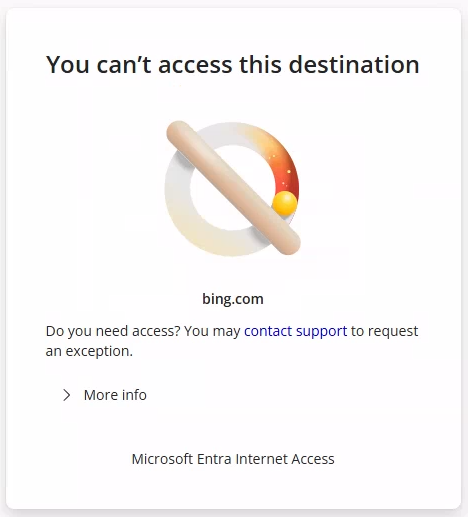
Go to
www.bing.com. Verify that access is still blocked from the FQDN filtering tutorial.Go to
www.bing.com/maps. Verify that access is allowed.Go to
www.youtube.com. Verify that access is allowed.Go to
www.youtube.com/shorts. Verify that access is blocked.
Policy evaluation order
In this tutorial's example, the policy evaluation works in the following way:
User navigates to bing.com:

1. Custom Security Profile (assigned via Conditional Access)
   └─ Allow Bing Maps (priority 100) → Does NOT match bing.com → Continue...
2. Baseline Profile (priority 65000)
   └─ Block Bing → Matches bing.com → BLOCK ✗

User navigates to bing.com/maps

1. Custom Security Profile (assigned via Conditional Access)
   └─ Allow Bing Maps (priority 100) → Matches bing.com/maps → ALLOW ✓

User navigates to youtube.com (homepage):

1. Custom Security Profile (assigned via Conditional Access)
   └─ Block YouTube Shorts (priority 100) → Does NOT match youtube.com/shorts → Continue...
2. Baseline Profile (priority 65000)
   └─ No YouTube rules → ALLOW ✓

User navigates to youtube.com/shorts:

1. Custom Security Profile (assigned via Conditional Access)
   └─ Block YouTube Shorts (priority 100) → Matches youtube.com/shorts → BLOCK ✗
This example demonstrates how URL filtering enables selective blocking or allowing.
What you learned
In this tutorial, you accomplished the following tasks:
- Implemented fine-grained URL filtering: You blocked YouTube Shorts while allowing the rest of YouTube. This action demonstrates how URL filtering enables precise control over web destinations.
- Created exception rules: You allowed Bing Maps while Bing itself remains blocked by the baseline profile. This action shows how to layer policies for nuanced access control.
- Configured custom block messages: Your users now see a helpful error page instead of a generic "connection reset" message. This action improves user experience and reduces helpdesk tickets.
- Understood policy precedence: Your lower-priority numbers are evaluated first, which allows custom profiles to create exceptions to baseline rules.
Why URL filtering requires TLS inspection
Without TLS inspection:              With TLS inspection:
┌───────────────────┐             ┌───────────────────┐
│ TLS handshake     │             │ Decrypted traffic │
│                   │             │                   │
│ SNI: youtube.com  │  ← Visible  │ GET /shorts/abc   │  ← Now visible!
│                   │             │ Host: youtube.com │
│ [Encrypted data]  │  ← Hidden   │ Cookie: ...       │
│                   │             │ User-Agent: ...   │
└───────────────────┘             └───────────────────┘
The path (/shorts) is part of the HTTP request, which is inside the encrypted TLS tunnel. Only by terminating TLS can the proxy see and filter based on the full URL.