Note
Access to this page requires authorization. You can try signing in or changing directories.
Access to this page requires authorization. You can try changing directories.
In this article, you learn how to integrate Samsara with Microsoft Entra ID. When you integrate Samsara with Microsoft Entra ID, you can:
- Control in Microsoft Entra ID who has access to Samsara.
- Enable your users to be automatically signed-in to Samsara with their Microsoft Entra accounts.
- Manage your accounts in one central location.
Prerequisites
The scenario outlined in this article assumes that you already have the following prerequisites:
- A Microsoft Entra user account with an active subscription. If you don't already have one, you can Create an account for free.
- One of the following roles:
- Samsara single sign-on (SSO) enabled subscription.
Scenario description
In this article, you configure and test Microsoft Entra SSO in a test environment.
- Samsara supports SP and IDP initiated SSO.
- Samsara supports Just In Time user provisioning.
Add Samsara from the gallery
To configure the integration of Samsara into Microsoft Entra ID, you need to add Samsara from the gallery to your list of managed SaaS apps.
- Sign in to the Microsoft Entra admin center as at least a Cloud Application Administrator.
- Browse to Entra ID > Enterprise apps > New application.
- In the Add from the gallery section, type Samsara in the search box.
- Select Samsara from results panel and then add the app. Wait a few seconds while the app is added to your tenant.
Alternatively, you can also use the Enterprise App Configuration Wizard. In this wizard, you can add an application to your tenant, add users/groups to the app, assign roles, and walk through the SSO configuration as well. Learn more about Microsoft 365 wizards.
Configure and test Microsoft Entra SSO for Samsara
Configure and test Microsoft Entra SSO with Samsara using a test user called B.Simon. For SSO to work, you need to establish a link relationship between a Microsoft Entra user and the related user in Samsara.
To configure and test Microsoft Entra SSO with Samsara, perform the following steps:
- Configure domain verification in Samsara - to enable SSO within Samsara, domain verification is a prerequisite.
- Configure Microsoft Entra SSO - to enable your users to use this feature.
- Create a Microsoft Entra test user - to test Microsoft Entra single sign-on with B.Simon.
- Assign the Microsoft Entra test user - to enable B.Simon to use Microsoft Entra single sign-on.
- Create Samsara test user - to have a counterpart of B.Simon in Samsara that's linked to the Microsoft Entra representation of user.
- Test SSO - to verify whether the configuration works.
Configure Microsoft Entra SSO
Follow these steps to enable Microsoft Entra SSO.
Sign in to the Microsoft Entra admin center as at least a Cloud Application Administrator.
Browse to Entra ID > Enterprise apps > Samsara > Single sign-on.
On the Select a single sign-on method page, select SAML.
On the Set-up single sign-on with SAML page, select the pencil icon for Basic SAML Configuration to edit the settings.
Open your Samsara dashboard and navigate to Settings > Single Sign-On tab. If you want to create a user SSO connection, click Add in the user SSO box. If you want to create a driver SSO connection, click Add in the driver SSO box. You will need to copy over values from Samsara into Entra ID SAML Configuration.
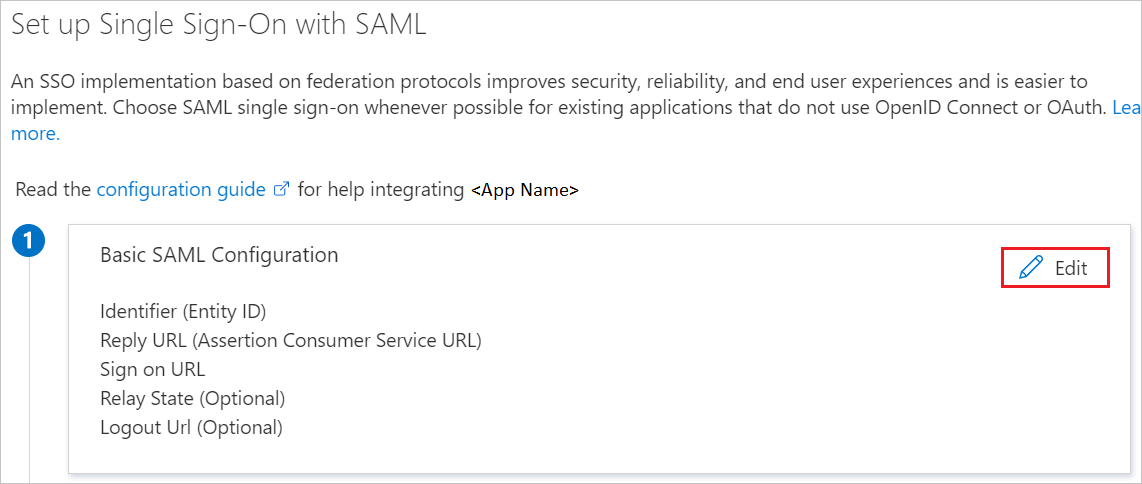
In Entra ID, on the Basic SAML Configuration section, perform the following steps:
a. Copy the link from Service Provider Entity ID field in Samsara into the Identifier (Entity ID) text box in Entra ID.
b. Copy the link from Post-back/ACS URL field in Samsara into the Reply URL text box in Entra ID.
Note
Update these values with the actual Reply URL and Identifier. Contact the Samsara Client support team to get these values, or in Samsara, go to Settings > single-sign-on and select the connection you want to create in order to obtain the right ACS and Identifier URLs.
On the Set-up single sign-on with SAML page, in the SAML Signing Certificate section, find and copy the App Federation Metadata URL or download the Federation Metadata XML. In the Samsara dashboard in Settings > Single Sign-on in the relevant SSO configuration (user or driver), paste the metadata URL or upload the file. Click Save to apply the changes.
Create and assign Microsoft Entra test user
Follow the guidelines in the create and assign a user account quickstart to create a test user account called B.Simon.
Create Samsara test user
In this section, a user called B.Simon is created in Samsara. Samsara supports just-in-time user provisioning, which is enabled by default. There's no action item for you in this section. If a user doesn't already exist in Samsara, a new one is created after authentication with a default role of Standard Admin (No Dash Cam Access) for Organization. The user's access can then be increased or decreased as needed in Samsara.
Test SSO
In this section, you test your Microsoft Entra single sign-on configuration with following options.
SP initiated:
Select Test this application, this option redirects to Samsara Sign on URL where you can initiate the login flow.
Go to Samsara Sign-on URL directly and initiate the login flow from there.
IDP initiated:
- Select Test this application, and you should be automatically signed in to the Samsara for which you set up the SSO.
You can also use Microsoft My Apps to test the application in any mode. When you select the Samsara tile in the My Apps, if configured in SP mode you would be redirected to the application sign-on page for initiating the login flow and if configured in IDP mode, you should be automatically signed in to the Samsara for which you set up the SSO. For more information about the My Apps, see Introduction to the My Apps.
Related content
For more information, refer to the Samsara SSO KB Article.
Once you configure Samsara you can enforce session control, which protects exfiltration and infiltration of your organization’s sensitive data in real time. Session control extends from Conditional Access. Learn how to enforce session control with Microsoft Defender for Cloud Apps.