Note
Access to this page requires authorization. You can try signing in or changing directories.
Access to this page requires authorization. You can try changing directories.
Loading new data into the Microsoft Planetary Computer Pro GeoCatalog resource is called ingestion. A GeoCatalog needs permissions, or ingestion sources, to access data that is stored externally to the GeoCatalog resource. In this guide, you learn how to:
- Create an ingestion source through Azure portal
- Create an ingestion source through the Microsoft Planetary Computer Pro API using the Azure Python SDK
Prerequisites
A Microsoft Planetary Computer Pro GeoCatalog deployed to your Azure Subscription. See Deploy a GeoCatalog resource.
An Azure Blob container setup with the correct permissions to assign managed identities and to request a SAS Token. See Create an Azure storage account.
A Python 3.10 (or later) environment
Managed identity vs. SAS tokens
Managed identities provide an automatically managed identity in Microsoft Entra ID for applications to use when connecting to resources that support Microsoft Entra authentication.
Shared Access Signatures (SAS) create cryptographic credentials for access to a resource such as Azure Blob Storage.
Managed identities are a more secure, automated mechanism for establishing persistent access to a storage account and are the recommended approach for providing secure access to Azure Blob Storage for data ingestion.
Managed identities only work within a single Microsoft Entra tenant, therefore the SAS Token approach is useful when moving data from storage that is in a storage account outside of your tenant. Data ingestion is specific to a Blob Container, and SAS tokens from the root storage resource aren't permitted.
Set up an ingestion source through the UI
SAS tokens can be obtained multiple ways; in this guide, we do so using the Azure portal. Azure Storage Explorer is also an alternative UI-driven approach which works on a local machine. See Azure Storage Explorer
Navigate to your storage resource
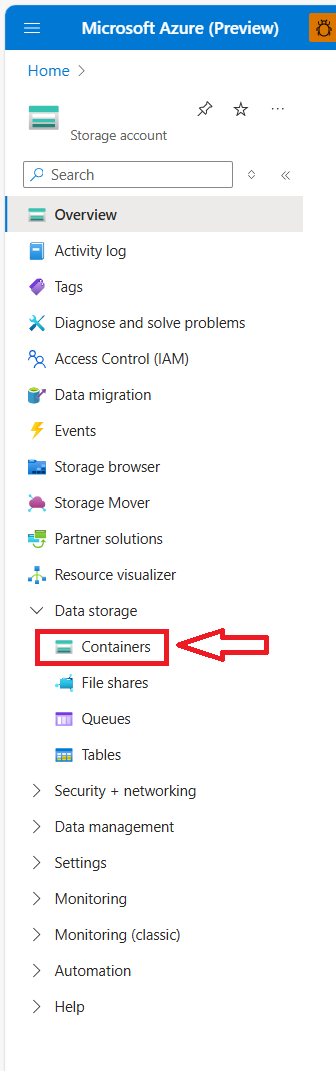
In the Azure portal, find the Storage Resource containing the Azure Blob Container with the data you wish to ingest into Planetary Computer Pro. In the Resource settings, select the "Containers" setting under "Data Storage".
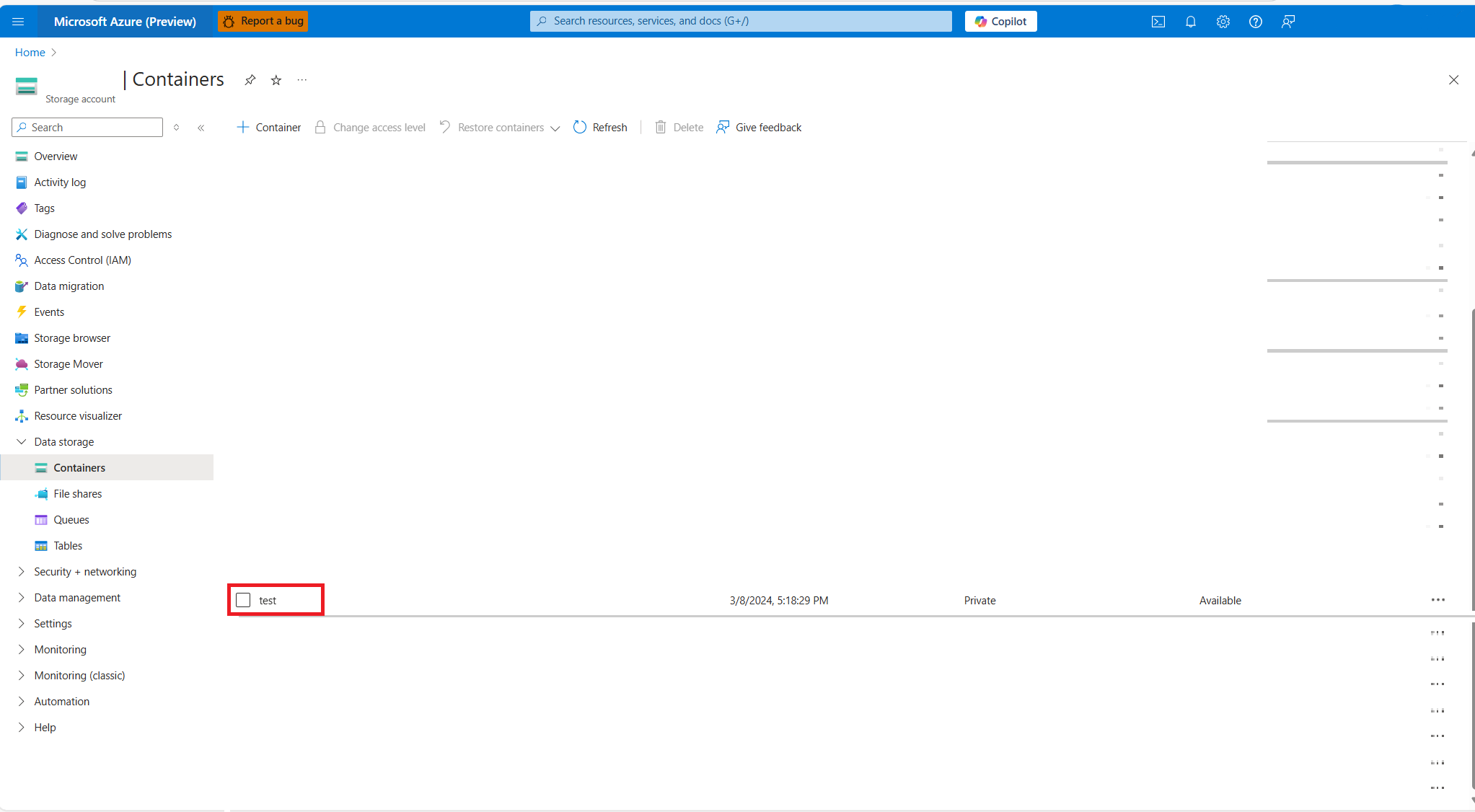
Select your blob container and request a SAS Token
Select the specific container you wish to ingest, in this example we're selecting the "test" container.
Select the "Shared access tokens" setting and open the configuration settings.
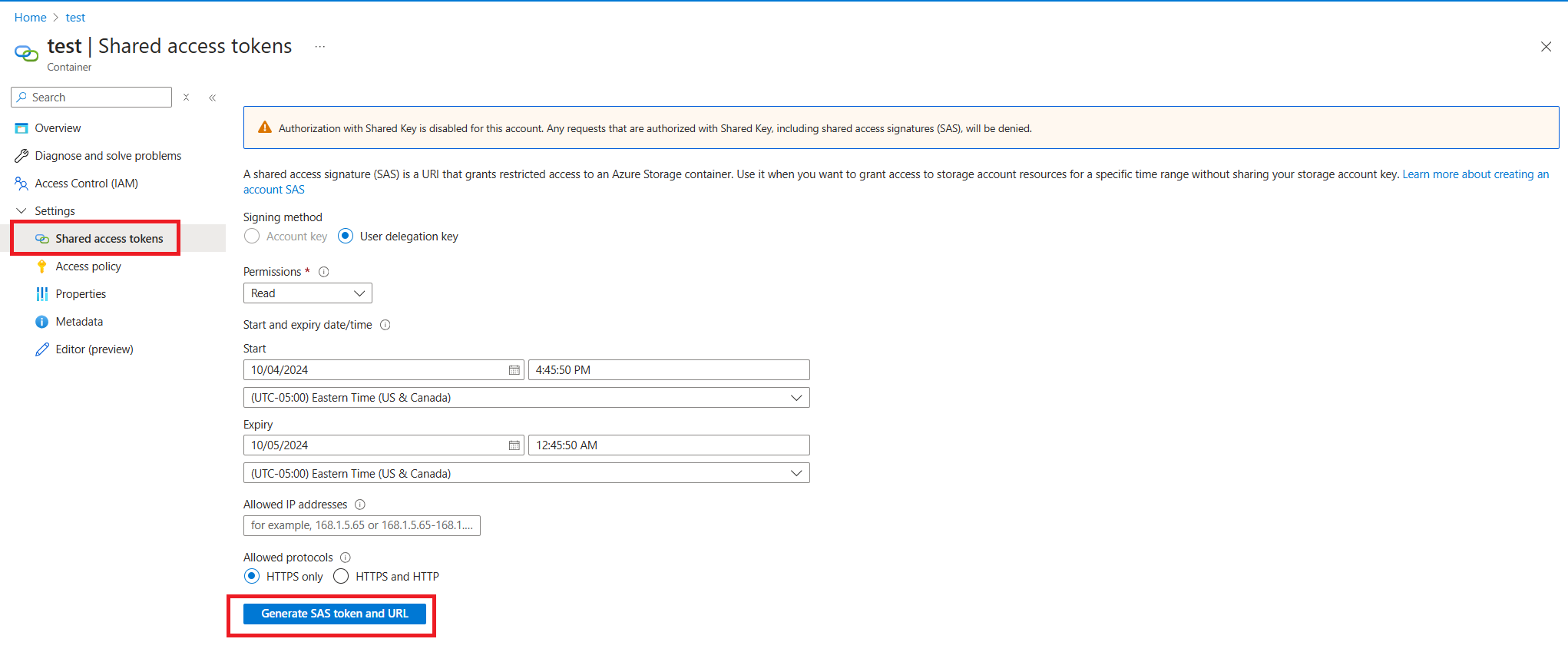
Ensure these settings are set up correctly:
- Permissions = Read (verify no other options are selected)
- Validity of SAS Token covers time required to ingest data (the best security practice is to have this token valid no more than seven days)
Once the settings are verified, select the "Generate SAS Token and URL" button. You see two elements generated: the Blob SAS Token and the Blob SAS URL. Keep your window/tab open as you'll need this information for the next section.
Navigate to settings
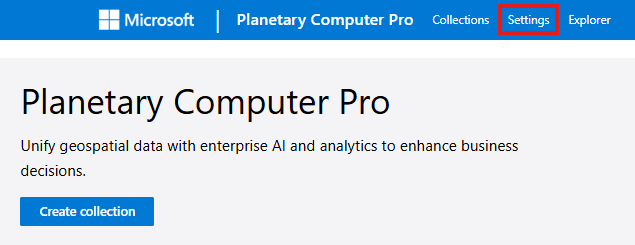
Use the URL of your Planetary Computer Pro to navigate to the landing page and select the "Settings" tab from the navigation bar.
Create your ingestion source
- Select the Create ingestion source button
- Enter the URL of your Blob Container in the Container URL field
Only include the URL and don't include the key. The format of the URL should be:
https://(Storage Resource Name).blob.core.windows.net/(Blob Container Name)
- Cut and paste the SAS Token into the Credential Token field.
A SAS token looks like a query string. Include all the text starting with the
?symbol:Example:
?sv=<signed-version>&ss=<signed-services>&srt=<signed-resource-types>&sp=<signed-permissions>&se=<signed-expiry-time>&st=<signed-start-time>&spr=<signed-protocol>&sig=<signature>
- Select the Create button
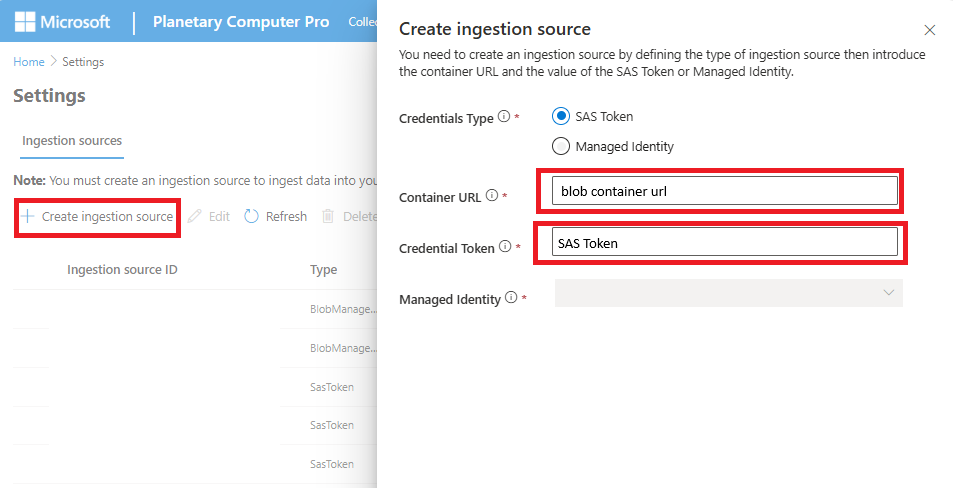
Your ingestion source is now set up to support ingesting data!
If your ingestion expires or you need to add SAS tokens for a different Blob Container, repeat the previous process.
Next steps
Now that you have set up managed identity, its time to ingest data.
For Single Item Ingestion:
For Bulk Ingestion: