Note
Access to this page requires authorization. You can try signing in or changing directories.
Access to this page requires authorization. You can try changing directories.
Agent 365 CLI
Set up your Agent 365 environment with granular control over each step. This command manages the initial setup workflow for Agent 365 blueprints.
Minimum role required: Azure Contributor + Agent ID Developer
Note
The role you hold determines how much of the setup completes in a single run. Global Administrator can complete all steps at once. Agent ID Administrator and Agent ID Developer can complete all steps except OAuth2 permission grants (admin consent), which require action by a Global Administrator. When setup completes, the CLI prints the next steps for the Global Administrator directly in the output.
Syntax
a365 setup [command] [options]
Options
| Option | Description |
|---|---|
-?, -h, --help |
Show help and usage information. |
Recommended execution order
# 0. Check prerequisites (optional)
a365 setup requirements

# 1. Create blueprint
a365 setup blueprint

# 2. Configure MCP permissions
a365 setup permissions mcp

# 3. Configure bot permissions
a365 setup permissions bot

# 4. Configure CopilotStudio permissions (if needed)
a365 setup permissions copilotstudio

# 5. Configure custom permissions (if needed)
a365 setup permissions custom
Or run all steps at once:
# Full setup using config file (a365.config.json)
a365 setup all

# Config-free: no a365.config.json needed
a365 setup all --agent-name "MyAgent"
If you're running as Agent ID Administrator or Agent ID Developer (not Global Administrator), a365 setup all completes all steps except OAuth2 permission grants. When it finishes, the output includes the next steps for a Global Administrator to complete the grants — including a direct link or consent URL they can open.
setup requirements
Validate and repair prerequisites for Agent 365 setup. Runs modular requirement checks and provides guidance for any problems it finds.
a365 setup requirements [options]
This command runs the following steps:
- Checks all prerequisites needed for Agent 365 setup.
- Reports any problems with detailed resolution guidance.
- Continues checking all requirements even if some checks fail.
- Provides a summary of all checks at the end.
Tip
If you're a Global Administrator and the well-known Agent 365 CLI client app isn't found in your tenant, setup requirements prompts you to create it automatically. Enter an existing app ID or type C to create the app and grant admin consent in a single step - no manual Entra registration needed.
Tip
setup requirements also detects and repairs a missing wids optional claim on the client app. Without this claim, role detection can silently fail and blueprint permission grants may be skipped during setup all. If the check fails, the output includes a portal link and an az rest command to add the claim, and instructs you to sign out and back in so the next token carries it.
requirements options
| Option | Description |
|---|---|
-v, --verbose |
Enable verbose logging. |
--category <category> |
Run checks for a specific category only, such as Azure, Authentication, PowerShell, or Tenant Enrollment. |
-?, -h, --help |
Show help and usage information. |
Note
setup requirements doesn't require a config file - run it in any directory.
setup blueprint
Create agent blueprint (Entra ID application registration).
Minimum required permissions: Agent ID Developer role
a365 setup blueprint [options]
blueprint options
| Option | Description |
|---|---|
-n, --agent-name <name> |
Agent base name. When you provide this option, you don't need a config file. The command auto-detects the tenant ID from az account show. Override it with --tenant-id. |
--tenant-id <tenantId> |
Azure AD tenant ID. Overrides auto-detection. Use with --agent-name. |
-v, --verbose |
Show detailed output. |
--dry-run |
Show what the command would do without executing it. |
--skip-requirements |
Skip requirements validation check. Use with caution. |
--no-endpoint |
Don't register messaging endpoint (blueprint only). |
--endpoint-only |
Register messaging endpoint only. Requires existing blueprint. |
--update-endpoint <url> |
Delete the existing messaging endpoint and register a new one with the specified URL. |
--messaging-endpoint <url> |
HTTPS URL to register with --endpoint-only. Overrides the messagingEndpoint value in a365.config.json. Use after you deploy, once the agent's callback URL is known. (--endpoint-only and --update-endpoint enable the M365 registration path automatically, so you don't need to pass --m365.) |
--m365 |
Treat this agent as an M365 agent. Optional on a365 setup blueprint - --endpoint-only and --update-endpoint already use the M365 (Teams Graph) path automatically. To configure the messaging endpoint as part of full setup, use a365 setup all --m365. Default is false (opt-in). |
--show-secret |
Display the stored blueprint client secret in plaintext. No setup steps are performed. On Windows, requires the same machine and user account that ran setup. |
-?, -h, --help |
Show help and usage information. |
setup permissions
Configure OAuth2 permission grants and inheritable permissions.
Minimum required permissions: Global Administrator
a365 setup permissions [command] [options]
Options
| Option | Description |
|---|---|
-?, -h, --help |
Show help and usage information. |
Subcommands
| Subcommand | Description |
|---|---|
mcp |
Configure MCP server OAuth2 grants and inheritable permissions. |
bot |
Configure Messaging Bot API OAuth2 grants and inheritable permissions. |
custom |
Applies custom API permissions to your agent blueprint that go beyond the standard permissions required for agent operation. |
copilotstudio |
Configures OAuth2 permission grants and inheritable permissions for the agent blueprint to invoke Copilot Studio copilots via the Power Platform API. |
setup permissions mcp
Configure MCP server OAuth2 grants and inheritable permissions.
Minimum required permissions: Global Administrator
a365 setup permissions mcp [options]
This command:
- Reads
ToolingManifest.jsonfrom thedeploymentProjectPathspecified ina365.config.json. - Grants OAuth2 delegated permission grants for each MCP server scope to the agent blueprint.
- Configures inheritable permissions so agent instances can access MCP tools.
- Is idempotent and safe to run multiple times.
Important
- Before running this command, verify that
deploymentProjectPathpoints to the project folder containing the updatedToolingManifest.json. If the developer adds MCP servers on a different machine, share the updatedToolingManifest.jsonwith the Global Administrator first. Running without the correctToolingManifest.jsondoesn't add the new MCP server permissions to the blueprint. - Run this command after the developer runs
a365 develop add-mcp-servers. Adding MCP servers to the manifest and granting permissions to the blueprint are two separate steps. After this command completes, the MCP server permissions are visible in the agent blueprint.
permissions mcp options
| Option | Description |
|---|---|
-n, --agent-name <name> |
Agent base name. When you provide this option, you don't need a config file. |
--tenant-id <tenantId> |
Azure AD tenant ID. Overrides auto-detection. Use with --agent-name. |
-v, --verbose |
Show detailed output. |
--dry-run |
Show what the command would do without executing it. |
--remove-legacy-scopes |
Removes legacy shared scopes (McpServers.*.All format) from the blueprint after migrating to per-server permissions (Tools.ListInvoke.All). Only use after the V2 SDK is confirmed live - agents on the V1 SDK lose tool access if removed prematurely. |
-?, -h, --help |
Show help and usage information. |
Migrate to per-server MCP permissions
Use --remove-legacy-scopes when migrating from the legacy shared permissions model to per-server permissions:
- Legacy shared model: A single resource app ID (
ea9ffc3e-8a23-4a7d-836d-234d7c7565c1) with shared scopes such asMcpServers.Mail.AllandMcpServers.Teams.All. - Per-server model: Each MCP server has its own app ID with the scope
Tools.ListInvoke.All.
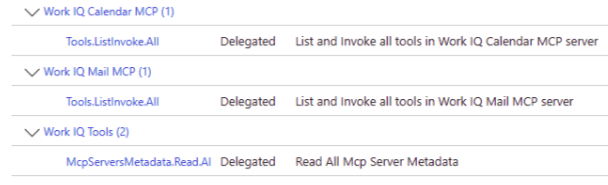
The following example shows how per-server permissions appear in the Microsoft Entra admin center after the blueprint is applied. Each MCP server, such as Work IQ Calendar MCP and Work IQ Mail MCP, has its own delegated Tools.ListInvoke.All scope. A shared McpServersMetadata.Read.All scope provides access to MCP server metadata.
setup permissions bot
Configure Messaging Bot API OAuth2 grants and inheritable permissions.
Minimum required permissions: Global Administrator
Prerequisites: Blueprint and MCP permissions (run a365 setup permissions mcp first)
a365 setup permissions bot [options]
permissions bot options
| Option | Description |
|---|---|
-n, --agent-name <name> |
Agent base name. When you provide this option, you don't need a config file. |
--tenant-id <tenantId> |
Azure AD tenant ID. Overrides auto-detection. Use with --agent-name. |
-v, --verbose |
Show detailed output. |
--dry-run |
Show what the command would do without executing it. |
-?, -h, --help |
Show help and usage information. |
setup permissions custom
Applies custom API permissions to your agent blueprint that go beyond the standard permissions required for agent operation. By using this command, you grant your agent access to additional Microsoft Graph scopes, such as Presence, Files, and Chat, or to custom APIs registered in your organization's Microsoft Entra ID tenant.
Minimum required permissions: Global Administrator
Prerequisites: Run a365 setup blueprint first.
a365 setup permissions custom [options]
This command:
- Configures OAuth2 delegated permission grants with admin consent for each configured resource.
- Sets inheritable permissions so agent users can inherit access from the blueprint.
- Reconciles Microsoft Entra with the current config by adding new permissions and removing any permissions that you deleted from the config.
- Is idempotent and safe to run multiple times.
permissions custom options
| Option | Description |
|---|---|
-n, --agent-name <name> |
Agent base name. When you provide this option, you don't need a config file. |
--tenant-id <tenantId> |
Azure AD tenant ID. Overrides auto-detection. Use with --agent-name. |
-v, --verbose |
Show detailed output. |
--dry-run |
Show what the command would do without executing it. |
--resource-app-id <guid> |
Resource application ID (GUID) for an inline custom permission. Use with --scopes. |
--scopes <scopes> |
Comma-separated delegated scopes for the inline custom permission. Use with --resource-app-id. |
-?, -h, --help |
Show help and usage information. |
Configure custom permissions inline
Use --resource-app-id and --scopes to apply custom permissions directly without editing a365.config.json:
# Add Microsoft Graph extended permissions
a365 setup permissions custom `
  --resource-app-id 00000003-0000-0000-c000-000000000000 `
  --scopes Presence.ReadWrite,Files.Read.All,Chat.Read

# Add custom API permissions
a365 setup permissions custom `
  --resource-app-id <your-api-app-id> `
  --scopes CustomScope.Read,CustomScope.Write
The resource name is auto-resolved from Microsoft Entra. You don't need to specify it.
Configure custom permissions via config file
Alternatively, add customBlueprintPermissions to a365.config.json and run the command without inline flags:
a365 setup permissions custom
This command reconciles Microsoft Entra with the configured permissions - it adds new permissions and removes any permissions that you deleted from the config.
Integration with setup all
When your config includes custom permissions, running a365 setup all automatically configures them as part of a single batch permission phase. The full setup order is:
- Blueprint
- Permissions batch (MCP, Bot API, Custom blueprint permissions — all configured together)
setup permissions copilotstudio
Configures OAuth2 permission grants and inheritable permissions for the agent blueprint to invoke Copilot Studio copilots via the Power Platform API.
Minimum required permissions: Global Administrator
Prerequisites: Run a365 setup blueprint first.
a365 setup permissions copilotstudio [options]
This command:
- Ensures the Power Platform API service principal exists in your tenant.
- Creates an OAuth2 permission grant from the blueprint to the Power Platform API with the
CopilotStudio.Copilots.Invokescope. - Sets inheritable permissions so agent instances can invoke Copilot Studio copilots.
permissions copilotstudio options
| Option | Description |
|---|---|
-n, --agent-name <name> |
Agent base name. When you provide this option, you don't need a config file. |
--tenant-id <tenantId> |
Azure AD tenant ID. Overrides auto-detection. Use with --agent-name. |
-v, --verbose |
Show detailed output. |
--dry-run |
Show what the command would do without executing it. |
-?, -h, --help |
Show help and usage information. |
Use this command when your agent needs to invoke Copilot Studio copilots at runtime or call Power Platform APIs that require CopilotStudio permissions.
setup all
Perform all setup steps to set up your Agent 365 environment
a365 setup all [options]
Runs the complete Agent 365 setup, all steps in sequence.
Includes: Blueprint and Permissions.
The steps that complete depend on your role:
| Step | Global Administrator | Agent ID Administrator | Agent ID Developer |
|---|---|---|---|
| Prerequisites check | Yes | Yes | Yes |
| Agent blueprint creation | Yes | Yes | Yes |
| Inheritable permissions | Yes | Yes | Yes |
| OAuth2 permission grants (admin consent) | Yes | Requires GA step | Requires GA step |
Agent identity grants (--authmode s2s or both) |
Yes | PowerShell fallback | PowerShell fallback |
When you run a365 setup all without Global Administrator, the CLI:
- Completes all steps it can (blueprint creation and inheritable permissions).
- Generates per-resource admin consent URLs and saves them to
a365.generated.config.json. - Displays next steps in the output for a Global Administrator to complete the OAuth2 grants, including a direct link or consent URL.
Tip
If you're a Global Administrator, a365 setup all completes everything in a single run with no handoff needed.
Minimum required permissions:
- Agent ID Developer role (for blueprint creation)
- Global Administrator (for OAuth2 permission grants - if not available, the CLI prints the next steps in the output)
- Application Administrator or Global Administrator (for S2S (Server-to-Server) agent identity grants -
--authmode s2sorboth; if not available, the CLI prints a PowerShell fallback in the setup summary)
setup all options
| Option | Description |
|---|---|
-v, --verbose |
Show detailed output. |
--dry-run |
Show what the command would do without executing it. |
--skip-requirements |
Skip requirements validation check. Use with caution: setup might fail if prerequisites aren't met. |
--aiteammate |
Use this parameter to direct the AI teammate agent flow to provision blueprint and permissions only. Without this parameter, the blueprint agent flow auto creates the agent identity service principal with no Entra user. This parameter overrides the aiteammate field in a365.config.json. |
--authmode <mode> |
Authentication pattern for agent identity permission grants (blueprint agents only). obo (default) — principal-scoped delegated grants, no admin role needed. s2s — app role assignments on the agent identity SP, requires Application Administrator or Global Administrator; PowerShell fallback printed if role is absent. both — applies OBO (On‑Behalf‑Of) and S2S grants. Not supported with --aiteammate. Can also be set as authMode in a365.config.json. |
--agent-registration-only |
Skip blueprint and permissions steps and only run agent registration. Use to retry a failed registration step. |
--m365 |
Treat this agent as an M365 agent. Registers the messaging endpoint via MCP Platform. Default is false (opt-in). |
--messaging-endpoint <url> |
HTTPS URL where the deployed M365 agent receives messages. Use with --m365. When omitted, an interactive run prompts for the URL and a non-interactive run defers it — the endpoint is a post-deploy artifact, so registering it later is the expected first-run path. See Messaging endpoint. |
-n, --agent-name <name> |
Agent base name (for example, "MyAgent"). When provided, no config file is required. Derives display names as "<name> Identity" and "<name> Blueprint". TenantId is auto-detected from az account show (override with --tenant-id). ClientAppId is resolved by looking up Agent 365 CLI in your tenant. |
--tenant-id <tenantId> |
Azure AD tenant ID. Overrides auto-detection from az account show. Use with --agent-name when running in a non-interactive environment or to target a specific tenant. |
-?, -h, --help |
Show help and usage information. |
Agent setup
By default, a365 setup all runs the blueprint agent flow. This flow creates an agent without a Dataverse or AI teammate dependency. It works for agents that communicate directly with the Agent 365 platform.
# Default: uses a365.config.json
a365 setup all

# Or explicitly (same result)
a365 setup all --aiteammate false
To run the AI teammate agent flow instead, pass --aiteammate.
This flow performs the following steps in sequence:
- Requirements validation — checks Azure roles and prerequisites.
- Blueprint creation — creates or reuses the Entra ID Agent Blueprint application.
- Batch permissions — configures delegated permission grants on the blueprint for Microsoft Graph, Agent 365 Tools, Messaging Bot API, Observability API, Power Platform, and any custom resources.
- Agent Identity creation — creates an Agent Identity in Entra ID via the Agent Identity Graph API.
- Agent registration — registers the agent via the AgentX V2 Agent Registration API.
- Config sync — writes the runtime connection settings and observability configuration to your project files (
appsettings.json,.env).
Note
The AI Teammate agent flow requires additional beta API permissions on your custom client app beyond the base set. See Custom client app registration for the complete required permission list.
Config-free setup with --agent-name
If you don't have an a365.config.json file, use --agent-name to run setup without one. The CLI auto-detects your tenant and resolves the client app by looking up the well-known Agent 365 CLI app registration in your tenant.
# Preview what would happen (no changes made)
a365 setup all --agent-name "MyAgent" --dry-run

# Run the full setup
a365 setup all --agent-name "MyAgent"
When using --agent-name:
- TenantId is auto-detected from
az account show. Pass--tenant-idto override. - ClientAppId is resolved by looking for an Entra app named
Agent 365 CLIin your tenant. If not found, the CLI exits with an error. See Custom client app registration for how to register this app. - Display names are derived as
"<name> Agent"(identity) and"<name> Blueprint"(blueprint). - Infrastructure is always skipped (external hosting assumed).
- Config sync (writing
appsettings.json) is skipped since there's no project path configured.
Admin consent during setup
If your client app doesn't have AllPrincipals admin consent for the required permissions, the CLI detects this and prompts you to grant consent interactively:
The following permissions require admin consent:
  AgentIdentity.ReadWrite.All
  AgentIdentity.Create.All
  ...
Grant admin consent for these permissions now? [y/N]:
Enter y to grant consent in-line. If you're not a Global Administrator, decline — the CLI prints the next steps for a Global Administrator in the setup summary.
Messaging endpoint (--m365)
When you pass --m365, a365 setup all registers the agent's messaging endpoint, the HTTPS URL where the deployed agent receives messages, with the Agent 365 platform.
The endpoint is a post-deploy artifact: at first setup the agent usually isn't deployed yet, so its URL doesn't exist. The CLI handles this:
- Supply it directly with
--messaging-endpoint <url>(for example, after you deploy, or when using a Dev Tunnel for local testing). - Interactive run, no URL: the CLI prompts for it. Leave it blank to skip.
- Non-interactive run (CI or scripted), no URL: the step is deferred and the run still completes successfully — nothing fails.
When the endpoint is deferred, register it later once the agent is deployed:
a365 setup blueprint --endpoint-only `
  --messaging-endpoint https://your-app.azurewebsites.net/api/messages
For more about the messaging endpoint, see Agent messaging endpoint.
Agent identity grants (--authmode)
By default, a365 setup all creates principal-scoped delegated grants on the agent identity service principal (obo mode). These grants don't require an admin role.
Use --authmode to control the grant type:
| Value | Behavior | Minimum role |
|---|---|---|
obo (default) |
Principal-scoped delegated grants on the agent identity SP | None (any authenticated user) |
s2s |
App role assignments on the agent identity SP | Application Administrator or Global Administrator |
both |
Both OBO delegated grants and S2S app role assignments | S2S role (above) for the S2S portion |
# Default — OBO delegated grants (no admin role needed)
a365 setup all

# S2S app role assignments
a365 setup all --authmode s2s

# Both OBO and S2S
a365 setup all --authmode both
When the signed-in user lacks the required role for S2S grants, the CLI prints a PowerShell fallback block in the setup summary. An administrator can run it to complete the assignments.
Set authMode in a365.config.json so it applies on every run without the flag:
{
  "authMode": "s2s"
}
Note
--authmode isn't supported with --aiteammate. AI teammate agents use OBO automatically via the agent user identity.
Config sync
After a successful run, the CLI automatically writes runtime settings to your project files:
| Setting | Written to | Description |
|---|---|---|
Connections.ServiceConnection |
appsettings.json / .env |
Blueprint client ID, client secret, tenant ID, and token endpoint |
Agent365Observability |
appsettings.json / .env |
Agent ID (Agent Identity), blueprint ID, tenant ID, client ID, and client secret for telemetry export |
TokenValidation |
appsettings.json |
Token validation settings (disabled by default for non-DW) |
ConnectionsMap |
appsettings.json / .env |
Default service URL to connection mapping |
The CLI creates the file if it doesn't exist and updates individual fields without overwriting the rest of your configuration.
Retry a failed registration
If the setup completes blueprint and permissions successfully but fails during agent registration, use --agent-registration-only to retry only that step without repeating earlier work:
a365 setup all --agent-registration-only