Note
Access to this page requires authorization. You can try signing in or changing directories.
Access to this page requires authorization. You can try changing directories.
Environment variables are solution components that store parameter keys and values. These values serve as input to various other application objects found in Power Automate flows and Power Apps. Enterprise systems often have multiple connection parameters, and manually entering the parameters into each component can be redundant and time-consuming.
The SAP Procurement template uses environment variables within cloud flows to centrally manage and set key properties on the SAP ERP connector flow action steps.
Tip
As a best practice, configure and manage environment variables as part of your application lifecycle management (ALM) strategy. Set both default and current environment values as you migrate and manage the various solution files across your environments.
Learn more: Use environment variables in Power Automate solution cloud flows
Configure environment variables during installation
The template's SAP Base solution contains five environment variables that set the SAP connection parameters used in the cloud flows.
When you install the SAP Procurement solution template, enter values for four of the five environment variables that don't have a default value. Configure the environment variables to your local needs.
After you set up the environment variables, you can edit them as you build your own solutions in the development environment.
The following table provides information about the five environment variables that need SAP connection parameters set up.
| Display name | Name | Description | Default value |
|---|---|---|---|
| SAP Application Server | mpa_SAPApplicationServer | JSON string that contains system parameters, host, system number, client, and more. Refer to the SAP property guidance. | |
| SAP Client ID | mpa_SAPClientID | The SAP client ID identifies your connection to the SAP system. The SAP backend client (or 'Mandant') into which to log in. It's a number ranging from 000 to 999. Used separately in IDoc transactions. | |
| SAP Count of Rows to Read | mpa_SAPCountofRowsToRead | Sets the maximum number of records to be returned on any search query and helps to alleviate performance concerns. | 1000 |
| SAP Language Key | mpa_SAPSPRAS | There are times when you need to specify a language on specific transactions, such as ReadMaterial. The environmental variable SAP SPRAS makes it easy to control the value in one place according to your localization requirements. | |
| SAP System ID | mpa_SAPSystemID | The SAP system's three-letter system ID (Mandatory if connection type is Message Server and a message server service isn't present). Used separately in IDoc transactions. |
Here are some example connection strings:
ASHOST - Application Server
{

    "AppServerHost": "sap.example.com",

    "Client": "100",

    "LogonType": "ApplicationServer",

    "SystemNumber": "00"

}
MSHOST - Message Server
{

    "Client": "102",

    "LogonGroup": "FICO",

    "LogonType": "Group",

    "MessageServerHost": "sapserverdv6",

    "MessageServerService": "3601",

    "SystemID": "DV6"

}
MSHOST + SNC/SSO - Message Server using SSO via SNC (Kerberos)
{

    "Client": "102",

    "LogonGroup": "FICO",

    "LogonType": "Group",

    "MessageServerHost": "sapserverdv6",

    "MessageServerService": "3601",

    "SncLibraryPath": "c:\\sapcryptolib\\sapcrypto.dll",

    "SncPartnerName": "p:CN=DV6",

    "SncQOP": "Default",

    "SncSso": "On",

    "SystemID": "DV6",

    "UseSnc": "true"

}
For more information, see Customizing solutions and Create an environment variable in a solution using the SAP property guidance or for any local environment variable need.
Reuse the environment variable in a flow
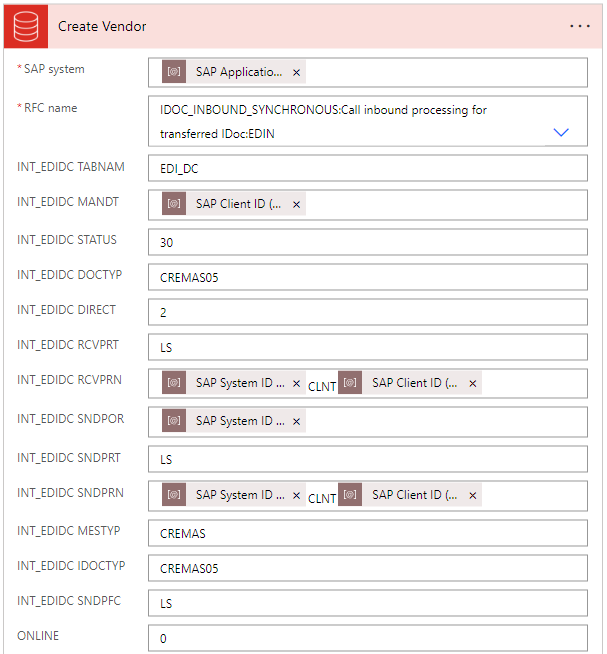
You can now use the environment variables you set up in a flow's dynamic content selector. Go into a cloud flow in the SAP Procurement solution to select the environment variables to reuse in SAP actions.
Important
When you update an environment variable in a cloud flow, the next time the flow runs, it doesn't automatically use the updated values. To make the updated values take effect, deactivate and reactivate the updated flow.
Select Add dynamic content to open the dynamic content selector in a flow action. You see all the environment variables that you have access to.
Select the desired environment variable.
Select Save.